
How to Remove Emojis from Any Video on Windows/Mac/Android/iPhone

To remove emojis, stickers, texts, logos, and other kinds of watermarks from video in clicks, free download AnyRec Video Converter to have a try. You can also convert and edit your watermark-free video within the program.
Secure Download
Secure Download
Emojis and stickers are fun to have on pictures and videos, but it could be frustrating to see them when you download a favorite clip. So you may want to remove emojis from videos. The only thing possible to delete distracting stickers from the film is to use a particular program. But what would be the best tool to remove emojis from videos? Since you have come across this article, here is the powerful software to try to delete stickers on any video file.
Guide List
2 Ways to Remove Emoji from Video [Windows/Mac] Use Media.io to Delete Emoji from Video [Online] Mobile App to Erase Emoji from Video [iPhone/Android] FAQs about Removing Emoji from Videos2 Ways to Remove Emoji from Video [Windows/Mac]
With professional apps, you can remove any objects from video clips without distorting the quality. This part shows two pieces of software to help you with the task.
1. AnyRec Video Converter
AnyRec Video Converter is a feature-rich desktop tool. One of its most useful features is its video watermark remover, which uses AI algorithms to remove emojis from videos while maintaining clear video quality. It can remove emojis from specific areas and at specific time points, effortlessly making your videos look cleaner. Additionally, it supports importing a wide range of video file formats, including MP4, MKV, AVI, WebM, WMV, and more.
Support all kinds of video clip formats to remove emojis from them.
Provide the best visual experience after erasing emojis on videos
Have editing tools like cropper, trimmer, and more after removing emojis.
Export files at a fast speed with guaranteed outstanding and high quality.
Secure Download
Secure Download
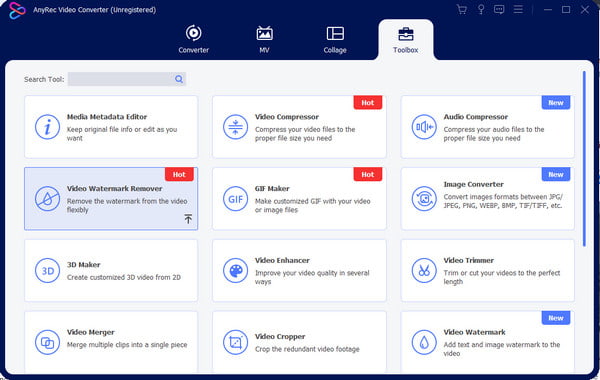
Step 1.Download AnyRec Video Converter and install it. Launch the app and proceed to the "Toolbox" menu. Click the Video Watermark Remover and Add buttons to upload the video file.
Step 2.To reveal the other options, click the "Add Watermark Removing Area" button. Position the eraser in the desired area. Resize the tool by using the controls from the right panel.
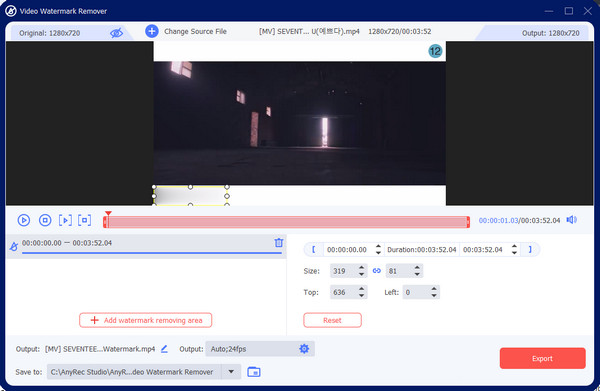
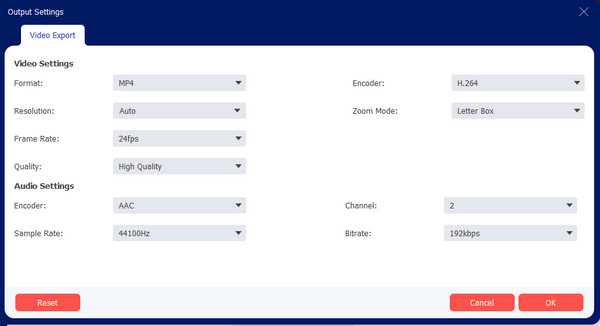
Step 3.For the best quality, go to the Output settings and configure the video. Change the settings of videos and click the OK button to save them. Then, click the Export button to output.
Secure Download
Secure Download
2. Adobe Premiere
This app is available for both Windows and Mac. Using masks and AI recognition, it can precisely remove emojis from videos. In addition to removing emojis, it also offers professional editing features. However, these features can be challenging to use and require a lot of practice to master. Follow the steps below to remove emojis from your videos.
Step 1.Select the video clip on the timeline and open the "Effect Controls". Under "Opacity", click the "Ellipse/Rectangle/Pen Mask" button and draw a mask over the emoji on the screen.
Step 2.In "Effect Controls", adjust "Feather" and "Expand" to soften the edges and ensure precise coverage. If the emoji moves, click "Track Mask Forward/Backward" to have the mask follow automatically.
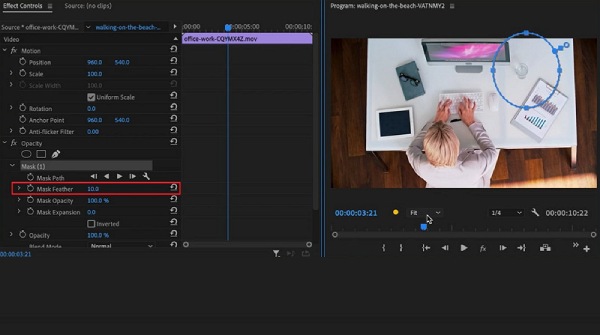
Step 3.Create a new video track on the timeline, import an image or video overlay, and place it above the original clip. Finally, click "File" and "Export" to export the edited video.
Use Media.io to Delete Emoji from Video [Online]
With Media.io, removing emojis from videos is made possible for free—the online tool processes video files with 100MB, a maximum length of 10 minutes. The emoji remover helps to delete unnecessary objects from your video, including date stamps, watermarks, and logos. If you want to edit a video with a longer duration, you can purchase the premium version, which also unlocks other exciting features.
Step 1.Visit the online site and click the "Choose Files" button. Click the "Add Area" button from the right panel to enable the lasso tool. Highlight the area where the emoji is located.
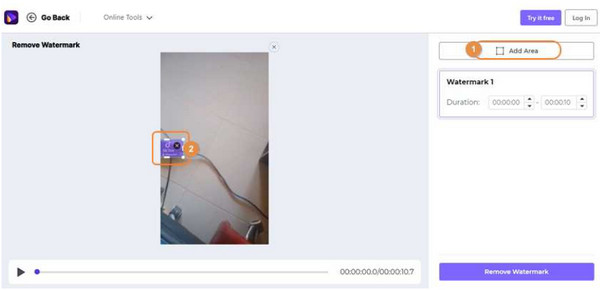
Step 2.Eliminate emojis by clicking the "Remove Watermark" button. Export the output and share it with friends on social media!
Mobile App to Erase Emoji from Video [iPhone/Android]
For removing emojis from videos on iPhone and Android, this article recommends two apps that allow you to quickly remove them and offer a variety of editing tools for further video editing.
1. Picsart
As an editing app for iPhone, PicsArt’s "Object Removal" tool can precisely remove emojis from videos with a single tap. Simply upload your video and use the brush to paint over the emojis to remove them. The process is very simple and ideal for mobile use.
- Pros
- AI can automatically fill in the background after you paint over it
- It can also handle dynamic elements in videos, making it more versatile
- Easy to use, just paint and click to delete
- Cons
- Painting strokes may be visible when textures are complex or objects are heavily obscured
- Stability is average: issues such as lag, crashes, or feature changes may occur
- It’s difficult to fine-tune edges with the same precision as professional software
2. Remove Objects
Remove Object is a lightweight AI-powered image editing tool designed to remove emojis or unwanted objects by selecting areas to erase and automatically filling in the background. The app is compact, has minimal system requirements, and supports offline or local processing.
- Pros
- Mainly involves painting or selecting areas, with no learning curve
- Real-time preview or quick generation of results
- Low system requirements, runs smoothly
- Cons
- Mostly involves blurring or masking, unable to accurately restore the background
- Weak handling of video or dynamic elements
- Prone to blurring and visible brush strokes
| Tool | Core Method | Processing Speed | Export Quality | Ease of Use | Target Users |
| AnyRec Video Converter | AI area removal | Fast | High (keeps original quality) | Easy | Beginners and semi-pro users |
| Adobe Premiere Pro | Mask + tracking + overlay | Slow | Up to 4K+ | Hard | Professional editors |
| Media.io | AI inpainting fill | Medium | Maintains resolution | Easy | Casual users and quick tasks |
| Picsart | AI brush removal | Very fast | Up to 1080p | Very easy | Mobile users and beginners |
| Remove Object (0161 App) | Blur overlay | Medium | Medium–low | Very easy | Users need quick fixes |
FAQs about Removing Emoji from Videos
-
1. Will removing emojis ruin the original resolution?
Not necessarily. Tools like Adobe Premiere Pro or Media.io can preserve the original resolution if export settings match the source. However, quality loss may occur locally in the edited area.
-
2. How to remove emojis from pictures?
If you use Android or iPhone, you can try PhotoDirector, Snapseed, TouchRetouch, Photo Retouch, and YouCam Perfect. In contrast, PC and Mac have professional photo editors, such as GIMP, Photoshop, and the desktop version of PhotoDirector.
-
3. Should I crop the video to remove emojis?
Yes. Cropping the video will be a great alternative to remove emojis from the video easily. But it would be best to remember that it will change the clip's aspect ratio, which can also lead to pixelated quality when stretched. Choose a tool that can crop videos without distortion, like AnyRec Video Converter.
Conclusion
How to remove emojis from videos? The task becomes more accessible with AnyRec, Adobe Premiere, and other recommended apps. Although some tools cannot completely delete emojis or stickers, they are great ways to cover up unwanted objects from your favorite video. With a bit of practice, you can remove logos from videos professionally. Unlike purchasing Adobe, you can free download AnyRec Video Converter to remove emojis from videos with a quick start.
Secure Download
Secure Download
About Our Author




