
4 Ways to Reduce Video File Size in High Quality (GB to MB)

No matter whether you share a video on WhatsApp, upload a video to YouTube, or attach a video as an email attachment, you need to figure out the file size limit and reduce the video file size properly. Otherwise, you may fail or get stuck on the video transferring process. Compressing videos is easy. You can use a video compressor, convert to MP4 (or other lossy format), and decrease video resolution to make this video small enough. Follow the steps below to compress a video while keeping quality intact.
Guide List
Why Are Videos So Large 2 Ways to Compress Videos to Reduce File Size [Windows/Mac/Online/iPhone/Android] Change Video Format to Reduce Video File Size Adjust Video Settings to Make Video SmallerWhy Are Videos So Large
Check the following factors that make your video too large for sharing, uploading, or saving. So you can reduce video file size without losing quality in different aspects.
- • Resolution: High resolution makes your video file size large. For example, if you upscale a 1080p video to 4K, its file size will be 4 times larger than before.
- • Bitrate: Higher bitrate brings higher video quality. However, the video file size will be much larger, too. So check if you capture videos with the default high bitrate.
- • FPS: A 120FPS video looks smoother than a 60FPS video. But the video file size will be double or even triple.
- • Codec: If you convert H.264 to H.265/HEVC, you can reduce video file size by 40% to 60% with similar visual quality.
- • Audio settings: Uncompressed or high bitrate audio can add extra size to your video.
- • Video length: The longer your video is, the larger its file size will be. A 10-minute video is definitely larger than a 1-minute video.
- • RAW or unedited footage: Professional cameras capture RAW videos with all details in huge file size.
2 Ways to Compress Videos to Reduce File Size [Windows/Mac/Online]
There are two typical ways to reduce video file size without trimming or sacrificing quality. You can set a desired file size or a quality level by percentage. By doing so, you can compress a 1GB video to 10MB or even smaller quickly.
Compress a Large Video on Windows and Mac [from 4GB to 10MB]
AnyRec Video Converter provides multiple choices for video compression. You can go to the Toolbox to get the built-in video compressor. Moreover, you can adjust video settings, change video format, trim unwanted video clips, and make more changes to reduce the large video file size.

Compress 4K videos from GB to MB by percentage or a certain file size.
Lower video resolution, bitrate, FPS, codec, and more flexible or using presets.
Batch convert videos to lossy formats at 120× faster speed.
Trim, crop, remove noise, reduce shaking, and edit videos.
Secure Download
Secure Download
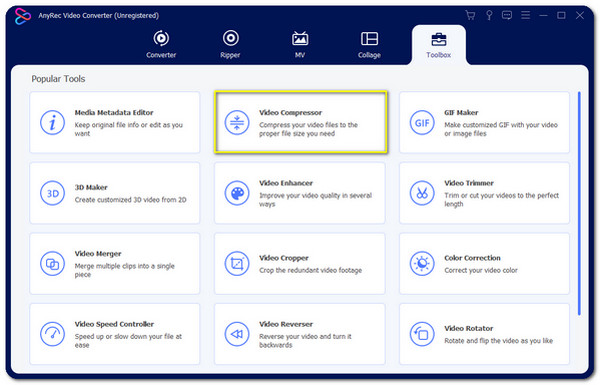
1. Open AnyRec Video Converter. Click the "Toolbox" button at the top. Then click the "Video Compressor" button.
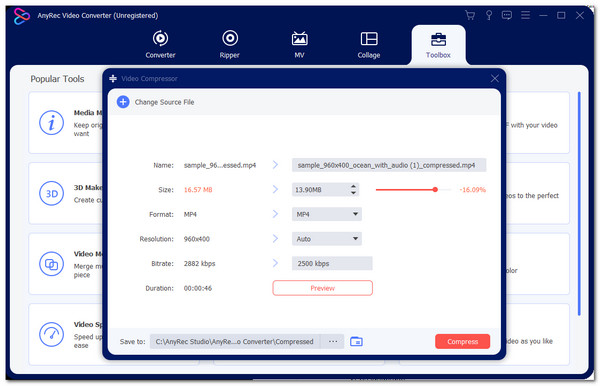
2. Upload your video. You can enter the target file size next to "Size". Or you can move the slider to adjust the video compression percentage.
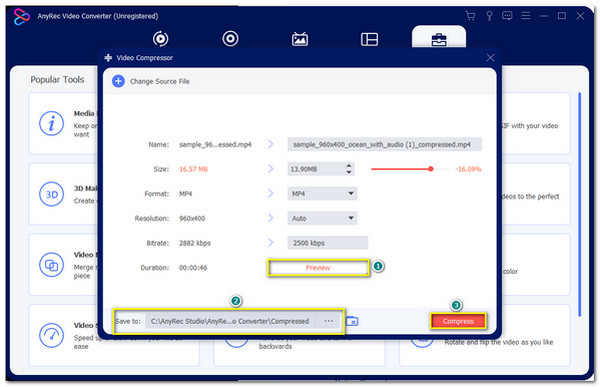
3. Change the video format, reduce video resolution, and bitrate if necessary. You can preview and set the destination folder here. Later, click the "Compress" button to shrink the video file size.
Reduce Video Size Online for Free [Up to 50MB]
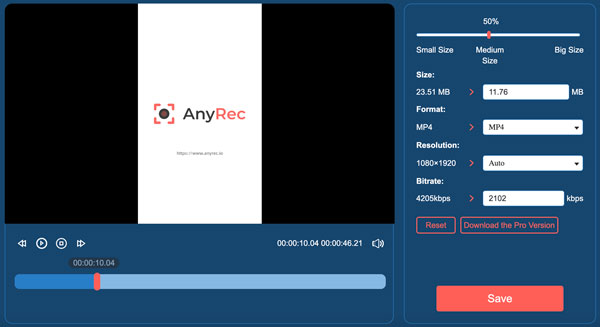
AnyRec Free Video Compressor Online can compress video online without visual quality loss. Just upload your video. Later, the online video compressor can detect and show related options to reduce video size in seconds. It is free to reduce up to 10 video files per day. Each video should be less than 50MB. If you want to compress videos for emails on iPhone and Android, it is the smart choice.
- 1. Click the "Upload File" button to add your video.
- 2. Move the slider to adjust the video to a small size. Or you can enter the file size specifically.
- 3. Set MP4 as the output video format (suggested for better video compression).
- 4. Reduce video resolution and bitrate.
- 5. Click the "Save" button to free compress video online.
Change Video Format to Reduce Video File Size
As mentioned above, you can convert video to MP4 format for a smaller file size, easy sharing, and better compatibility. Moreover, switching to a modern video codec can reduce video file size by 40% to 80%. Here are some recommendations.
- • Convert to MP4 (H.265): It will be 40% to 60% smaller than H.264 with similar quality.
- • Use AV1 format: AV1 can store files in an even smaller size. Just make sure your device supports AV1 videos. If not, you can convert AV1 to MP4 to solve the incompatibility issue.
If you just want to change the video format from lossless to lossy format online, you can use this free video converter. It can handle all video to MP4 conversions.
Adjust Video Settings to Make Video Smaller
After using video resizers, you can adjust video parameters to control the video file size. Those small changes can shrink the video size effectively, too. By the way, you can regard these as helpful tips to make videos not so large in the future.
- • Lower video resolution: Downscale 4K to 1080p can reduce file size by up to 70%. 4K videos are in large file sizes. You can convert 4K to 1080p, 720p, and even 480p to reduce video size.
- • Reduce the bitrate: Adjust from a high bitrate to a low bitrate to get smaller video files. The video quality can still be good.
- • Lower the frame rate: 60FPS videos are smoother than 30FPS videos. Its file size is much larger than 30FPS, too. In most cases, 30FPS is a popular choice as a video frame rate. You can convert 60FPS to 30FPS to reduce video size by 50% or so. Of course, it can compress video size better in the 120FPS to 60FPS or even 30FPS conversion.
Conclusion
With a reliable video compressor and proper compression settings, you can shrink video file size for email, cloud storage, social media, and more. Use AnyRec Video Converter to reduce MP4 video size without losing quality. Moreover, you can edit and convert videos with trending presets. For example, you can make a video smaller and export it in the iPhone-compatible format in one stop. Just upload your video and minimize the video file size to iPhone, Android, and more devices.
Secure Download
Secure Download



