
Record Safari Tabs with QuickTime, Toolbar, More [4 Ways]

As the default browser for all Apple devices, Safari is the place for countless tutorials, web meetings, and streaming content. And the need to record Safari videos is a common task you may want to do. Fortunately, recording Safari screen does not require you to use complex tools. Use the following 4 methods to screen record on Safari with simple shortcuts, desktop recorders and more. Find the perfect Safari recorder to capture your screen with high quality today.
Guide List
Use Professional Recorder to Record Safari as You Wish Safari Screen Recording via QuickTime Player Record Safari with macOS Screenshot Toolbar Other Online Recorders to Record Safari QuicklyUse Professional Recorder to Record Safari as You Wish
When you wish to capture smooth, high-quality activity in Safari, relying on a browser-based solution often is not enough. AnyRec Screen Recorder becomes a better option. This powerful Mac recording software can record Safari tabs, app activities, full-screen webcam overlays, and even gameplay with excellent quality. You can capture both system audio and the microphone at the same time. Further, it provides built-in editing tools, annotations, and customizable settings, features that Safari recording extensions or online solutions simply cannot match.

Record Safari browser video, audio, and webcam.
Save Safari recording in MOV, MP4, WMV, AVI, and other popular formats.
Flexible output settings for resolution, format, quality, and frame rate.
Real-time drawing tools like text, lines, arrows, shapes, and highlights.
Secure Download
Secure Download
Step 1.Launch AnyRec Screen Recorder on your Mac computer. Go to the "Window Recorder", then click the "Select the window" option to choose the Safari window you wish to capture.
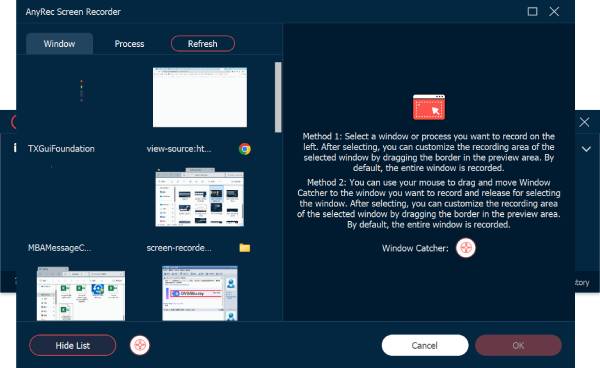
Step 2.Click the "OK" button to confirm. When you're ready, click the "REC" button to start recording video from Safari. Use the annotation toolbar to draw, add text, shapes, or mark essential parts while recording.
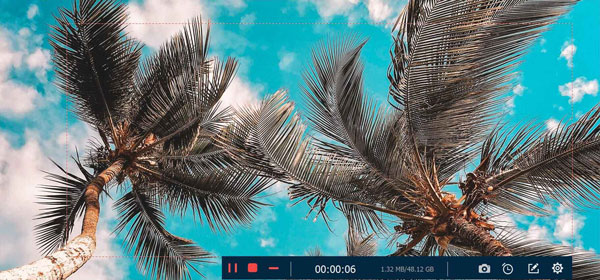
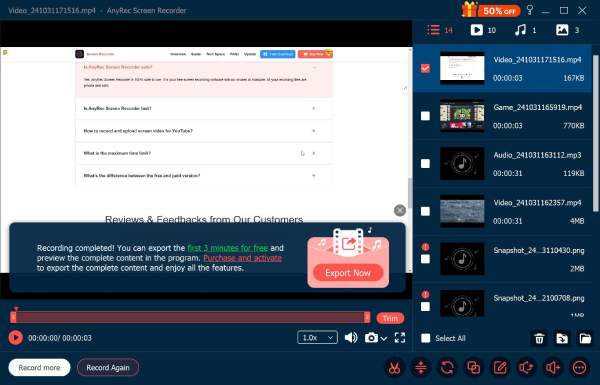
Step 3.Once done, click the "Stop" button to end the Safari browser recording. At this part, you can preview the video, trim unwanted parts, and adjust the output before clicking the "Save" button to export your final video.
Secure Download
Secure Download
Safari Screen Recording via QuickTime Player
If you do not wish for any third-party tools, macOS includes a built-in tool to screen record Safari with sound: the QuickTime Player. This software offers clean recordings, stable performance, and complete control over audio sources. Using this method, you can have a simple and reliable way to record Safari videos and browser activities without installing any extra software. See below the steps:
Step 1.Launch the QuickTime Player from your Applications folder. Then, in the top menu bar, click on "File" and select "New Screen Recording".
Step 2.Click the "Options" menu to set your microphone, save location, and other recording settings. Next, click the "Record" button, then select the area in Safari you wish to record.
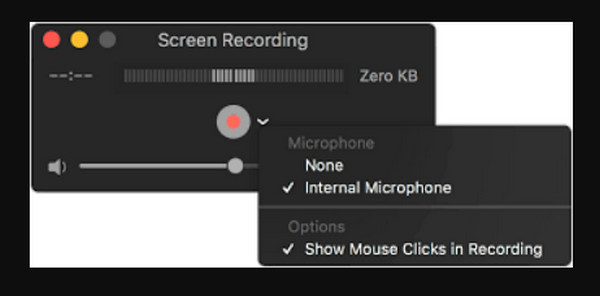
Step 3.When finished, click the "Stop" button in the menu bar. Preview your recording, then save it to your preferred location.
Record Safari with macOS Screenshot Toolbar
The macOS Screenshot Toolbar also provides another built-in solution to screen record Safari, giving quick access and simple controls. It is ideal for quick recordings or when you don't need advanced editing features. With this simple keyboard shortcut, you can capture everything from your Safari window or full screen instantly. This approach is simple and convenient for those running macOS Mojave or later.
Step 1.Ready the Safari window, then press the "Shift + Command + 5" keys to open the Screenshot Toolbar.
Step 2.Select one of the recording options: Entire Screen or Selected Portion. Adjust the frame enough to cover your Safari window.
Step 3.To set the timer, audio input, and file location, click the "Options" button. Once ready, select "Record" to start capturing your Safari activity.
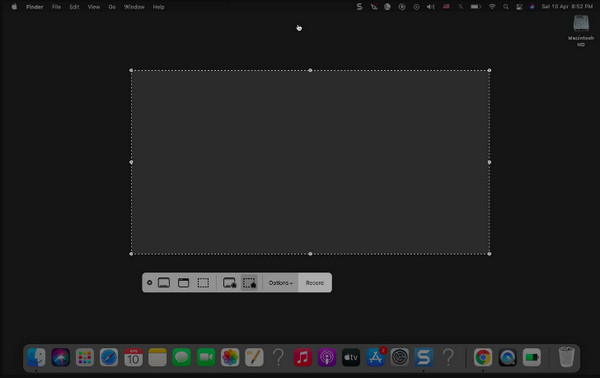
Step 4.When done, click the "Stop" button in the menu bar to finish. The recorded file will show as a thumbnail; click on it to preview or save it.
Other Online Recorders to Record Safari Quickly
There is another quick way to record with Safari browser without downloading software, and that is using VEED.io Free Screen Recorder. It is an online recorder that helps you capture tutorials, website walkthroughs, or streaming content. It runs smoothly on Safari, Chrome, and other browsers. Plus, it features built-in editing tools, letting you refine your Safari recordings before saving them. Moreover, you can record browser audio from Chrome, Firefox, and more using online recorders.
Step 1.Open Safari and visit the VEED.io website. Select the "Free Screen Recorder" tool. Next, choose your recording layout, such as screen only, camera only, or both at once.
Step 2.Make sure to click the "Allow" button to let the tool access your screen, mic, or camera.
Step 3.Then, determine which part of your Safari screen to record, and confirm. Click the "Start Recording" button to begin recording your Safari activity.
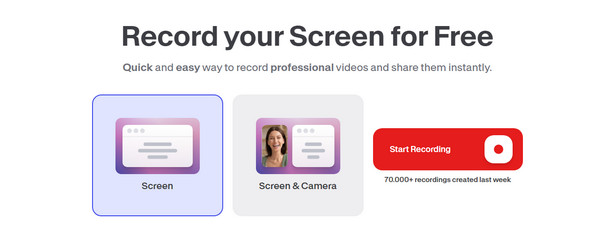
Step 4.Once finished, click the "Stop" button, then download the video or open it in VEED's editor for further enhancements.
Conclusion
From creating tutorials to saving web content on Mac, knowing how to screen record on Safari is critical for these scenarios. For Mac and Windows users who want superior video quality, reliable performance, and more features beyond basic recording, use AnyRec Screen Recorder! This dedicated screen recording software is ideal for recording Safari content and other on-screen browser activities as it lets you define areas, ensures no-lag capture, and adds audio and webcam recording without losing quality. For clean, high-quality recordings every time, get this tool now.
Secure Download
Secure Download
Related Article
About Our Author




