
Hot

AnyRec Screen Recorder
Capture every moment. Record like a pro.
Secure Download
[Guide] What & How to Take a Screenshot with PrtScn Key

Have you come across your desktop's keyboard, then saw and wondered what the PrtScn key is? If you do, well, that key is your handy way to take screenshots of any on-screen activities on your desktop. By just a single press on it, any active window or content on your screen will be copied (screenshot), which you can then paste into a specific tool. To get to know more of this PrtScn key, dive in below, as this post features a comprehensive guide about it!
Guide List
What is the PrtScn Key? How to Take Screenshots on Windows Using the PrtScn Key Best Alternative to the PrtScn Key for Screenshots on PC/Mac Alternative Keys for PrtScn on Specialized Models of LaptopsWhat is the PrtScn Key?
What is the PrtScn key? It is a button on your desktop keyboard that you can utilize to take a screenshot of your display. When you press, it copies an image of your entire display to the clipboard, which you can then paste into Paint, Word, or messaging tools or platforms.
On some devices, it may require key combinations such as "Fn + PrtScn" or "Windows + Shift + S" to work, especially on laptops, and it can also be used to capture only a specific window or portion of the screen, depending on the shortcut you used.
How to Take Screenshots on Windows Using the PrtScn Key
Now that you know what the Print Screen button is on your desktop's keyboard, you can explore the simple guide below to use the PrtScn key.
1. PrtScn: Copy or Take a Screenshot of the Entire Desktop Area
Well, using it is just a piece of cake. As mentioned earlier, pressing it will copy a screenshot of whatever is shown on your entire display to the clipboard on Windows 10, which you can then paste into a specific program. In short, pressing it captures your monitor's entire display. Now, if you are using multiple monitors, pressing the PrtScn key will capture everything shown across all screens as one combined screenshot.
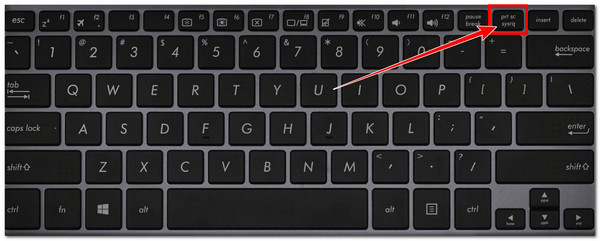
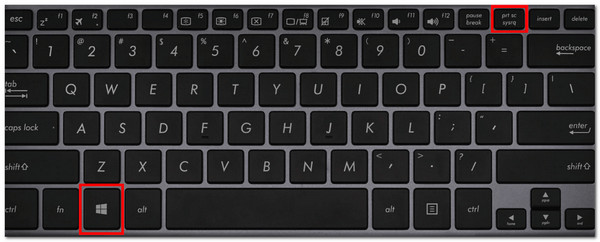
2. Windows + PrtScn: Automatically Save a Screenshot of the Entire Screen
However, if you are using Windows 11, the behavior of the PrtScn key may be different depending on your settings. In many cases, pressing PrtScn will open the Snipping Tool interface, where you can choose whether to capture the full screen, a selected area, or a specific window.
If you want to capture and automatically save a full-screen screenshot, you can press "Windows + PrtScn", and the captured image will be saved directly to your "Pictures > Screenshots" folder.
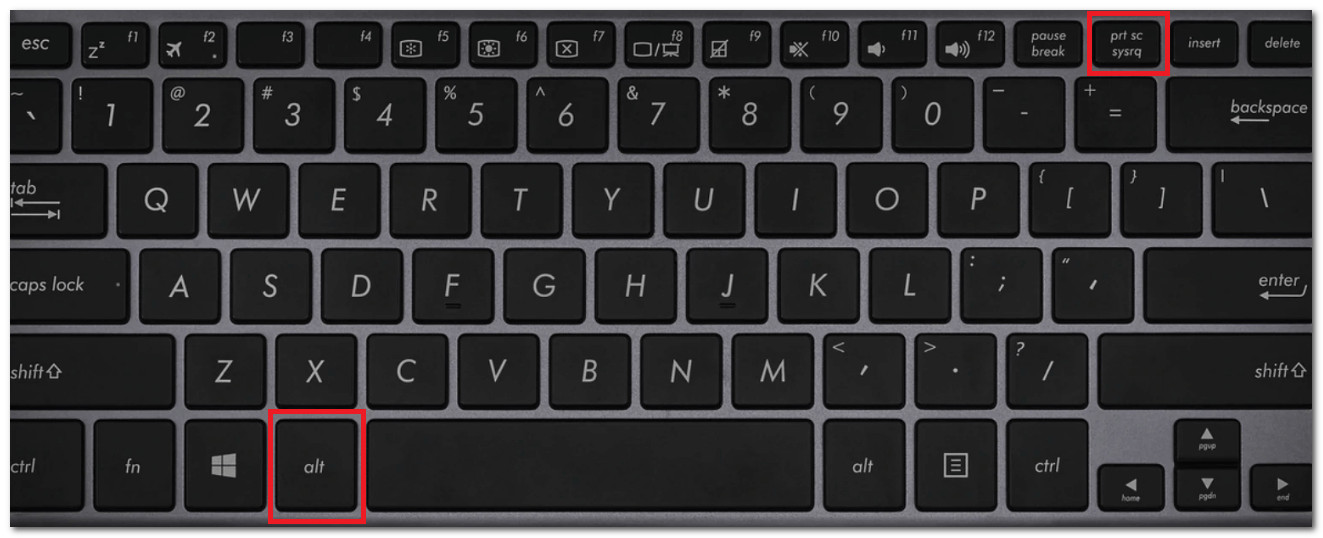
3. Alt + PrtScn: Capture Only the Active Window Screenshot
On the other hand, when you press "Alt + PrtScn", your computer does not capture the whole desktop or all monitors. Instead, it captures just the window you are currently using (the one in focus), such as a browser, document, or app. The screenshot is then copied to the clipboard, so you need to paste it into an app like Paint, Word, or an image editor to save or edit it.
4. Windows + Shift + S: Select and Capture a Custom Area Screenshot
Lastly, you can also use "Windows + Shift + S" keys to select and capture a specific area. Those keys open the built-in Snipping Tool, which lets you decide exactly what part of the screen you want to take a screenshot. After pressing the shortcut, your screen will slightly dim, and a toolbar will appear at the upper part of the screen where you can choose to capture a rectangular area, a freeform shape, a specific window, or the full screen. The screenshot is then copied to the clipboard, and you can paste it into an app to save or edit it.
There you have it! That's the Windows keyboard PrtScn key functionalities with its key combinations.
Best Alternative to the PrtScn Key for Screenshots on PC/Mac
Now, there are times when the PrtScn key is not working because of software or hardware issues. If that happens, you can use the professional AnyRec Screen Recorder as an alternative! This desktop-based tool supports the ability to take screenshots in different ways by just clicking a few buttons and provides you with more flexible controls compared to PrtScn. This ability lets you easily take a screenshot in full screen, window, scrolling, menu, or part of the screen with one click. Aside from that, unlike the Windows Print Screen key, it also offers you options to add text, lines, arrows directly, and more to your screenshot!

Take scrolling screenshots for webpages, documents, or any lengthy content.
Let's you take screenshots and annotate them later by adding text, shapes, and more.
Allows you to save screenshots in JPEG, PNG, GIF, and more based on your liking.
Enables you to take screenshots from iPhone and Android through screen mirroring.
Secure Download
Secure Download
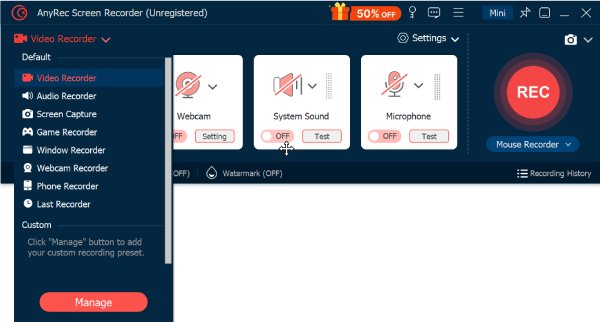
Step 1.Install the AnyRec Screen Recorder and launch it afterward. After that, click the "Mode" dropdown button and select the "Screen Capture" option from the menu. You need to ensure that, before doing this, the content you wish to capture is already active.
Step 2.Next, if you wish to capture an active window, left-click on it to select it. Otherwise, drag your mouse to select the specific region you wish to capture. After that, release the mouse from clicking to take a screenshot.

Step 3.Once you are done taking a screenshot, you can add callouts, annotations, and more to it based on your liking. After that, click the "Save" button to choose a file destination and save it on your computer.

Alternative Keys for PrtScn on Specialized Models of Laptops
When talking about some laptops, the PrtScn key may not work by itself or may be labeled differently. This is common on compact keyboards where keys have multiple functions, so the PrtScn key on laptop setups can vary depending on the device.
For example, on laptops from HP, Dell (See where the Print Screen key on Dell laptop is.), or Lenovo, you may need to press "Fn + PrtScn" to take a screenshot. In other cases, the Print Screen function might be combined with another key or labeled as something similar to PrtScn. Here are a few common key combinations:
- • Fn + PrtScn: Copies the full screen.
- • Fn + Alt + PrtScn: Captures the active window.
- • Fn + Windows + PrtScn: Saves a full-screen screenshot.
Conclusion
There you have it! That's the comprehensive guide about what the PrtScn key on laptop is and how to use it. With the help of this post, you can now easily take a screenshot of any content or section from your desktop's display through PrtScn and with its other key combinations. Now, in case you faced an issue of Print Screen not working, which leads you to not be able to take a screenshot, you can use AnyRec Screen Recorder as an alternative! This tool's Screen Capture capability offers you flexible controls and high-quality output! Try it today.
Secure Download
Secure Download
Related Articles
About Our Author




