
Hot

AnyRec Video Converter
Convert M3U8 to MP4 with high quality.
Secure Download
Practical Yet Straightforward Ways to Convert M3U8 to MP4

By converting M3U8 to MP4, streamed content becomes easier to watch offline, edit, or share across platforms. After all, as an online format, M3U8 makes it difficult for you to perform any additional operations on it. This guide breaks down practical methods, from desktop tools to command-line solutions and online converters, so you can choose a proper process and convert M3U8 to MP4 in no time.
Guide List
Why Consider Conversion from M3U8 to MP4 How to Use VLC for Conversion from M3U8 to MP4 How to Download M3U8 as an MP4 File via FFmpeg A Trustworthy Online M3U8 to MP4 Converter [Bonus] How to Enhance Quality After Conversion from M3U8 to MP4Why Consider Conversion from M3U8 to MP4
Before converting M3U8 to MP4, it's essential to understand the key differences between the two formats to clarify the purpose and operational details of the conversion. M3U8 is not a traditional video format, but rather a playlist file used to point to multiple media clips for HTTP Live Streaming (HLS). Simply put, you can only access and open M3U8 files with an internet connection. This is a significant limitation for everyday use, not to mention you can't further edit them.
As for the MP4 format, it's a very popular format, and many people are probably already familiar with it. You can access it on almost any imaginable device, including mobile devices, smart TVs, and video editing software, as these devices are generally equipped with extensive support for the MP4 file format. Therefore, converting M3U8 to MP4 not only makes videos accessible offline but also allows you to edit them further to achieve your desired effects.
How to Use VLC for Conversion from M3U8 to MP4
Even though you might frequently use VLC media player to watch videos, perhaps you may not be aware of the fact that it conceals a vibrant and powerful set of features that are easily overlooked. One of them is that it enables you to convert M3U8 files into MP4 files quickly. If you don't know about the specific method, you can follow the steps below to complete the task:
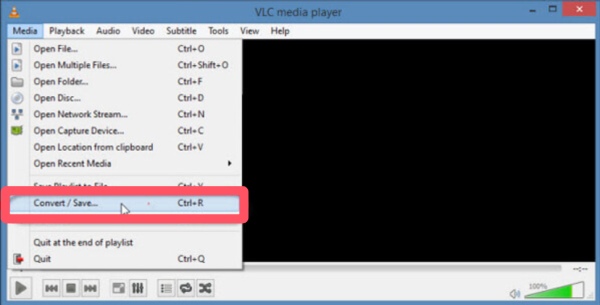
Step 1.Launch VLC media player on your device and click the "Convert/Save" button under the "Media" tab.
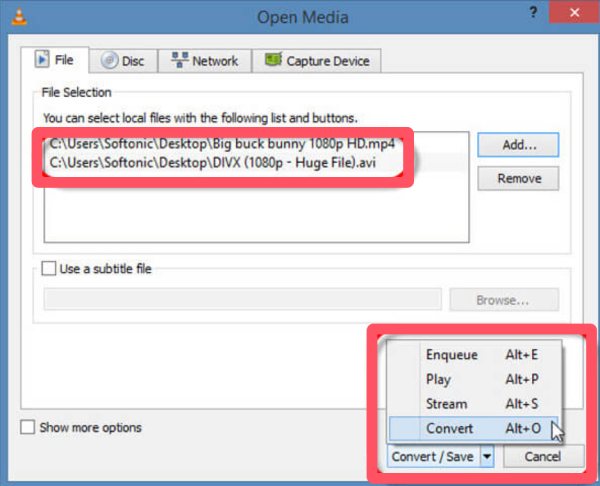
Step 2.Under the "File" tab, click the "Add..." button to upload your M3U8 file for conversion to MP4. Then, click the "Convert" button.
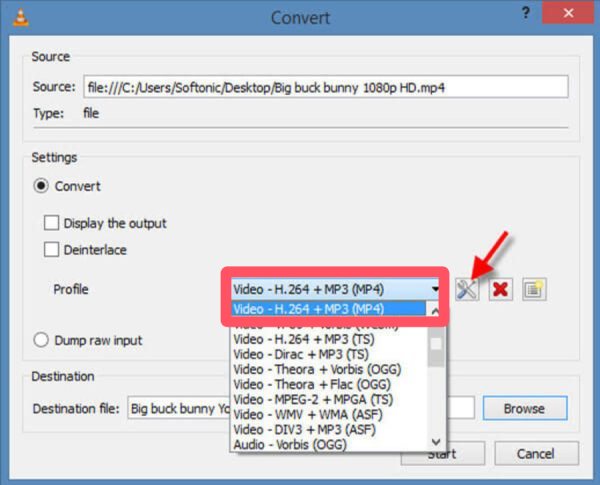
Step 3.Under the "Profile" tab, click the "Video – H. 264 + MP3 (MP4)" button to select MP4 as the output format. Click the "Start" button.
How to Download M3U8 as an MP4 File via FFmpeg
If you happen to have some knowledge about coding, then FFmpeg is a practical and efficient tool that can help you convert M3U8 to MP4. Of course, these codes might be confusing for those who are not familiar with them. Anyway, you can try this quick method by following these steps:
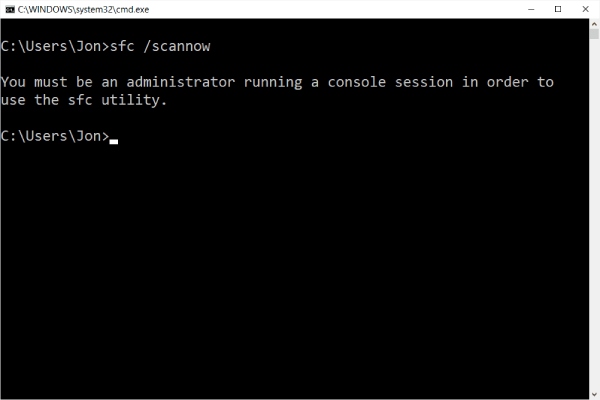
Step 1.Once you install and set the FFmpeg environment on your device, search for and open "Command Prompt" by pressing the "Windows + R" button.
Step 2.To check the link of your M3U8 file, press the "F12" button on your browser. You can copy the M3U8 link under the "Network" tab.
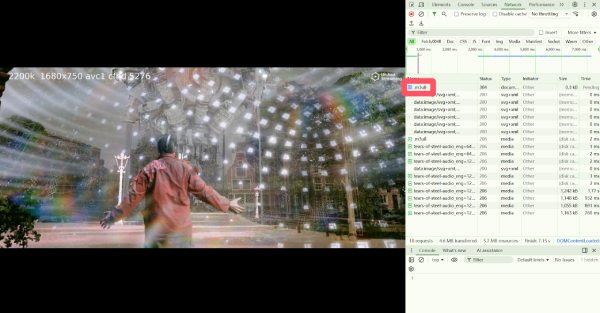
Step 3.In the Command Prompt, type and enter the command below, replacing "http://.../playlist.m3u8" with the copied M3U8 link.
ffmpeg -i http://.../playlist.m3u8 -c copy -bsf:a aac_adtstoasc output.mp4
Tips
You can also use FFmpeg to trim, crop, or resize videos after you download this M3U8 file as an MP4 format.
A Trustworthy Online M3U8 to MP4 Converter
If you prefer not to install desktop software, an online converter can be a more accessible option. Simply access AntMod on your browser, and it will offer a web-based solution for converting M3U8 files to MP4 for free. The only problem is that you may need a video quality enhancer due to its limited video quality.
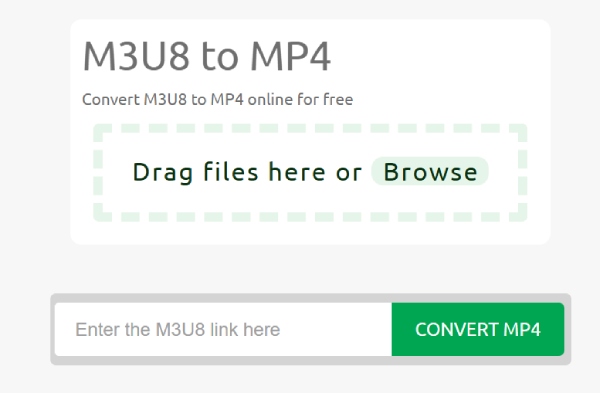
Step 1.Navigate to the official website of AntMod. Paste the copied M3U8 link into the box. Click the "CONVERT MP4" button.
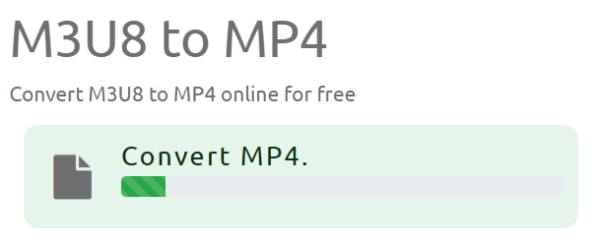
Step 2.The process of converting M3U8 to MP4 will start automatically, and it can take a little bit of time depending on the video size.
Step 3.After the conversion is finished, you can save the converted MP4 file on your device.
[Bonus] How to Enhance Quality After Conversion from M3U8 to MP4
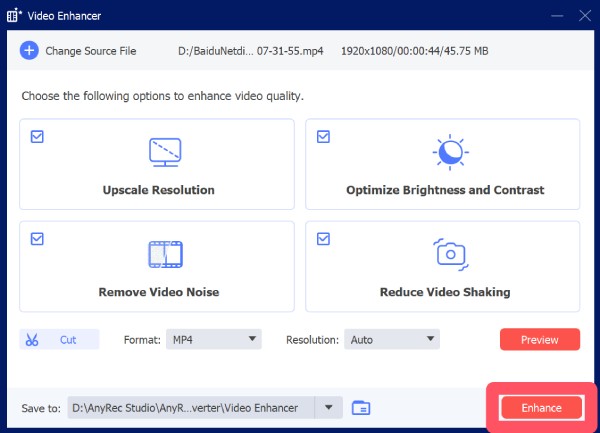
After converting an M3U8 stream to MP4, the video quality may not always be ideal due to bitrate limitations or compression during streaming. And this is the high time when AnyRec Video Converter becomes especially useful. With this tool, you can upscale resolution, optimize brightness and contrast, reduce noise, and stabilize footage. You can follow the steps below to upscale your converted M3U8 videos for better quality.

Improve the quality of the MP4 file converted from M3U8.
Support further editing on the obtained MP4 video.
The entire process will not affect the original content.
Preview to view the effect of your video before saving.
Secure Download
Secure Download
Step 1.Launch AnyRec Video Converter on your device and click the "Video Enhancer" button under the "Toolbox" tab.
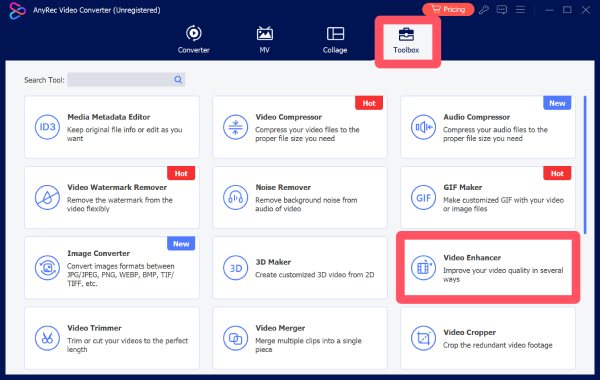
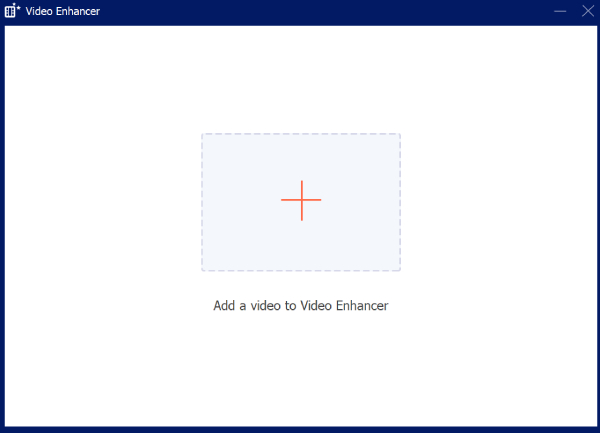
Step 2.A new window will pop up, and you can upload the video file that you want to enhance by clicking the "Add Files" button.
Step 3.You can select among several options to upscale your video. Once determined, click the "Enhance" button.
Conclusion
Transforming M3U8 to MP4 is an effective way to turn streaming content into a stable, widely compatible video file. Several practical methods depend on your technical experience and usage scenario. For users who want not only successful conversion but also better playback quality, post-processing with AnyRec Video Converter can make a clear difference.
Secure Download
Secure Download



