
Hot

AnyRec Screen Recorder
Capture every moment. Record like a pro.
Secure Download
4 Easy Ways to Take a Screenshot in Minecraft in 2026

You have finally finished it! Your Minecraft tower is ready to be shared with the world, but you find that the Print Screen key does not always play nice with Minecraft. How to take a screenshot in Minecraft, then? Whether you're playing on a PC or on your phone, there are ways to capture Minecraft builds. In this guide, the four most reliable ways to take a Minecraft screenshot are shared for all platforms. Share the build you're proud of today!
Guide List
How to Take Screenshots in Minecraft with the Professional Tool Use Hotkeys to Take Screenshots in Minecraft on Windows How to Screenshot in Minecraft on Mac with Shortcuts How to Screenshot in Minecraft on iPhone/AndroidHow to Take Screenshots in Minecraft with the Professional Tool
While shortcuts are handy, they may not have the precision needed for high-quality screenshots for your worthy builds. So, to bypass the limitations, use AnyRec Screen Recorder, an all-in-one solution that captures regions of your screen, ensuring your taskbar won't be cluttered in the shot. Beyond simple stills, this tool works great for gamers who want to annotate their Minecraft screenshots with arrows or text in real-time. Thanks to its dedicated Snapshot tool, you can capture a Minecraft game screenshot that is guaranteed to be polished and professional, even without post-editing.

Choose the specific Minecraft window or a custom region to capture.
Set your own screenshot shortcuts to avoid clashing with game controls.
Save Minecraft screenshots in high-quality formats like PNG, JPG, and BMP.
Preview the screenshot and edit it with text, shapes, callouts, and more before saving.
Secure Download
Secure Download
Step 1.Start by launching AnyRec Screen Recorder on your computer. From the main screen, select the "Screen Capture" button to activate the screenshot tool. Your cursor will change into a crosshair. Later, click and drag to frame your Minecraft on your screen.
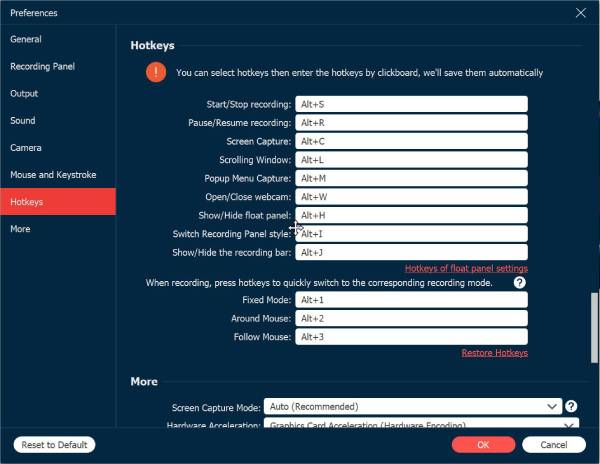
If you're in the middle of a fight, access the screenshot tool by using the custom hotkey found in the "Hotkeys" section of the "Settings" menu.
Step 2.As soon as you release the mouse, the screenshot is captured. Now, with the floating toolbar, highlight a specific detail or add text, shapes, arrows, and more to your Minecraft screenshots.
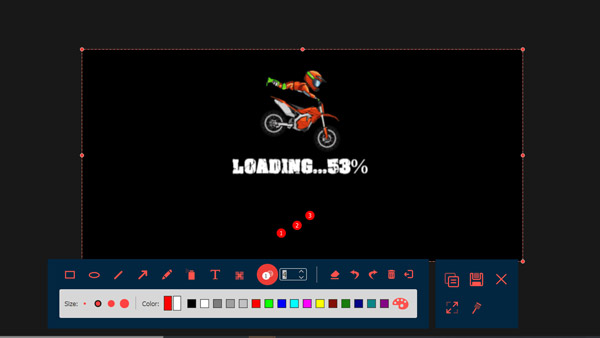
Step 3.Once you're okay with your edits, click the "Save" button to store the image. You can then select which folder you want to save your Minecraft screenshot to and your desired file format.
Secure Download
Secure Download
Use Hotkeys to Take Screenshots in Minecraft on Windows
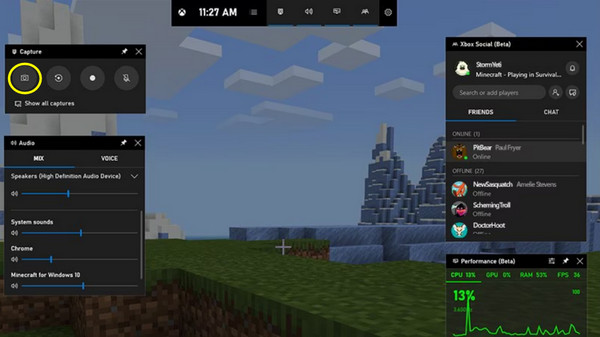
Windows users also have a few built-in tricks to take a screenshot in Minecraft that do not need any extra software. On Windows 10 and 11, Xbox Game Bar captures gaming moments without closing the Minecraft window. Using this overlay, you can ensure your Minecraft screenshots are saved in high resolution.
Step 1.Press the "Windows + G" keys to activate the Game Bar. Make sure the Minecraft game window is already open.
Step 2.Then, click the "Camera" button to take a screenshot of your gameplay. A notification will be shown on the right; click on it to access the "Gallery" view to see all your captures.
Step 3.To see all files, click "Open file location" within the Gallery.
How to Screenshot in Minecraft on Mac with Shortcuts
When it comes to taking a screenshot in Minecraft on Mac, the system offers a bunch of shortcuts to capture exactly what you want. Whether you want the entire Minecraft screen, or just the game window, or maybe a selected area, macOS has shortcuts for each. See below to take a screenshot in Minecraft on Mac using shortcuts:
Minecraft Selected Area Screenshot:
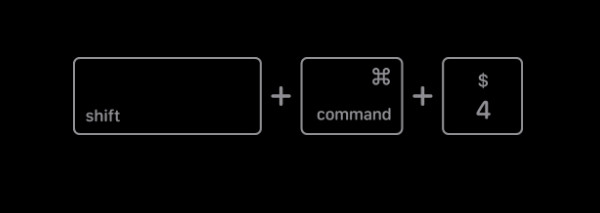
- 1. Use the "Command + Shift + 4" keys at once.
- 2. Click and drag the crosshair over the area on the Minecraft screen.
- 3. Release the mouse to take the screenshot, and the image will be saved to your desktop.
Minecraft Window-Only Screenshot:
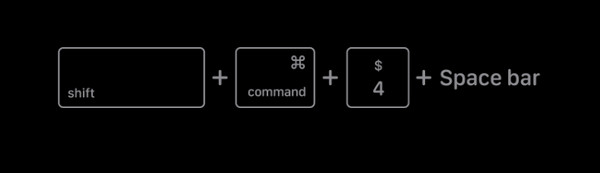
- 1. Press the "Command + Shift + 4" keys, then press the "Spacebar" right after. Your cursor will change into "Camera".
- 2. Hover the "Camera" icon over the Minecraft window to highlight it blue.
- 3. Then click on it to take a screenshot of the Minecraft window.
Minecraft Full Screenshot:
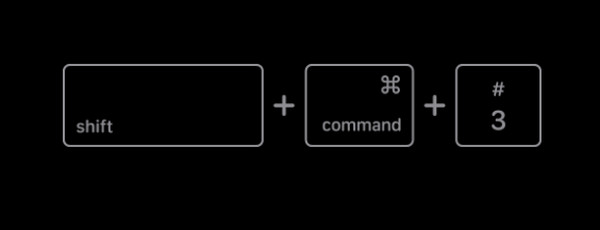
- 1. Press the "Command + Shift + 3" keys on your keyboard. You'll hear a camera shutter sound if your Mac is not silent.
- 2. Then, a thumbnail will appear briefly in the bottom-right; you can click on it to preview.
- 3. The captured image is displayed on your desktop.
How to Screenshot in Minecraft on iPhone/Android
Lastly, for those who want to capture their Minecraft builds on mobile, you can do so using hardware buttons, which differ slightly depending on the model. Once the screenshot is taken, the image is saved to your Gallery or the Photos app. Follow the steps below to take a Minecraft screenshot on iPhone and Android:
Take a Screenshot in Minecraft on iPhone:
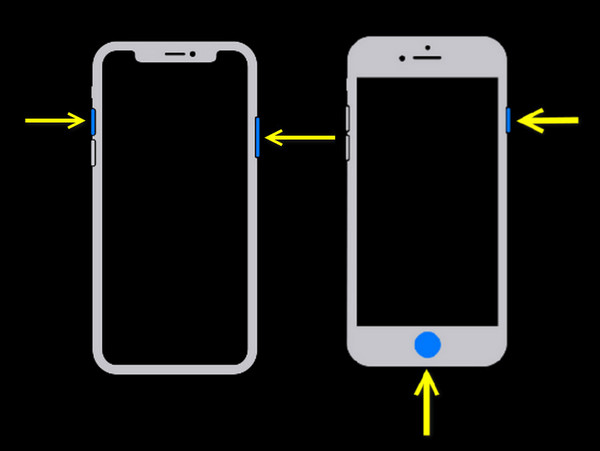
- 1. For iPhones with Face ID, press the "Power" and "Volume Up" buttons together. Next, for iPhones with Touch ID, press the "Power" and "Home" buttons at once.
- 2. See the captured image in the "Photos" app, where you can edit and share to social media platforms.
Take a Screenshot in Minecraft on Android:
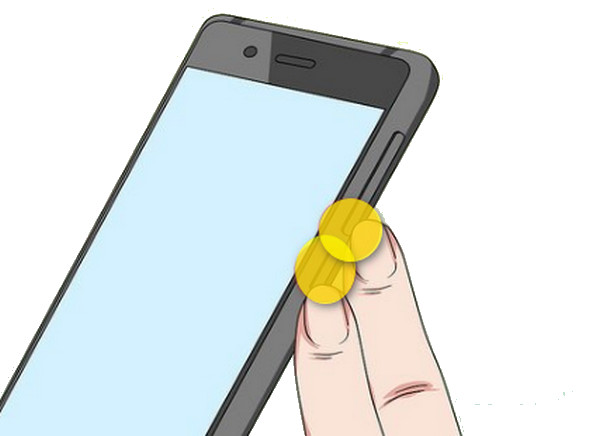
- 1. On an Android device, use the "Power" and the 'Volume Down" buttons for one second. For other models, it requires the "Power" and "Home" buttons to take a screenshot.
- 2. Find your Minecraft screenshots in the "Gallery" app to edit the image if needed.
Conclusion
Whether you want to share a massive base from your Minecraft on PC or just a quick snap on your mobile, you now have the tools to take a Minecraft screenshot! With the correct method, you can ensure your creativity won't just disappear in your Gallery. Among those four ways, take your simple screenshot to a high-quality one with AnyRec Screen Recorder. This tool not only offers high-resolution captures, but also drawing tools and a lightweight recording mode that will not lag your game. The perfect friendly companion for all gamers out there!
Secure Download
Secure Download
Related Article
About Our Author




