5 Ways to Sync iPhone Contacts to Mac: Keep Contacts Updated

From the ease of iCloud to manual cable transfers, there's a method for your address book to stay in sync! This guide here breaks down the 5 most reliable ways to sync contacts from iPhone to Mac in 2026, ensuring you will never lose a phone number again.
Guide List
Use a Professional Transfer to Sync iPhone Contacts to Mac How to Sync Contacts from iPhone to Mac with the Best-suited iCloud? How to Transfer Contacts from iPhone to Mac Using Airdrop? How to Sync Contacts from iPhone to Mac via Functional iTunes? How to Sync iPhone Contacts with Free but Highly Restricted EmailUse a Professional Transfer to Sync iPhone Contacts to Mac
For the most effective strategy to ensure your contacts are always exactly where you need them, here's AnyRec PhoneMover. It is a powerful alternative to the standard method that provides complete control that they often lack. It provides a more stable connection that ensures no data is affected during the contact syncing process. By using its dedicated manager, you can preview contacts, select the right one, and even emerge before they ever touch your Mac device. With these capabilities, together with its high-speed transfer, you can sync iPhone contacts to MacBook, even thousands, in just a few minutes.

Instantly sync entire contacts to your Mac in formats like CSV or VCF.
Preview and pick contacts rather than syncing the whole library.
Secure USB connection for a faster, reliable transfer speed.
Preserves every detail of your contacts, e.g., pictures, email addresses, etc.
Secure Download
Step 1.Link your iPhone to your Mac via a certified Lightning cable, then launch AnyRec PhoneMover. After identifying your device, set your iPhone as the source device to start the data scan.
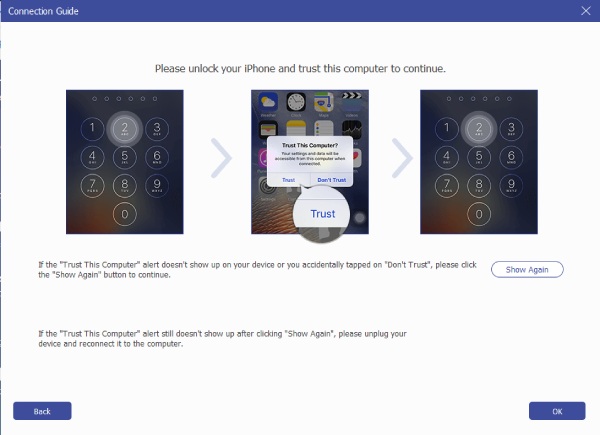
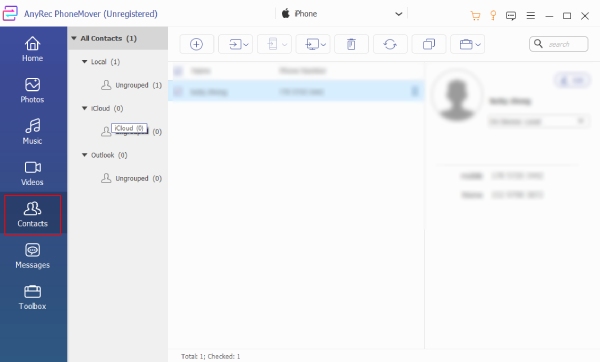
Step 2.Navigate to the "Contacts" section in the left-hand menu to load your iPhone's contacts. Browse through the names and numbers, then pick the details you want to keep. Check the boxes next to the ones you wish to move over.
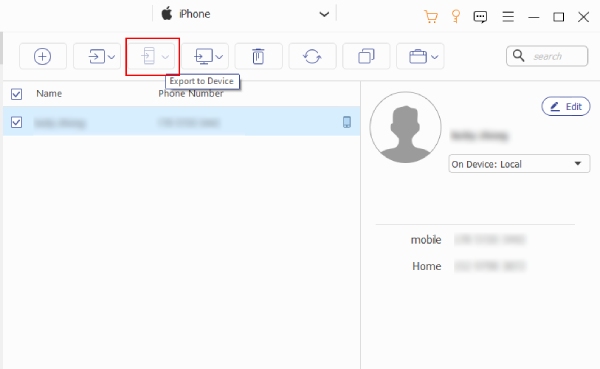
Step 3.Click the "Export to PC" button at the top and select your desired folder. Once the progress bar completes, double-click the exported file to import the names into the Contacts app.
Secure Download
How to Sync Contacts from iPhone to Mac with the Best-suited iCloud?
You might prefer a more hands-off approach when it comes to syncing contacts from iPhone to Mac, especially if you're already comfortable with Apple's cloud services. For this, iCloud is the most popular method to transfer contacts from iPhone to Mac. Once you make a change on your iPhone, it will appear automatically on your Mac within seconds.
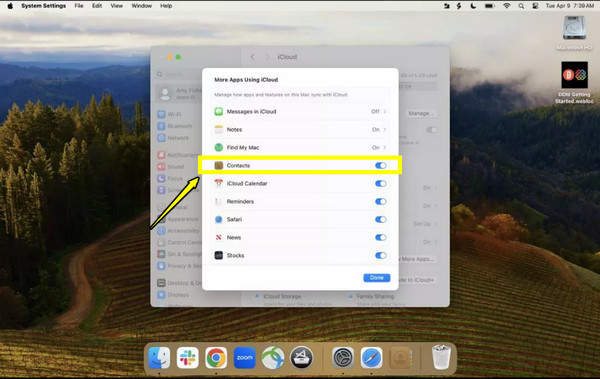
Step 1.From "Settings", tap on your Apple ID name, and select "iCloud". Under the "Apps Using iCloud", ensure to toggle ON the "Contacts". Tap "Merge" if prompted to combine any existing contacts.
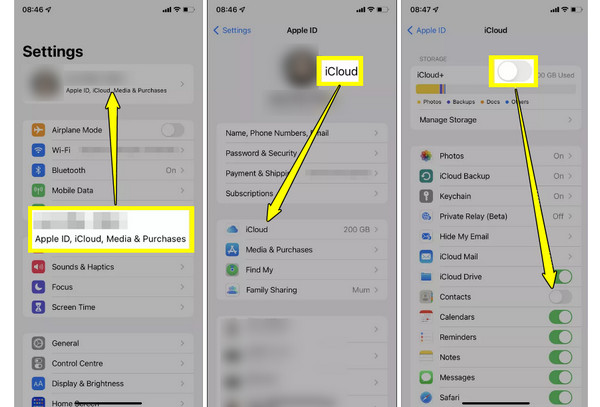
Step 2.Open your Mac, click the "Apple Menu", then head to "System Settings", and click on your name above. Click "iCloud" and make sure the "Contacts" toggle is enabled.
Step 3.Then, open the "Contacts" app, and wait to export iPhone contacts to Mac completely.
How to Transfer Contacts from iPhone to Mac Using Airdrop?
What if iCloud greyed out in iPhone Settings? You can use AirDrop for a quick syncing of contacts from iPhone to Mac without messing with your settings or accounts. It utilizes the power of Wi-Fi and Bluetooth to have a connection between your videos. If you wish to pull a certain piece of information onto your Mac, here's how to AirDrop iPhone contacts to Mac.
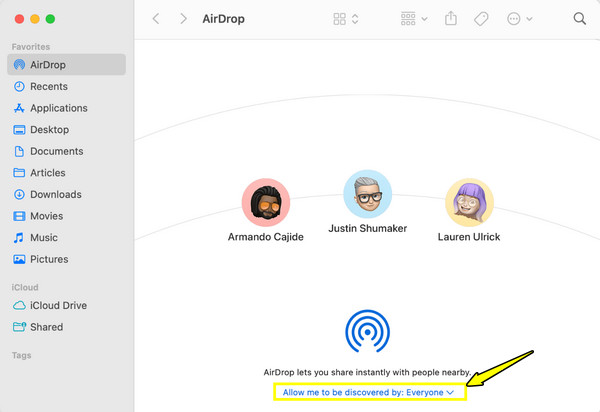
Step 1.Launch Finder on your Mac, select "AirDrop" from the sidebar, and set the visibility to "Everyone". On your iPhone, open "Contacts" and locate the contact you want to share.
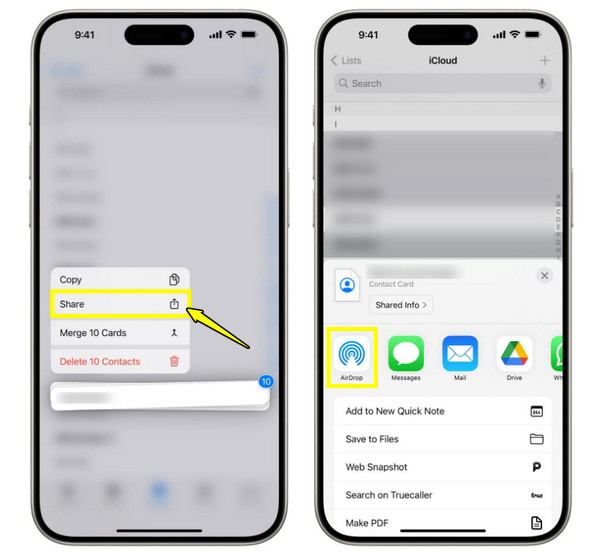
Step 2.There, scroll down, and tap "Share Contact" and choose the fields you wish to include. Tap the "AirDrop" icon and select your Mac's name from the list.
Step 3.Now, on your Mac, click on "Accept" to add the card to the Contacts app right away. Now you can download iPhone contacts on Mac successfully.
How to Sync Contacts from iPhone to Mac via Functional iTunes?
On Mac, using iTunes has been incredibly reliable for syncing contacts from iPhone to Mac. Here, you won't need any internet speed or cloud subscriptions. It is the best approach for anyone who wants to keep a local backup of their data on their computer's drive. Here are the steps to follow:
Step 1.Pair your iPhone with your Mac via a cable, and open the "iTunes" (Finder) window. Click on your device's name from the sidebar.
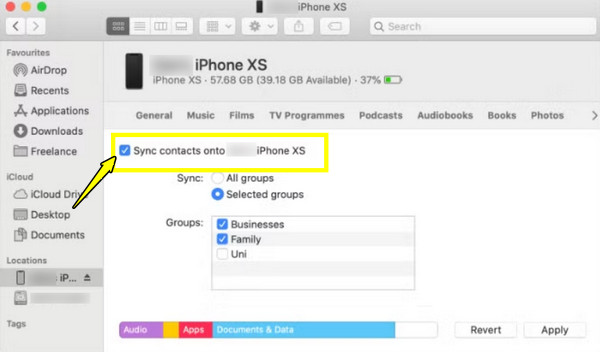
Step 2.Go to "Info" and check the "Sync contacts onto [iPhone name]" box, and determine whether you want to sync "All groups" or only selected groups.
Step 3.Click the "Apply" (Sync) button to import contacts from iPhone to Mac.
How to Sync iPhone Contacts with Free but Highly Restricted Email
Many users do not realize that their email accounts, like Gmail or Outlook, can act as a bridge to sync contacts from iPhone to Mac. People often use emails to back up iPhone to computer without iTunes. However, it is restricted as it often only syncs basic fields and may have formatting issues. Despite these, it is still a powerful way to keep your iPhone contacts synced to Mac.
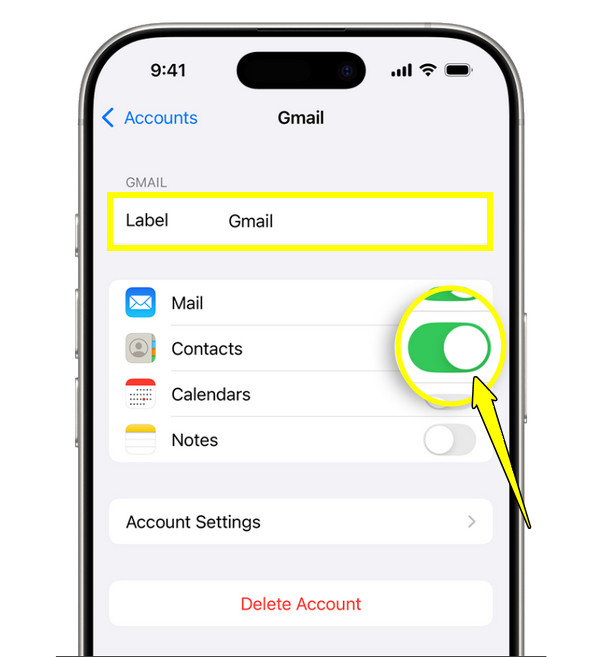
Step 1.Open your iPhone, go to "Settings", scroll down to "Apps," and find "Contacts". There, tap "Accounts", then choose your provider and sign in with your credentials. Once signed in, make sure "Contacts" is switched to ON.
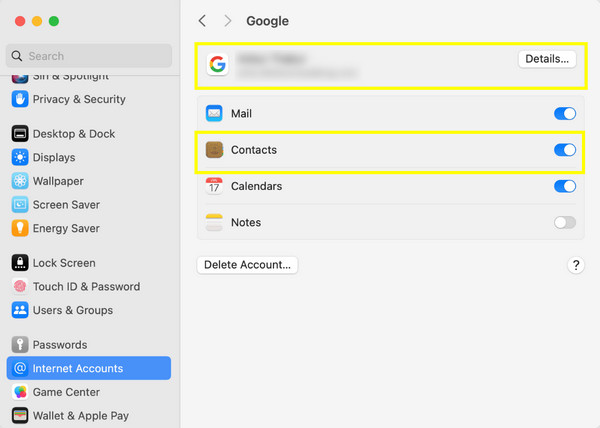
Step 2.Now, on your Mac, launch "System Settings" and go to "Internet Accounts". Click on the same email account and check the "Contacts" box. Open your "Contacts" app, and you'll see a new group in the sidebar with your account name.
Conclusion
This year, the best method depends on what you need, whether the ease of iCloud, the control of a professional tool, or the quick wireless approach of AirDrop. With the right method, you can sync iPhone contacts to Mac without worrying that other data will be affected. If you opt for skipping the storage limits and sync delays, use AnyRec PhoneMover, the most stable, secure, and friendly solution to manage your contacts on your Mac. Stop worrying about your address books today and stay connected regardless of which device you are using.
Secure Download
About Our Author