
Hot

AnyRec Screen Recorder
Capture every moment. Record like a pro.
Secure Download
7 Ways to Record Lectures on Windows, Mac, iPhone, Android

Recording lectures is essential for many students and online learners as it lets you catch details you might have missed and study them over again. How to record a lecture, then? Doing so needs the right recording tool and preparation. Please continue reading to record collage lectures effectively. With this, you can capture all lectures and study at your own pace.
Guide List
Preparation for Lecture Recording How to Record Classroom and Online Lectures with AnyRec Screen Recorder How to Record Lectures in College for Free on Your Phone How to Record Lectures and Turn into Notes Tips to Record Lectures for StudentsPreparation for Lecture Recording
Before you start recording your professor's lectures, take a few minutes to prepare to help you avoid potential lecture recording issues later. Proper steps will help you stay focused on learning instead of troubleshooting during the lecture. Here are some preparations to consider:
- 1. Get permission to record the lecture. Always check privacy or the instructor's consent first before recording.
- 2. Get the proper recording method. Use a smartphone, laptop, tablet, or a capture device based on the lecture format.
- 3. Use an external mic if needed. It can reduce background noise and capture voices clearly.
- 4. Use a webcam or camera. If visuals in the classroom recording are needed, ensure your camera is positioned correctly.
- 5. Test your equipment beforehand. Do a short test to check if everything sounds good.
- 6. Sit close to the speaker. Being close to the speaker lessens echo and background noise.
- 7. Check enough battery and storage. Having a fully charged and sufficiently sized storage device will help avoid interruptions.
- 8. Minimize distractions. Turn off notifications and get your phone muted to keep the recording clean.
How to Record Classroom and Online Lectures with AnyRec Screen Recorder
Once you've got the basics of recording lectures in classes, the next question is choosing a tool that can do it clearly and effortlessly. Instead of looking for multiple apps, AnyRec Screen Recorder makes the process simple and hassle-free. It is made to capture online lectures and even classroom discussions with sharp visuals and clean audio. This lecture recording software allows you to record the lecture's voice clearly alongside your microphone without losing quality. With flexible settings and high-quality output, the program is perfect for both online and classroom lectures.

Records screen, audio, and webcam at once for lectures.
Supports real-time annotations and quick screenshots during the session
Adjustable settings for resolution, format, quality, and more.
It saves lectures in standard formats like MP4, MOV, AVI, MKV, etc.
Secure Download
Secure Download
Step 1.Open AnyRec Screen Recorder and choose "Video Recorder". Select "Full" to capture the entire lecture screen or "Custom" to record only the lecture window or slides. You can resize the frame by pulling its edges.
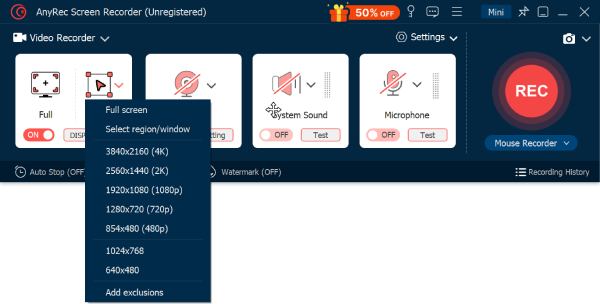
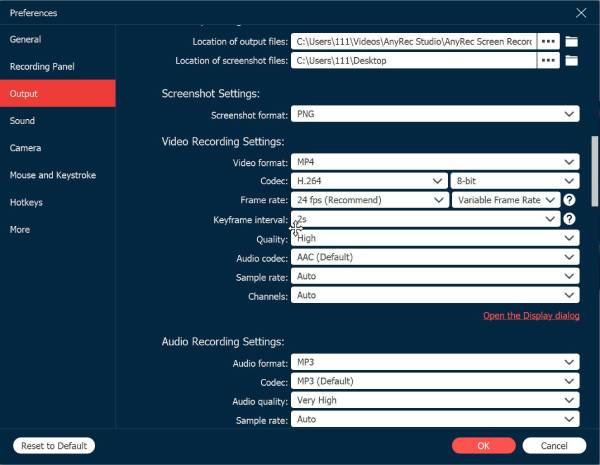
If you love to adjust output format, frame rate, or resolution, click "Settings" and go to the "Output" tab.
Step 2.Switch on the toggle button before "System Sound" to record online lectures. If you want to record classroom audio or add voice notes, you can turn on the toggle button before "Microphone" too. Adjust both volumes to ensure a clear sound.
Step 3.Click the "REC" button when the lecture begins. While recording, annotate on the screen, highlight key sections, or take screenshots via the floating toolbar.
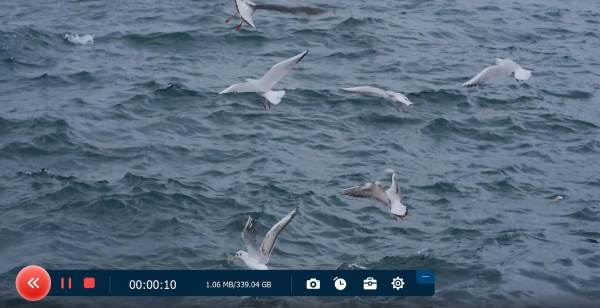
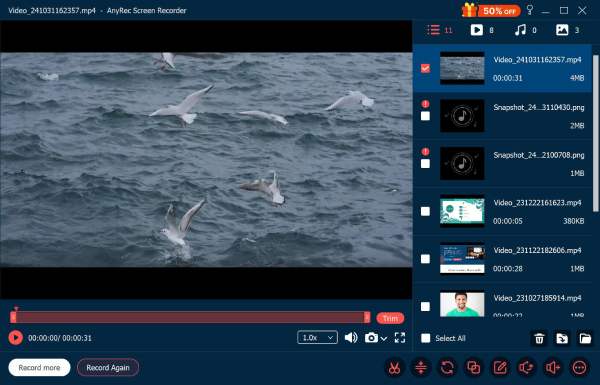
Step 4.Once the lecture ends, click the "Stop" button. You will be taken to a preview window where you can trim extra parts. Later, click the "Save" button to export the lecture video on your computer.
Secure Download
Secure Download
How to Record Lectures in College for Free on Your Phone
If you don't have a laptop or PC with you, your smartphone can still be helpful to record lecture videos for free. Both iPhone and Android come with built-in tools that let you do audio recording. While they don't match the quality of dedicated software, they work very well for capturing voice lectures.
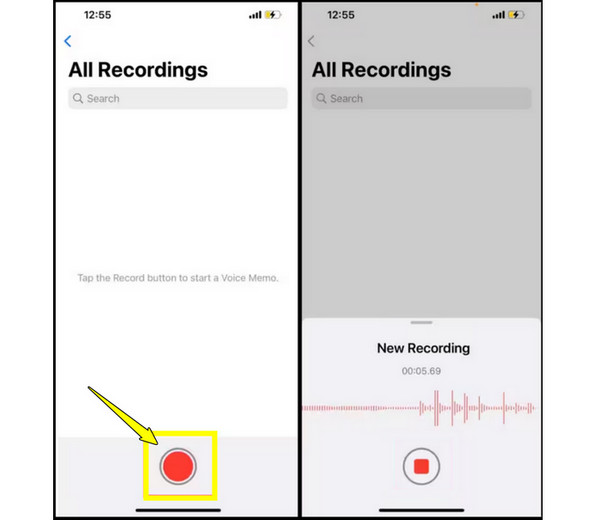
How to Record Lectures on iPhone
- 1. Go to the Voice Memos app on your iPhone.
- 2. Before the lecture starts, tap the "Record" button.
- 3. Later, tap "Stop" when the lecture ends.
- 4. Rename and save the recording for quick review later.
How to Record Lectures on Android
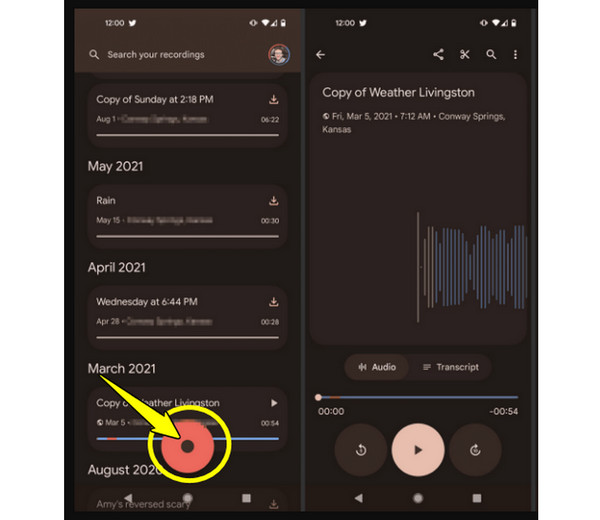
- 1. Open the Voice Recorder app on your Android phone.
- 2. There, tap "Record" to start capturing the lecture.
- 3. After that, tap "Stop" once finished.
- 4. Save and name the recording for future review.
How to Record Lectures and Turn into Notes
Besides those that have been said, many apps not only capture video and audio but also can transcribe speech into text, saving you time and making your review process easier. Check out the lecture recording apps below that have transcription features.
1. Rev Voice Recorder
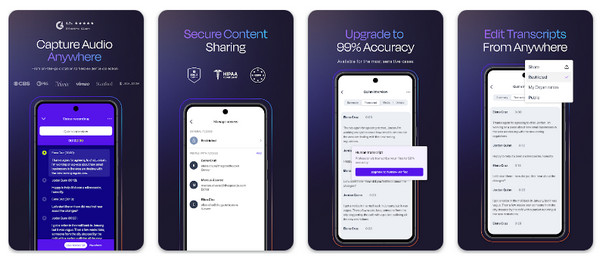
Start with Rev Voice Recorder, a dependable lecture recording app that not only records high-quality audio but also has transcription options. It offers human transcription services so your lectures can be error-free.
2. Notta
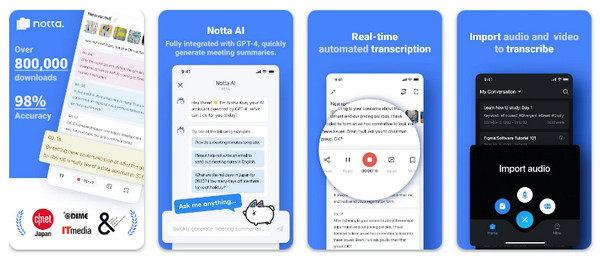
Moving on to Notta. This lecture recorder app combines real-time recording with quick transcription in multiple languages. It has a clean interface that makes it easy for you to highlight and export transcripts to review your lecture.
3. MeetGeek AI Transcribe
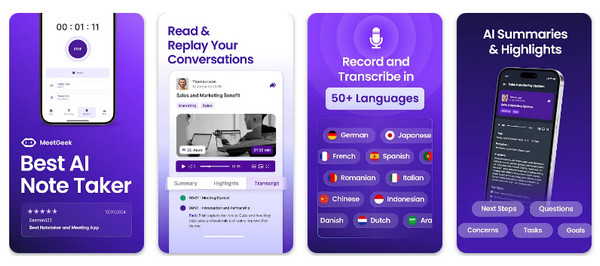
Meanwhile, MeetGeek here focuses on auto-transcribing meetings and lectures. It not only captures what was said but also identifies crucial points and action items.
4. Zoom
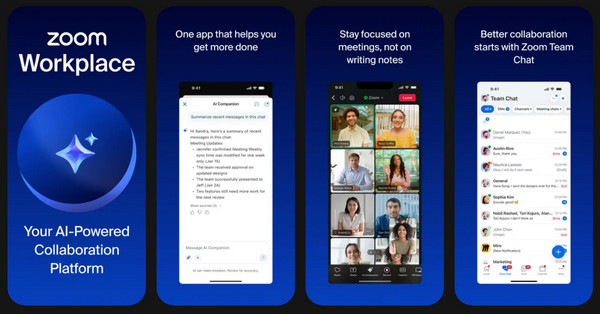
Zoom may be popular as a video conferencing platform, but it can also record lecture notes with a transcription feature. Once you record a lecture, it can generate a transcript. Thus, you can download the lecture transcriptions and edit later. And it is supported to record Zoom meetings as a host or participant.
5. Otter AI
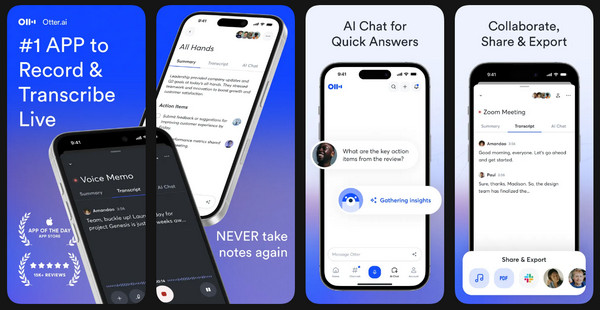
Finally, Otter AI has both power and convenience. It records audio, transcribes in real-time, and organizes all transcripts with keyword search, speaker labeling, and highlights.
Step 1.Launch Otter AI on your mobile device. Once you have created an account, tap the "Record" button before your lecture begins.
Step 2.As it records, a text appears in real-time. You can highlight or add comments on it.
Step 3.Later, stop the recording, and the app will save the audio and transcript together.
Tips to Record Lectures for Students
To get the most out of your lecture recordings, some habits before and after class can be considered. The following tips will help students record lectures more effectively and turn them into a powerful study resource.
- • Do a quick test to ensure voices are heard clearly.
- • Use Airplane Mode to prevent interruptions from notifications like calls, messages, etc.
- • Sit near the speaker to improve audio clarity.
- • Add labels to lecture recordings by subject, date, and topic to find lectures more easily later.
- • Save copies to cloud storage or an external drive.
- Note important moments to revisit complex explanations quickly.
Conclusion
Whether you're attending classes online or in person, recording lecture videos make learning more flexible. It gives you a reliable backup when notes aren’t enough and helps you prepare better for exams. AnyRec Screen Recorder is a great lecture recorder for both classrooms and online! It offers high-quality recording with flexible settings and friendly controls, making the process simple, efficient, and student friendly.
Secure Download
Secure Download
Related Article
About Our Author




