
2 Ways to Play M4V Files on Windows and Why They Won't Open

While M4V is similar to MP4, many Windows users face problems when trying to open it, like unsupported format errors, a black screen, or content that plays without audio. So, how to play M4V files on Windows? In this guide, you'll see the most common reasons why M4V files fail to open and how to check if they are DRM-protected. Then, you'll know 2 reliable ways to open M4V files on Windows, alongside fixes to ensure smooth playback anytime.
Guide List
Can't Open M4V Files on Windows? Here are Reasons How to Check If an MP4 File is DRM-Protected How to Play DRM-Protected M4V Files on Windows How to Play DRM-Free M4V Files on Windows Fix M4V Not Playing on Windows, Mac, iPhone, and AndroidCan't Open M4V Files on Windows? Here are Reasons
If your M4V video refuses to open and play on your Windows PC, the issue may not be due to the file itself. Here's a breakdown of the most common causes why you can't open and play a M4V video on Windows:
- 1. Apple DRM Protection on Files. One of the most common reasons why M4V files won't play is the DRM protection. These files can only be played on Apple devices or within iTunes.
- 2. Missing Codecs for M4V in Windows Media Player. Even though it is similar to MP4, Windows Media Player does not fully support the M4V codecs.
- 3. Corrupted Downloaded M4V Files. Sometimes, an incomplete transfer or interrupted download can make the M4V video unplayable on any player.
- 4. Unsupported Media Player. Not all players support the M4V format. Older players may have no M4V compatibility, especially for newer encoding standards.
- 5. Incorrect File Association on Windows. If M4V files are linked to an incompatible player, opening them may result in an error.
How to Check If an MP4 File is DRM-Protected
Before trying to fix you can't play M4V files on Windows problem, it's necessary to confirm whether your file is DRM-protected. This quick check can save you time by helping you understand whether protection, rather than serious issues, causes the problem. See the quick help below:
- • Right-click the M4V file and check Details. After right-clicking, select "Properties" from the drop-down menu. In the "Details" tab, look for the source or copyright. If it mentions some protection notes, it is a sign that the video is DRM-protected.
- • Play the File in VLC. Since VLC supports most video formats, open the file in the player, and if it won't play at all or has no audio, this usually indicates the video is DRM-protected.
- • Open M4V File in iTunes. If the video plays after you sign in with the Apple ID, the M4V file is DRM-protected.
- • Check the File Source. If the M4V video file is downloaded, rented, or purchased from Apple or iTunes, it is usually DRM-locked.
- • Look for Error Messages. Upon playing it in the media player, it shows playback error messages; the file is surely DRM-protected.
How to Play DRM-Protected M4V Files on Windows
Suppose you confirmed your M4V files are DRM-protected. Your best playback option to play iTunes M4V files on Windows is iTunes. This is the official and most reliable method to play DRM-protected videos without errors.
Step 1.Launch iTunes for Windows PC and sign in with the Apple ID you used to purchase the M4V video file.
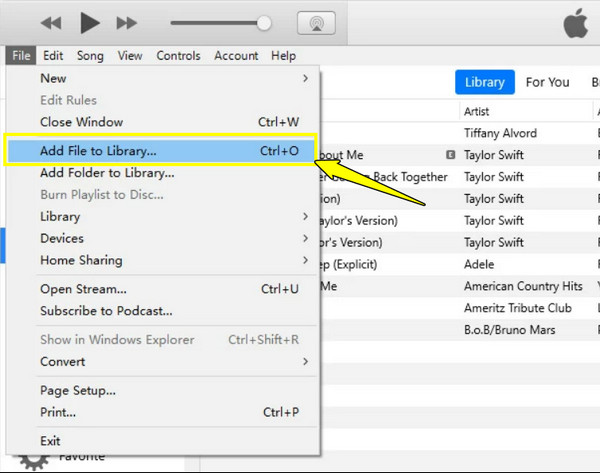
Step 2.Then, click "File", select "Add File to Library", and import the file.
Step 3.Find your way to the M4V video under the "Movies" or "TV Shows" section.
Step 4.There, double-click the file to begin playback, and the M4V video file should play as usual.
How to Play DRM-Free M4V Files on Windows
Meanwhile, if your M4V file is free from protection, you have far more flexibility to open videos with the .m4v file extension. Several players and tools can handle them smoothly, and the best M4V players are listed below.
1. AnyRec Blu-ray Player
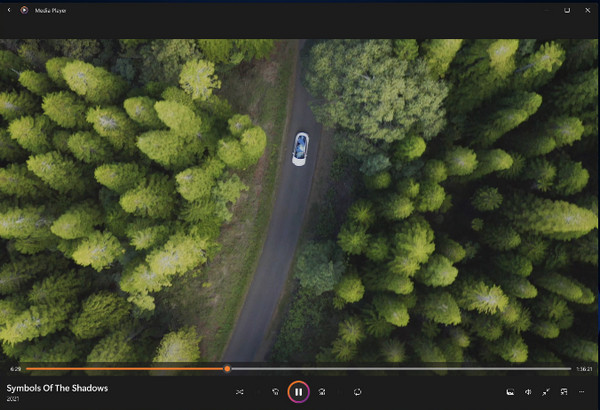
To start the list, AnyRec Blu-ray Player is an excellent choice for playing DRM-free M4V files on Windows PC with premium quality. This player supports a wide range of formats, including M4V, MP4, MOV, AVI, and more, without extra codecs. You can get complete controls over subtitles, audio tracks, playback speed, and screen size. Compared to basic players, this M4V player focuses on quality and stability, making it perfect for large or high-resolution M4V files.

Seamlessly play M4V files alongside formats like MP4, MOV, MP3, WAV, etc.
Delivers lossless playback, ensuring your videos keep their original visual quality.
Supports HD and UHD playback for clear, detailed viewing on Windows.
Let you adjust volume, switch tracks, and subtitles for a personalized experience.
Secure Download
Secure Download
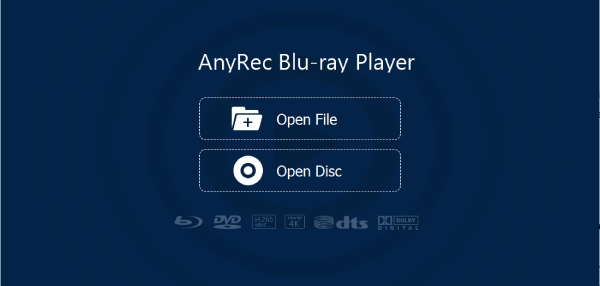
Step 1.Open AnyRec Blu-ray Player on Windows. Click "Open File" and select your M4V file from your computer's local storage.
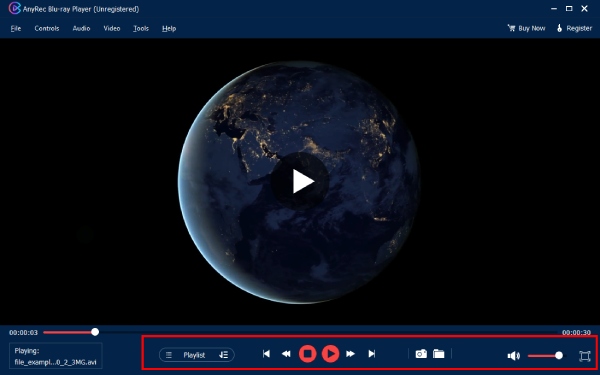
Step 2.The video will begin playing instantly. Use the playback controls to adjust audio, subtitles, or video settings.
Secure Download
Secure Download
2. VLC Media Player
Next, if you wish for a free solution to play M4V files on Windows, VLC Media Player is a popular option to do so. The player supports most video formats and works well on different Windows versions. It also has customizable playback settings, enables subtitles, and adjusts audio tracks.
Step 1.Open VLC on your PC.
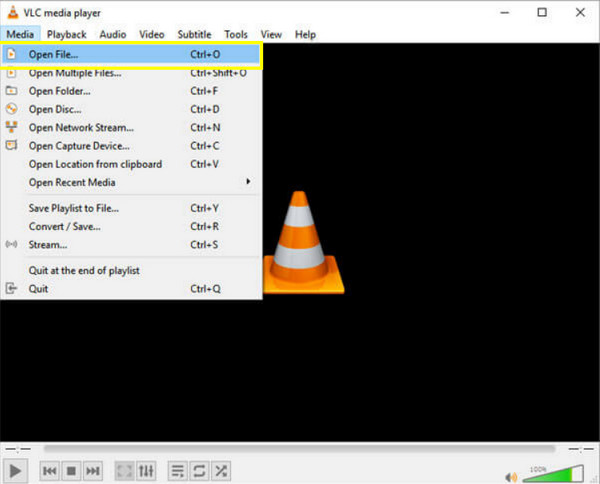
Step 2.Click "Media", then select "Open File", and browse and choose the M4V video.
Step 3.Once loaded, the playback will begin. Adjust settings if needed from the menu bar.
3. Windows Media Player
Meanwhile, Windows Media Player can play M4V files on Windows, too, but its support is limited. Since the file is not natively optimized for Windows, playback may fail if the needed codecs are missing.
Step 1.Once Windows Media Player is opened, drag and drop the file into the player.
Step 2.If the codecs are supported, the video will play.
Step 3.If an error appears, extra codecs are needed.
4. AnyRec Video Converter
Finally, if playback issues persist, converting M4V is often the most reliable solution to play M4V files on Windows smoothly. For this, AnyRec Video Converter lets you convert videos into widely supported formats such as MP4, AVI, MOV, etc. The software maintains high video quality while giving fast conversion speeds, which helps share or edit M4V videos across different platforms.
Step 1.Launch AnyRec Video Converter.
Step 2.Click "Add Files" to upload your M4V video, then select "MP4" format from the "Format" drop-down menu and then the "Video" section.
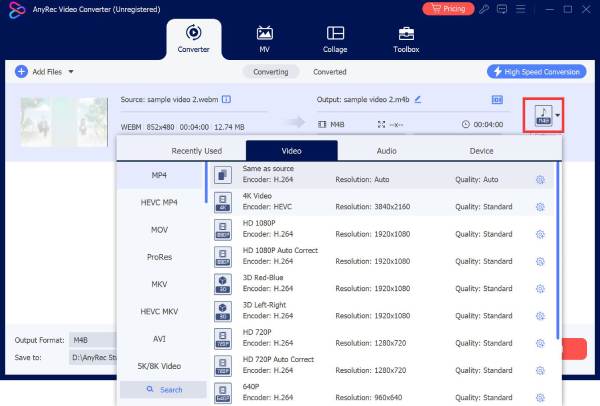
Step 3.Adjust settings as needed. Later, click "Convert All" and wait for the process to finish converting the M4V file.

Fix M4V Not Playing on Windows, Mac, iPhone, and Android
Even when you use the right M4V player, the file may still fail to play properly due to compatibility issues, DRM restrictions, missing codecs, or file damage. So, to identify the problem and apply the right solution, here's a table that summarizes the M4V playback issues and fixes.
| M4V Playback Issue | Windows | Mac | iPhone/Android |
| File won’t open | Play with iTunes or other compatible player; check DRM | Play with Apple TV or QuickTime. | Use the Apple TV app or convert it to a compatible format. |
| Video plays, but there is a black screen | Try VLC or convert M4V | Re-open in QuickTime. | Convert M4V to MP4. |
| No sound | Switch audio tracks or get the needed codecs | Check audio output settings. | Try a different player app. |
| Cannot play file error message | Re-download the M4V file | Re-transfer the M4V file. | Download the M4V file again. |
| The video is lagging | Use a powerful player or lower the video resolution | Close background apps. | Lower the resolution. |
Conclusion
Opening M4V files on Windows can be frustrating, but as you've seen here in this guide, the issue comes down to key factors like DRM protection that can be resolved right away! By understanding why an M4V file won't play and how to check whether it is DRM-protected, you can avoid any errors. But for a smooth, hassle-free playback experience when playing .m4v files on Windows, use AnyRec Blu-ray Player! This player supports playback of so many formats with high-quality output without extra codecs, making it an excellent all-around player for Windows users.
Secure Download
Secure Download



