
Hot

AnyRec Screen Recorder
Bypass screenshot restricitons now.
Secure Download
Fix 'Can't Take Screenshot Due to Security Policy' Today!

Can't fix "Can't take a screenshot due to security policy" error on WhatsApp, Telegram, Instagram, and other apps? No worries, this Android screenshot error is caused due to app restrictions. Fortunately, you can get eight solutions to fix screenshot blocking safely.
Guide List
Why You Encounter Can’t Take Screenshots Due to Security Policy Error Take a Screenshot on Its Web or Desktop Version Mirror iPhone and Android to Your Computer to Screenshot Allow Screenshots in Incognito Mode Exit the Incognito or Private Mode Disable Device Admin Grant Screenshot Access Use Google Assistant to Take Screenshots Again Scan and Screenshot Your Phone Screen Quick Fixes for Can’t Take Screenshots Due to Security PolicyWhy You Encounter Can't Take Screenshots Due to Security Policy Error
Seeing the "Can't take screenshots due to security policy" error does not always mean something is wrong with your device. In most cases, this error message is triggered to protect sensitive data within specific apps. Understanding the root cause can make the fix much easier. Below are the most common reasons why this screenshot blocker appears.
- • Browser in Incognito. Screenshots are blocked in private browsing sessions to prevent you from saving sensitive browsing data.
- • App-Specific Screenshot Restrictions. Payment platforms, banking apps, secure viewers, and password managers often disable screenshots to protect your information.
- • Operating System Bugs. An OS update or software glitch may trigger security restrictions even in those allowed apps.
- • Employer or School Issued Devices. Managed devices may have administrator policies that have screenshot permissions.
- • Restricted Device Profiles. Features like Guest Mode or work profiles can completely limit screenshot functionality.
Take a Screenshot on Its Web or Desktop Version
If an app blocks screenshots on your Android phone due to security policy, you can access the same content through its web version. AnyRec Screen Recorder can bypass screenshot restrictions without triggering the "Can't take screenshots due to security policy" error. It bypasses app-level restrictions by recording what is displayed on your browser instead of the phone.

Can record full screen, browser window, custom region, or even scrolling ones.
Capture content on the computer screen in HD and 4K quality.
Offers customizable hotkeys to screenshot and record screen.
Preview the screenshots and edit them with annotation tools before saving.
Secure Download
Secure Download
Step 1.Open AnyRec Screen Recorder. From the main screen, select "Screen Capture" to activate the feature. Your cursor will then change into a crosshair; drag it and select the capture area.
Alternatively, use the keyboard shortcut, which can be seen and edited under "Settings", then "Hotkeys".
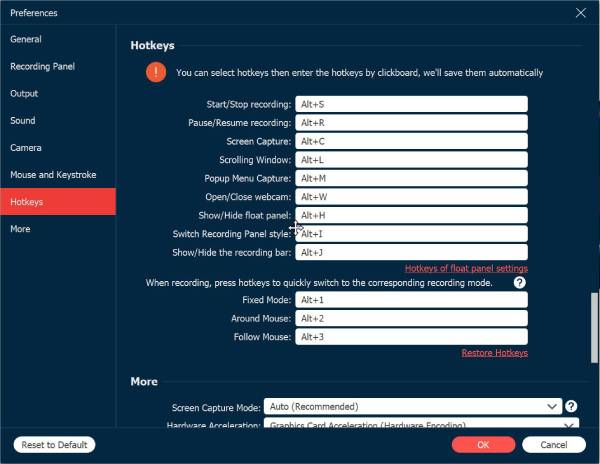
Step 2.When you release the mouse, the screenshot will be taken. Now, use the tools in the preview to add text, draw shapes, and more.
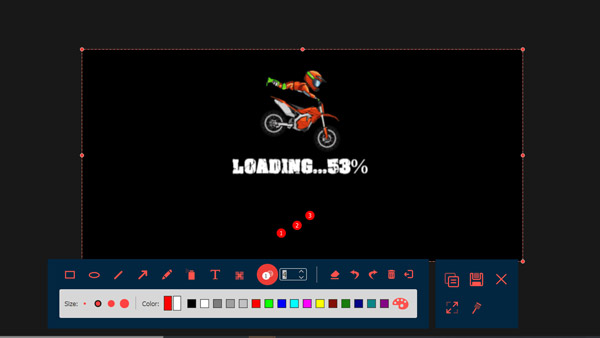
Step 3.Once done, click the "Save" button to store it on your desktop. Choose your folder and file format, then confirm the save.
Mirror iPhone and Android to Your Computer to Screenshot
Here is another way to take screenshots if the app doesn't allow. You can screen mirror Android to PC to screenshot and record sensitive content. So, instead of capturing directly on your phone, use AnyRec Screen Recorder to mirror your phone to PC and take screenshots there. This method avoids triggering the Android security protections as the process happens on your computer.
Secure Download
Secure Download
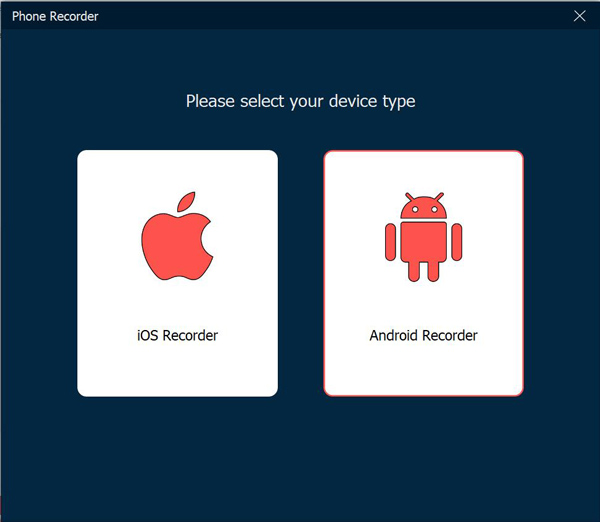
Step 1.Launch AnyRec Screen Recorder on your computer and select "Phone Recorder" from the main screen. A setup window will show up asking you to choose the type of mobile device you wish to connect to; select "Android Recorder".
Step 2.You can mirror your Android screen using "Wi-Fi" or "USB cable". For a wireless connection, ensure both devices are connected to the same network, then use the "FoneLab Mirror" app.
Tap "Detect" to connect Android to PC automatically, or manually you can link both devices by "PIN code" or "QR code".
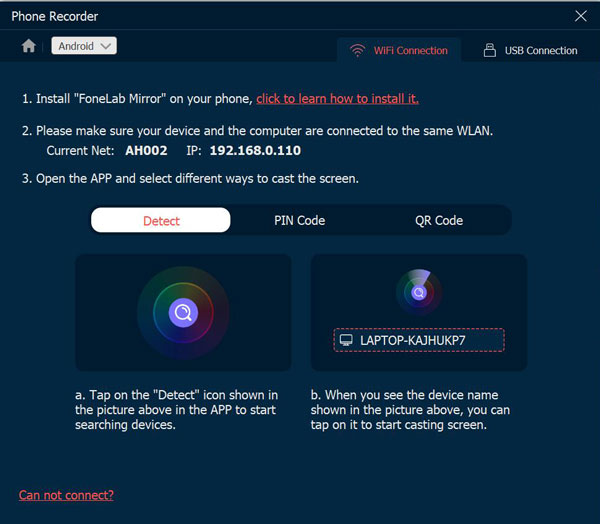
If you want a wired setup, connect your Android device to the computer with a USB cable.
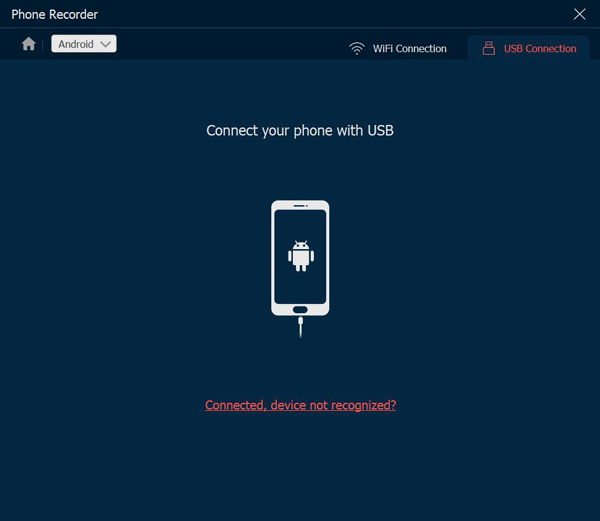
Step 3.Once connected, you'll see your Android screen on your desktop in real time. From here, start recording and click on the "Camera" button to take screenshots from your computer, even for those restricted apps.
Later, you'll see the captured images in the preview, which you can edit before saving in formats you like.
Allow Screenshots in Incognito Mode
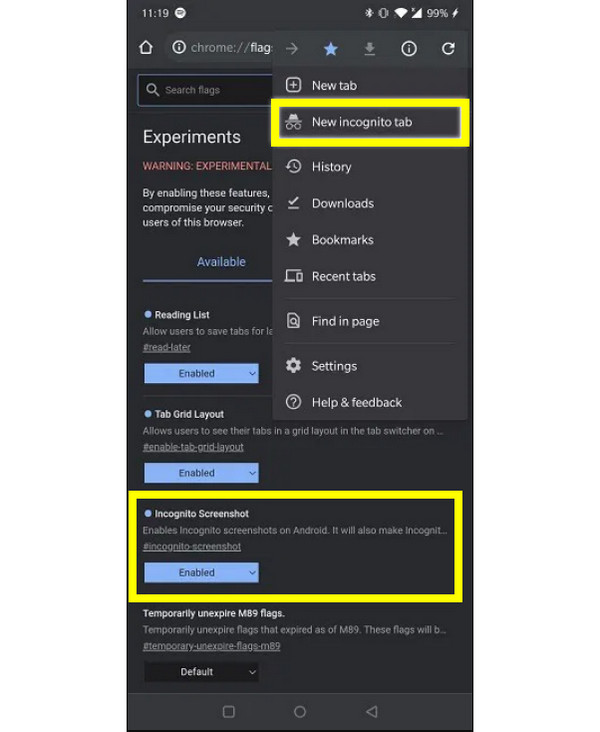
Some browsers allow screenshots in private mode after enabling some settings. You can adjust these settings via those steps. Open your browser first. Then, go to "Settings", select "Privacy & Security", and look for options for Incognito screenshots, and enable them if available. Later, you can screenshot private content.
Exit the Incognito or Private Mode
Incognito or private modes can block screenshots to protect sensitive data, giving you a 'Can't screenshot due to security policy' message. Switch back to normal browsing mode to remove this restriction.
Disable Device Admin
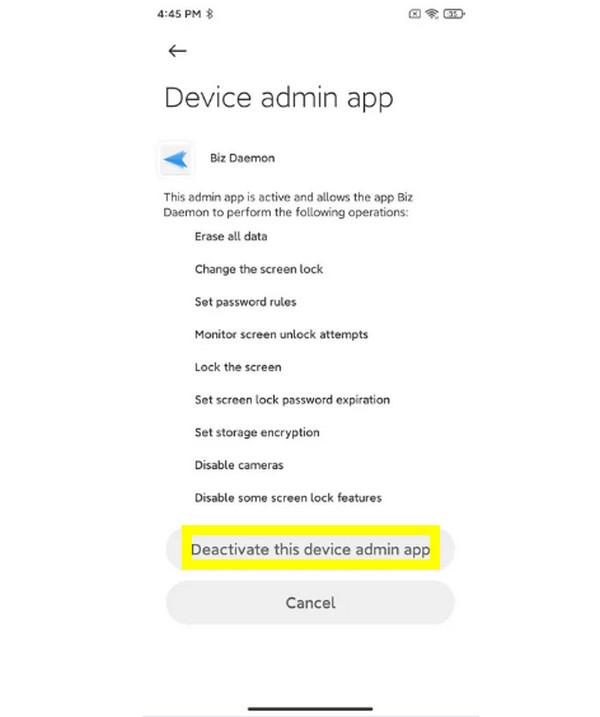
If your Android phone is managed by an employer, school, or an admin app, screenshots may be disabled. So, go to "Settings", then "Security" and tap on "Device Admin Apps", and there review all apps and disable unnecessary ones.
Grant Screenshot Access
On some Samsung devices, the "Can't take screenshot due to security policy" shows up because of app permissions. So, allow access in "Settings" then "Apps", determine the affected app and tap "Permissions", then enable it to screenshot on Samsung. You can turn off the security policy on Samsung manually.
Use Google Assistant to Take Screenshots Again
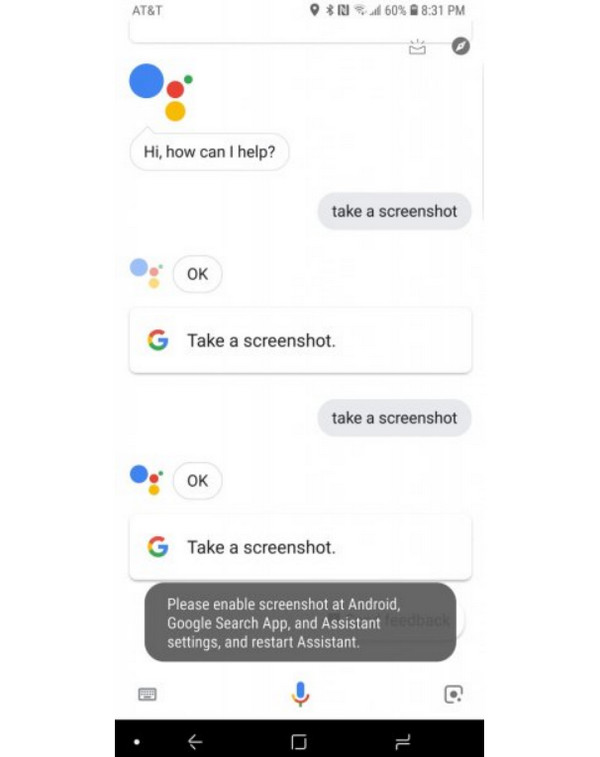
Even when those screenshot buttons are blocked, Google Assistant can sometimes help capture the screen successfully. Simply activate it by saying "Hey Google"; after that, say "Take a screenshot" to take a screenshot on Android.
Scan and Screenshot Your Phone Screen
If all the methods fail for "Can't take screenshot due to security policy", scan the screen using another device. You can use another phone or device to capture the restricted content on your Android device, then enhance it if needed.
Quick Fixes for Can't Take Screenshots Due to Security Policy
Suppose you don't have time to go through every detailed solution to bypass "Can't take screenshots due to security policy", here's a brief fix to resolve the issue faster. Match your exact situation with the right fix and take a screenshot of protected content on Android smoothly.
| What’s Happening | Quick Fix |
| Screenshots work everywhere except one app | Use the app’s web version or mirror the screen to your computer. |
| Screenshots save, but show a black screen | Disable protection features, or exit Secure Folder. |
| Can’t take screenshots anywhere | Remove admin profiles, clear system cache, or restart in safe mode. |
| Screenshot error after an OS update | Clear system cache or restart your Android device. |
| Incognito blocks screenshot | Switch to normal window mode or enable screenshot permission. |
| Google Assistant can’t take screenshot | Re-enable permissions and set it as the default one. |
Conclusion
Running into the "Can't take screenshots due to security policy" error message can feel limiting. But as you've seen here, the restrictions come from many sources, and there's a fix for every situation. From using the web versions and exiting restricted modes to adjusting permission settings, you can bypass screenshot restrictions and capture what you need. For cases where the screenshot options fail entirely, use AnyRec Screen Recorder. Its screen capture and phone mirroring features let you take a screenshot smoothly without triggering the security policy limitations, making it flexible and smart for anyone.
Secure Download
Secure Download



