
 Best video, audio, and webcam recorder for everyone.
Review of Upgraded Screencast-o-Matic: Know Full Features

Screencast-O-Matic is a comprehensive screen recording and video editing software, formerly known as ScreenPal. This article will detailed review differences after Screencast-O-Matic's upgrade, along with its specific features and capabilities. Simply read on to quickly grasp the essentials. Additionally, we'll recommend an alternative tool to provide you with more suitable options.
Guide List
Screencast-O-Matic vs. ScreenPal: What's the Difference Screencast-O-Matic Screen Recorder Overview Screencast-O-Matic Features and User Experience Best Alternative to Screencast-O-Matic Screen RecorderScreencast-O-Matic vs. ScreenPal: What's the Difference
Screencast-O-Matic officially rebranded as ScreenPal in 2023. Following the rebranding, all existing recording features and user account information remain fully intact. Video content and data previously hosted on the Screencast-O-Matic platform will also be automatically migrated to ScreenPal.
Compared to the original version, ScreenPal evolves beyond core screen recording into a more comprehensive video creation platform. It introduces enhanced editing tools, streamlining post-recording editing, optimization, and publishing workflows for greater professionalism and efficiency. You can check the following comparison.
| Category | Screencast-O-Matic (Old) | ScreenPal (New) |
| Core Recording | Screen & webcam recorder; free plan limited to 15 minutes; watermark included. | Screen + webcam recorder; free plan limited to 15 minutes; no watermark in free version. |
| Video Editing | Basic editing (trim, cut, captions); advanced tools require Pro plan. | Advanced editor with multi-track timeline, animations, transitions, overlays; subscription required. |
| AI Features | No AI tools available. | AI captions, text-to-speech narration, AI titles, summaries. |
| Interactive Video | Not supported. | Supports quizzes, polls, CTAs, and branching scenarios. |
| Hosting & Storage | Limited online hosting and sharing options. | Unlimited cloud hosting, branded channels, analytics dashboard. |
| Platform Support | Windows, macOS, Chromebook. | Windows, macOS, iOS, Android, Chromebook, web-based editor. |
| Collaboration | Designed mainly for individual users. | Team plans with role-based admin controls, collaboration tools, LMS integration. |
| Accessibility | Manual captioning only. | Automated captions and enhanced accessibility features. |
| Target Users | Individual educators and casual creators. | Educators, businesses, marketing teams, and enterprise users. |
Screencast-O-Matic Screen Recorder Overview
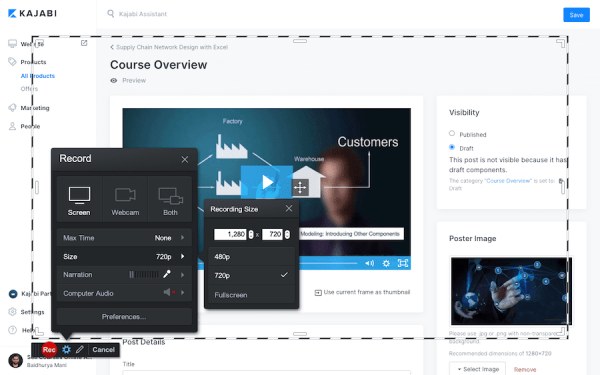
Screencast-O-Matic is a lightweight video production tool centered around screen recording, supporting simultaneous capture of screen, camera, and audio. It is ideal for instructional presentations, software tutorials, and simple content creation. Its built-in basic editing features—such as cropping, trimming, adding subtitles, and simple transition effects—meet everyday video processing needs. The free version allows recordings up to 15 minutes long but includes a watermark. Paid versions unlock additional editing tools and cloud hosting capabilities.
- Pros
- Intuitive interface with a low learning curve.
- Support simultaneous recording of screen, camera, and audio.
- Include basic editing features such as trimming, cutting, and subtitles.
- Offer cloud hosting and sharing capabilities.
- Cons
- The free version has a 15-minute time limit and includes a watermark.
- It does not support complex multi-track editing or advanced special effects.
- It lacks AI-assisted features and has limited automation capabilities.
- Team collaboration and enterprise-level management functions are weak.
Screencast-O-Matic Features and User Experience
Features:
Screencast-O-Matic's user interface design prioritizes simplicity and intuitiveness, with clearly organized functional modules. The record button, recording area selection, and basic editing tools are all easily accessible on the main interface, making it suitable for screen recording beginners and educators.
Recording capabilities cover the screen, camera, and system/microphone audio, with a smooth workflow and responsive feedback. The basic editing module offers intuitive tools for cropping, trimming video, and adding text/captions, meeting standard editing needs. However, it lacks multi-track timelines and advanced visual effects.
For sharing and publishing, it integrates local export and cloud upload options, though batch management and custom output settings are relatively limited. Overall, its interface and feature set lean toward quick recording and basic processing, making it suitable for lightweight video creation scenarios.
User Experience
The overall user experience, most user reviews describe it as a pleasant and easy-to-use application. Its functionality is relatively straightforward and intuitive, though some areas within the editing and sharing menus may be slightly more complex, potentially presenting challenges for novice users. However, the official website offers various tutorials and guides to help users become familiar with its features more quickly.
Best Alternative to Screencast-O-Matic Screen Recorder
After learning about the relevant features, if you have concerns about device security with Screencast-O-Matic, AnyRec Screen Recorder is the ideal choice. It requires no account or personal information, and locally storing recordings enhances security. It supports recording high-definition video and audio. Additionally, you needn't worry about recording time limits, as this software has no duration restrictions, making it suitable for various video activities like gaming, business meetings, and online tutorials. Available for both Windows and Mac systems.

Screen recording in high definition without watermarks.
Multiple flexible screen options include full-screen and custom screen sizes.
Equipped with practical features like scheduled recording, editing, and real-time drawing.
Adjustable recording settings for lossless video and audio capture.
Secure Download
Secure Download
Step 1.Install AnyRec Screen Recorder and launch it on your device. Click the "Video Recorder" button to start recording the computer screen on the main panel.
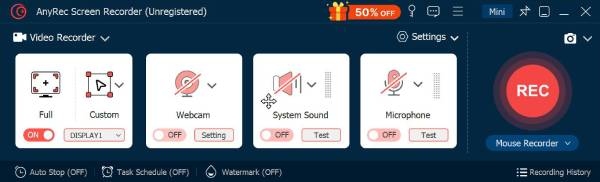
Step 2.Before recording begins, you can adjust settings to modify the screen area you wish to capture. For example: full screen, custom selection, or a specific window.
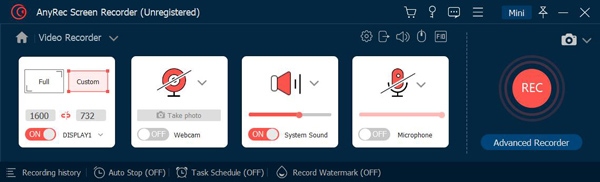
Step 3.Turn on "System Sounds" and "Microphone". then click the "Record" button to start recording the video.

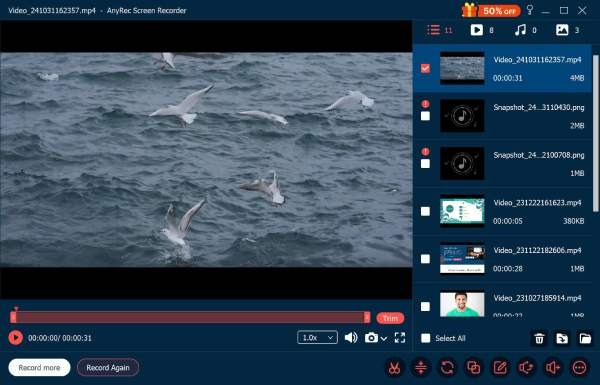
Step 4.After recording begins, a menu bar will appear on the screen. You can take screenshots, set the recording end time, etc. When finished, click the "Stop" button to save.
Conclusion
In summary, we've covered the basics of Screencast-O-Matic (now renamed ScreenPal) and its key features. All functions discussed in this article are worth exploring. However, if you still have concerns about the software's security, we recommend using AnyRec Screen Recorder. It safeguards your content, offers high-definition recording with no time limits, and provides numerous features for video capture. Try the free version today!
Secure Download
Secure Download



