
Hot

AnyRec Video Converter
120× faster video conversion and editing. No waiting.
Secure Download
3GP to MP4 Conversion: 5 Ways on Desktop, Online, and Mobile

Whether your 3GP file is a grainy video or a saved clip from the early 2000s, these files were the standard for mobile data for so long. Fast forward to now, you might face a file format not supported, so converting 3GP to MP4 comes up. Since MP4 is the universal format for videos today, this guide shares with you the best 5 ways to convert 3GP to MP4 format, from desktop software and online tools to mobile solutions. Enjoy a seamless playback on everything!
Guide List
Important Tips When Converting 3GP to MP4 Most Convenient Method to Convert 3GP to MP4 on Desktop 3 Quick Methods to Convert 3GP to MP4 Online How to Convert 3GP to MP4 on iPhone/AndroidImportant Tips When Converting 3GP to MP4
Before clicking the convert button, understand first the files you are handling. Here are some tips that will help you get the best results without degrading the quality of your footage:
- • Maintain Original Resolution. Do not upscale a tiny 3GP file to 4K, as it will result in a blurry mess with a large file size.
- • Check the Audio Codec. Many 3GP files use AMR audio, which some players will struggle to play with, so always have AAC as your codec for maximum compatibility.
- • Use Batch Processing. If you have a bunch of clips, look for tools with a batch conversion feature.
- • Make a Backup. Always keep your original file until you have ensured your MP4 video file plays correctly.
- • Watch for Watermarks. Check if the tool includes a watermark, since it can be annoying on the final result. Or you can remove watermark from a video manually.
Most Convenient Method to Convert 3GP to MP4 on Desktop
For a fast, professional, and stable experience on your PC or Mac, AnyRec Video Converter comes on top! This program handles more than a thousand formats, making it much more than a simple file converter. It also uses hardware acceleration, so the conversion process happens at lightning speed. If you're worried about quality loss, its smart technology can preserve the original visual integrity of your old mobile 3GP videos. This tool is the perfect balance of a user-friendly screen and advanced features that anyone can master and enjoy in minutes.

Easily change 3GP to MP4 and other formats like MOV, MKV, and AVI.
Employs advanced hardware acceleration for a fast speed conversion process.
Fine-tune your MP4 video by adjusting the frame rate, resolution, and codecs.
Save time by converting a library of 3GP at once without losing the visual quality.
Secure Download
Secure Download
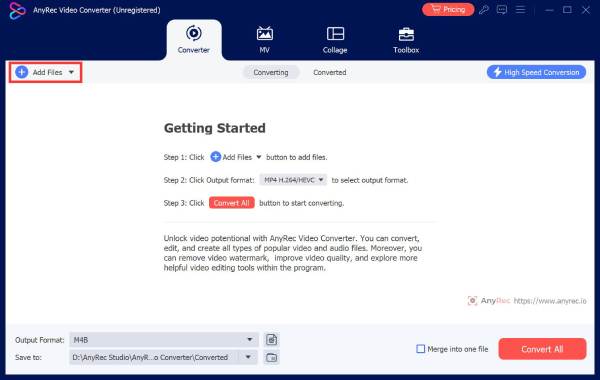
Step 1.Once you have opened AnyRec Video Converter on your computer, select the "Add Files" button to choose the 3GP files you want to convert. You can also drag them directly into the interface.
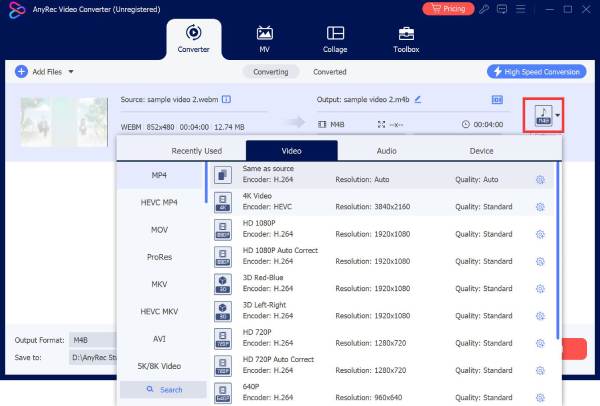
Step 2.Access the "Format" selection menu. Navigate to the "Video" tab. From here, pick "MP4" as your output video format. To enhance the video further, click the "Custom Profile" button to change the video resolution and other settings.
Step 3.Next, on the main interface, designate a save location for your new MP4 files. After all that, click the "Convert All" button to start the transformation from .3gp to .mp4.

Secure Download
Secure Download
3 Quick Methods to Convert 3GP to MP4 Online
Maybe you aren't ready to install software, then you can opt for an online solution to convert 3GP video format to MP4. These online converters work directly in your browser and are ideal for smaller file sizes. Here are the top three choices:
1. CloudConvert
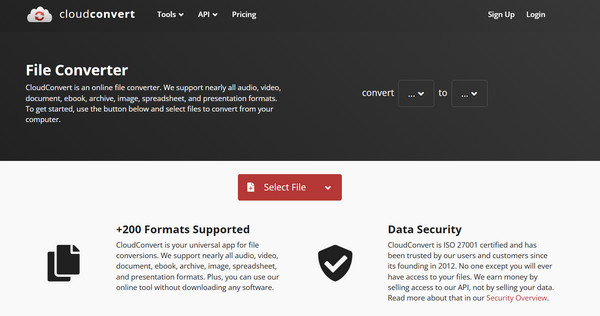
Known for its high-quality conversion engine and deep customization, CloudConvert is one of the free 3GP to MP4 converters online. Here, you can tweak everything, from codec to volume level.
Step 1.Head to the CloudConvert website. Click on "Select File" to upload your 3GP video.
Step 2.Make sure the "Convert to" dropdown is set to "MP4".
Step 3.You can adjust settings if needed, then click the "Convert" button.
2. FreeConvert
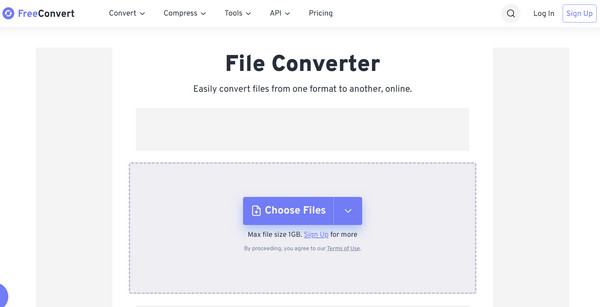
FreeConvert stands out due to its large file size limits and its advanced settings menu support. Using this online 3GP to MP4 converter, you can rotate or flip your video, which is handy for old clips at odd angles.
Step 1.Inside the FreeConvert page, click "Choose Files" to import your 3GP video.
Step 2.Select "MP4" as the target format.
Step 3.Then click "Convert to MP4" to finalize.
3. Zamzar
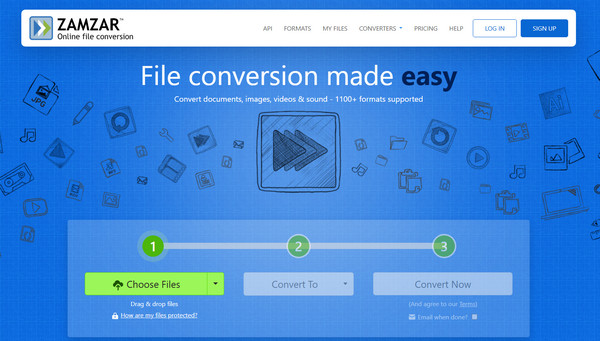
Giving you a clean, ad-free interface, Zamzar works as one of the veterans of the online conversion world. This 3GP to MP4 video converter is best for anyone who wishes for a three-step process without any complicated settings.
Step 1.Once on the Zamzar website, click "Choose Files" to select your 3GP video files.
Step 2.Then, pick "MP4" as the desired format.
Step 3.Click "Convert Now" to convert 3GP videos to MP4 format. Download those MP4 videos later.
How to Convert 3GP to MP4 on iPhone/Android
For anyone who has their old 3GP videos on their phone's gallery, a dedicated mobile app is the most efficient solution to use. The Video Converter, Compressor by Inverse.AI app can be found on both the App Store and the Google Play Store. It is highly regarded not only because it can help you turn 3GP to MP4, but it can also compress and trim videos. It also supports batch processing, letting you choose your entire video album and turn it into an MP4 right away.
Step 1.Launch the Video Convert, Compressor app on your mobile device. Tap the "Video Converter" tile on the home screen. Then, browse your gallery or files to import your 3GP videos.
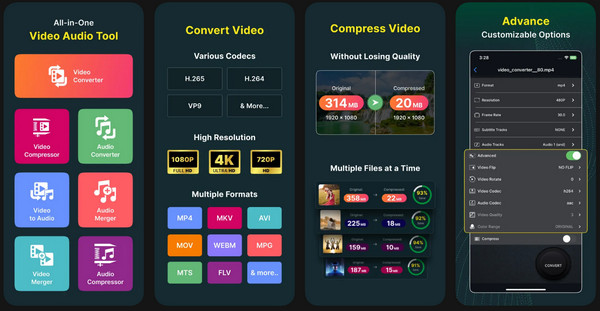
Step 2.Next, ensure "MP4" is selected as the output. You can choose a preset, or leave it to "Auto" for best results.
Step 3.Afterward, tap the "Convert" button, and name your MP4 file. Please wait until you get the "Successful" notification to save it to your gallery.
Conclusion
Holding onto your 3GP files won't serve you fully if you wish to play them on today's devices. Thanks to this post, you can change 3GP to MP4 regardless of the devices, granting no more playback issues and ensuring smooth viewing across all your screens. If you want a more reliable, fast, and feature-rich conversion solution, AnyRec Video Converter is highly suggested. It handles batch conversion with no quality loss, making it the best choice for anyone preserving their video collection. Give your old 3GP videos the upgrade they deserve!
Secure Download
Secure Download
Related Article
About Our Author




