




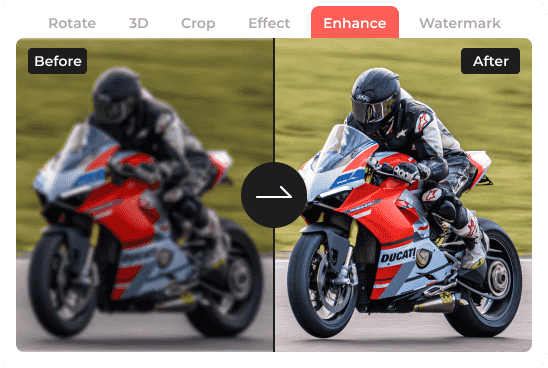

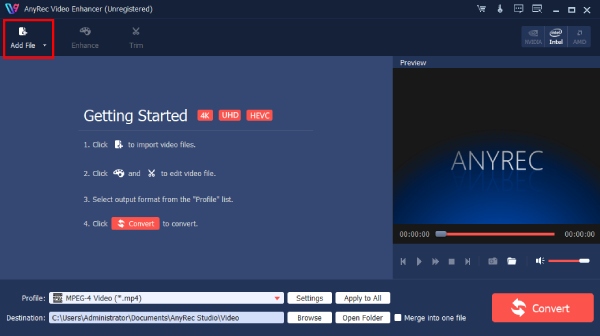
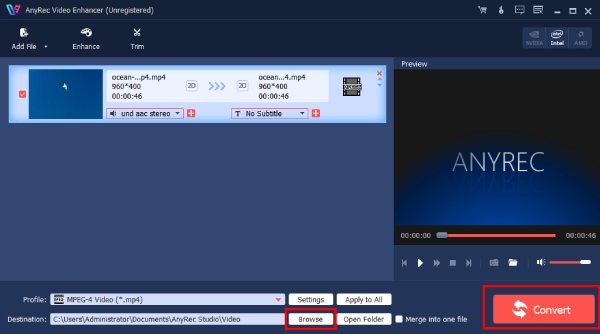


 I convert my 480p video with AnyRec Video Enhancer and the result is stunning! It turns out to be an HD video now. A great improvement.



Improve Video Quality and Upscale Videos to 4K
Improve blurry, noisy, dark, or low-resolution videos on Windows and Mac. You can upscale resolution, sharpen details, reduce noise, adjust brightness, and stabilize shaky footage before exporting.
- Upscale Resolution
- Sharpen Video
- Remove Video Noise
- Reduce Video Shaking
-



Upscale Video Resolution
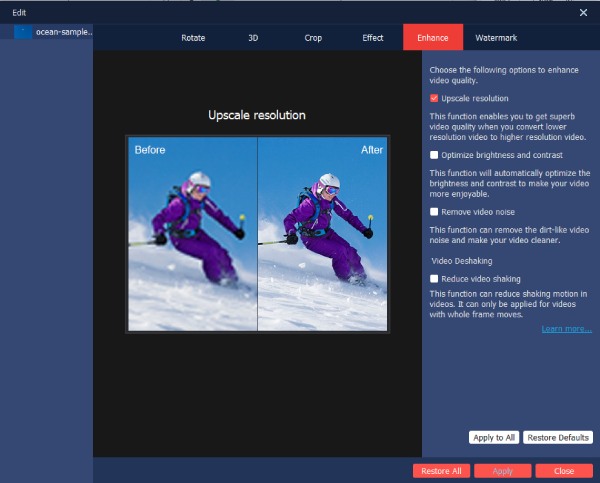
Low-resolution videos can look soft or pixelated on larger screens. You can upscale 360p, 720p, or 1080p footage to a higher resolution, including up to 4K. Compare the result before exporting to check whether the upscaled resolution improves your footage.
-


Sharpen Video
You can enhance lowlight videos, improve video sharpness, and brighten dark videos using the "Optimize brightness and contrast" button. The video color correction software can make night recordings, underexposed videos, or washed-out footage look vibrant and natural. In short, you can adjust brightness, contrast, saturation, and sharpness within the lowlight video enhancer.
-


Remove Video Noise
Old cameras and lowlight recordings often result in grainy videos. To remove background noise and clean up a video, tick the checkmark before "Remove video noise". The video noise reduction algorithm analyzes each frame to reduce graininess, pixelation, and color artifacts while preserving the original details. Want to clean up old video footage and get polished videos? Try AnyRec Video Enhancer now!
-


Reduce Video Shaking
If you are filming a travel vlog or action scenes using a handheld phone, you may end up with a video that has motion blur and shakes. No worries. AnyRec Video Enhancer provides an advanced anti-shaky technology to stabilize shaky video footage. You can reduce camera shake and remove jittering/vibrating/micro-shaking in this video easily.



