
Simple Tutorial on How to Upscale 1080p to 4K with Upscalers

With the widespread adoption of 4K devices, some classic films and older videos need to be upscaled to 4K to be compatible with high-definition equipment. Understanding the differences between 1080p and 4K is essential for selecting the right upscaler. This article introduces 6 useful upscalers, each with its own unique features, and tells you the detailed steps to upscale 1080p to 4K.
Guide List
The Differences between 1080p and 4K Powerful Tool to Upscale 1080p Videos to 4K Quickly Upscale 1080p to 4K with Complex Premiere Pro 4 Popular Online Upscalers to Enhance 1080p to 4K FAQs about How to Upscale 1080p to 4KThe Differences between 1080p and 4K
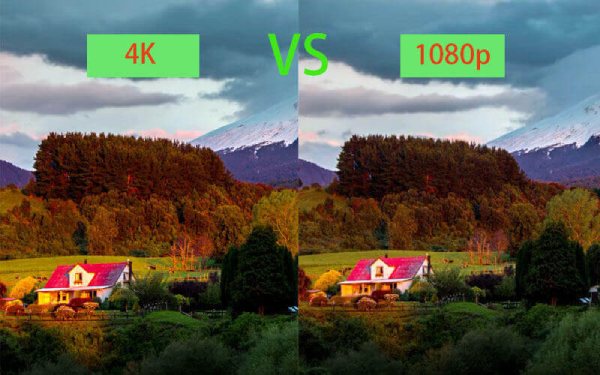
What is the main difference between 1080p and 4K? 1080p and 4K are defined by the resolution of the display. A 4K resolution has four times the number of pixels compared to 1080p. This means a 4K display has twice as many vertical and horizontal pixels as a 1080p display. Upscaling 1080p to 4K significantly enhances display quality, resulting in richer video details and superior contrast and color performance.
| 1080P | 4K | |
| Resolution | 1920 × 1080 | 3840 × 2160 |
| Pixel count | 2073600 | 8294400 |
| Aspect ratio | 16:9 | 16:9 |
| Availability | 44" TV and smaller | 32" TV and larger |
Choosing the right upscaler ensures your old movies play crisply and smoothly on new devices.
Powerful Tool to Upscale 1080p Videos to 4K Quickly
Among numerous 4K video upscalers, AnyRec Video Converter stands out as an ideal video upscaling enhancement tool. It elevates 1080p to 4K while removing video noise and optimizing brightness and contrast. Its 4K algorithm ensures your content maintains high-quality visual standards, filling in missing details and enhancing textures. Additional editing tools are also included for further video refinement.

Provide 4 different methods to upscale 1080p video to 4K.
Compatible with a wide variety of video formats, such as MP4, MKV, etc.
Customize video parameters for better quality, such as frame rate and bitrate.
Cut out the desired part, combine the video clips, and apply video filters.
Secure Download
Secure Download
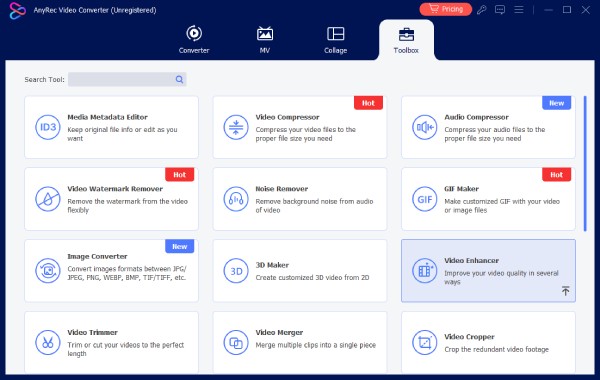
Step 1.Launch the program and click the "Toolbox" button. Click the "Video Enhancer" button and add the 1080p video files that you want to upscale.
Step 2.Check the "Upscale Resolution" option and set the resolution as 3840 × 2160 to upscale 1080p to 4K.
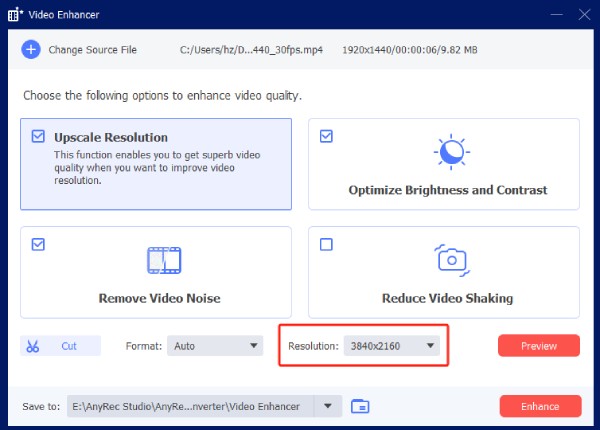
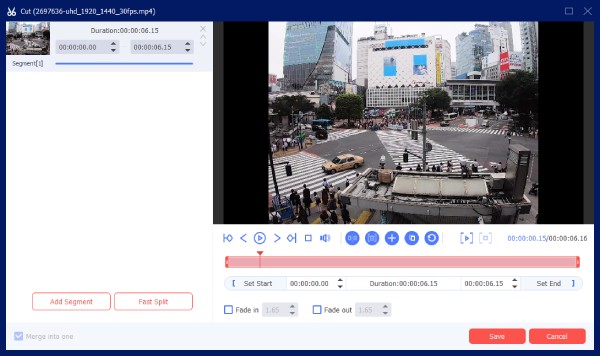
You can optimize brightness and contrast, remove video noise, and reduce video shaking when upscaling 1080p videos. Moreover, you can also cut out the desired part of the video only.
Step 3.Choose the desired folder to save your file. Then click the "Enhance" button to start the upscaling. Once finished, you can check it in your chosen folder.
Upscale 1080p to 4K with Complex Premiere Pro
Premiere Pro features built-in video upscaling capabilities that enhance low-resolution footage to higher resolutions while preserving maximum image quality. Through effects like "Set Aspect Ratio to Frame Size", "Auto-Recompose", and "Detail-Preserving Upscaling", Premiere Pro intelligently analyzes image details to reduce blur and jagged edges, ensuring videos appear sharper and more natural in 1080p, 4K, or even higher-resolution projects.
- Pros
- Detail-preserving Upscale reduces blur, jagged edges, and noise during enlargement.
- Zoom in on footage directly within the timeline.
- Supports batch processing.
- Cons
- Heavily compressed footage remains blurry even when enlarged.
- Rendering is resource-intensive, resulting in slow video export.
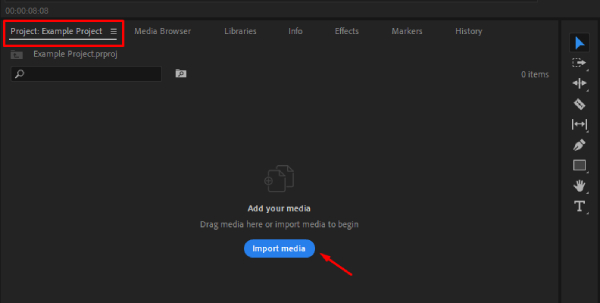
Step 1.Click the "Project", then right-click on the empty area and choose "Import". Select the video to import it into Premiere Pro.
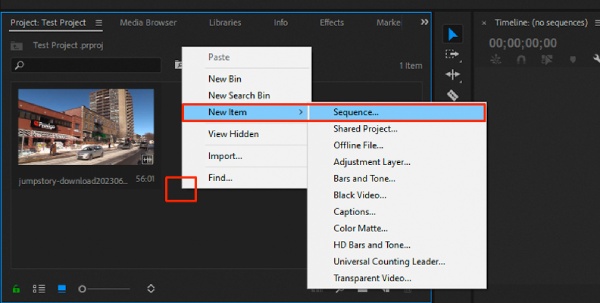
Step 2.In the "Project" tab, right-click in a blank area, then select "Sequence" under "New Project".
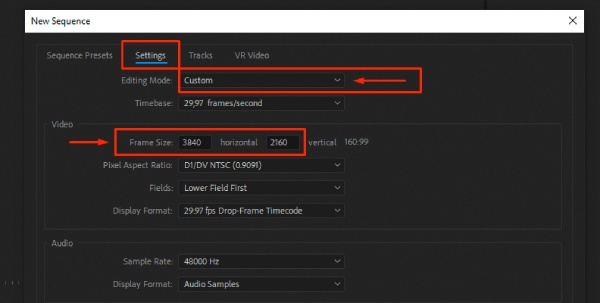
Step 3.In the "Settings" tab, select "Custom" in the "Edit Mode" field and set the "Frame Size" field to 3840 × 2160.
Step 4.Drag and drop the imported 1080p video into the timeline area and add it to the 4K sequence.
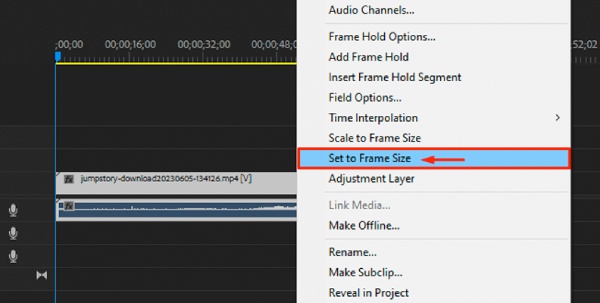
Step 5.Then right-click to choose "Set To Frame Size". Finally, click "File" and "Export" to save the upscaled 4K video to your PC.
4 Popular Online Upscalers to Enhance 1080p to 4K
In addition to the optimal method described above, if you need to quickly increase resolution, you can also opt for online tools. The following three online tools cater to users with varying levels of experience, each with its own limitations. Read through them and choose the one that best suits your needs.
1. Topaz AI
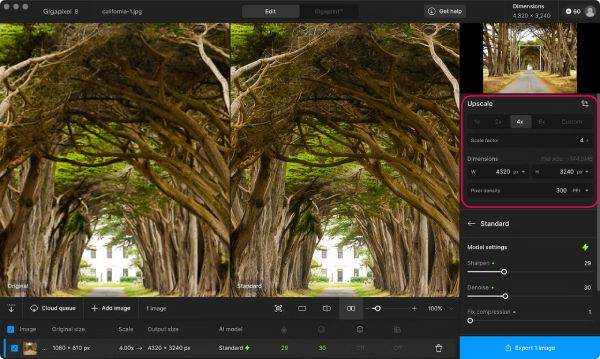
Topaz Video AI Online Edition intelligently upscales 1080p video to 4K resolution. It employs multiple AI models to automatically restore image details, reduce noise, sharpen visuals, and minimize compression artifacts. Users can customize output formats, resolutions, encoding methods, and bitrates, and process multiple files in batches. You can preview upscaling results before processing to select optimal parameters. Its deep learning algorithms reconstruct richer pixel details.
- Pros
- Support automatic video recognition and model selection.
- Process multiple video files simultaneously.
- Equip a wide range of optimization functions.
- Cons
- AI upscaling requires significant computational processing time.
- It demands high network transmission speeds.
2. Vmake
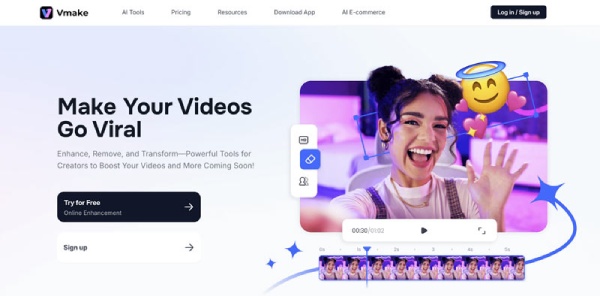
Vmake's online video upscaling tool supports enlarging slightly lower resolutions like 1080p to 4K using AI models. Users simply upload their video, select the target resolution, and it processes automatically. It also offers other AI tools such as a video background remover, image background changer, and image quality enhancer to expand your creative possibilities.
- Pros
- Support uploading multiple files at once.
- Smart upscaling—more than just pixel stretching.
- Clean interface with minimal steps.
- Cons
- The free version has minimal output length.
- File size is constrained by network bandwidth.
3. Fotor
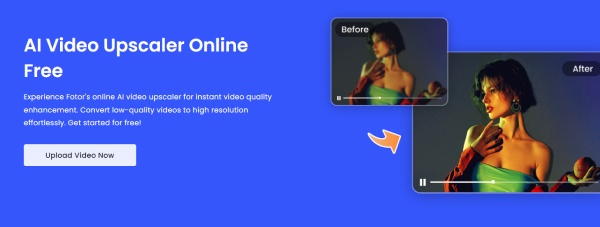
Fotor's AI Image Enlarger supports users uploading images in common formats such as JPG, PNG, HEIC, and WebP. The system then automatically analyzes issues like blurriness, noise, and low resolution within the image using artificial intelligence technology. It processes the image by removing noise, sharpening details, and refining textures, while simultaneously increasing the pixel count to output at 4K resolution.
- Pros
- One-click automation requires no parameter settings.
- Automatically performs noise reduction, color enhancement, edge sharpening, and more.
- Generate previews instantly.
- Cons
- Sharpness, texture, and complex structure restoration are not as effective as desktop professional software.
- The free version has functional limitations, such as no watermark output.
4. HDconvert
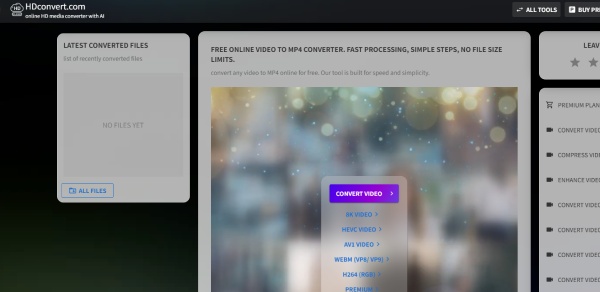
HD Convert's video upscaling feature is an online-based resolution enhancer that enhances low-resolution videos to higher quality, such as upscaling from 1080p to 4K. It automatically optimizes sharpness, contrast, and detail to maintain a natural appearance after enlargement, processing directly within your browser without requiring software installation.
- Pros
- Supports multi-resolution scaling
- Cross-device compatibility for temporary or lightweight needs.
- Cons
- The algorithm is simple, resulting in limited image quality improvement.
- It relies on network upload speed.
FAQs about How to Upscale 1080p to 4K
-
Is there a 4K upscaler TV box that converts Cable TV 1080p to 4K?
Yes. If your cable TV cannot upscale 1080p to 4k directly, you can just search for the 4K upscaler on Amazon, choose the desired one according to your cable TV or smart TV. Of course, you can also enhance the video quality directly from your computer and transfer the 4K video to the cable TV.
-
Can you play 4K movies on a 1080p monitor?
Yes. The 4K video resolution will get down to match the monitor's resolution. For this reason, the video will be viewed on 1080p but with better quality than the native 1080p. Moreover, the 4K videos will also bypass any high dynamic range (HDR) metadata since regular HDTVs aren't capable of processing that information natively.
-
Why does my 1080p TV look better than a 4K TV?
It depends on the videos you need to play. When you have a 1080p video and need to play it on a 4K TV, the video won't be displayed in the standard 1920 × 1080 resolution. It is the reason that you need to upscale the 1080p video to 4K beforehand without the auto upscaling hardware. But the 1080p videos work well with the 1080p monitor.
Conclusion
That covers everything you need to know about upscaling 1080p to 4K and the methods involved. For high-quality yet straightforward upscaling of blurry videos, AnyRec Video Converter is your best choice. Its optimized processing speed significantly reduces your wait time, while its user-friendly interface and robust tools help your videos stand out. Download it now to upscale your 1080p or 1440p videos to 4K for viewing.
Secure Download
Secure Download



