
Hot

AnyRec Screen Recorder
Capture every moment. Record like a pro.
Secure Download
[Tutorial] How to Screenshot on Google Pixel in 6 Quick Ways

Having trouble trying to screenshot on a Google Pixel, where pressing the Power and Volume buttons only adjusts the volume, or feels awkward due to their button placement? Or, you might be looking for a guide to take a screenshot on your new Google Pixel. Whatever your reason for looking for a guide, this post has you covered. Here you get to explore six easy methods that you can use to take a screenshot on Google Pixel phones. See them below!
Guide List
How to Screenshot on Google Pixel with Power and Volume Down Button How to Take Screenshots on Google Pixel from Recent Apps How to Take a Screenshot on Pixel with Google Assistant How to Capture a Screenshot on Google Pixel with Quick Tap How to Take a Scrolling Screenshot on a Google Pixel Where to Find Your Google Pixel Screenshots Better Way to Screenshot All Google Pixel ModelsHow to Screenshot on Google Pixel with Power and Volume Down Button
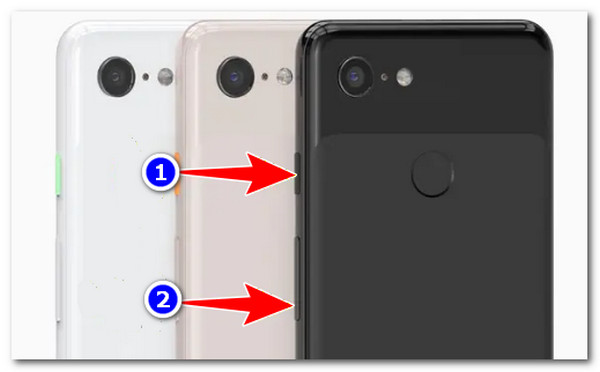
Taking a screenshot on Google Pixel phones with their Power and Volume down buttons (located on their right side) is the most basic and reliable method you can use. This method works for devices supporting Android 11 and up, which includes the latest Pixel 10 phone series. Here's what you need to do to get a Pixel screenshot.
Step 1.On your Google Pixel phone, press and hold the "Power" and "Volume Down" buttons at the same time.
Step 2.Keep holding them until you hear a shutter sound or your screen will dim, indicating that it takes a Pixel 10 screenshot.
Step 3.Next, you will see a screenshot preview at the lower part of your Google Pixel screen; tap on it to preview, edit, share, and save it.
How to Take Screenshots on Google Pixel from Recent Apps
Another method you can use to screen capture on Pixel is through Recent Apps. This one is a great way to capture only the interface of an application, its content, without including your Pixel's status bar, notifications, or navigation buttons. So, if your phone is running Android 11 or newer, here are the steps on how to do this method:
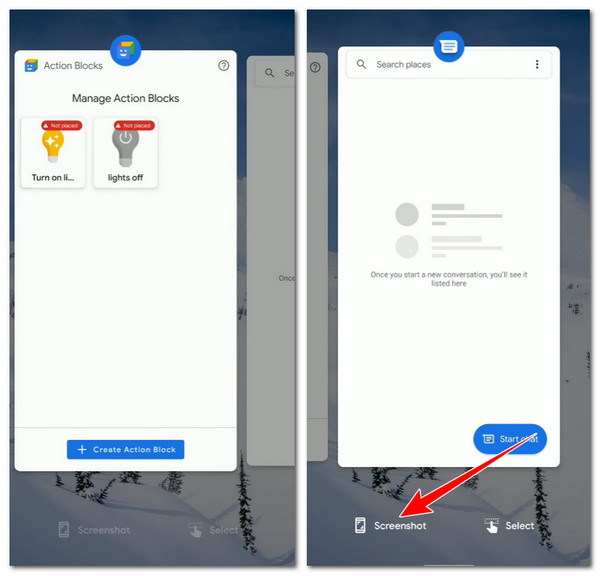
Step 1.Swipe up from the bottom of your Pixel screen and hold for a second to access the "Recent Apps" screen. If you have the Back, Home, and Recent buttons, just tap the "square" icon.
Step 2.After that, swipe left or right to find the app you want to capture. Make sure to open the app that contains the content you wish to take a screenshot of before doing this.
Step 3.Next, tap the "Screenshot" button located at the lower-left part of the Recent Apps interface.
How to Take a Screenshot on Pixel with Google Assistant
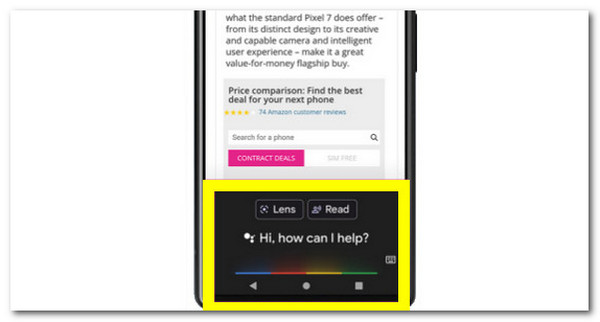
Aside from those ways, you can also use your Pixel phone's Google Assistant. Compared to the first featured methods earlier, this one offers a hands-free way of taking a screenshot on your Pixel phone. You just need to activate Google Assistant through a voice command, and it will take a screenshot on Android in full screen. Now, you can use Google Assistant to screenshot on a Google Pixel without buttons.
Step 1.Head to the content you wish to take a screenshot of. Then, activate your phone's Google Assistant by saying "Hey Google". Alternatively, you can also hold the "Home" button to activate it.
Step 2.After that, simply say "Take a screenshot", and it will automatically and instantly capture the content presented on the screen.
Step 3.Then, you can go to your Gallery to check the Google Pixel screenshot.
How to Capture a Screenshot on Google Pixel with Quick Tap
You should also try to set the Quick Tap action to take a Google Pixel screenshot. This feature works when you perform a specific action, just like when you quickly tap a screen, your phone will either display notifications, open apps, or play music, which can then also be set to take a screenshot. However, this is only made available under Pixel 4a and newer models.
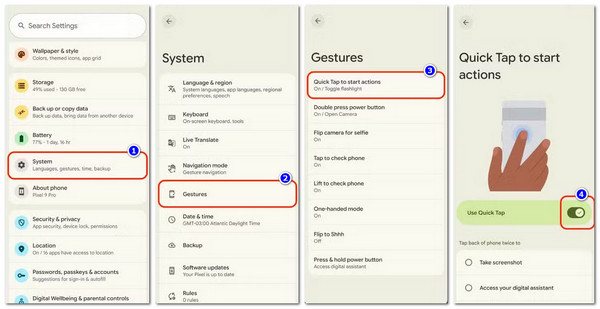
Step 1.Run the Settings application and scroll down to "System" and choose "Gestures" from the options.
Step 2.After that, tap the "Quick Tap" button to start the actions. Then, toggle "Use Quick Tap" to on.
Step 3.Next, choose "Take screenshot" from the list of available options. Once enabled, firmly double-tap the back of your phone. Your Pixel will vibrate and capture the screen instantly.
How to Take a Scrolling Screenshot on a Google Pixel
Apart from those methods, you can also perform a Pixel screenshot for long pages. Yes, you read it right. You can scroll down through a long content or lengthy document all the way to the bottom and save it as an image. However, this is only available on Android 12+ for most Pixel models. Additionally, it doesn't work in all apps (e.g., Chrome's Incognito tab or banking apps). So, how to take a scrolling screenshot on Android of Google Pixel phones? Here are the steps to follow:
Step 1.Head to the lengthy content or document you wish to take a screenshot of. After that, press the "Power" and "Volume down" buttons at once.
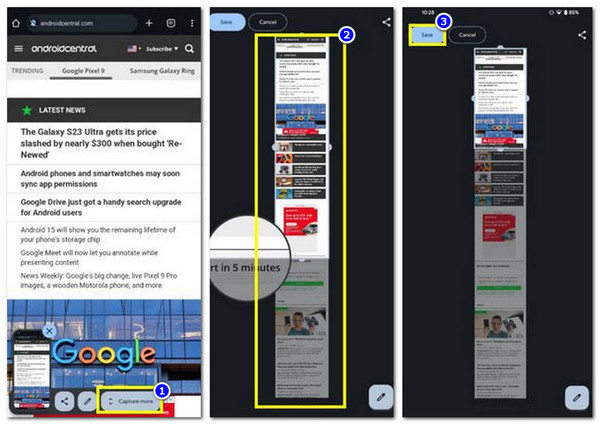
Step 2.Next, tap "Capture more" and utilize the "Crop" tool to drag down and select exactly how much of the page you want to save.
Step 3.Once done, tap the "Save" in the upper-left corner to save the screenshot. And that's how you take a scrolling screenshot on Google Pixel.
Where to Find Your Google Pixel Screenshots
There you go! Those are the five default ways you can take a screenshot on Google Pixel phone. Now, if you also need to know where to find the Android screenshots you've taken, well, you can see your Google Pixel screenshots in the Google Photos app. Just open Photos, go to Collections or Library, and tap the Screenshots folder. This is where all screenshots are saved by default.
Apart from that, after taking a screenshot, a small preview appears at the bottom of the screen. Tapping it lets you view, edit, or share the image right away. If Google Photos backup is turned on, your screenshots will also be saved to your Google account automatically.
Better Way to Screenshot All Google Pixel Models
Now that you know the default ways to take screenshots on Google Pixel, you can take a look at a better alternative that offers more control and fewer limitations: AnyRec Screen Recorder. This desktop-based tool supports a screenshot feature that works across all Pixel models by mirroring them. Compared to the default methods earlier, this tool works very easily and offers a high-quality screenshot. No need for you to click multiple buttons, enable an action setup, activate the assistant, etc. All you need to do is connect your Google Pixel phone, access any apps, files, pages, platforms, etc., and take a screenshot by just clicking a button with no restrictions!

Screenshot on Google Pixel phone with 1080×2340 resolution.
Screen capture long webpages and popup menus.
Add text, line, arrow, rectangles, and other shapes to captured screenshots.
Record screen videos and apps on all Google Pixel phones.
Secure Download
Secure Download
Step 1.Install the AnyRec Screen Recorder on your PC. Next, run it and choose "Phone Recorder". Then, select "Android" and connect your Pixel phone via Wi-Fi or USB connection. Just follow the on-screen instructions on the tool's interface.
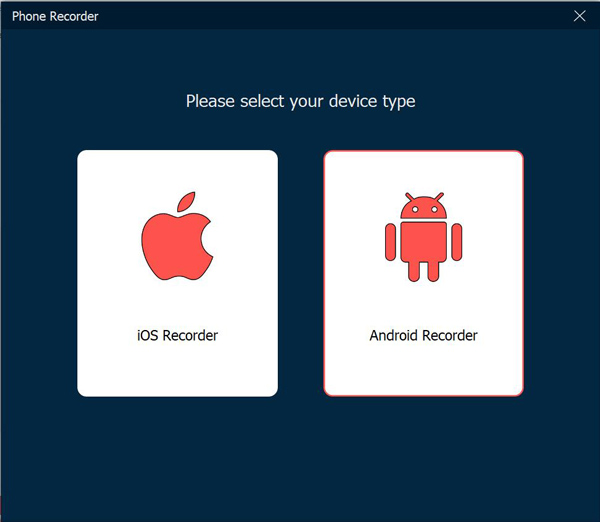
Step 2.Next, grant permission to share your phone's screen with the tool. Then, you can now go ahead and access the app or platform where you wish to take a screenshot.
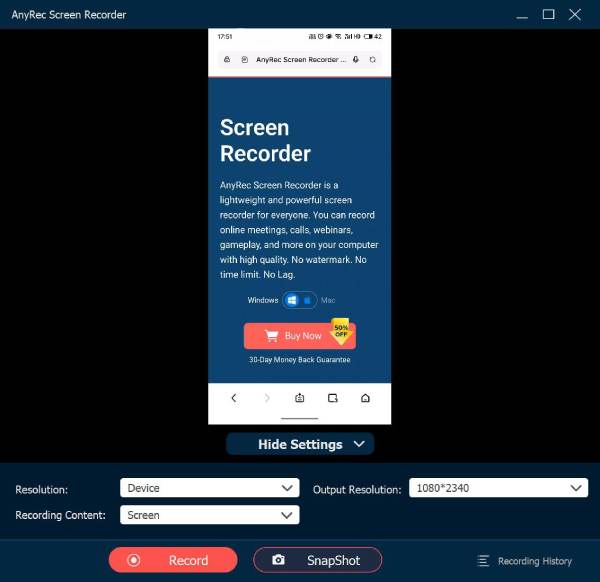
Step 3.After that, click the "SnapShot" button with the "Camera" icon to take a screenshot. There you have it! Those are the steps on how to take a screenshot on a Google Pixel phone using this tool.
Conclusion
That's it! Those are the six methods you can use to take Google Pixel screenshots. So, if you're having trouble taking a screenshot on your phone, such as when pressing the Power and Volume buttons only adjusts the volume or feels awkward due to their placement, you can try the methods above as an alternative. You can also use this post as a guide for taking screenshots on your phone. However, if you're looking for the best option that offers an amazing screenshot experience, you can use AnyRec Screen Recorder. Try this tool today.
Secure Download
Secure Download
Related Article
About Our Author




