
Hot

AnyRec Video Converter
120× faster video conversion and editing. No waiting.
Secure Download
How To Remove Text from Your Video: 4 Simple Methods

Unwanted text in a video can affect the overall appearance and distract viewers from the main content. That cluttered text will make your video content look messy and unprofessional. Watermarks, old captions, logos, or unnecessary information ruin the visual appeal. How can you remove text from video? This guide covers all useful methods to help you elevate your video quality.
Guide List
Part 1: Why Do You Need to Remove Text from Video? Part 2: Different Text Types, Different Video Text Removal Ways Part 3: How to Remove Text from Video with a Video Converter Part 4: FAQs About Removing Text from VideoPart 1: Why Do You Need to Remove Text from Video?
There may be many reasons why you want to delete text from your video. Maybe it's a watermark, logo, subtitles, caption, or other text elements that affect the video quality.
- 1. Delete unwanted watermarks: You may download a video from a website, but find that it has an unwanted logo or watermark that covers important parts of the video.
- 2. Remove subtitles or captions: Remove incorrect subtitles or captions, and outdated information you no longer need.
- 3. Clean up distracting text: Removing messy text in the background can make viewers stay focused on the key point. Especially provide a more immersive experience in tutorial videos.
- 4. Upgrade video quality: Video text removal can make your video look cleaner, more professional, and better for sharing on social media.
Part 2: Different Text Types, Different Video Text Removal Ways
Not all text in a video can be removed in the same way. You can remove text from video using different ways depending on where the text appears, its size, and the background. Here are 4 common ways to remove text from a video:
Crop the Video to Remove Text Near the Edges
If the unwanted text appears close to the edge of the video, cropping the video is the simplest solution. You simply cut out the area containing the unwanted text, and the remaining part of the video stays unchanged.
Cover or Mask the Text on a Solid Background
When text appears on a simple or solid-colored background, you can cover or mask the video to hide it. For example, you can add a matching-color shape, sticker, image, or background layer over the text to make it disappear. It works best when the covered area does not contain moving objects.
Blur the Text Area to Hide Small Text or Watermarks
Blurring the text area is another workaround to hide small text, logos, or watermarks. Apply a blur effect over the text area, and then you can make the unwanted content unreadable. This method is commonly used for privacy protection. You need to note that the blurred area will still be visible, so it may not be the best choice if you want a completely clean video.
Remove Text Automatically with an AI Video Text Remover
To handle more complex videos, like videos with complex backgrounds, moving objects, or large watermarks, you can use an AI video text remover. The popular choices include CapCut, BeautyPlus, and Fotor. These caption removers are especially useful for removing subtitles, logos, watermarks, and other overlays.
Part 3: How to Remove Text from Video with a Video Converter
If you want to remove captions from video, or delete other types of texts, AnyRec Video Converter can help you delete unwanted text from video easily. This all-in-one video editing and conversion tool is easy to use and suitable for beginners. With various built-in editing tools, you can crop out unwanted areas, unwatermark video, adjust the aspect ratio, and export a clean video in just a few clicks.
Remove text, watermarks, logos, subtitles from video effortlessly.
Support 1000+ input and output video formats.
Process videos up to 120× faster with GPU acceleration.
Include 20+ built-in tools for convenient editing.
Secure Download
Secure Download
Method 1: Add a blur effect to remove text from video
Step 1. Launch the software on your computer, and click "Toolbox" on the top menu bar to find more video editing tools.
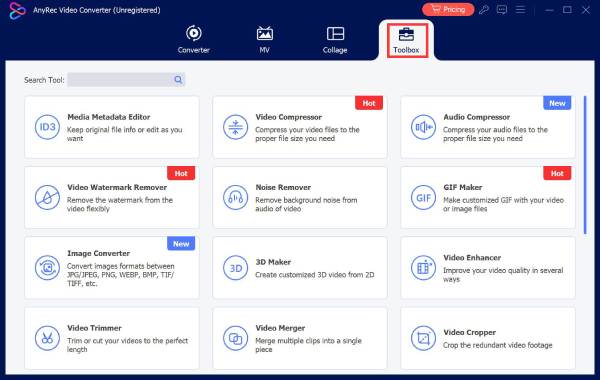
Step 2. Click "Video Watermark Remover" from the toolbox. Click the "Add" button to upload your video, or drag and drop your video file into the program.
Step 3. Click "Add Watermark removing area" to create a selection blur box on your video. Drag the box to cover the text you want to remove. You can set the size and duration of the blur effect. If you need to remove several texts, simply add more selection boxes.
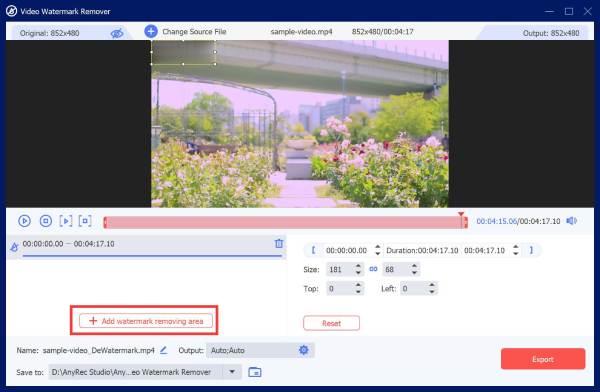
Step 4. Choose a save path and click "Export" to save the edited video.
Method 2: Crop the video to delete text from video
Step 1. Click "Video Cropper" from the toolbox. Click the "Add" button to upload your video, or drag and drop your video file into the program.
Step 2. Drag the crop frame with your mouse to select the area you want to keep. You can also choose a preset aspect ratio, such as 4:3 or 16:9, from the "Aspect Ratio" list to crop the video more easily.
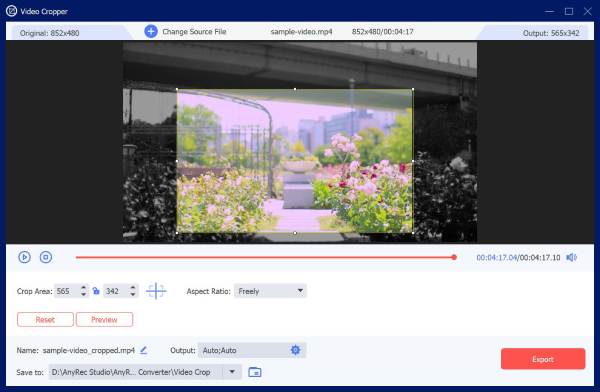
Step 3. Choose a save path and click "Export" to save the edited video.
Part 4: FAQs About Removing Text from Video
-
Can I remove text from a video without losing quality?
Yes, after cropping, masking, or removing text from a video, you can export the video at the original or higher resolution to avoid quality loss.
-
Is it legal to remove watermarks from videos?
It depends on the video's ownership. Removing a watermark from your own video is usually fine. However, removing watermarks from someone else's video without permission may violate copyright rules. Always make sure you have the right to edit or use the video.
-
Can I remove text from a video for free on my phone?
Yes. You can remove text from a video for free on your phone using AnyRec Video Converter. You can remove watermarks, captions, covers, and other unwanted text.
Conclusion
By now, you've learned how to delete text from video in different cases. Whether you choose to crop, mask, blur, or use a professional video converter, you can find the easiest way to remove the unwanted text and upscale your content! Don't hesitate! Create, explore, and share your masterpieces with these tips!
Secure Download
Secure Download
Related Articles:
About Our Author




