
 Record video and audio calls without notifications.
Record WhatsApp Call on iPhone: 4 Ways with Legal Rules

Learning how to record WhatsApp calls on iPhone is not as simple as tapping a built-in record button. Because of Apple's strict privacy policies and WhatsApp's encryption, iOS does not allow you to make direct call recording. Luckily, there are a few reliable workarounds. This guide shares four practical ways to record WhatsApp video and audio calls on iPhone. Also, covers common issues you may face and shows you how to fix them, and provides more tips to stay compliant before you hit a record.
Guide List
Is It Legal to Record WhatsApp Calls How to Record WhatsApp Video Calls with Audio How to Record WhatsApp Calls on iPhone Using a Secondary Device How to Record WhatsApp Audio Calls on iPhone with QuickTime Player Troubleshoot WhatsApp Recording Issues How to Record WhatsApp Calls on iPhone Automatically FAQs about WhatsApp Call RecordingIs It Legal to Record WhatsApp Calls
Before hitting the record button to capture the WhatsApp call, it's essential to understand the legal side of call recordings. WhatsApp does not restrict personal call recording. The WhatsApp recording legality relies on your local laws and consent requirements.
Check how call recording laws apply in different regions below.
United States. Call recording laws differ by state. Some follow one-party consent, where you only need one participant's permission before the recording. Meanwhile, other starters require all-party consent, where everyone on the call recording must approve by all participants.
United Kingdom. Recording a WhatsApp call for personal use is generally allowed here. However, if you plan to share it, you need consent under data protection laws.
India. Call recording for personal reasons is allowed in India. But using it without consent can raise legal and privacy concerns.
European Union. Since GDPR governs EU countries, they have an emphasis on privacy and data protection. Recording a call often needs informed consent from all participants, especially if it's shared.
How to Record WhatsApp Video Calls with Audio
Recording WhatsApp video calls with both system sound and microphone audio on iPhone can be challenging due to iOS privacy restrictions, but with AnyRec Screen Recorder, capturing high-quality video and audio comes so easily. The program supports recording WhatsApp video calls with synced, clear audio, making sure that both your and the other participants' audio is recorded clearly. Moreover, you can use built-in noise reduction and microphone enhancements for clear voice recording. So, with this recorder's clean interface and flexible recording modes, it makes it suitable for interviews, meetings, and personal call backups.

Record WhatsApp video calls on PC, Mac, iPhone, and Android with clear visuals and audio.
Fully customizable output options, e.g., frame rate, resolution, format, and more.
Record with full screen, included/excluded window, or a selected area.
Preview and basic editing tools that let you trim your recordings before saving.
Secure Download
Secure Download
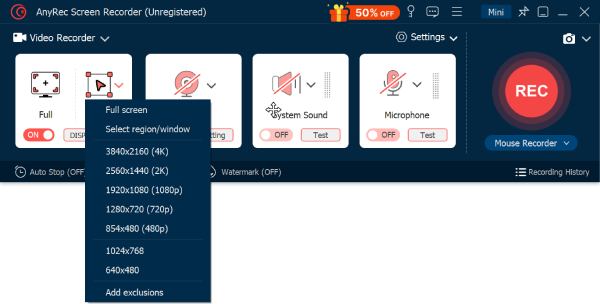
Step 1.Open AnyRec Screen Recorder. In the default "Video Recorder" Mode. Select "Full" or "Custom" to record a WhatsApp call in full or custom screen.
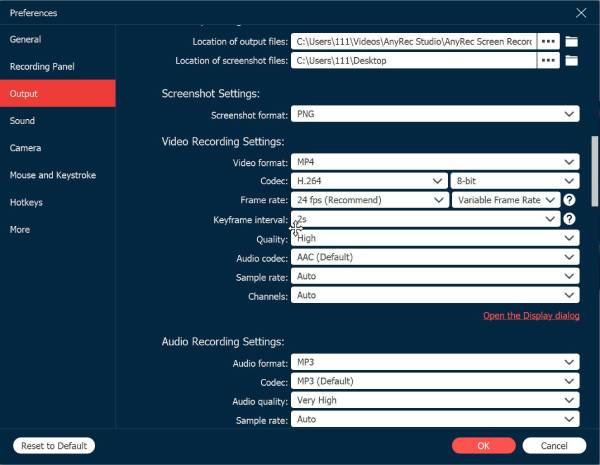
Open "Settings". go to "Output" to adjust video and audio recording settings.
Step 2.Enable "System Sound" to record the participants' voices from the video call. Enable "Microphone" to add your voice clearly in the recording. Adjust the volume levels for balanced audio.
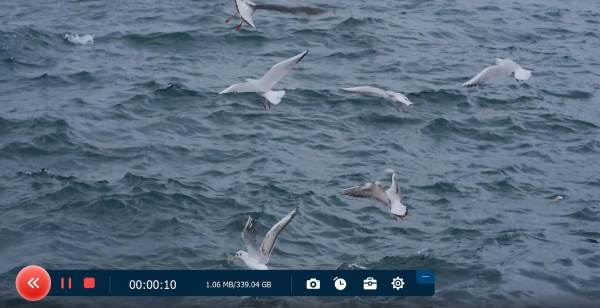
Step 3.Click the "REC" button to start WhatsApp call recording. During the call, use the floating toolbar to pause, resume, take screenshots, and more without even interrupting the conversation.
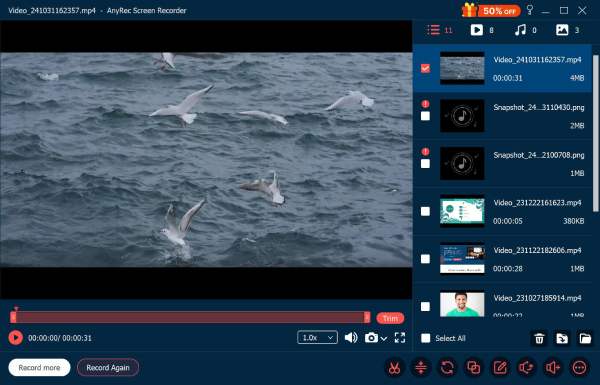
Step 4.Once the video call ends, click the "Stop" button. In the popping-up preview, you can watch, trim, convert, compress, merge, and save the WhatsApp call.
Secure Download
Secure Download
How to Record WhatsApp Calls on iPhone Using a Secondary Device
If you do not mind the call recording quality, using a secondary device is among the simplest ways to record WhatsApp calls on iPhone. This method avoids limitations and works very well for quick, informal recordings.
Step 1.Ready your WhatsApp call on speaker mode.
Step 2.Then get another device, such as a smartphone, tablet, or recorder, and place it close to your iPhone's speaker.
Step 3.Start the recording before the call begins.
Step 4.Speak clearly and make sure the noise is minimal.
Step 5.Later, stop the recording and save the audio file.
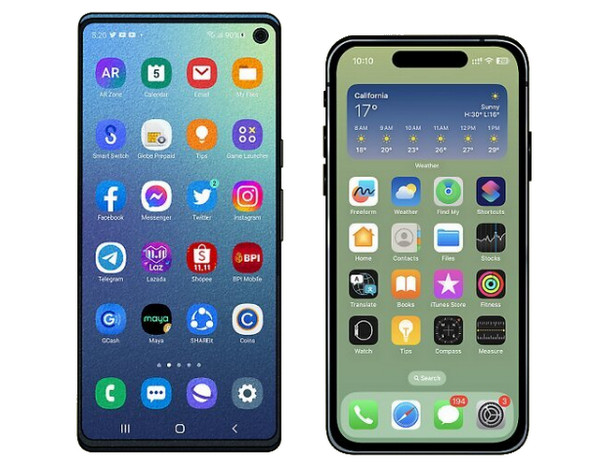
How to Record WhatsApp Audio Calls on iPhone with QuickTime Player
QuickTime Player offers a free and reliable solution to record WhatsApp video calls with audio on iPhone when you have access to a Mac. By pairing your iPhone to a Mac computer, you can capture audio with better stability than many third-party apps.
Step 1.Link your iPhone to your Mac using a USB cable, then start QuickTime Player.
Step 2.There, click on "File" and select "New Movie Recording".
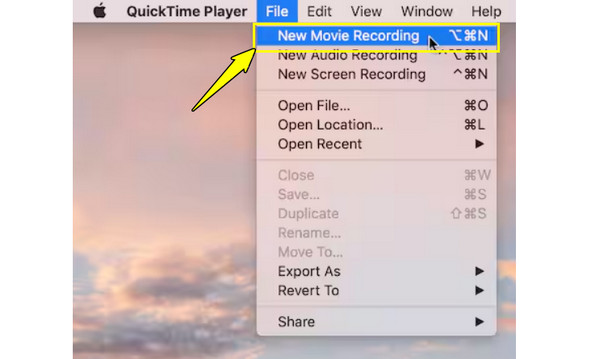
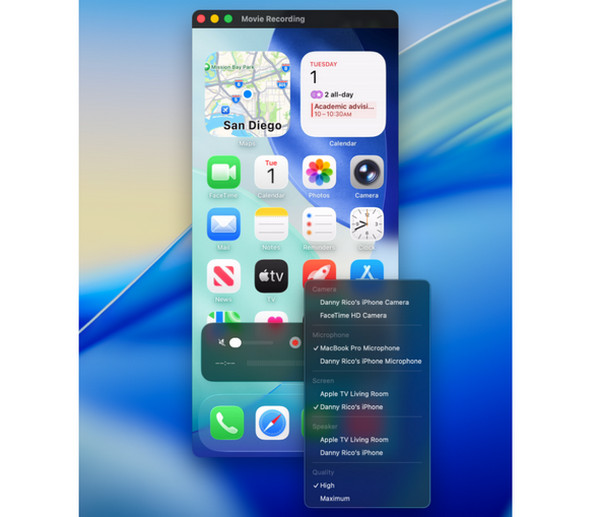
Step 3.Set your iPhone as the camera and audio source, and then start the audio call on your device.
Step 4.Click the "Record" button to begin recording with QuickTime.
Step 5.Later, after the call, stop the recording and save the file.
Troubleshoot WhatsApp Recording Issues
Even with the right tools for recording WhatsApp calls on iPhone, doing so can come with technical issues. So, this part allows you to understand common problems along with quick fixes to help you troubleshoot quickly and avoid failed WhatsApp recordings.
| Common Problems | Quick Fixes |
| No audio recorded | Make sure mic and system audio permissions are enabled. |
| Black screen recording | Disable background app restrictions and try updating iOS. |
| Low volume | Adjust the speaker output and the microphone sensitivity. |
| Echo or distortion | Try using headphones and enabling noise cancellation features to reduce background noise while recording. |
| Recording stops suddenly | Check available storage space and your device battery level. |
How to Record WhatsApp Calls on iPhone Automatically
The default iPhone recording function can help record WhatsApp calls too. Enabling it in advanced mode allows you to capture WhatsApp calls whenever needed, quickly. Ensure the call is in speaker mode to capture the participant's audio.
Step 1.Inside the Settings app on your iPhone, go to "Control Center". There, add the "Screen Recording" feature to your included controls if not enabled yet.
Step 2.Now, before starting the WhatsApp call, swipe down or up to open the "Control Center", press and hold the "Recording" icon, and enable "Microphone". Then, tap the "Start Recording" button, and start the call.
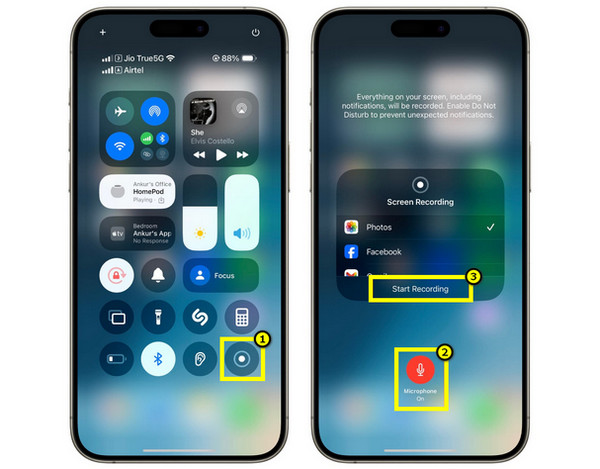
Step 3.Once the call ends, tap on the "Red bar" indicator above and tap "Stop Recording". The video will be saved automatically to your library.
FAQs about WhatsApp Call Recording
-
Why is there audio desync in my WhatsApp call recording?
This happens when the encoding settings are too high for your device to process smoothly. Try to lower the resolution or frame rate, close apps, and making sure your iPhone has enough storage and battery to handle the recording.
-
How to improve WhatsApp call recording quality?
Make sure you have a stable internet connection, lessen background noise, and avoid doing other on-screen tasks during the call. If possible, pick a recorder that has audio enhancements and adjustable output settings for precise results.
-
Why is only my voice recorded in a WhatsApp call?
It is a common mistake that iOS screen recorder often does. It captures only the microphone input. But you can enable Speaker mode manually or use an external recorder to capture both sides of WhatsApp calls.
Conclusion
As said, recording WhatsApp calls on iPhone is not always straightforward. But it is easy to do with a good WhatsApp call recorder. Don't forget to check your local call-recording calls for legal issues. If you want to get clear WhatsApp recordings and experience, you can use AnyRec Screen Recorder. With better control over quality, this tool offers a smoother experience compared to iPhone-only methods.
Secure Download
Secure Download



