
A Comprehensive Guide to Fix Print Screen Not Working

It can be frustrating if the Print Screen key is not working, especially when you need to capture something instantly. While there are several potential reasons that cause the issue, there are practical solutions available to help you out. This guide explains why Print Screen may not be working and provides effective fixes to restore standard screenshot capabilities.
Guide List
Possible Reasons for Print Screen Not Working 5 Quick Fixes to Print Screen Not Working A Powerful Way to Snip with Print Screen Not WorkingPossible Reasons for Print Screen Not Working
When the Print Screen key stops working, it usually has something to do with certain specific reasons. This section lists the reasons that are frequently mentioned online, helping you to effectively prevent similar problems from recurring in the future by adjusting settings and other methods.
1. Keyboard Hardware Problems
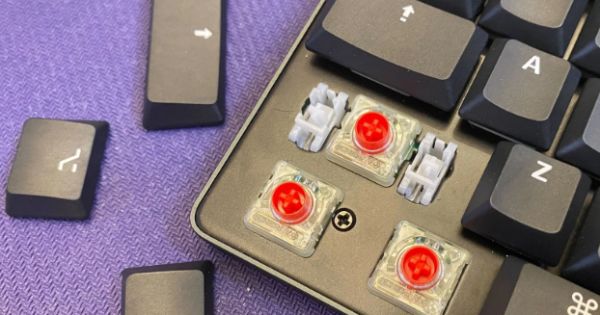
When you find that the Print Screen key doesn't work, the most likely reason is that there might be a problem with your keyboard. If the Print Screen key has been physically damaged or has debris or liquid touching its surface, then this key is very likely to be damaged.
2. Incorrect Function Key Usage
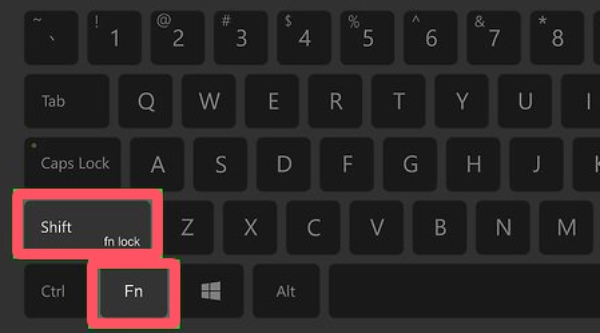
On many laptops, the Print Screen function is combined with another key. You may need to press the "Fn" button and the "PrtScn" button simultaneously. If the Function Lock (Fn Lock) setting is turned on or off incorrectly, the shortcut may not trigger as expected.
3. Disabled Screenshot Shortcut in Settings
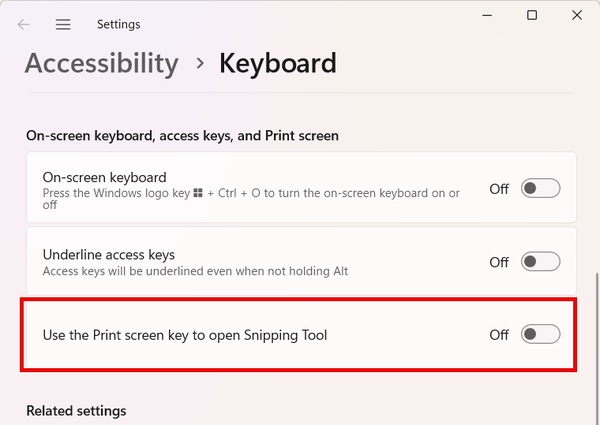
Windows allows customization of screenshot behavior. If the option to use the Print Screen key for snipping is turned off, pressing the key may appear to do nothing. Clipboard-related settings may also prevent screenshots from saving correctly.
4. Third-Party Software Conflicts
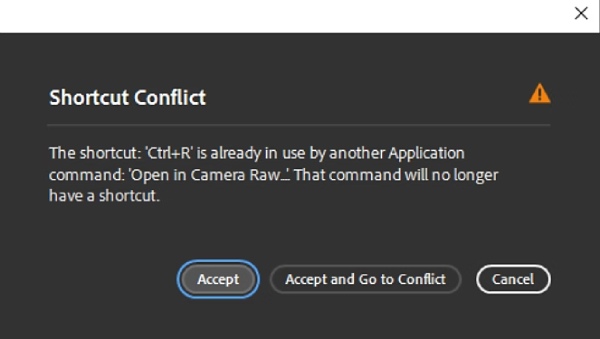
Some software will set some default shortcut keys to facilitate the use of the software. Although the Print Screen key is usually not affected, there are indeed instances where it gets occupied. What’s more, it might as well change where your screenshots go on Windows. You can check some of the currently running software to determine if the hotkeys are being used up, which could be the reason for the failure of the Print Screen key.
5. Outdated or Corrupted Drivers
Keyboard drivers that are outdated or corrupted may fail to transmit key signals properly to Windows. This issue sometimes occurs after system updates or driver installation errors.
5 Quick Fixes to Print Screen Not Working
If the Print Screen key is not working correctly, there is no need to panic. In most cases, the issue can be resolved with a few simple adjustments rather than complex system repairs. Below are five quick and practical fixes you can try to restore the Print Screen function and regain your screenshot capability on Windows.
1. Enable the Shortcut
Windows allows users to customize how the Print Screen key behaves. If the shortcut has been turned off, pressing the key may produce no response.
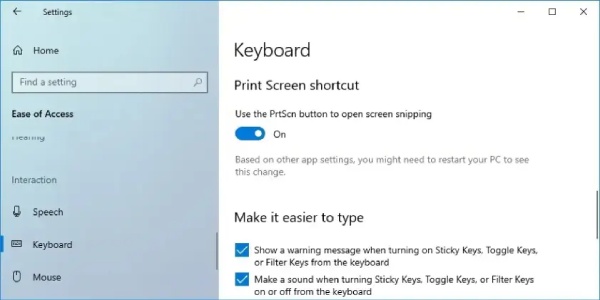
Go to Settings > Accessibility > Keyboard (or search "Use the PrtScn button to open screen snipping") and ensure the feature is turned on. After enabling it, restart your computer to apply the changes properly. Now, you can summon snipping tool on Windows 11/10/8/7 quickly.
2. Check Background Programs
Specific third-party applications, such as screenshot tools, cloud storage services (like OneDrive), gaming overlays, or clipboard managers, may override the default Print Screen function and lead to Print Screen not working issues.
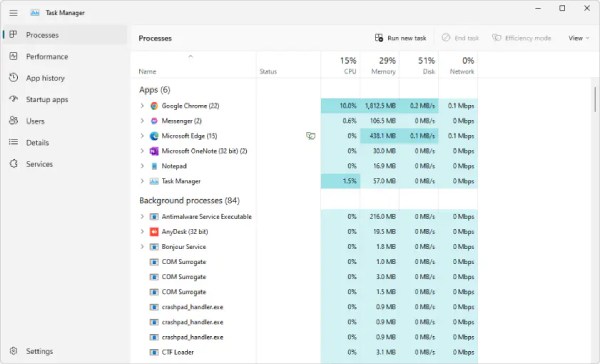
Close unnecessary background programs via Task Manager (simply press the "Ctrl + Shift + Esc" keys together) and test the key again. If it works, one of the applications was likely causing the conflict.
3. Use Hotkey Combination
On some devices, pressing the Print Screen key alone is not enough. You may need to use a combination shortcut if you find that the Print Screen key itself is not working.
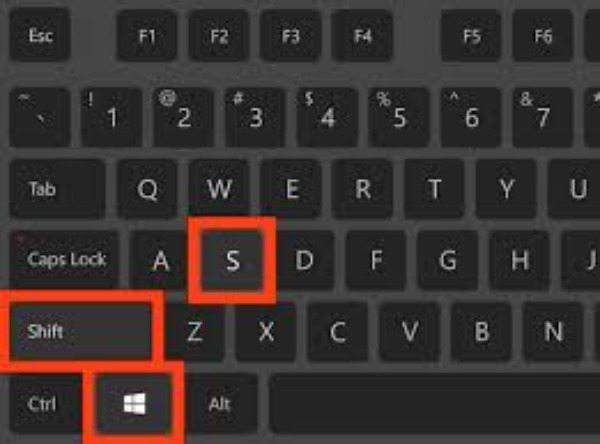
Try pressing the "Fn + PrtScn" keys, the "Windows + PrtScn" keys, or the "Alt + PrtScn" keys. In other cases, press the "Windows + Shift + S" buttons to summon the snipping tool. Different combinations trigger different screenshot behaviors, such as capturing the entire screen or only the active window.
4. Press F-lock Key
Some keyboards include an F-Lock (Function Lock) key that controls how function keys behave. If F-Lock is enabled or turned on or off incorrectly, it may interfere with the Print Screen key.
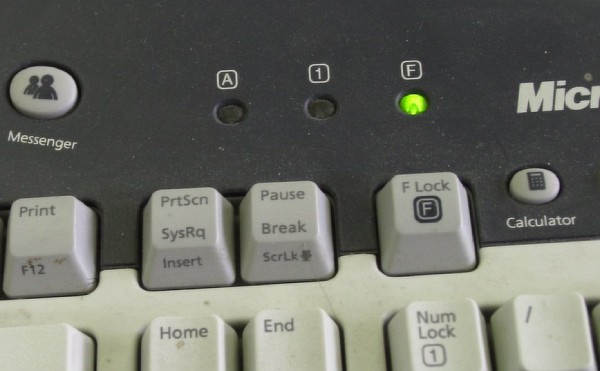
Press the "Fn" key once to toggle its status and then test the Print Screen key again to see if functionality is restored.
5. Update Keyboard Drive
Outdated or corrupted keyboard drivers can prevent Windows from recognizing key inputs correctly, leading to the Print Screen key not working issue.
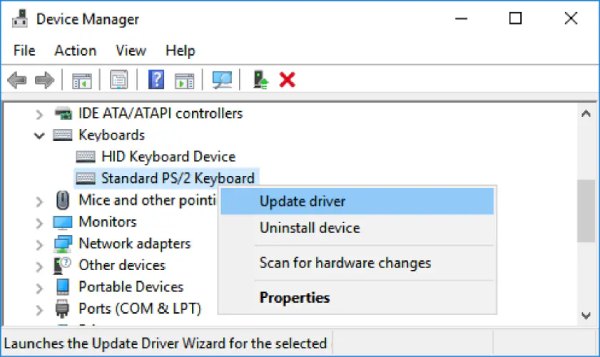
Open "Device Manager" on your Windows computer, locate your keyboard under the "Keyboards" tab, right-click it, and select Update driver. If updating does not help, you can also try uninstalling the driver and restarting your computer to allow Windows to reinstall it automatically.
A Powerful Way to Snip with Print Screen Not Working
If the Print Screen key continues to stop working despite troubleshooting, you can use AnyRec Screen Recorder to capture screenshots without relying on keyboard shortcuts. After taking the screenshot, you can also edit your content to achieve the desired effect.

Print screen on Windows/Mac without troubles and export screenshots in high quality.
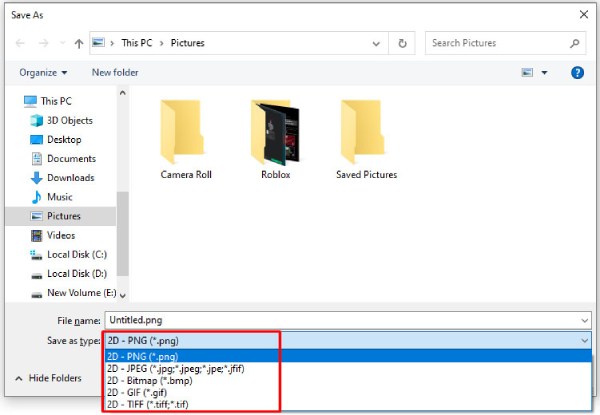
Export the screenshots to JPG, PNG, BMP, GIF, and other popular image formats.
Take screenshots of the full screen or selected regions by dragging your mouse.
Able to add real-time drawings to take notes and annotations with highlights.
Secure Download
Secure Download
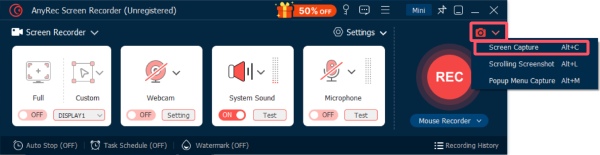
Step 1.Launch AnyRec Screen Recorder and click the "SnapShot" button and then the "Screen Capture" button to summon the snipping tool.
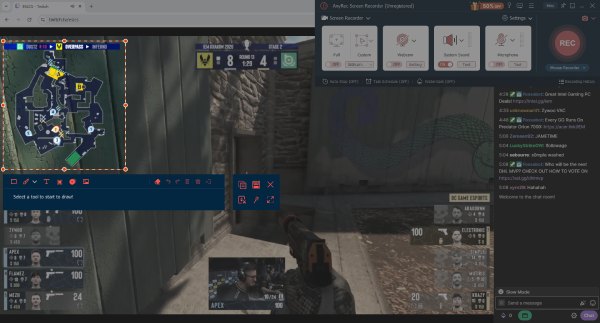
Step 2.Navigate to the page you want to take a screenshot, even if the Print Screen key does not work. Simply take the screenshot and further edit it.
Step 3.In the pop-up window, select the folder where you want to save the screenshot.
Conclusion
If your Print Screen button is not working, the issue is usually caused by various reasons. By understanding the common reasons above, most users can restore standard screenshot functionality. If the problem persists, you can use AnyRec Screen Recorder without the keyboard while accessing an abundance of editing features to polish your screenshot.
Secure Download
Secure Download



