
Hot

AnyRec Screen Recorder
Capture every moment. Record like a pro.
Secure Download
Partial Screenshot on Windows: 5 Best Tools on Desktop/Web

Taking a screenshot of your desktop is the best way to share information online. But what if you simply want a snippet only of a recipe, or a small detail from a long article? Capturing a partial screenshot on Windows makes the image much cleaner! Luckily, Windows users have numerous ways to capture exactly what they want. Here are the top 5 effective tools to take Windows partial screenshots, ensuring the final results are always clutter-free.
Guide List
AnyRec Screen Recorder - Partial Screenshot and Custom Editing Snipping Tool - Built-in Screenshot Tool in Windows ShareX - Powerful and Open-Source Workflow Automation Awesome Screenshot - Online Webpage and Scrolling Screenshot PineTools - Web-Based Quick Screenshot CaptureAnyRec Screen Recorder - Partial Screenshot and Custom Editing
For a comprehensive multimedia solution that goes beyond a simple partial screenshot on Windows, AnyRec Screen Recorder also provides professional recording and editing suites. Here, you can capture specific regions with pixel-perfect accuracy via the dedicated Snapshot feature. Moreover, the program supports saving your partial captures in several formats such as PNG, JPG, and MP, ensuring compatibility for any project. But before saving the final image, you can enjoy editing it with its annotating features, such as drawings, lines, text, highlights, and more.

Grab partial, specific regions, active windows, or an entire screenshot.
Quickly save image files in popular formats like PNG and JPG.
Set your own hotkeys to open partial captures instantly.
Preview your capture immediately and apply necessary edits.
Secure Download
Secure Download
Step 1.Activate AnyRec Screen Recorder on your computer. There, locate the "Snapshot" button, and upon clicking, your mouse will transform into a crosshair. Simply click and hold to drag a selection around the area you want to save.
Tips
To work even faster, bypass the main interface using the custom hotkeys to access the selection tool.
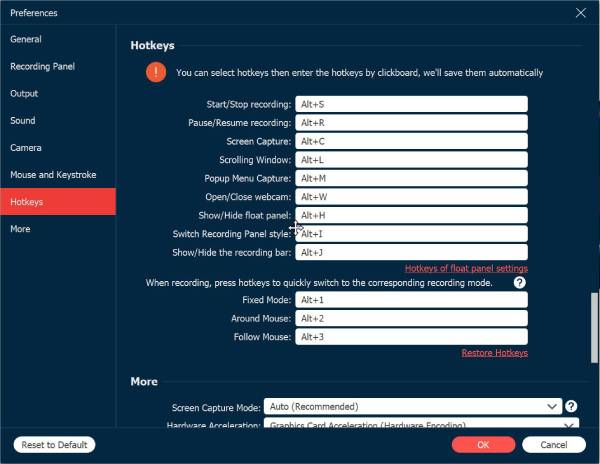
Step 2.After you release the mouse button, your selection will be opened in the built-in editor. From here, you can add arrows, shapes, or text, which are perfect for highlighting specific details.
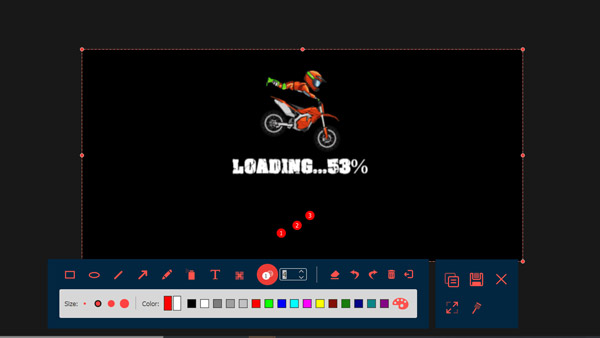
Step 3.When you're satisfied with the edits, click the "Save" button on the floating toolbar. Select your desired destination folder and file type, then confirm. Get your partial screenshot image now on your computer.
Secure Download
Secure Download
Snipping Tool - Built-in Screenshot Tool in Windows
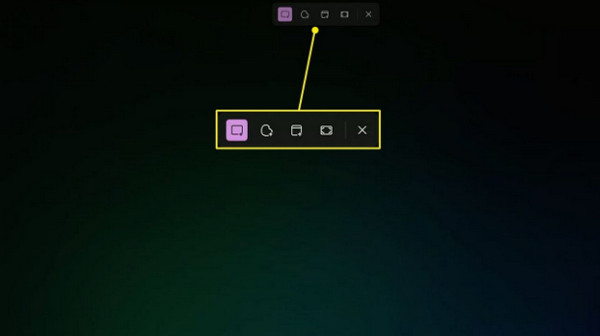
The Snipping Tool is a native Windows screenshot solution that needs no additional installations to work. It has four different capture modes, including free-form snips and rectangular, allowing you to screenshot only a certain area on Windows quickly. Once the shot is taken, you can simply enhance the image by cropping or highlighting key information.
Step 1.Press the "Windows +Shift + S" keys, and your Windows screen will be dimmed slightly and will open the selection menu.
Step 2.From there, select the "Rectangular Snip", then drag the cursor over the area you intend to capture.
Step 3.The Windows partial screenshot is saved to your clipboard; click on it to save or edit it if needed.
ShareX - Powerful and Open-Source Workflow Automation
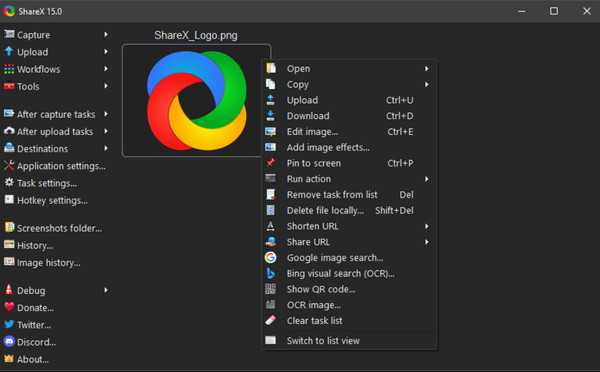
Next is ShareX. This screenshot tool is an open-source powerhouse that specializes in automating what happens after you take a partial screenshot on Windows. It lets you select a region and upload it to a cloud service automatically, add a watermark, or even transform it into a GIF. If you are a power user who opts for a lightweight app with extra functionality, ShareX can be your go-to choice.
Step 1.Launch ShareX and press the "Ctrl + Print Screen" keys.
Step 2.Choose the capture area by dragging the crosshair across the desired part of your Windows screen.
Step 3.Then, release the mouse button to capture the selected area.
Step 4.The image is saved to the "Screenshots" folder or uploaded based on your settings.
Awesome Screenshot - Online Webpage and Scrolling Screenshot
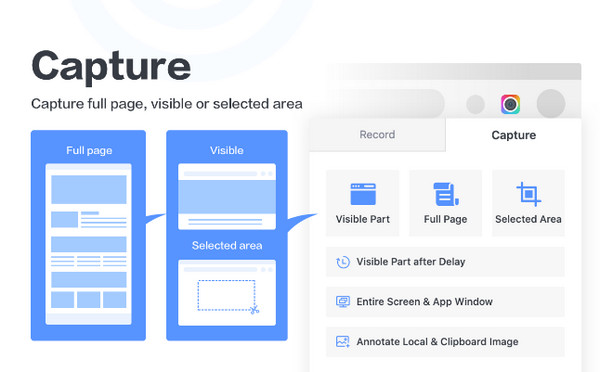
Awesome Screenshot works primarily as a browser extension that excels at taking partial screenshots on Windows, particularly web pages without leaving your browser. It features a selected area tool that lets you drag a box over any part of the web content and edit it right away. Besides static images, it can also take scrolling ones, which are ideal for long web pages or articles.
Step 1.In your browser's extension bar, click on the "Awesome Screenshot" button.
Step 2.Choose the "Capture Selected Area" option in the dropdown menu.
Step 3.Then, drag your mouse to highlight the specific part of the webpage.
Step 4.Click on "Capture" and then click the "Done" button to save or share the final result.
PineTools - Web-Based Quick Screenshot Capture
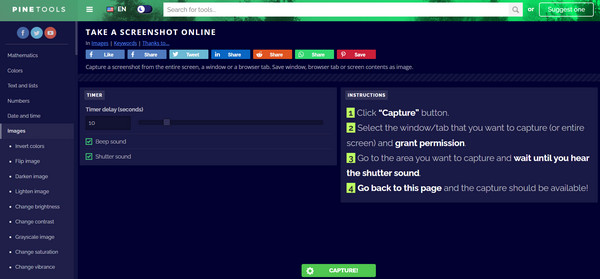
Lastly, PineTool here is a purely web-based solution for anyone who cannot or does not prefer to install anything on their system. Using the browser's built-in Screen Sharing API, you can select only the portion you want to screenshot, specifically a window or tab. While it works as an online tool, it has local privacy that processes the image directly in your browser. It is a perfect emergency option if you just need a quick crop on your Windows computer.
Step 1.Go to the "PineTools Take a screenshot online" official page. Then, click the green "Capture" button.
Step 2.In the browser pop-up, select the window or tab you wish to capture, then click the "Share" button.
Step 3.Once the preview appears, you can crop a screenshot on Windows before saving it.
Conclusion
As you have seen today, for a quick partial screenshot on Windows, there's a built-in screenshot tool that makes it efficient. Also, there are third-party solutions that can help you capture web pages and annotate images. If you are looking for the most user-friendly experience, use AnyRec Screen Recorder. It is ideal for anyone who wants to take a screenshot of only part of a page and wants the flexibility to add shapes, text, and more exciting features. Get your screenshots with just a few clicks here!
Secure Download
Secure Download
Related Article
About Our Author




