Hot

AnyRec Video Converter
120× faster video conversion and editing. No waiting.
Secure Download
5 Quick MKV to MOV Conversions for High-Quality Videos

More often than not, when facing a file format error on Mac, the culprit is the container, just like what you're having with your MKV file right now. While it holds massive data, it simply does not play nice with Apple's ecosystem, so you have to convert MKV to MOV. For a seamless viewing on a Mac, iPhone, or iPad, dive straight into the five best MKV to MOV converters on the market, sharing their steps so you can choose the perfect tool for your workflow.
Guide List
How We Tested MKV to MOV Conversion Convert MKV to MOV with AnyRec Video Converter Change MKV to MOV with VLC Transform MKV to MOV with FFmpeg Save MKV to MOV with HandBrake Turn MKV to MOV Online for FreeHow We Tested MKV to MOV Conversion
To ensure you get the most practical recommendations for changing MKV to MOV format, this guide does not just look at specifications. Each video converter was checked based on its features, so you can easily see which one fits your technical comfort level.
| Comparison | AnyRec Video Converter | VLC Media Player | FFmpeg | Handbrake | CloudConvert |
| Testing Device | Windows 11/ Mac | Mac | Windows 11 | Windows 11 | Mac |
| User Experience | Very smooth with its clean interface and drag-and-drop mechanics. | It may be slightly clunky and needs digging into settings and custom profiles. | Complex and requires copying and pasting the exact command lines. | Very detailed tool with huge customization control, but it needs manual file renaming. | Seamless and completely online with zero skills required. |
| Speed | Very fast | Moderate | Fast | Fast | Moderate |
| File Size | Unlimited | Unlimited | Unlimited | Unlimited | Up to 1 GB for free |
| Video Quality | HD up to 8K | HD, 4K | HD, 4K | HD, 4K | HD, 4K |
| Best For | Users handling a bunch of uploads who want speed and no quality loss. | Users who have it installed and are looking for a quick conversion. | Advanced users want maximum efficiency. | Users need complete control over compression. | Users who want to convert small files quickly online. |
Convert MKV to MOV with AnyRec Video Converter
Handling resource-heavy tasks with ease, AnyRec Video Converter does not disappoint, making it an outstanding choice for converting MKV to MOV. This software ensures your videos do not lose a single pixel throughout the transformation. It is perfect for both beginners who want a quick conversion and advanced users who need deep customization before processing. Aside from MKV to QuickTime MOV, you can get your files converted to MP4, AVI, WMV, WebM, and more.

Convert MKV to MOV files perfectly optimized for Apple devices.
GPU-boosted performance to deliver lightning-fast conversion speed.
Tailor your MOV files exactly how you want by tweaking frame rates, resolution, etc.
Save time by lining up an entire MKV folder to convert at once without lag.
Secure Download
Secure Download
Step 1.Launch AnyRec Video Converter. Load your MKV files by clicking the "Add Files" button, or you can just drag and drop them directly.
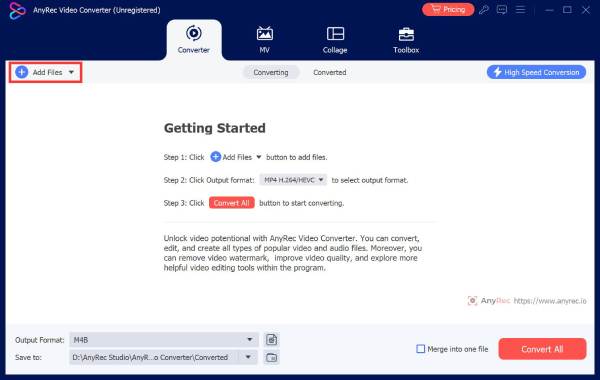
Step 2.Open the "Format" dropdown menu next to your clip. Switch to the "Video" tab and pick "MOV" from the list.
Step 3.If you need precise adjustments, click the "Custom Profile" button to modify codec, resolution, and more settings, then save.
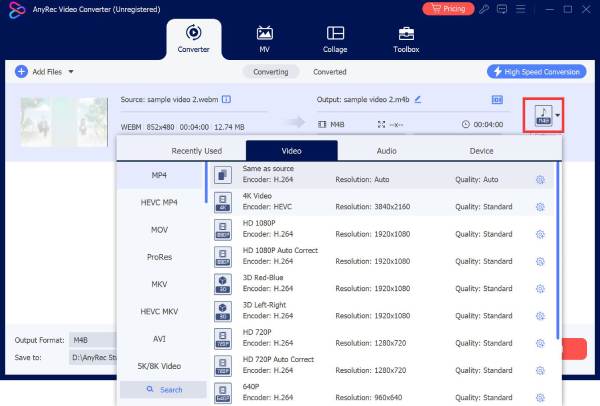
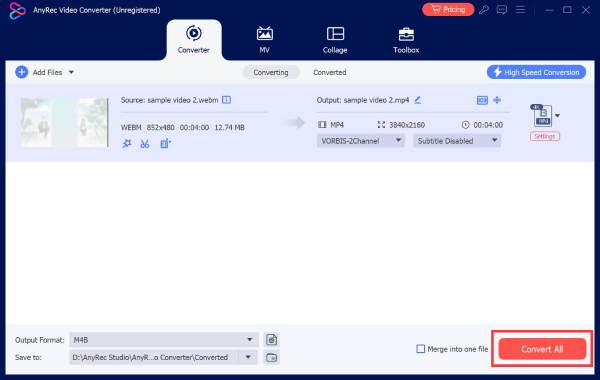
Step 4.With everything in place, select your output folder and name. Then, click the "Convert All" button to start transforming MKV to MOV.
Secure Download
Secure Download
Change MKV to MOV with VLC
You don't always need to install a new one if you already have VLC on your system. VLC Media Player can play almost anything, but it can also help you with MKV to MOV conversion with its robust transcoding engine.
Step 1.Start VLC, click "Media" in the top, and select the "Convert/Save" option. Click the "Add" button to browse and upload your MKV file, then click the "Convert/Save" button below.
Step 2.From the "Profile" menu, look for a MOV profile that matches your needs. Click the "Settings" button to customize if you wish, and change the encapsulation format to "MP4/MOV", then save.
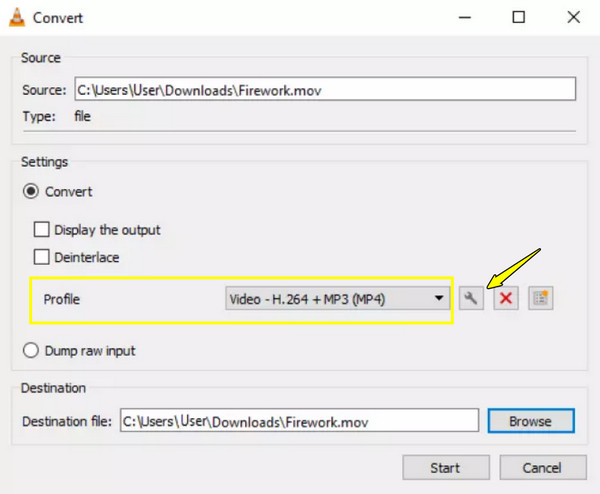
Step 3.Next, click "Browse" to choose a location, name your file, then click the "Start" button and watch the bar progress until finished.
Transform MKV to MOV with FFmpeg
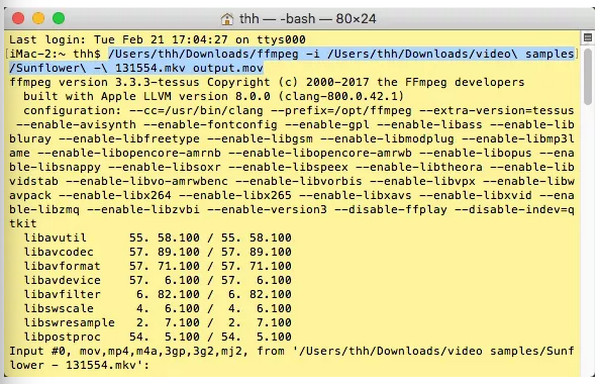
For those who love a more hands-on approach, FFmpeg is the fan favorite! Its MKV to MOV conversion method is done by command-line utilities, without graphical interfaces. Instead of decoding and re-encoding the entire track, it swaps the container in just seconds.
Step 1.Launch Command Prompt or Terminal on your computer. Use the "cd" command to go to the directory where your MKV video is saved.
Step 2.Type the following command: ffmpeg -i input.mkv -c copy output.mov or ffmpeg -i input.mkv -c:v copy -c:a copy output.mov or ffmpeg -i input.mkv output.mov.
Step 3.Replace the input.mkv with the file name and press "Enter". Then, the process will be done instantly, leaving you with the perfect MOV video in your folder.
Save MKV to MOV with HandBrake
If those command lines feel a bit too complex for you, use Handbrake to change MKV to MOV easily. As a premier open-source video transcoder, it excels at rebuilding MKV containers into highly optimized formats with its granular controls.
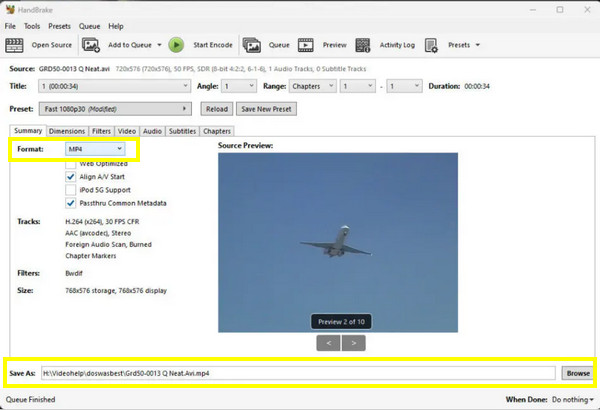
Step 1.Once Handbrake is launched, drag your MKV file directly. From the "Summary" tab, select "MP4" in the Format dropdown menu, as it shares identical structures with MOV.
Step 2.At the bottom of the "Save As" field, change the file extension to ".mov". You can also tweak video and audio settings if you wish to in their respective tabs.
Step 3.Click the "Start Encode" button at the top to begin the MKV to MOV processing.
Turn MKV to MOV Online for Free
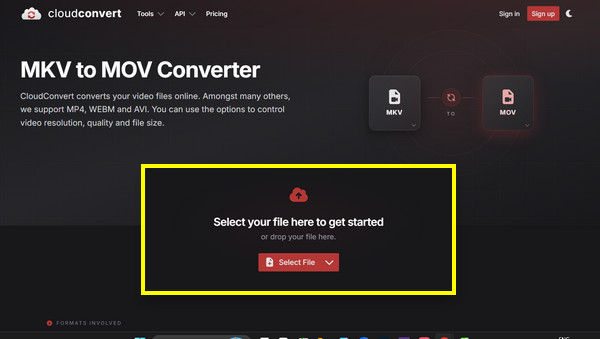
No doubt, desktop converter software provides power for converting MKV to MOV, but sometimes you just want a quick, no-installation solution. You can have CloudConvert, one of the top-tier web services that processes file conversions securely inside your browser window.
Step 1.Visit the CloudConvert MKV to MOV converter page on your chosen browser. Click the "Select File" button to put all your MKVs in the upload area.
Step 2.Confirm the target format is set to "MOV" in the dropdown menu. Then, you can manually adjust codecs, aspect ratios, and more by clicking the "Settings" button.
Step 3.Click the "Convert" button to finish. Click the "Download" button to save your new MOV video.
Conclusion
With the right formats, playing videos on your Mac will not lead you to a maze of errors and crashes. If you wish for a full command, FFmpeg can execute the MKV to QuickTime MOV conversion well. On the flip side, for a quick file transformation, CloudConvert won't require any installation to get the job done. Ultimately, for a balance of speed and customization, choose AnyRec Video Converter. Get to enjoy a lot of features like bulk processing, clean interface, quality preservation, and many more here.
Secure Download
Secure Download
Related Articles
About Our Author