
Hot

AnyRec Video Converter
120× faster video conversion and editing. No waiting.
Secure Download
Combine iPhone Video Clips into One: Step-by-Step Guide

Maybe you just came back from a short trip and have tons of beautiful iPhone video clips. Instead of sharing these clips to TikTok one by one, you probably want to combine them into one complete travel video. How do you merge videos on iPhone? In this article, we'll show you 4 useful methods to merge videos. You'll get mobile apps for fast edits or a reliable desktop tool to merge videos without quality loss.
Guide List
Part 1: Why Merge Videos Together on iPhone Part 2: How to Merge Videos on iPhone Using iMovie Part 3: How to Combine Videos on iPhone Using Videoshop Part 4: How to Combine Videos Using an Online Video Merger Part 5: How to Merge Multiple Videos Without Losing Quality Part 6: Pro Tips for Merging Video Clips into OnePart 1: Why Merge Videos Together on iPhone
Merging videos on an iPhone makes video editing and sharing much easier. Why do we need to merge videos on iPhone?
1. Create a complete video
You may capture and save different moments as separate clips. Merging them allows you to create a complete video, such as a travel vlog or birthday memory.
2. Make sharing more convenient
Sending multiple video files can be inconvenient for both you and the receiver. Combining videos into one video makes it easier to share through social media or messaging apps.
3. Simplify video editing process
A single combined video is easier to edit, add music, apply transitions, or adjust effects. After joining iPhone videos together, you can manage everything in one timeline.
4. Save iPhone storage space
Too many short clips can make your Photos app messy. Merging related videos makes it easier to manage and save your iPhone storage space.
Part 2: How to Merge Videos on iPhone Using iMovie
If you're an iPhone user, you've definitely heard of iMovie. This Apple's free, built-in video editor requires no downloads or hidden fees. It's the best pick for beginners to combine videos on iPhone without complicated editing skills.
Step 1. Open iMovie on your iPhone. If you don't have iMovie, you can install it from the App Store.
Step 2. Select the "Projects" tab, tap the "Plus" button, then choose "Movie" to create a new project.
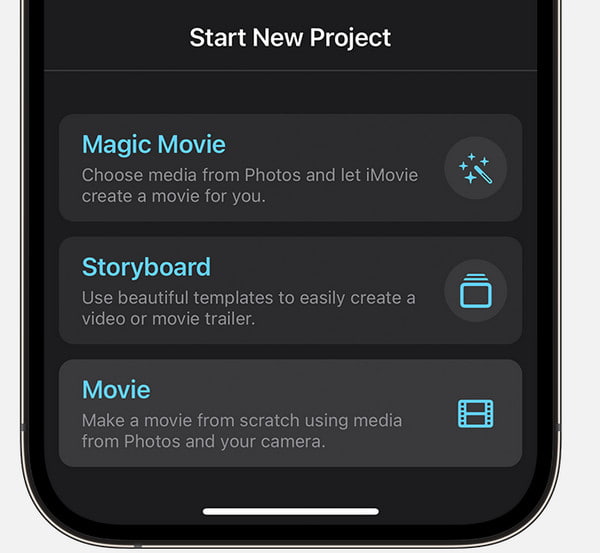
Step 3. Now you can see your recent videos and photos. Select "Media" in the left corner.
Step 4. Choose "Video" and then tap on the checkbox to add videos to your project.
Step 5. After picking all the videos you need to merge, tap "Create Movie" at the bottom to combine your video clips into a single file.
Step 6. You can also choose effects, transitions, and text you would like to add. Once you are satisfied, tap "Done" to save the merged video on your iPhone.
Part 3: How to Combine Videos on iPhone Using Videoshop
Videoshop is another versatile and beginner-friendly iPhone video merger. It includes basic editing features you need for daily video fixes. Whether you want to merge 2 clips on iPhone, Videoshop handles it smoothly.
Step 1. Download and install Videoshop from the App Store.
Step 2. Tap "Import" and allow the app to access your iPhone photos and videos.
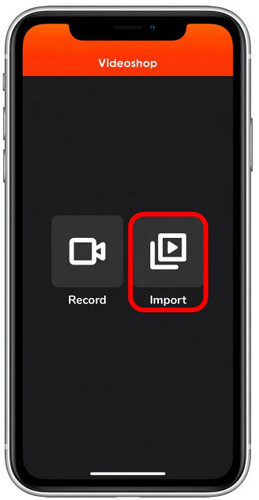
Step 3. Select two or more video clips from your camera roll and tap "Done" to import them into the project.
Step 4. Rearrange the clips in the correct order. You can resize, trim, add music and text to the video. Then, tap "Next" to automatically combine the videos into one.
Step 5. Tap "Sharing" to save the combined video.
Part 4: How to Combine Videos Using an Online Video Merger
If you don't want to download third-party apps and clutter up your iPhone storage, an online video merger is your best workaround. Clideo features a clean interface, and lets you finish video merging entirely in your browser.
Step 1. Open your iPhone browser and visit Clideo's official Video Merger page.
Step 2. Tap "Choose Files", then upload all the videos you want to merge.

Step 3. Drag and drop clips to reorder them to your preferred sequence.
Step 4. You can edit your video casually: trim the length, adjust aspect ratios, or add audio.
Step 5. Choose your output format, and tap "Export" to save the merged video.
Part 5: How to Merge Multiple Videos Without Losing Quality
If you're merging high-resolution videos and want to keep original quality, AnyRec Video Converter can do this for you. This professional desktop tool allows you to merge multiple clips without noticeable quality loss. You can also edit your video and customize output settings, including resolution, format, and bitrate. Most importantly, it doesn't make your sharp 4K footage blurry or pixelated after merging.

Merge 2 videos into one while preserving sharp visuals.
Trim, crop, rotate, add effects and apply filters before merging.
Support 1000+ input and output video formats.
Offer 20+ built-in tools for convenient editing.
Secure Download
Secure Download
Step 1. Launch the software on your computer, and click "Toolbox" on the top menu bar to find more video editing tools.
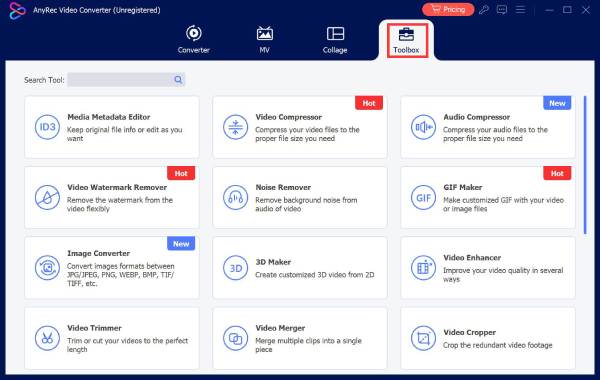
Step 2. Click "Video Merger" from the toolbox. Click the "Add" button to upload your video, and drag and drop your video files to adjust their playing order.
Step 3. You can also trim unnecessary segments, crop frames, or adjust audio volume before merging.
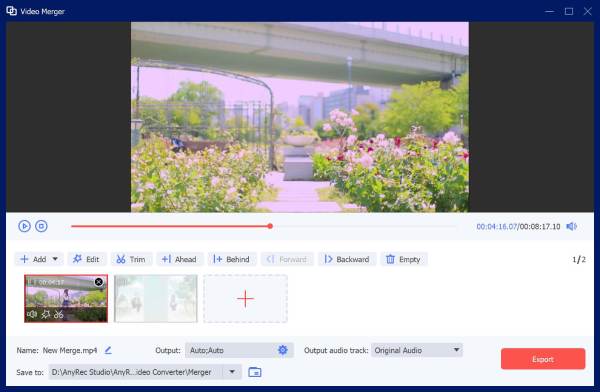
Step 4. Choose your output format and click "Export" to save the merged video.
Part 6: Pro Tips for Merging Video Clips into One
Merging videos is easy, but merging them perfectly takes effort. These pro tips will help you make more professional merged videos:
1. Match resolution and frame rate first
Videos with different resolutions or frame rates may look blurry or choppy after merging. Before combining them, increase video resolution or adjust all clips to the same resolution and frame rate.
2. Cut redundant footage in advance
Don't merge full-length raw clips directly. Trim shaky starts, blank frames, or redundant ending parts first. This makes your final video tighter and more cohesive.
3. Use subtle transitions
You don't need a dramatic transition every time the scene changes. Use simple cross-fades or default cuts for vlogs, travel videos, and daily footage. Only use fancy transitions for creative social media content.
4. Preserve original quality for important footage
For memorable moments like weddings, avoid using a mobile app to stitch videos together on iPhone. You can use AnyRec Video Converter's lossless merging feature to keep every detail clear.
5. Sync volume levels
One clip sounds perfectly fine, and then the next one suddenly gets much louder or quieter. Give the whole video a quick listen after merging and adjust the volume to the same level before exporting.
Conclusion
Whether you're editing tutorial clips, daily vlogs, or travel footage, these tools fit all your needs perfectly. Don't let your precious video clips stay scattered and unfinished. Start merging your videos together on iPhone into one today, and share your final creations with others!
Secure Download
Secure Download
Related Articles:
About Our Author




