
Hot

AnyRec Video Converter
120× faster video conversion and editing. No waiting.
Secure Download
Merge Multiple MKV Files into One Without Quality Loss

MKV is the most popular format for storing crisp, high-definition videos. If you have dozens of separate MKV files, how to merge them with ease? This guide covers 5 free MKV mergers and provides step-by-step instructions to help you merge MKV videos effortlessly.
Guide List
Part 1: What is an MKV File? Part 2: The Easiest Way to Merge MKV Files with High Quality Part 3: How to Merge MKV Files with VLC Part 4: How to Merge MKV Files Online Part 5: How to Merge MKV Files Using MKVToolNix Part 6: FAQs About Merging MKV FilesPart 1: What is an MKV File?
MKV (Matroska Video) is a popular multimedia container format. An MKV file usually uses the .mkv file extension. MKV is super flexible and powerful, and it's capable of storing multiple tracks in one file. Most high-definition movies, Blu-ray rips, and multi-language videos are saved as MKV.
Part 2: The Easiest Way to Merge MKV Files with High Quality
If you're looking for the easiest way to merge multiple MKV files into one video, AnyRec Video Converter can save you much time and effort. This professional video merger allows you to combine MKV videos and convert the final MKV file to MP4, AVI, MOV, WMV, and any other popular formats. You don't need to install additional editing software, as AnyRec comes with a built-in toolbox to help you trim, rotate, add filters, and edit your videos all in one software.

Merge MKV files while maintaining lossless video quality.
Add files, adjust the order, and merge your MKV videos within a few steps.
Support converting MKV files to 1000+ video formats.
Provide various editing tools after merging MKVs.
Secure Download
Secure Download
How to merge MKV files with AnyRec:
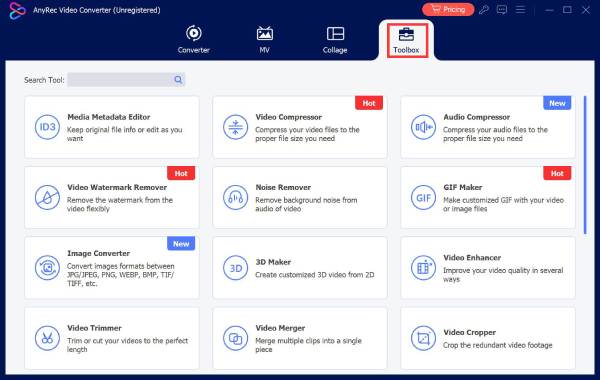
Step 1.Click "Toolbox" from the top menu. Then, scroll down and select "Video Merger."
Step 2.Click the "Add" button to upload your MKV files, or drag and drop them into the program. Adjust their order before combining.
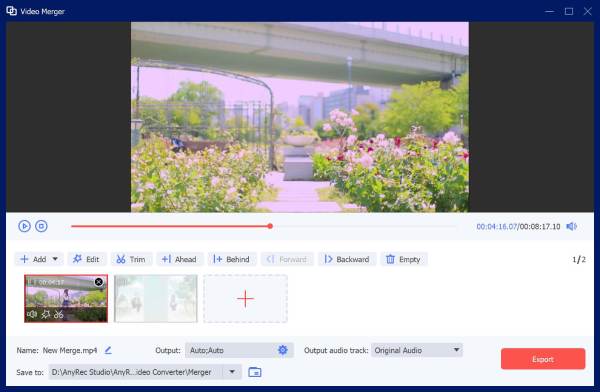
Step 3.You can also use the built-in edit tool to trim unwanted parts, adjust volume, or edit files before merging.
Step 4.Choose an output format and click "Export" to save the merged video.
Part 3: How to Merge MKV Files with VLC
Many people have VLC Media Player on their computers Can VLC merge MKV files? Yes! You can use this open-source software to merge MKV files for free!
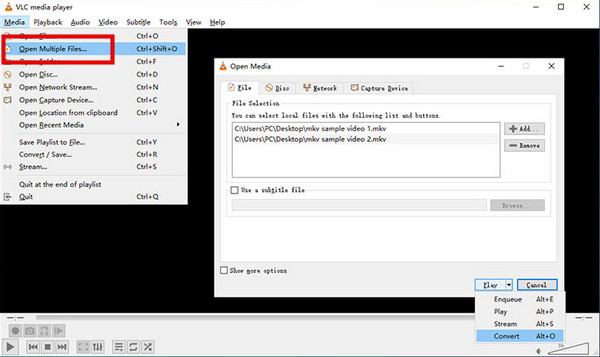
Step 1.Open VLC media player on your computer. Go to "Media" > "Open Multiple Files…" > "Add" and import your MKV videos you want to combine.
Step 2.Click the small drop-down arrow next to "Play" at the bottom, and choose "Convert".
Step 3.Set the destination folder and choose an output format. Click the "Start" button to join MKV files in VLC.
Part 4: How to Merge MKV Files Online
If you don't want to install any software, an online MKV merger is a convenient choice. You can try Clideo Video Merger to merge short MKV clips quickly. It also allows you to crop the video, set the desired aspect ratio and output format, and add an audio track to video.
Step 1.Click "Choose files" to pick the MKV files you would like to merge. You can import files from local folders, Google Drive, or Dropbox.

Step 2.Drag the clips to adjust the sequence. You can also trim, crop, and add audio on the page.
Step 3.Finally, choose the aspect ratio and click the "Export" button.
Part 5: How to Merge MKV Files Using MKVToolNix
MKVToolNix is a free and open-source tool designed specifically for creating, editing, and processing MKV files. It's available for Windows, Mac, and Linux.
Step 1.Launch MKVToolNix on your computer, then open the MKVToolNix GUI.
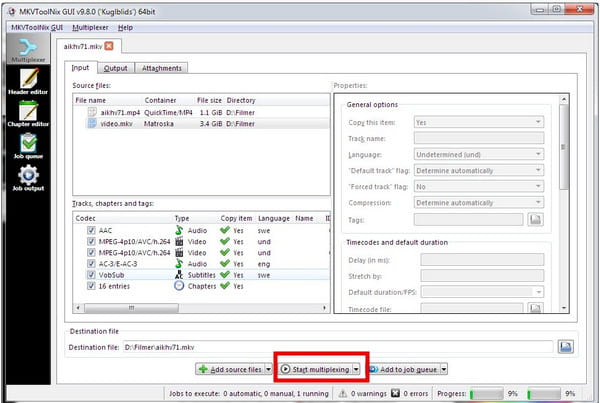
Step 2.Click "Add source files", and import the first MKV video you want to merge.
Step 3.Click "Append media files" to add the other MKV files you want to combine. Make sure all videos are added in the correct order.
Step 4.Select the destination folder and adjust the output settings. Then click "Start multiplexing" to start concentrating the MKV files.
Part 6: FAQs About Merging MKV Files
-
Can Handbrake combine videos into MKV?
Handbrake does not support combining MKV files into one video. Although HandBrake includes a Queue feature that allows you to add multiple videos for batch processing, it only converts each file separately. It cannot join several MKV files together.
-
Will merging MKV files reduce video quality?
Not necessarily. The quality usually depends on how the files are merged. If the tool needs to re-encode the video, you may notice some quality loss. To keep everything looking the same, it's better to use a lossless video merger. AnyRec Video Converter can merge MKV files directly without re-encoding, so the original quality stays unchanged.
-
How do I merge MKV files with different resolutions or codecs?
If your MKV files have different resolutions, codecs, or audio settings, some MKV mergers may not combine them properly. In this case, you may need to convert the videos to the same format and settings before merging them.
Conclusion
Now you've mastered five different ways to merge MKV files! Have you figured out which method fits you best? If you pursue high quality and stability, AnyRec Video Converter is your best choice. Pick it to tidy up your messy MKV clips easily!
Secure Download
Secure Download
Related Articles
About Our Author




