
Hot

AnyRec Screen Recorder
Capture every moment. Record like a pro.
Secure Download
3 Easy Methods to Record Tango Video Calls [PC/Mobile]

Have you come to the point of recording Tango video calls? If you do, the reason you might wish to do this is to keep your precious conversations with your family or friends, or simply to document your discussion with someone. Well, learning how to record a Tango video call is easy, especially if you let this post guide you. Here, you'll get to explore three workable ways on a PC or phone. Dive in now to learn to screen record on Tango!
Guide List
Is It Legal to Record Tango Video Calls How to Record Tango Video Calls on PC and Mac How to Record Tango Video Calls on Android How to Record Tango Video Calls on iPhone Troubleshoot Tango Call Recordings FAQsIs It Legal to Record Tango Video Calls
Before exploring this post's 3 workable guides of Tango recording, you first need to understand and be aware of whether it is legal to record Tango video calls. So, is it legal to record Tango video calls? Well, the answer depends on your location and how you use the recorded video call.
Some countries follow a one-party consent rule, which means only one person associated with the call (that includes you) needs to know and agree to the recording. Examples include:
- • United States (many states, but not all)
- • Canada
- • United Kingdom
- • Philippines
- • Australia
Other countries follow an all-party (two-party) consent rule, which means everyone on the call must permit before the video call recording starts. These countries include the following:
- • Germany
- • France
- • Spain
- • South Africa
- • Some U.S. states, such as California and Florida
Apart from those local laws, you must also review Tango's terms of service and privacy policies. Recording video calls within the platform without permission may violate its rules, especially if the recording is shared or used publicly. To avoid legal or privacy issues, it is best to:
- • Inform all participants in the video call that the call will be recorded.
- • Get explicit consent before starting the call.
- • Make sure to use video call recordings only for personal or permitted purposes.
How to Record Tango Video Calls on PC and Mac
If you prefer to record your web-based Tango video calls, one of the best tools that the market can offer you is the professional AnyRec Screen Recorder as your Tango screen recorder. This desktop-based tool can record Tango calls with both video and audio by capturing your desktop screen. It can record video calls in full screen, the Tango window only, or any part of your computer screen where Tango is displayed, with high-quality recording. With that, you can definitely capture moments from your Tango video call. What makes this even more impressive is that it not only records your Tango video call in 4K, but also captures its audio with removed noise and reduced echo.

Able to record your Tango video calls without time limits.
Allows you to take screenshots during the Tango video call recording.
Capable of recording a Tango video call from a phone through screenshare.
Lets you export recorded Tango video calls in MP4, MKV, MOV, and other formats.
Secure Download
Secure Download
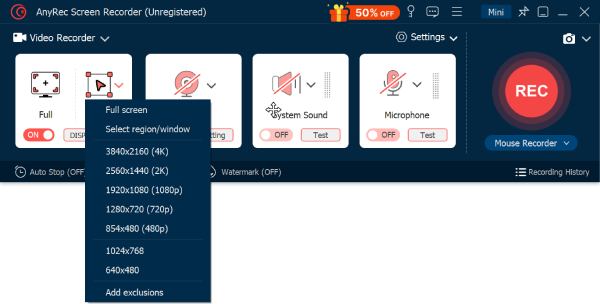
Step 1.Install the AnyRec Screen Recorder on your PC and run it afterward. Then, start your Tango video call, head over again to the tool, choose "Full" screen, and click the "REC" button to start recording it.
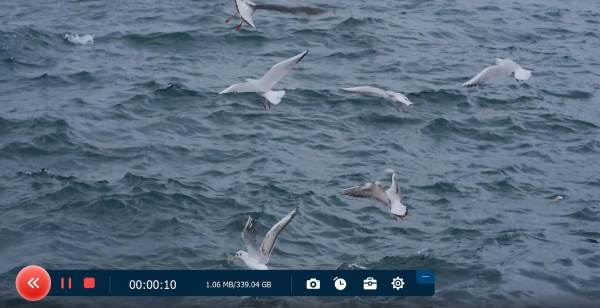
Step 2.While recording the Tango video call, you can turn on the "Microphone" and "System Sound", and you can also take a screenshot, set record length, edit the recording, or adjust the audio volume.
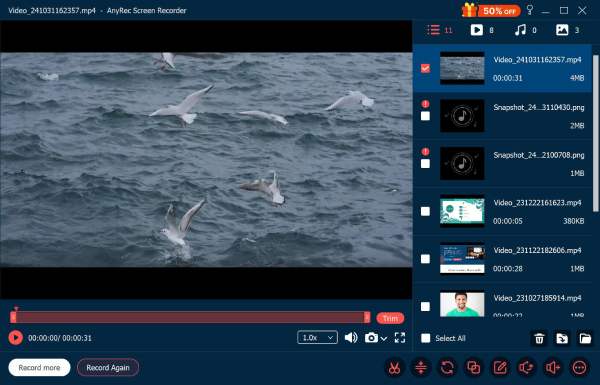
Step 3.Once you are done recording the video call, click "Stop", and the tool will bring you to the preview section. Here, you can edit, trim, speed up, compress, and save Tango videos.
Secure Download
Secure Download
How to Record Tango Video Calls on Android
In case you are using an Android phone to make a Tango chat video call, you can use its built-in screen recorder to capture it. You can just start the video call, access the Quick Settings panel, tap the Screen Recorder, and that's it; your phone's screen recorder will automatically record the call.
However, if your phone doesn't have a built-in recorder, you can use the AZ Screen Recorder app instead. This app enables you to record your Tango video call with audio efficiently and effectively. Now, how to record videos calls on Tango? Here are the steps to record video on Android from Tango.
Step 1.After installing the AZ Screen Recorder app on Google Play, launch it, and provide the necessary permissions for it in your Settings by toggling it on (upon launching the app, this part will automatically be prompted).
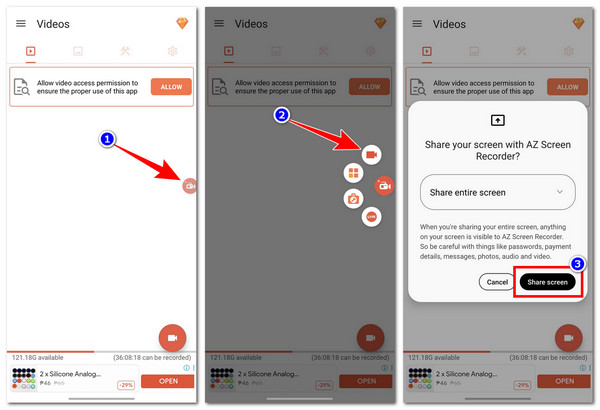
Step 2.Next, go to the Tango app and start your video call. Then, go back to the AZ Screen Recorder app, tap the "App's logo" on the right-hand part of the screen, and select the "Record" icon. Then, select "While using the app" when prompted.
Step 3.After that, tap "Share screen", wait until the 3-second countdown is finished, and once done, the app will automatically record your Tango video call.
How to Record Tango Video Calls on iPhone
In terms of recording a Tango chat video call on iPhone, you can use its built-in screen recorder, so you no longer need to install an extra app. Just like Android's screen recorder, iPhone's screen recorder is also enough to capture iPhone screen video with audio. Here are the steps for Tango video recording on iPhone.
Step 1.If the Screen Recorder feature is not yet included in your iPhone's Control Center, go to the Settings app, select "Control Center", and tap the "Add" icon next to "Screen Recording" to include it for quick access.
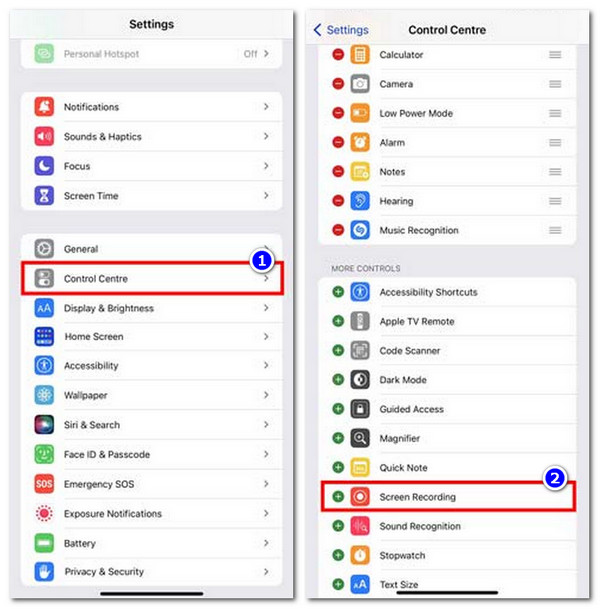
Step 2.Next, swipe down the upper right corner of your screen to access the Control Center. Then, long-tap the "Screen Recording" button and turn on the "Microphone" to capture the audio during the recording.
Step 3.After that, tap the "Start Recording" button to start recording the whole Tango video call. Once done, tap the "Screen Recording" button with the red colored icon at the upper left corner to stop recording.
Troubleshoot Tango Call Recordings
There you have it! Those are effective ways to record Tango video calls or live content on desktop and mobile. Now, recording Tango video calls can sometimes run into issues. Here are some common problems and easy fixes.
- • No audio - Check that your recorder can capture sound and that your microphone is allowed. Some apps need you to turn on audio recording separately.
- • Video is blurry or choppy - This can happen if your internet is slow or if too many apps are running. Closing extra apps, using a strong Wi-Fi connection, and lowering the call resolution can help.
- • Recording stops suddenly - Battery saver on your phone or background restrictions can prevent the recorder. Turn off battery saver and keep your device charged while recording.
- • File won't save or is corrupted - Make sure you have enough storage, save files in a dedicated folder, and avoid switching apps while recording.
- • Recording won't start - Permissions or settings may be the issue with the recording. To fix it, you can restart your recorder and allow all permissions. On PC, try to run the app as administrator.
FAQs
-
1. How do you make a video on Tango?
To make a video call on Tango, go to the "Call" tab, tap the "New Call" button, and select the "video camera" next to the person that you wish to call. After that, wait until the person picks up the call.
-
2. Does Tango have a built-in video or audio recorder?
No. Tango doesn't have an official built-in video or audio recorder that you can use to record your calls. In that case, you need to rely on a third-party tool, just like what has been featured here, to record your calls.
-
3. Does Tango detect screen recording?
No, Tango does not detect if you are screen recording a call. The app won't block the recording or notify the other person, but it's always best to get their permission before recording.
Conclusion
There you have it! That's the simple yet comprehensive guide to record a Tango video call on your desktop or mobile phone. This guide makes it easier for you to smoothly record your video call moments using the three methods discussed earlier. However, if you want a truly smooth recording with high-quality output, AnyRec Screen Recorder is a solid choice. Just remember that it's best if the other party knows that the recording will take place to ensure an excellent Tango video call experience.
Secure Download
Secure Download
Related Article
About Our Author




