Hot

AnyRec Video Converter
120× faster video conversion and editing. No waiting.
Secure Download
How to Convert AV1 to MP4 - A Beginner-Friendly Guide

Many people are confused about what an AV1 file is and how to change AV1 format to MP4. This post provides you with detailed answers. From what an AV1 file is to how to open and convert them quickly, you can get all the relevant information. Start reading now to learn about AV1 files.
Guide List
Things You Need to Know: What is the AV1 Format The Most Powerful Way to Convert AV1 to MP4 HandBrake: A Free Tool to Conver AV1 to MP4 How to Convert AV1 to MP4 with Coding Skills An Online Solution to Converting AV1 to MP4Things You Need to Know: What is the AV1 Format
AV1 is a new video compression format. Developed by the Alliance for Open Media, AV1 enables more efficient, buffer-free video playback online. That's why AV1 is now becoming one of the most adopted video formats for online videos. Actually, many of the online videos you see might be in AV1 format.
Although it's called AV1, this type of video file is not saved with the .av1 extension. Since they're for online playback, AV1 compresses video for the website and works as a codec. If you save an AV1 video, a more common solution is to convert it to a normal video format. Given its compatibility, MP4 is often the first option.
The Most Powerful Way to Convert AV1 to MP4
When it comes to converting AV1 to MP4, AnyRec Video Converter is the most powerful solution. During the conversion, the video quality can remain the same as the original. You can even upscale the quality if you want to. Moreover, you can polish the video using various editing tools to obtain a desired result. Follow the steps below to complete the process easily.

Convert AV1 to MP4 format without any quality loss.
Batch conversion from AV1 to MP4 and save your time.
Edit the video file before saving the converted MP4 file.
GPU acceleration to complete the process in no time.
Secure Download
Secure Download
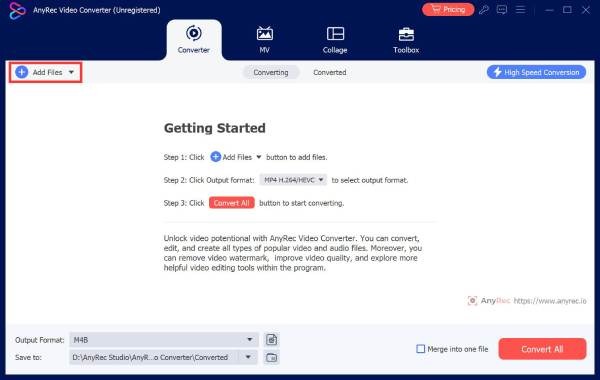
Step 1.Launch AnyRec Video Converter on your device. Click the "Add Files" button and import the AV1 file.
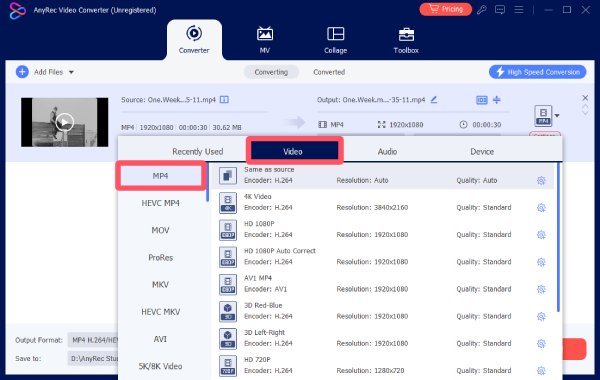
Step 2.Click the "Format" button. Click the "MP4" button under the "Video" tab.
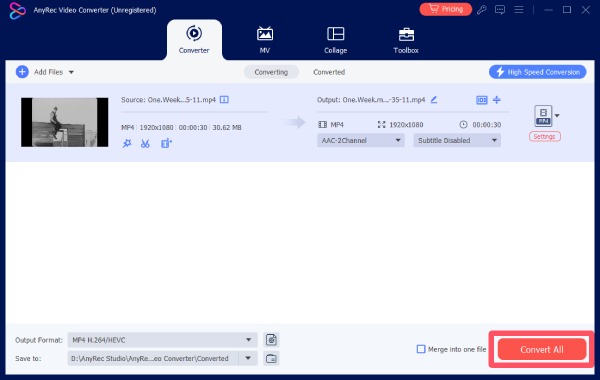
Step 3.In the main interface, click the "Convert All to" button to convert AV1 to MP4.
HandBrake: A Free Tool to Conver AV1 to MP4
HandBrake has been a renowned video tool for many years. Although AV1 is a relatively new format, HandBrake can still help you out. You can compare AV1 and H.264 versions within HandBrake and get the converted video quickly. You can follow the detailed instructions below to complete the conversion in no time.
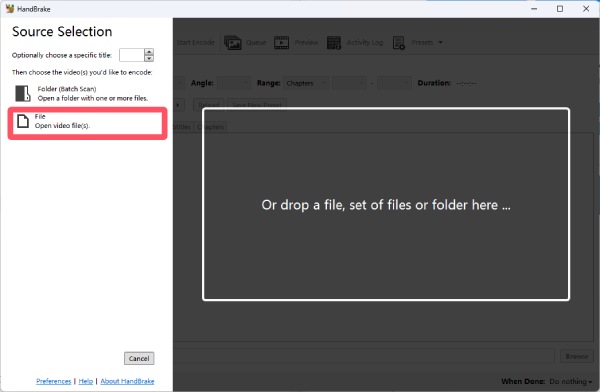
Step 1.Launch HandBrake and click the "File" button to import your AV1 video file.
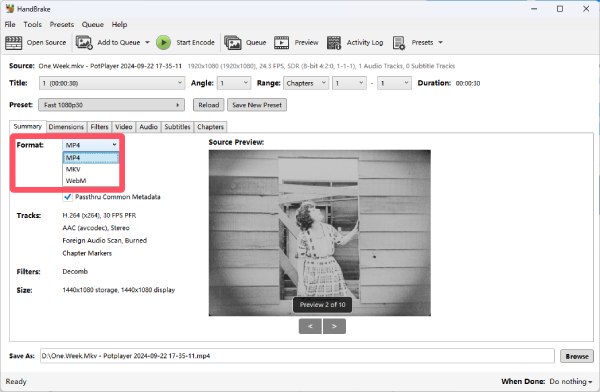
Step 2.Under the "Summary" tab, click the "Format" button. Then, click the "MP4" button under the drop-down menu.
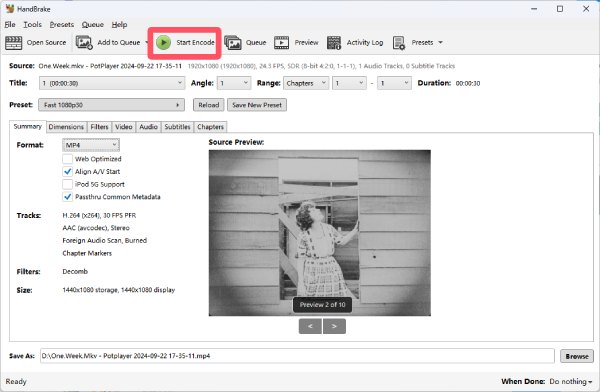
Step 3.Now, click the "Start Encode" button. The AV1-encode file will be converted to MP4 automatically.
How to Convert AV1 to MP4 with Coding Skills
If you happen to know something about coding, then there is a convenient solution. FFmpeg allows you to change a video's format. This method involves only its container, and the content will remain the same. However, if you know nothing about coding, a minor mistake can damage your AV1 video file. So, this method is recommended only for those with coding skills.
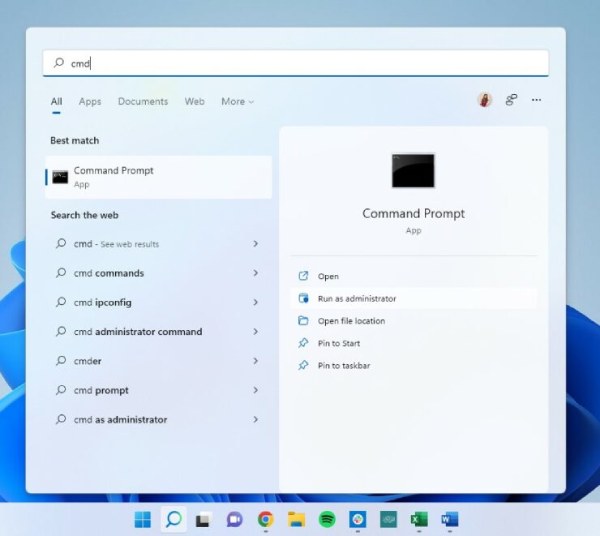
Step 1.Press the "Windows" button. Type "cmd" and click the "Command Prompt" button to run it.
Step 2.Paste the command below. Replace "input_file.av1" with the target file name. Do the same with output_file.mp4, too.
ffmpeg -i input_file.av1 -c:v libx264 -crf 23 -preset slow -c:a aac -b:a 192k output_file.mp4
Step 3.Press the "Enter" key to re-encode the AV1 file and transcode it to MP4.
An Online Solution to Converting AV1 to MP4
As mentioned before, AV1 videos are designed for online playback. It means you can use an online AV1-to-MP4 converter to complete the task before downloading them. After testing 15 of the most popular online tools, Convertio stands out as the best online option.
Step 1.Navigate to the official website of Convertio. Click the "Choose Files" button and upload the AV1 file.

Step 2.Click the "Format" button. Under the "Video" tab, find and click the "MP4" button.
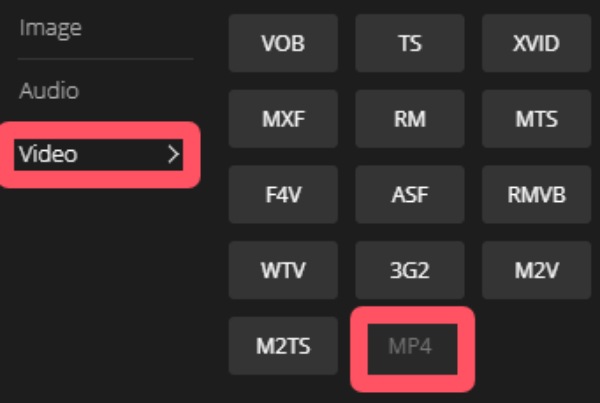
Step 3.Finally, click the "Convert" button to convert the AV1 file to MP4 format.

Conclusion
This post shows you 4 practical ways to convert AV1 to MP4. You can select the proper one based on your requirements. For those who want a video of the original quality, AnyRec Video Converter is the best option.
Secure Download
Secure Download
Related Articles
About Our Author