
How to Use Audio Joiner Like a Pro: A Complete Tutorial

An audio joiner can be helpful these days, especially when working with discontinuous content like podcasts, interviews, etc. It helps you combine multiple audio files into a coherent whole, making your project sound more seamless. This tutorial introduces practical audio joining solutions, including professional desktop software, free options, and online solutions, helping you easily merge audio files to meet your specific needs.
Guide List
Things to Consider About an Audio Joiner The Most Efficient Audio Joiner for Efficient Merging How to Use Adobe Audition as a Professional Audio Joiner How to Join Audio Files Together Free Using Audacity An Online Audio Joiner You Can TrustThings to Consider About an Audio Joiner
Before choosing an audio joiner, it is important to evaluate several practical factors to ensure smooth and high-quality merging.
1. Format compatibility is the first consideration. An audio joiner should support common audio types. For example, MP3, WAV, AAC, or FLAC without forced conversion.
2. Output quality is equally critical. If the audio quality is significantly degraded after being connected, making it impossible to hear clearly, then the important content will also be lost. Your audio joiner must be capable of ensuring the quality of the audio.
3. In addition, timeline control can be helpful. This function enables you to precisely control the trimming and connection of audio, preventing any loss of content or leaving excessive gaps.
4. Lastly, consider platform compatibility. This is more based on your needs. A professional audio joiner that needs to be installed usually has more functions and better performance. And the online tools offer speed and convenience.
The Most Efficient Audio Joiner for Efficient Merging
When accuracy and efficiency matter, AnyRec Video Converter stands out as a reliable audio joiner. During the process of combining your audio clips, their original qualities are maintained, which means you can combine different audio files (even in various formats) without losing details. With its intuitive timeline-based interface, you can arrange clips in the desired order, trim unwanted sections, and apply consistent output settings before merging.

Precisely combine multiple audio tracks together in one click.
During the process of rejoining the audio, the audio quality will not be affected.
Listen to the combined audio files to check the effect before saving.
Eliminate the background noise of the audio to improve the quality.
Secure Download
Secure Download
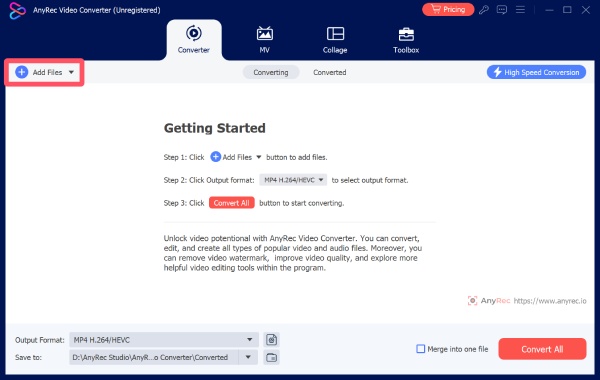
Step 1.Launch AnyRec Video Converter, click the "Add Files" button to import your audio files, even if they’re not in the same format.
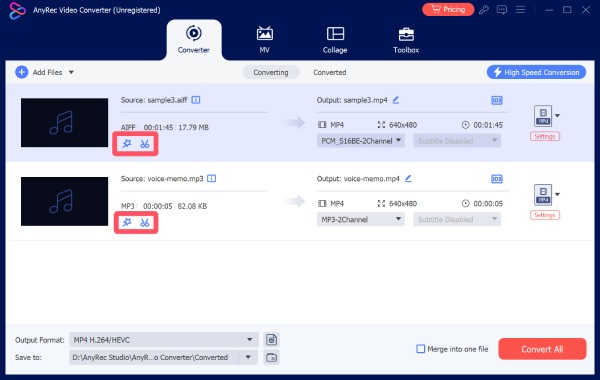
Step 2.Before combining your audio files, you can click the "Edit" button or the "Cut" button to adjust the details of your audio files.
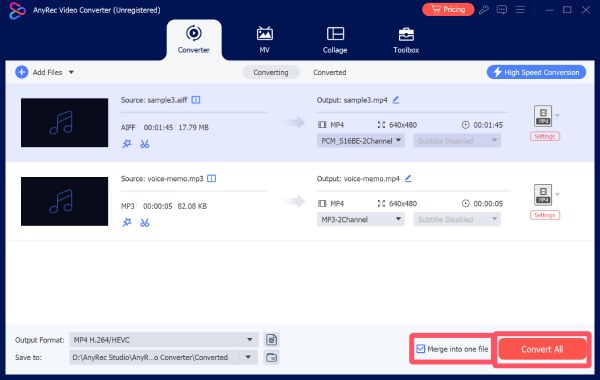
Step 3.Click the "Merge into one file" button. Finally, click the "Convert All" button.
Tips
If you find the audio quality doesn’t meet your needs, there’s also a built-in audio enhancer within AnyRec Video Converter.
How to Use Adobe Audition as a Professional Audio Joiner
If you are searching for a professional audio joiner, Adobe Audition is what you need. Designed for high-end audio production, Adobe Audition offers precise control over several audio tracks. Although it involves some rather complex professional operations, once you master them, you will find that audio control becomes incredibly precise, like never before. This level of control is ideal for users who prioritize audio consistency and studio-quality output.
Step 1.Launch Adobe Audition on your device and open the first clip of your audio file.
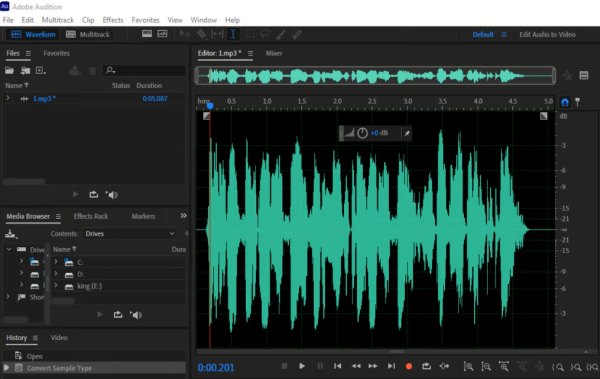
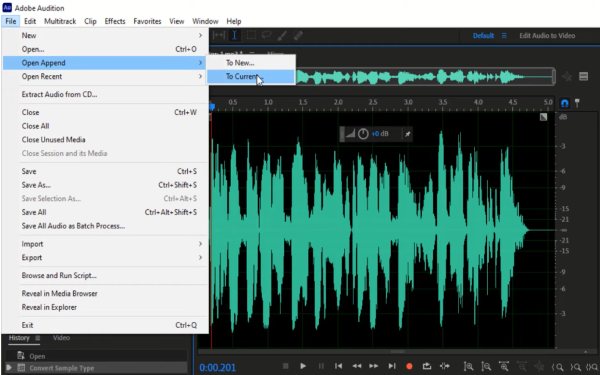
Step 2.Under the "File" tab, click the "Open Append" button and then the "To Current..." button.
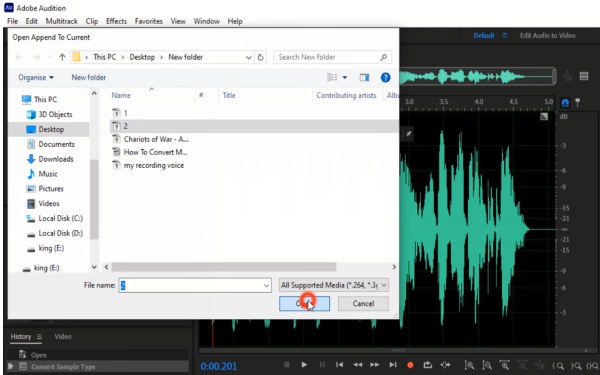
Step 3.In the pop-up window, click to select the second audio file that you want to merge and click the "Open" button.
How to Join Audio Files Together Free Using Audacity
As a well-known open-source audio editor, Audacity has been popular among people for years. It provides a cost-free way to merge multiple audio files. Despite being free, it offers robust editing features, including MP3 louder, multitrack support, and precise waveform control. For users who are willing to spend a little time learning the interface, Audacity can effectively handle audio joining tasks while maintaining good sound quality.
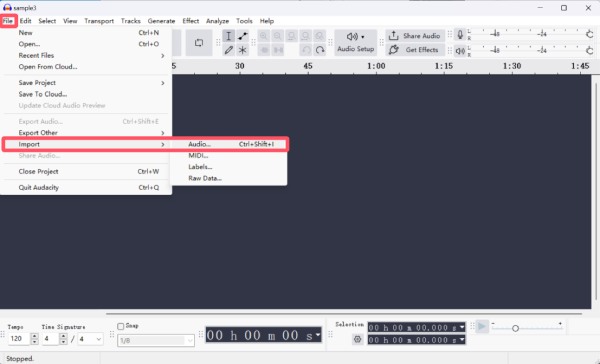
Step 1.Launch Audacity and click the "Import" button under the "File" tab. Then, click the "Audio..." button to import your audio files.
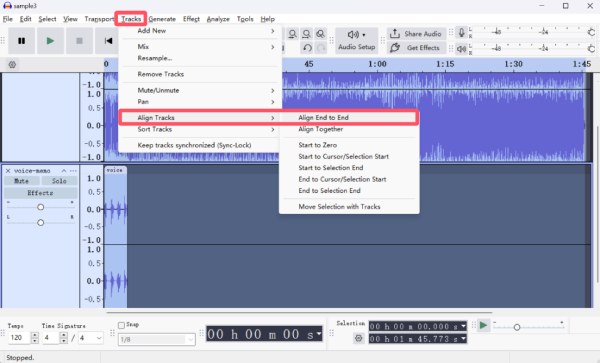
Step 2.Press the "Ctrl" button and the "A" button. Click the "Align Tracks" button under the "Tracks" tab. Then, click the "Align End to End" button.
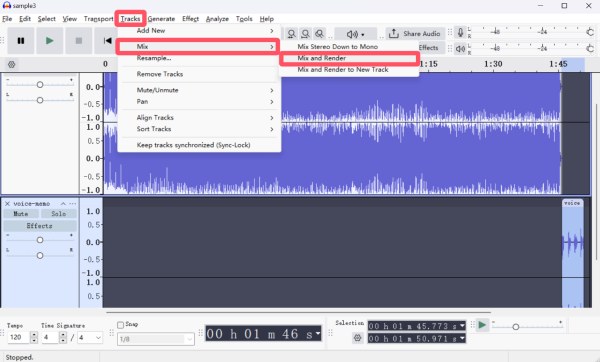
Step 3.Again, press "Ctrl + A" together to select all audio tracks. Click the "Mix" button under the "Tracks" button. Then, click the "Mix and Render" button.
An Online Audio Joiner You Can Trust
While an online audio joiner can be handy, you may find it hard to pick up an ideal one among so many choices. After quick tests through some of those choices, Clideo Online Audio Joiner stands out as a trustworthy option for users who want fast results without installing software. This online alternative to Audacity supports standard audio formats and allows you to merge several clips online. You can follow the steps below to complete the task in no time.
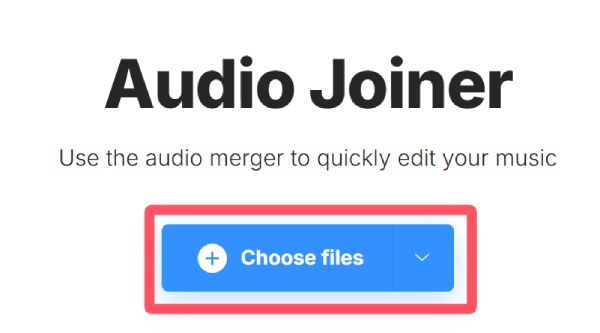
Step 1.Navigate to the official website of Clideo Online Audio Joiner and click the "Choose files" button to upload your audio files.
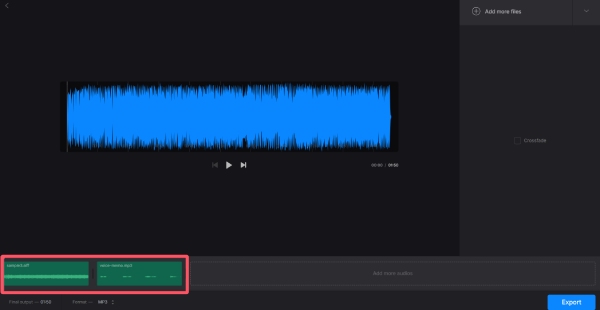
Step 2.In the new pop-up window, you can click to adjust the order of your audio tracks before merging them.
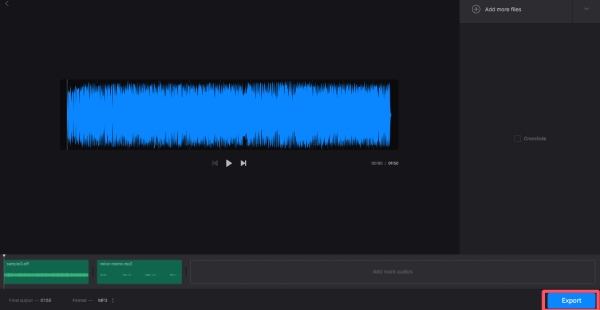
Step 3.Finally, click the "Export" button to run the audio joiner and save the merged audio file on your device.
Conclusion
In short, your requirements decide which audio file joiner is suitable for you. You can select the desired one based on the control, speed, and quality you need. With AnyRec Video Converter, organizing and merging multiple tracks becomes a straightforward and efficient process.
Secure Download
Secure Download



