
Hot

AnyRec Video Converter
120× faster video conversion and editing. No waiting.
Secure Download
TS to MP4 Conversion Guide: 5 Effective Tools to Use

TS files are usually seen in recordings, broadcasts, and streaming sources, but they are not always compatible with most devices or players. You may fail to play TS files with common players. If you don't want to install any TS player, you can convert TS to MP4 instead. Doing so ensures smoother playback and more convenient sharing as MP4 is a universally supported format. Today's guide shares five effective tools to turn TS to MP4, from desktop software to quick online tools. Choose the method here that fits your workflow best.
Guide List
Convert TS Files to MP4 without Quality Loss How to Use VLC to Convert TS Files to MP4 Transform TS Files to MP4 with FFmpeg Free Convert TS to MP4 with CloudConvert Convert TS to MP4 Online with ConvertioConvert TS Files to MP4 without Quality Loss
When you wish to turn TS videos into MP4 format, using a dependable tool like AnyRec Video Converter ensures smooth and high-quality results. Since TS files are large and not widely supported on players, platforms, and devices, converting TS to MP4 makes playback, sharing, and uploading much easier. With this conversion tool, you can convert files while preserving their original clarity. Besides TS and MP4 files, it covers a bunch of formats such as MOV, AVI, MKV, MP3, FLAC, and more. The conversion process runs significantly faster thanks to its advanced GPU acceleration, reducing waiting time even with a large number of TS files.

Convert TS files to MP4 and many other formats on both Windows and Mac.
Supports batch TS conversions while keeping high video quality intact.
Uses GPU acceleration to speed up conversions and lessen waiting time.
Provides built-in editing tools like trimming, cropping, merging, and more.
Secure Download
Secure Download
Step 1.Open AnyRec Video Converter on your computer. Click the "Add Files" button. Import the TS video file you want to convert.
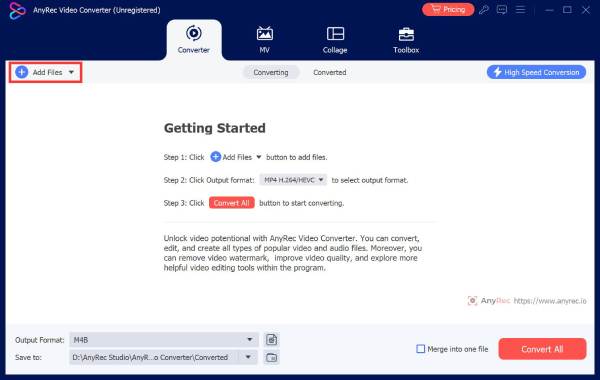
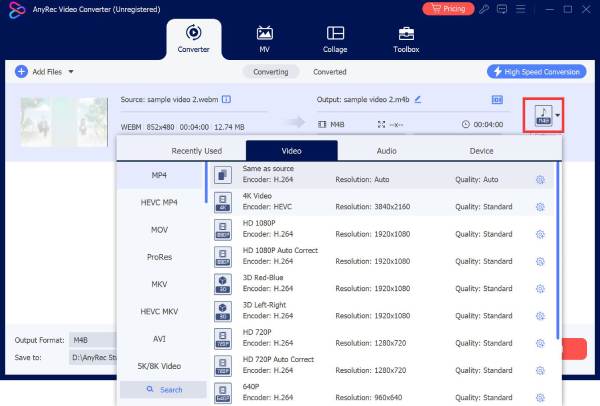
Step 2.Next, click the "Format" dropdown menu beside your uploaded file. Slide to the "Video" section and select "MP4" as your output format.
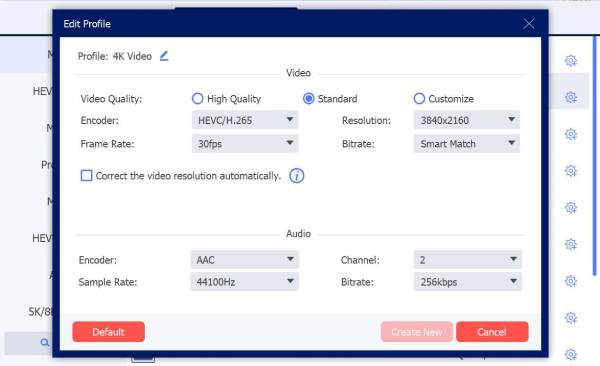
If you need specific settings, click the "Custom Profile" button to modify parameters like resolution, frame rate, bitrate, and more.
Step 3.Set the output folder in the main interface. Set the filename if necessary. Finally, click the "Convert All" button to begin the .ts to .mp4 conversion.

Secure Download
Secure Download
How to Use VLC to Convert TS Files to MP4
VLC Media Player can be your free TS to MP4 converter on multiplatform. Due to its being cross-platform and supporting a wide range of formats, it remains the most loved for quick conversions. Let's see the VLC to MP4 conversion.
Step 1.Open VLC Media Player. Click the "Media" button on the top. Then click the "Convert/Save" option.
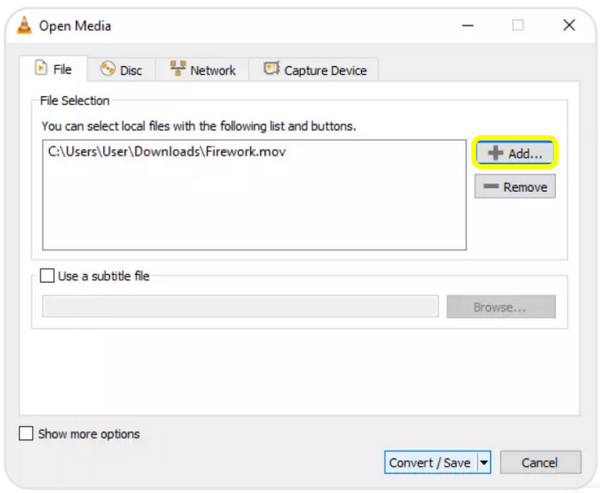
Step 2.From there, click the "Add" button, pick your TS file, then click the "Convert/Save" button to move on.
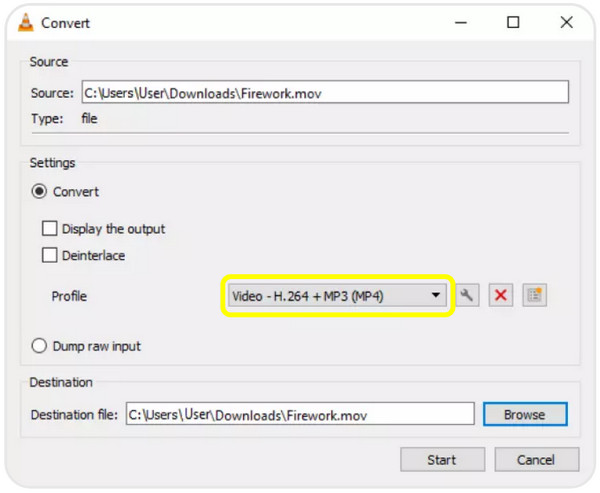
Step 3.Next, select "Video - H.264 + MP3 (MP4)" as the profile, set your output location, and then click the "Start" button to begin the TS to MP4 conversion.
Transform TS Files to MP4 with FFmpeg
Moving to a command-line solution to convert TS to MP4, here's FFmpeg. This approach is highly suggested for anyone seeking precise control over video quality, codecs, and advanced parameters. While it appears technical at first, FFmpeg is a compelling option for conversion once you learn the basics.
Step 1.Get FFmpeg installed on your system and make sure it is accessible via the command line.
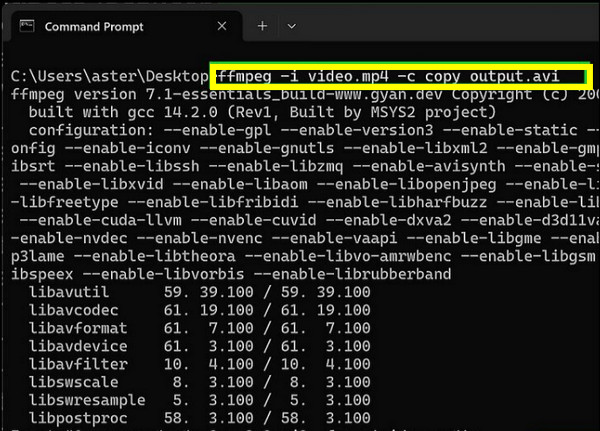
Step 2.Open a "Command Prompt" on your computer, and enter the basic command: ffmpeg -i input.ts output.mp4.
Step 3.Please wait for the conversion to finish. Your MP4 video will appear in the exact same location unless you specify another one.
Free Convert TS to MP4 with CloudConvert
CloudConvert is an online TS to MP4 converter for both desktop and mobile users. You can convert TS files from the local drive, Google Drive, Dropbox, or URL. Moreover, you can adjust video resolution, codec, bitrate, and more settings.
- Pros
- Allows batch conversion for many TS files.
- Ensures high-quality output.
- It can be accessed on any device with a browser.
- Cons
- Uploading large video files takes time.
- Free users have a daily conversion limit.
Steps:
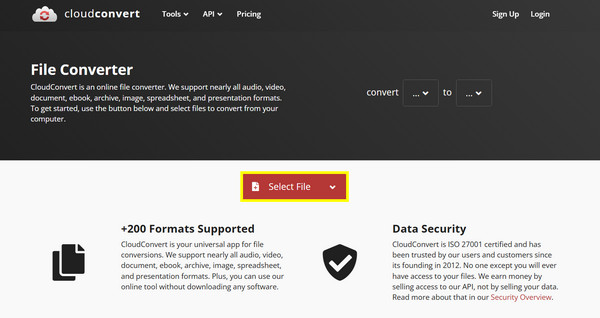
- 1. Visit CloudConvert in your chosen browser.
- 2. Click the "Select File" button to upload your TS file.
- 3. Choose "MP4" as your output format, then tweak video settings if you like before clicking the "Convert" button.
Convert TS to MP4 Online with Convertio
Next, another free TS to MP4 converter known for speed, is Convertio. It focuses on quick and straightforward conversions, making it excellent for starters or users who only need simple format switching. So, give Convertio a try instead of renaming TS to MP4.
- Pros
- Fast conversion speed for small files.
- Works from the browser.
- Extremely friendly with a clean interface.
- Cons
- Little advanced customization options.
- The free version has a size limit of 100 MB.
Steps:
- 1. Search for Convertio in your browser.
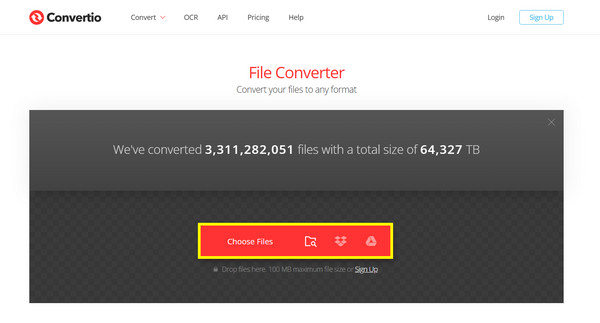
- 2. Click the "Choose Files" to upload your TS video file.
- 3. Next, select "MP4" as your output format.
- 4. Click the "Convert" button and wait for the process to finish.
Conclusion
Especially when you have several effective methods to choose from, TS to MP4 conversions won't be complicated anymore. Whether you prefer a feature-rich desktop TS file converter, a command-line solution, or a fast online TS converter, each approach here has its own uniqueness for different situations. If you wish for the most reliable and high-quality results, AnyRec Video Converter is an excellent choice, delivering high-quality, fast performance, and flexible settings for everyone, both beginners and advanced users.
Secure Download
Secure Download
Related Article
About Our Author




