
Landscape vs. Portrait: Pros, Cons & When to Switch Modes

From giant 80-inch TVs to smartphones, the great landscape vs. portrait debate never stops. For years, the landscape view was the king of cinema and television. But with social media giants, the portrait views have claimed the viewing time of many. Which mode is best then? Well, it actually depends on what content you'll create. For more details, scroll down to see the landscape vs. portrait rivalry, their best application scenarios, and how to convert your orientation in just a few clicks.
Guide List
What's the Difference Between Portrait and Landscape? Application Scenarios for Portrait and Landscape All-in-One Tool for Converting Video Orientation How to Convert Video Orientation OnlineWhat's the Difference Between Portrait and Landscape?
Determining the right orientation for your video, whether the landscape or portrait orientation, is a main step in visual storytelling. What's the difference? With the right frame, you can ensure your content looks professional rather than like an accident. Here's a landscape vs. portrait short list of the main differences:
- • Orientation and Dimensions. The portrait is vertical, taller than it is wide, usually with a 9:16 aspect ratio. In contrast, the landscape is horizontal, wider than it is tall, usually with a 16:9 aspect ratio.
- • Context. Portrait mode is perfect at narrowing the frame, drawing the viewer's eye to a central subject. While landscape mode captures the surrounding environment, making it ideal for showing the taking place.
Application Scenarios for Portrait and Landscape
Building on these main differences, it becomes clear that choosing the right format depends entirely on what video you're trying to create and where it will be shared. Different platforms have specific requirements, so here comes the landscape vs. portrait best application scenarios.
Landscape vs. Portrait: Best Uses for Portrait Mode
- • Portraits and Headshots. This layout puts the spotlight on the person to highlight their expressions and small details.
- • Social Media Feeds. Videos fill the entire screen on social media apps like TikTok and Instagram.
- • App-Friendly Design. From mobile ads to layouts, vertical layout ensures your text is perfectly readable.
- • Lifestyle Content. This framing showcases full outfits and style choices.
- • Towering Landmarks. For skyscrapers, lighthouses, or other towers, vertical frames emphasize the height.
Landscape vs. Portrait: Best Uses for Landscape Mode
- • Vast Landscape. Capture that mountain range or a city skyline with a horizontal frame.
- • Website Headers. Desktop sites are usually designed for a wide view, so the landscape will look more balanced.
- • Group Shots. The extra width lets everyone fit into the frame comfortably.
- • Cinematic Storytelling. Horizontal frames will give your video a more professional feel, looking good for a movie theater screen.
- • Presentations. Wide visuals are easier to follow during a slideshow, with charts and images flowing naturally.
All-in-One Tool for Converting Video Orientation
Finally chose one after the landscape vs. portrait comparison? If so, here's a dedicated software solution that can help you do quick flips, shifting between landscape and portrait modes: AnyRec Video Converter. This video converting software handles high-resolution files, ensuring even your 4K footage remains crisp after being reframed, whether landscape or portrait photography. It is intuitive enough for anyone to enjoy the deep customization that content creators look for in their workflows, and let you save those videos in formats like MP4, MOV, AVI, GIF, and so forth. Beyond simple video orientation conversion, it lets you fine-tune the aspect ratio to fit into specific platform requirements, such as TikTok, Instagram, or YouTube, perfectly.
Effortlessly rotate videos in 90, 180, or 270 degrees to correct orientation.
AI-powered upscaling, enhancing quality during the process for sharper output.
View your changes instantly in a side-by-side window.
Convert the orientation of multiple videos at once to save editing time.
Secure Download
Secure Download
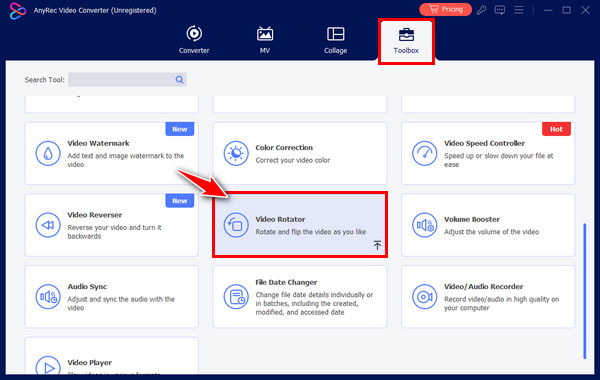
Step 1.Once you have AnyRec Video Converter running, navigate to the "Toolbox" tab in the menu. Among the different toolkits, find and select the "Video Rotator" to open the workspace where you can convert your footage.
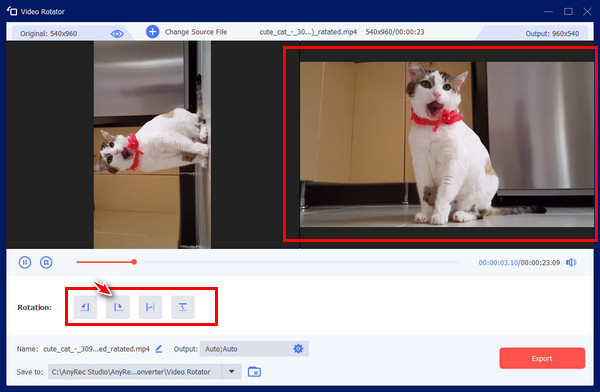
Step 2.Click the "Add" button to bring in the video you want to fix. Below the preview screen, you'll see several rotation options. Click through them until your video looks perfectly upright in the right-hand window.
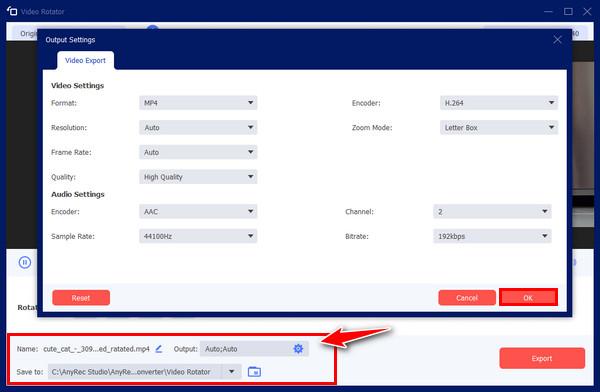
Step 3.With the video orientation finally corrected, choose your desired file name, format, and resolution from the menus below. If you're happy with the settings, just click the "Export" button to save your straightened video right to your computer.
Secure Download
Secure Download
How to Convert Video Orientation Online
However, there'll be times when you want a quick adjustment without installing new programs. Online converters, like Clideo, provide the speed and accessibility for these quick edits, letting you rotate your video, whether landscape or portrait. This online video rotator automatically analyzes your video and offers preset aspect ratios made for modern social media platforms (such as the Amazon Prime video aspect ratio). Whether you're on the go or using a computer, you can convert video orientation quickly.
Step 1.Once you're in the Clideo Rotate Video page, click the "Choose file" button to upload a video from your video or cloud storage service.
Step 2.Next, use the "Rotation" buttons on the right to turn your video 90, 180, or 270 degrees. At the bottom left, you can select the output format.
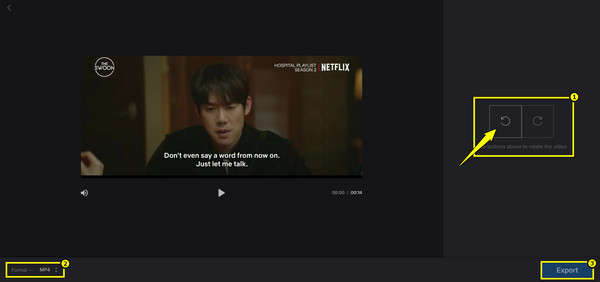
Step 3.Finish by clicking the "Export" button to allow the cloud to do its work, then click the "Download" button to save your video to your computer.
Conclusion
In this battle of landscape vs. portrait screen orientations, you've seen that it is about choosing the right one for the specific content. Landscape is for cinematic storytelling and presentations, while Portrait is for mobile-first engagement. And, if you find yourself trapped in the wrong video frame, remember the conversion tools mentioned. For a one-stop solution that handles orientation changes to batch processing, try AnyRec Video Converter. This tool not only rotates, crops, and reframes your footage, it also enhances it, ensuring they look perfect no matter where the screen it'll be played on.
Secure Download
Secure Download
About Our Author




