
Hot

AnyRec Video Converter
120× faster video conversion and editing. No waiting.
Secure Download
Can You Really Upscale? 2 Ways to Increase Video Resolution

Whether it is grainy downloads, compressed social media videos, low-quality visuals, or low-resolution recordings, the need for better clarity is essential than ever! How can you increase video resolution and improve video quality? Can you really enhance it for better playback? This guide here breaks down two ways to increase the resolution of a video, explains how it works, and provides some tips to ensure the upscaled content looks good. Sharpen your footage more than ever before!
Guide List
Can You Really Increase Video Resolution? Enhance Video Quality with AnyRec Video Converter Increase Video Resolution with Online AI Video Enhancer Tips to Upscale a Low-Quality Video to 4K FAQsCan You Really Increase Video Resolution?
When talking about increasing video resolution, you may expect the blurry ones to become crystal clear. So, can you improve a low-resolution video? The short answer is you can improve the perceived quality, but you cannot perfectly recreate the original detail.
With modern techniques like AI upscaling, the software can detect and guess the missing pixels based on the patterns, sharpening edges, and making your videos much more modern on a 4K screen. However, if you did not capture the text or a texture of someone, no software can magically know exactly what was there.
Enhance Video Quality with AnyRec Video Converter
The best step to take for a reliable way to get a higher resolution video is specialized software. And one of the most effective tools is AnyRec Video Converter, a multimedia suite made for anyone who wishes to upscale videos without any complex settings. It features a Video Enhancer that boosts resolution up to 4K. Also, it can balance brightness and contrast, cut away the grainy look, and stabilize those shaky handheld clips of yours. Regardless of the video format, this program covers almost everything, including MP4, MOV, AVI, MKV, and more.

AI-powered Video Enhancer can increase resolution, remove noise, and more.
Real-time preview for double-checking the upscaled video before exporting.
Works with popular video formats such as MP4, MOV, AVI, and so on.
Adjustable resolution, frame rate, format, and more according to your needs.
Secure Download
Secure Download
- Pros
- Simple interface, ideal for beginners.
- Offers high-speed conversion.
- No need for separate editing and converting apps.
- Cons
- Advanced tools need the paid version.
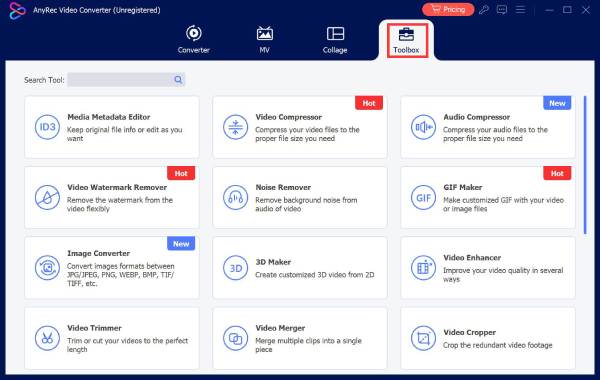
Step 1.Launch AnyRec Video Converter and head to the "Toolbox" tab at the top. There, select "Video Enhancer" from the list. Click the "Add" button to import the low-resolution video.
Step 2.Next, check the box for "Upscale Resolution". You can check the other enhancement features too for even better results. Select your desired resolution and your desired format.
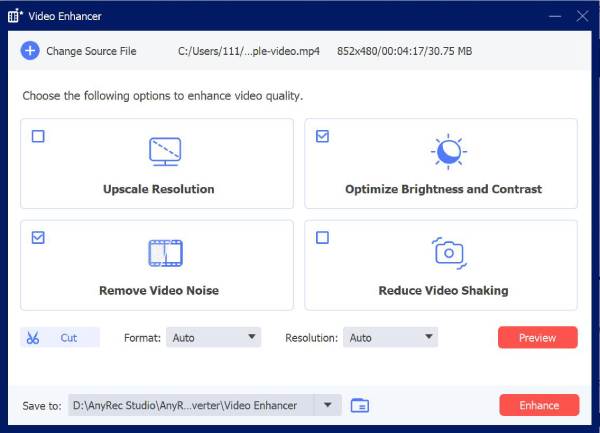
Step 3.Click the "Preview" button to see the upscaled video, then click the "Enhance" button to save the final high-quality version.
Secure Download
Secure Download
Increase Video Resolution with Online AI Video Enhancer
For those who wish for no bulky software, an online AI enhancer can be your convenient alternative. Among the reliable choices for increasing video resolution online is Clideo, a web-based platform that makes your video look sharper and more vibrant. It is particularly useful for social media clips, quickly touching up a clip before posting to Instagram, TikTok, and other platforms.
- Pros
- Works on any device with a browser.
- Very easy to navigate for anyone.
- Direct imports from Google Drive and Dropbox.
- Cons
- The free version has a Clideo watermark.
- Large video files may take a long time to upload and export.
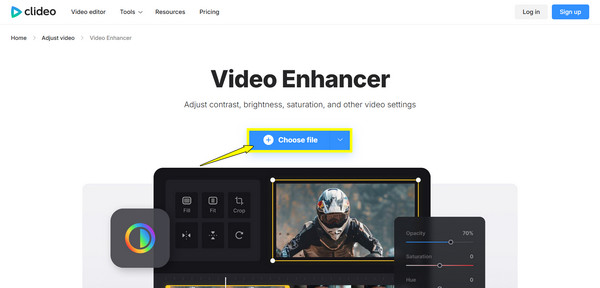
Step 1.Head to the Clideo Video Enhancer page in your browser. Click the "Choose File" button and import a video from your computer or import from your cloud storage.
Step 2.Start using the sliders to change Brightness, Contrast, and Saturation. You can use the "Resize" tool to change the resolution to a higher preset.
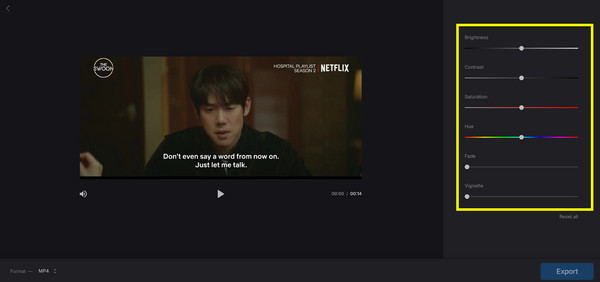
Step 3.Afterward, choose your preferred file type at the bottom. Then, click the "Export" button, preview the result, and click the "Download" button to save the video.
Tips to Upscale a Low-Quality Video to 4K
If you simply change the numbers to enhance a low-quality video with one of the video quality enhancers, you might end up with an enhanced file, but it looks blurry or blocky. Thus, to achieve a professional-grade upscale, follow some of the best practices below.
- • Increase the bitrate to match the higher resolution. A 4K video needs a higher bitrate to maintain clarity. So, ensure a higher bitrate than 1080p to upscale video to 4K to avoid heavy pixelation and artifacts.
- • Use H.265 or AV1 codec. When exporting in 4K, choose H.265 or AV1 to retain high levels of detail and color depth. These two are much more efficient than the older H.264.
- • Avoid re-exporting multiple times. Try to do all editing in one go or use a lossless format if you need to move the file between several programs.
- • Correct noise before upscaling. Always apply a de-noise filter first to clean up the image so you can ensure you upscale all good parts.
- • Stabilize shaky footage first. Shaky movement creates blur, so stabilize the video first to ensure each frame is steady for upscaling.
FAQs
-
Does increasing resolution also increase the file size?
Yes. When you go from a lower resolution to a higher one, the software creates more pixels, and you must also increase the bitrate, which results in a much larger file size on your hard drive.
-
Will increasing the video resolution fix blurry footage?
Only to a specific extent. While AI tools sharpen edges and improve contrast, they cannot perfectly fix a blurry shot. The software used can only enhance the shapes that are already present.
-
Can I transform the old 480p quality into 4K?
Yes, you can. But the results may vary depending on the tool you use. The traditional upscaling can make your video look soft, while AI-powered upscaling can help your 480p look close to modern HD quality.
-
Is it better to increase video resolution online or on a desktop?
For your short clips for social media, online tools work conveniently. However, if you need to upscale long videos, a desktop software works much better as it uses your computer's full power and won't suffer from quality loss due to compression.
Conclusion
While you cannot technically make a new quality in your blurry video, you can still clean up that noise and enhance your low-resolution video by upscaling resolution. With the tips and ways provided, you can give your low-quality videos a fresh, modern look. For a powerful, all-in-one solution for upscaling, AnyRec Video Converter is highly recommended. Thanks to its AI Video Enhancer, you can handle everything from upscaling to noise removal and video stabilization in a few clicks, making it the right approach for quick social media content fixes or for professional projects.
Secure Download
Secure Download
Related Article
About Our Author




