
Hot

AnyRec Screen Recorder
Record and screenshot any video on Windows and Mac.
Secure Download
10 Ways to Screenshot on HP Laptop/Desktop/Tablet/Chromebook

A quick way to save important information and share what's on your HP screen is to take a screenshot. Windows offer several built-in options to take a screenshot on HP, along with extra tools that give you more control over what you capture. This post will walk you ten different ways screenshot on HP Windows 11/10, from keyboard shortcuts to advanced methods. Regardless of your Windows version or skill level, you'll find a method here that fits your needs.
Guide List
How to Take a Scrolling Screenshot on an HP Laptop with AnyRec Screen Recorder How to Take a Full-Screen Screenshot on an HP Laptop with Print Screen How to Take and Save Full-Screen Screenshots on an HP Laptop Automatically 4 Ways to Capture an Active Window on an HP Laptop How to Take a Partial Screenshot on an HP Laptop How to Take a Screenshot on an HP Chromebook How to Take a Screenshot on an HP TabletHow to Take a Scrolling Screenshot on an HP Laptop with AnyRec Screen Recorder
Built-in Windows screenshot tools are excellent for basic captures, but they fall short when you need a scrolling screenshot on HP. To take a screenshot of an entire webpage or pop-up menu, you can use AnyRec Screen Recorder. It lets you capture content beyond what's visible on screen, making it perfect for long pages and scrolling content.

Take scrolling screenshots on HP laptop of webpages, documents, etc.
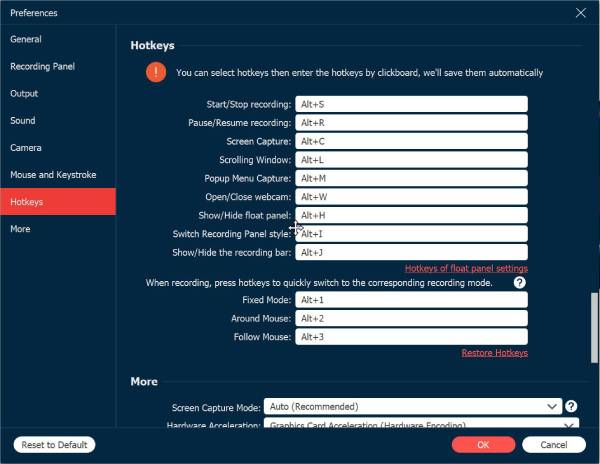
Custom keyboard shortcuts for screenshots, recording, pausing, and resuming tasks.
Add text, line, arrow, and other shapes to your HP screenshot.
All images are saved without watermarks, keeping screenshots clean.
Secure Download
Secure Download
Step 1.Open AnyRec Screen Recorder and in the "Video Recorder" interface, click the "Arrow" next to the Camera icon, and choose "Scrolling Window" from the available options.
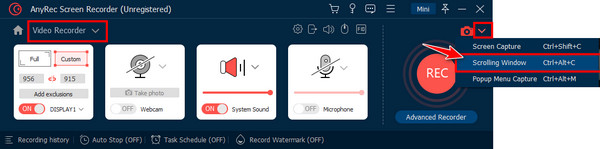
Ensure the webpage or window you want to capture is already open. Also, activate the capture tool quickly by pressing the "Alt + C" keys while inside the target window.
Step 2.Click the page you want to capture to start long screenshot capturing. After that, you will be taken to the "Preview" window. Here, you can add notes, draw highlights, or mark sections with the annotation tools.
Step 3.After editing, click the "Save" button, choose your desired folder and image format, then confirm again to store the scrolling screenshot on your HP laptop.

Secure Download
Secure Download
How to Take a Full-Screen Screenshot on an HP Laptop with Print Screen
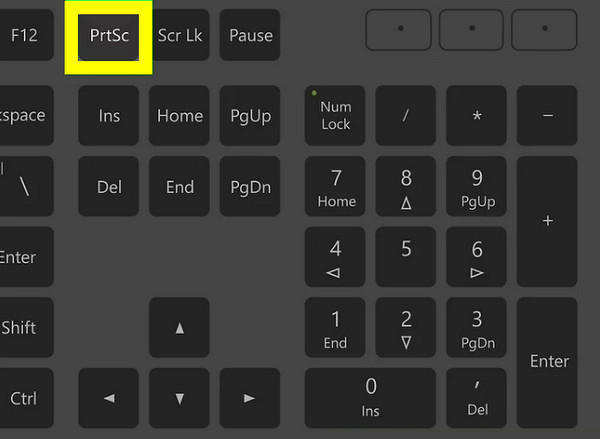
Another way to take screenshots on HP desktops and laptops is using the Print Screen key. This keystroke can capture everything on your screen and copy it to the clipboard. It is ideal for fast documentation, error reporting, or sharing your whole desktop. However, HP keyboards differ by model, so the HP Print Screen combination may vary. Once captured, you will have to paste the screenshot into an image editor to save it.
Step 1.Press the "Print Screen" key on your keyboard to take a screenshot of the entire screen. On some models, press "Fn + PrtScn" instead of "Fn + Windows + Space" keys.
Step 2.Next, open an app like Paint or any image editor.
Step 3.Press the "Ctrl + V" keys to paste, edit, and then save the screenshot on your HP laptop.
How to Take and Save Full-Screen Screenshots on an HP Laptop Automatically
If you wish for screenshots that save instantly without extra steps, this method of taking a screenshot on HP laptop is more efficient. Using a Windows shortcut, your HP laptop can automatically capture and save full-screen screenshots. Unlike the standard Print Screen method, this method saves files directly to your system. However, cloud settings such as OneDrive may affect where screenshots are kept.
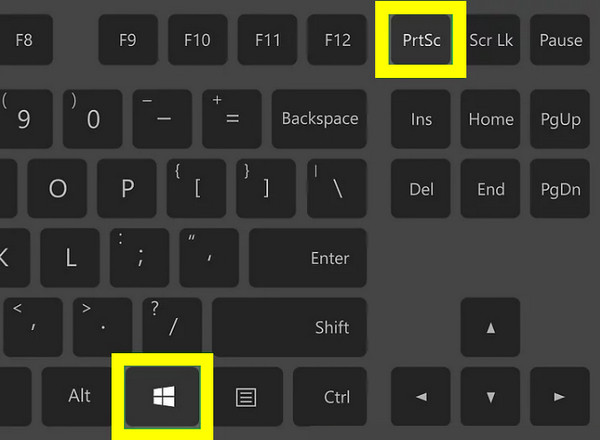
Step 1.Press the "Windows + PrtScn" keys simultaneously, and your HP screen will briefly dim, confirming the capture.
Step 2.Next, open "Pictures", then go to the "Screenshots" folder to find the captured image.
Step 3.If there's no file, check your OneDrive settings since screenshots may be saved there.
4 Ways to Capture an Active Window on an HP Laptop
Instead of capturing the entire screen, you may only wish to screenshot on HP laptop, primarily the currently active window. This approach saves your screenshots clean and focused. And Windows and HP laptops offer a bunch of ways, keyboard shortcuts to do this, depending on your preference and keyboard layout.
1. Alt + PrtSc
Click on the window you wish to capture, then press the "Alt + PrtScn" keys. Paste the screenshot image into an editor to enhance it, then save it.
2. Windows + Shift + S
Press the "Windows + Shift + S" keys, and select "Window Snip" from the toolbar. Next, click on the active window you want to capture. Save the image in the Snipping Tool preview.
3. Snipping Tool
Launch the Snipping Tool on your HP laptop. From there, choose "Window Snip" mode, click on the target window to capture. Later, edit the image as needed before saving it on your device.
4. Alt + Fn + Print Screen
Ready the window you wish to capture, and then press the "Alt + Fn + PrtScn" keys at once. Paste the image into an editor, then save the screenshot.
How to Take a Partial Screenshot on an HP Laptop
For a clear image, learning how to take partial screenshots on HP laptop is perfect. This way, you can highlight specific sections, pictures, or text in Windows as you capture only a selected area of your HP screen. It lessens the need for cropping afterward and gets the partial screenshots quickly without requiring additional software.
Step 1.On your keyboard, press the "Windows + Shift + S" keys, and your screen will fade slightly, and your cursor will be turned into a cross-shaped selector.
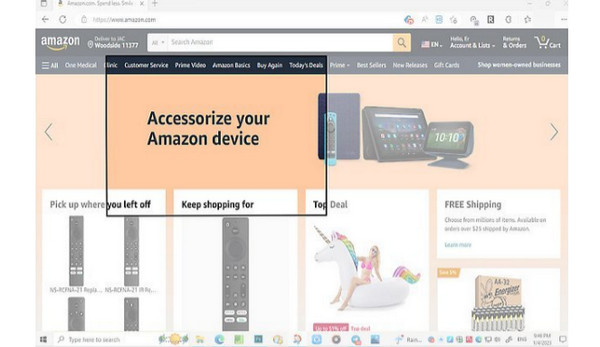
Step 2.Drag your mouse cursor to choose the area, then release the mouse button to take the partial screenshot on HP.
Step 3.The captured image is saved to your clipboard automatically. Open an image editor, paste it via "Ctrl + V" keys, and then edit or save it as a new image file.
How to Take a Screenshot on an HP Chromebook
Switching from Windows to ChromeOS, you will have entirely different keyboard shortcuts to capture screen on HP Chromebooks. These screenshot controls are simple but powerful, letting you capture full-screen, partial, and active windows. Before diving into the steps, here's a quick look at the main keyboard shortcuts used.
| Screenshot Type | Shortcut |
| Full Screen | Ctrl + Show Windows (F5) |
| Partial Screen | Ctrl + Shift + Show Windows |
| Active Window | Alt + Show Windows |
Take a Screenshot on HP Chromebook: Full Screen
- 1. Press the "Ctrl + Show Windows (F5)" at once.
- 2. Your screen will be captured instantly.
- 3. The captured image is saved automatically in the "Downloads" folder.
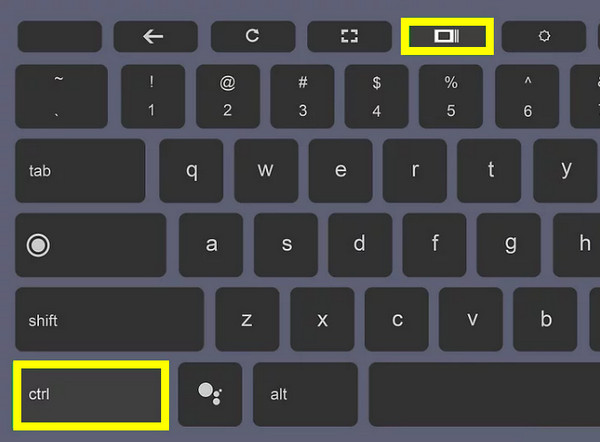
Take a Screenshot on HP Chromebook: Partial
- 1. Start by pressing the "Ctrl + Alt + Show Windows" keys, and your mouse cursor will change into a crosshair.
- 2. Click and drag your mouse to select the area, then release it to take the screenshot.
- 3. Locate the image in the "Downloads" folder.
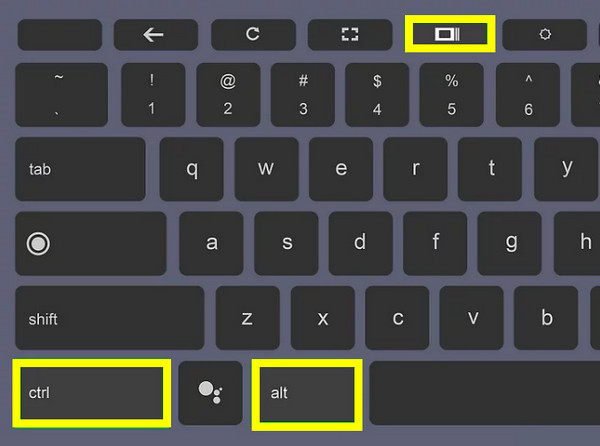
Take a Screenshot on HP Chromebook: Active Window
- 1. Press the "Ctrl + Show Windows" keys, and pick the active window you wish to capture.
- 2. Upon clicking it, the selected window is saved as a screenshot.
- 3. Find it in the "Downloads" folder.
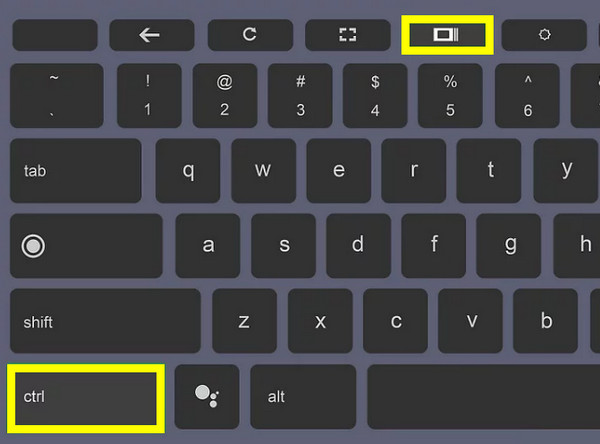
How to Take a Screenshot on an HP Tablet
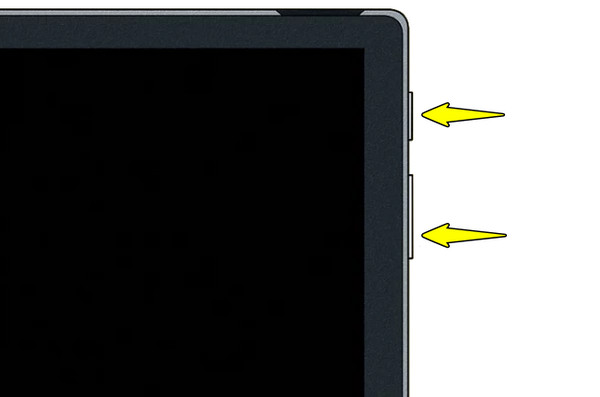
Finally, if you have an HP tablet or a touchscreen device, physical buttons are there to help you take a screenshot on HP. This method usually mirrors how a screenshot is taken on most mobile devices, and is especially useful when a keyboard is not attached. The captured image is saved automatically on your device, making it ready for quick sharing.
Step 1.Press the "Power + Volume Down" buttons together to capture the entire screen on your HP tablet.
Step 2.A quick screen flash or a sound will confirm that the screenshot has been taken.
Step 3.The captured image is saved in the "Photos" app. Access it there, then edit or share the image as needed.
Conclusion
Taking HP screenshots on desktops, Chromebooks, and tablets with above tools is easier than ever! If you want to take a scrolling screenshot and annotate on captured images, AnyRec Screen Recorder is your reliable choice. Using this tool, you can capture content beyond the visible screen in a few clicks. With high-quality output and flexible capture options, you can screenshot and record any area on your HP laptop without limits. Click the Free Download button below to get the first-hand experience.
Secure Download
Secure Download



