
How to Reverse a Video on Windows/Mac/iPhone/Android/Online

Reversing a video is a popular way to transform ordinary footage into something eye-catching. You can see the reverse video effect on TikTok, YouTube, Instagram, and many other places. There is no professional editing skill required. If you want to play a video backward with drama and humor, you can follow the steps below to reverse a video on all devices.
Guide List
How to Reverse a Video on Windows (Including Reverse Only Part of a Video) How to Put a Video in Reverse on Mac How to Make a Video Reverse Online How to Reverse Play a Video on iPhone How to Add a Reverse Playback Effect to a Video on AndroidHow to Reverse a Video on Windows (Including Reverse Only Part of a Video)
AnyRec Video Converter is a beginner-friendly video reverser for both Windows and Mac users. You can go to the Toolbox section and get a standalone video reverser to make a video reverse completely. Moreover, you can also trim a video clip and make it backward within the program. Later, merge the original video with this reversed video clip using its video merger. Apart from video reversing, you can get other 20+ video editing tools to get impressive results.

Reverse the entire video with real-time preview.
Reverse the trimmed video clip with custom start and stop times.
Trim, merge, convert, and edit videos with easy options.
Export your video to TikTok, Facebook, Instagram, and more directly.
Secure Download
Secure Download
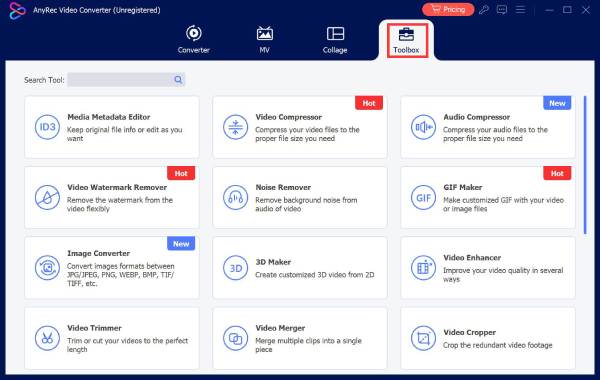
1. Open AnyRec Video Converter on your computer. To reverse a video on PC or Mac, you can click the "Toolbox" button at the top. Scroll down and then click the "Video Reverser" button.
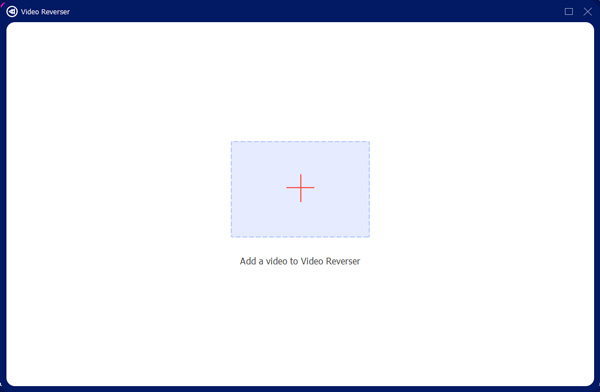
2. Click the "Add" button to upload a video you want to play backwards. If you want to rewind a part of the video, you can use the built-in video trimmer. Drag with the start and end points to extract any video clip.
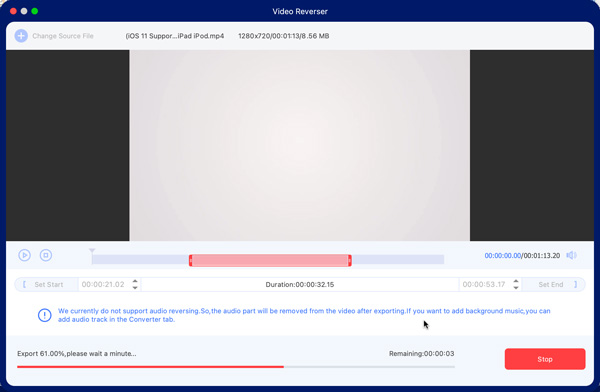
3. Click the "Export" button to reverse video footage. Moreover, you can go back to the main interface and click the "Edit" button. Go to the "Audio" section to add background music to your reversed video if necessary.
Secure Download
Secure Download
How to Put a Video in Reverse on Mac
As for other video reverse editors, you can take a look at iMovie, Adobe Premiere, VLC, CapCut desktop, and more. Considering the price, easy to use, and Mac-friendly factors, iMovie is a good choice to reverse a video on a Mac. Moreover, you can adjust video speed, blur video, add subtitles, and export video to MP4 within iMovie.
- 1. Open iMovie. Add a video to the iMovie timeline.
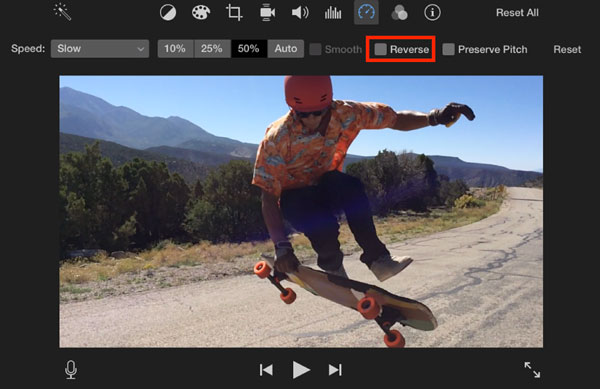
- 2. Highlight the clip. Find and click the "Speed" button above the video preview window.
- 3. Tick the checkmark before the "Reverse" option.
- 4. You can speed up or slow down this video within the editing window. Just move the speed slider manually. (optional)
- 5. Click the "File" button and then click the "Share" option. Now you can reverse a video with iMovie and export it successfully.
How to Make a Video Reverse Online
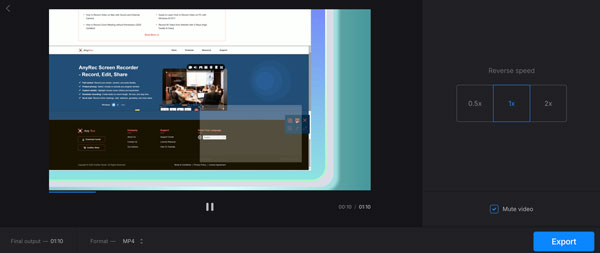
If you don't want to install extra programs or apps, you can use an online video reverser as well. Many tools can play a video in reverse online, including Ezgif, Kapwing, Adobe, Media.io, FileConverto, Fastreel, Pixiko, etc. This section will take Clideo Reverse Video as an example. You can reverse a video online up to 500MB for free.
- 1. Open the online video reverser on your browser.
- 2. Click the "Choose file" button and upload your video.
- 3. Set the video reverse speed to 0.5×, 1×, and 2×.
- 4. Keep the checkmark ticked before "Mute Video". (Otherwise, you will get reversed video with distorted audio).
- 5. Change the output video format to MP4, MKV, and other 20+ choices.
- 6. Click the "Export" button to turn a video into a reverse video for free online.
How to Reverse Play a Video on iPhone
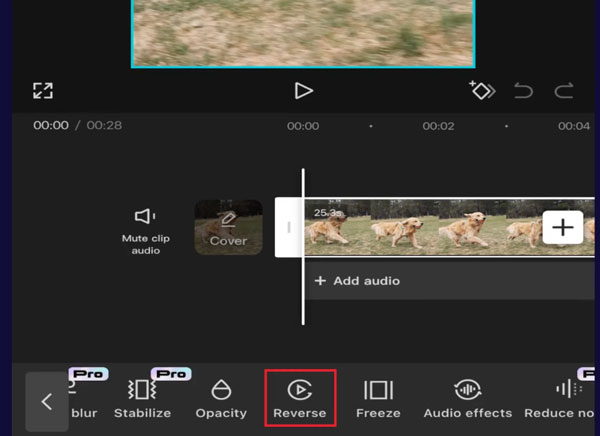
Can you reverse a video on an iPhone without an app? Well, the answer is No. But you can get many third-party video reverser apps for iPhone and iPad. Instead of searching for an iPhone video reverser app, you can use CapCut for iOS to put a video in reverse and share it to YouTube and Instagram directly.
- 1. Open the CapCut app. Tap the "New project" button and add your video.
- 2. Scroll horizontally near the bottom of the iPhone screen to find the "Reverse" button. Then tap it.
- 3. CapCut will reverse a video on an iPhone immediately.
- 4. Add more video effects and export this video within CapCut.
How to Add a Reverse Playback Effect to a Video on Android
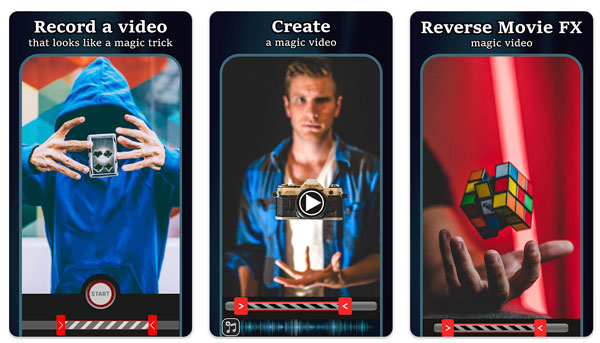
To reverse a video on Android, you can take a look at Reverse Movie FX. It is a highly recommended reverse video app for Android with 50,000,000 installations. You can reverse a video from your storage space. Or you can record and create a reverse video within the app. By using the Android reverse video app, you can play video in reverse while keeping the original audio.
- 1. Download and install the reverse video making app on Android.
- 2. Tap "Start Reverse". Import a video from the recorded video or your local library.
- 3. Set the start and end points of this video. Later, tap "Start" to move on.
- 4. Select from "reversed, reversed + original, and original + reversed".
- 5. Enable the checkmark before "Include audio from movie".
- 6. Tap "Start reversing" to reverse video and audio on Android.
Conclusion
Video reversing is not complicated. You can choose the above online and offline video reversers to make cool rewind effects in clicks. If you want to get a one-stop video reverser and editor, you can free download AnyRec Video Converter. It can reverse any video footage and export/share to any platform within the program. Try and see how good it is.
Secure Download
Secure Download



