
3 Practical Methods Provided: How to Fix Pixelated Videos

Unpixelling a video can be a very helpful skill. This is because pixelated or grainy videos can significantly affect your viewing experience, making it difficult to see important details or enjoy the content fully. Whether the issue occurs in recorded footage, downloaded files, or online videos, it often results from quality loss or technical limitations. In this guide, you will learn why videos become pixelated and explore effective methods to restore better visual quality.
Guide List
Why Do You Get Pixelated/Grainy Videos A Quick Solution to Fixing Pixelated Videos for Details How to Unpixelate a Video Using Adobe Premiere Pro A Free Way to Remove Pixelation from Videos OnlineWhy Do You Get Pixelated/Grainy Videos
Before learning how to fix pixels on videos, getting to know their causes can help you understand the main point of repairing them. One of the most common causes is low resolution. When a video is recorded or exported at a low resolution and then displayed on a larger screen, individual pixels become more visible, resulting in a blocky appearance.
Another major factor is heavy compression. When you try to lower the size of your video files, the quality will be sacrificed considerably. In such a situation, the most common manifestation is the pixelation interspersed everywhere. Therefore, when you attempt to reduce video file size, it is always recommended to select a professional tool that is capable of maintaining the video quality as much as possible.
Poor lighting conditions during recording can also introduce graininess. Cameras tend to increase ISO sensitivity in low-light environments, which adds noise to the footage. Additionally, unstable internet connections can cause streaming platforms to lower video quality automatically, leading to temporary pixelation that needs to be fixed in videos.
A Quick Solution to Fixing Pixelated Videos for Details
If your video becomes pixelated due to file damage or quality issues, using a professional repair tool can be the most efficient solution. Designed to fix corrupted or low-quality videos, AnyRec Video Repair can repair issues such as distortion, blurriness, and pixelation. With its easy-to-use interface, you can quickly depixelate video and enhance video clarity without complex editing steps.
Fix corrupted, damaged, unplayable, flickering, blurry videos.
Support SD, HD, Full HD, 4K, 8K, 12K, and 16K video repairs.
Repair videos from cameras, drones, GoPros, phones, SD cards, etc.
Local repair ensures your videos stay safe and private.
Secure Download
Secure Download
Step 1.Launch AnyRec Video Repair, click both the "Add" buttons to import your pixelated video and a sample video for preparation.
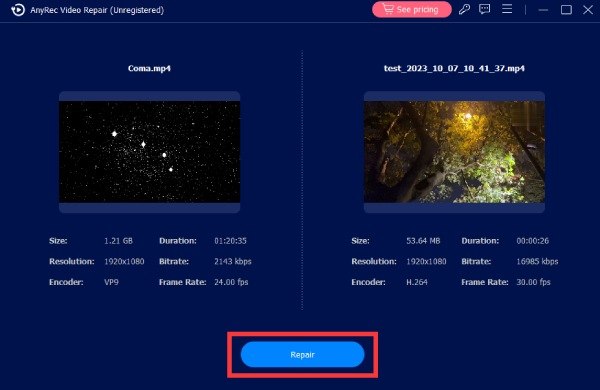
Step 2.To fix the pixelated video, simply click the "Repair" button. The process will start automatically.
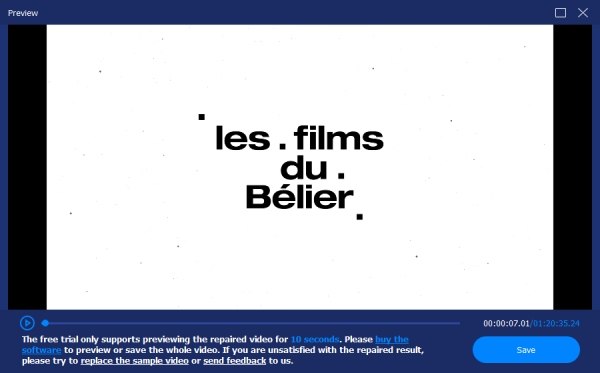
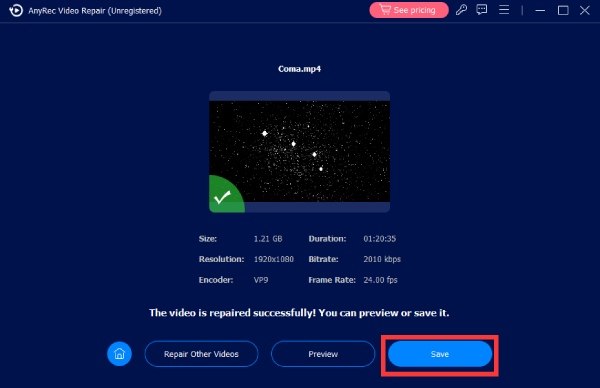
Step 3.Once done, click the "Preview" button to check if the output meets your requirements. Click the "Save" button to save the well-repaired video.
How to Unpixelate a Video Using Adobe Premiere Pro
For users who prefer more control over video quality, professional editing software like Adobe Premiere Pro can help reduce pixelation. While the process can be somewhat complex for beginners, you will find it simple to enhance resolution from 720p to 1080p by following the steps below:
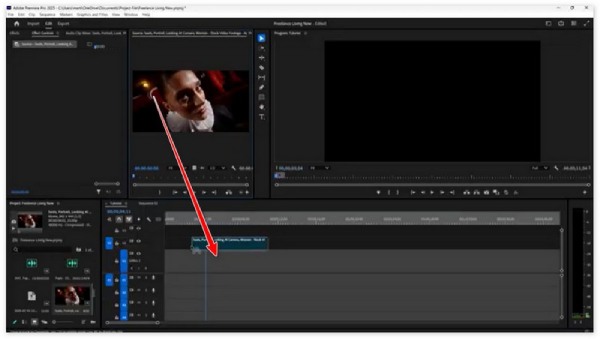
Step 1.Launch Adobe Premiere Pro and import the pixelated video for repair. Drag it to the timeline.
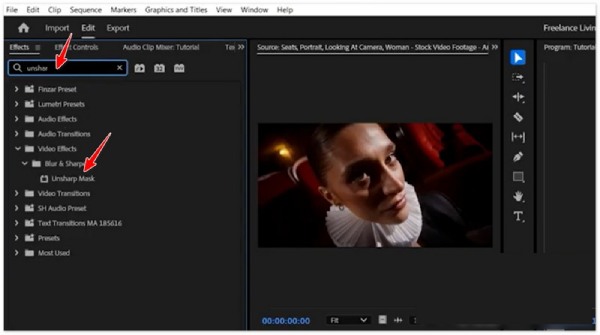
Step 2.Under the "Effects" tab, find and click the "Unsharp Mark" button, drag it to the timeline to apply the effect.
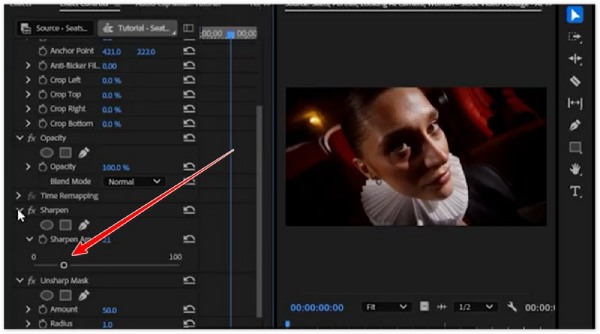
Step 3.Now, under the "Unsharp Mark" tab, click both the "Sharpen" button and the "Amount" button to adjust the video quality.
A Free Way to Remove Pixelation from Videos Online
Suppose you do not want to install software, online tools like Fix.Video provides a convenient way to improve video quality directly in your browser. These web-based solutions allow you to upload videos and apply enhancement or repair processes without requiring technical skills. In this section, you will learn how to use this video quality enhancer tool to remove pixelation from video online.
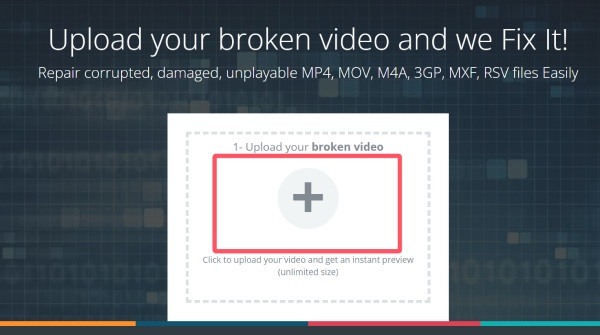
Step 1.Navigate to the official website of Fix.Video. Click the "Upload" button to upload the pixelated video you want to fix.
Step 2.Once you upload the video, the repair will start automatically. It may take longer to finish the process.
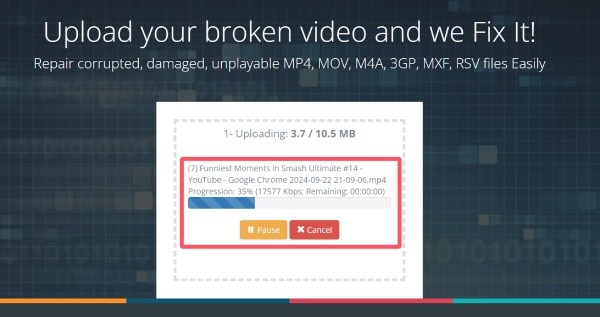
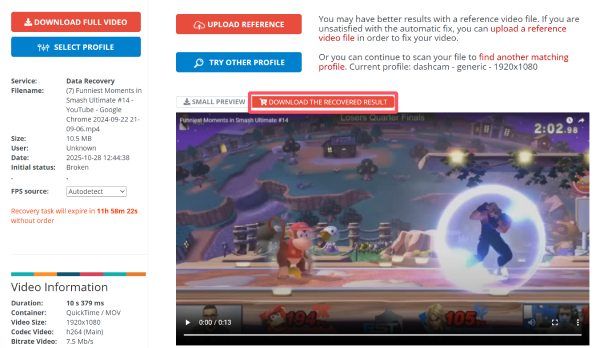
Step 3.Once finished, you can preview to check the video. Finally, click the "DOWNLOAD THE RECOVERED RESULT" button to save the fixed pixelated video.
Conclusion
Now you know how to fix a grainy video easily. Various methods are provided in this post, and you can select the one that fits you best. While most of these tools have their own limitations, AnyRec Video Repair stands out as the most powerful tool to effectively reduce pixelation.
Secure Download
Secure Download
About Our Author




