
Want to Edit GoPro Videos? Here Are the 6 Best Options

GoPro cameras capture life's exciting moments, from outdoors and road trips to underwater and action-packed sports. Of course, like any other video, before sharing, having to edit GoPro videos will allow you to do some polishing, like trimming, stabilizing, adding effects, and more. Out of so many tools available, this post rounded up six of the best GoPro video editing tools, including desktop and online. Explore each today and find the perfect one for your GoPro footage.
Guide List
How to Pick the Right GoPro Video Editor AnyRec Video Converter - Simple GoPro Editing with Built-In AI Tools Final Cut Pro - Fast and Smooth Editing for GoPro Videos on Mac Adobe Premiere Pro - Powerful GoPro Editor with Advanced Effects and Controls DaVinci Resolve - Powerful Color Grading for GoPro Videos 2 Best GoPro Video Editors Online TodayHow to Choose a GoPro Video Editor
When you sit down to edit GoPro videos, the tool you choose can completely make or break your editing workflow. Here are five important factors to look for when choosing your GoPro video editing software:
- • Beginner-Friendly. An ideal software should have a clean, intuitive interface that does not require any steep learning curve.
- • Versatile Feature Set. Not only should your editing software handle simple cuts, but it should be powerful enough to support color correction, slow-motion, transitions, and music integration.
- • Broad Format and Resolution. Since GoPro videos are in high bitrates and resolution formats, your chosen editor must have supported these high frame rates to retain the quality.
- • Fast Performance. Editing GoPro videos is heavy, so pick a tool that delivers fast processing speed and rapid export times.
- • Reasonable Pricing. The right GoPro video editing software should always fit with your budget without sacrificing essential quality.
AnyRec Video Converter - Easy GoPro Edits with AI Enhancement
For bypassing all the learning curves and just wanting your GoPro videos to look vibrant, crisp, and stable in minutes, AnyRec Video Converter is the perfect solution. This GoPro video editing software serves as a lightweight, powerful tool to process heavy files without lagging on low-end computers. With its hardware acceleration and intuitive layouts, it eliminates the technical frustration often linked with processing ultra-high definition clips
Can optimize brightness, remove noise, and upscale footage with a single click.
Process and export heavy 4K compressed files at lightning-fast speeds.
Trim, rotate, apply effects, filters, and more to your GoPro videos.
Transcodes action camera codecs into universally compatible formats.
Secure Download
Secure Download
Step 1.Open AnyRec Video Converter on your computer. Click the "Add Files" button to import the raw GoPro clips you wish to polish and assemble.
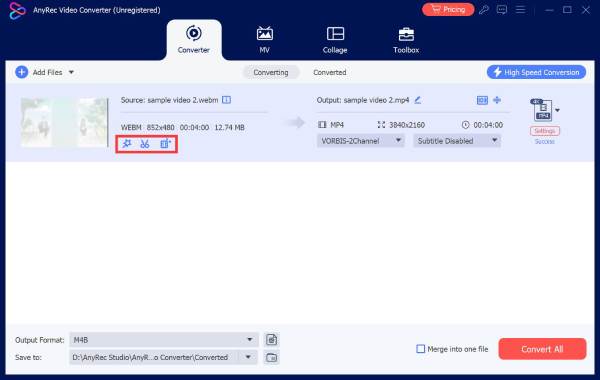
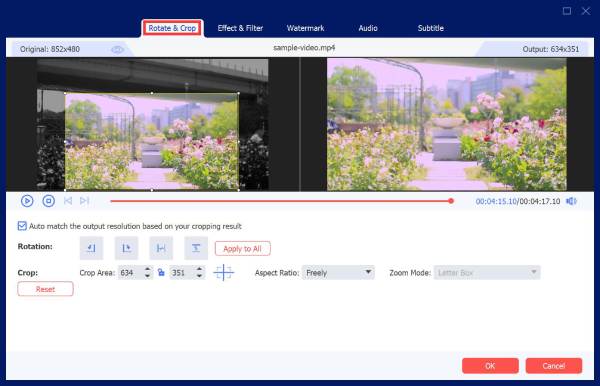
Step 2.Click the "Edit" button to adjust your action footage. Here you can crop out unwanted edges, rotate upside-down shots, apply video filters, and overlay text onto your GoPro video.
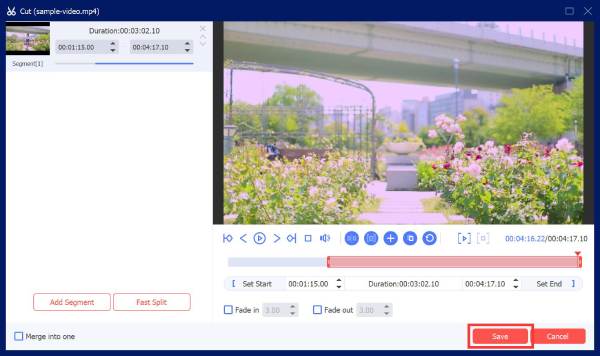
Step 3.To cut out intros or split footage, click the "Trim" button for the timer. Slide the markers to your desired start and end points.
Step 4.Once your edits are finalized, click the "Format" dropdown menu to select a video profile that matches your platform or device. You can tweak settings, too, before naming your file and exporting it.
Final Cut Pro - Smooth Mac Editor for High-Resolution GoPro Videos
Moving over to Apple's ecosystem, macOS users have Final Cut Pro to edit GoPro footage videos. Its legendary magnetic timeline prevents clips from falling out of sync when you're moving fast-paced scenes. Also, the Mac video editor allows you to manipulate audio layers, speed ramps, and lens corrections in a unified workspace.
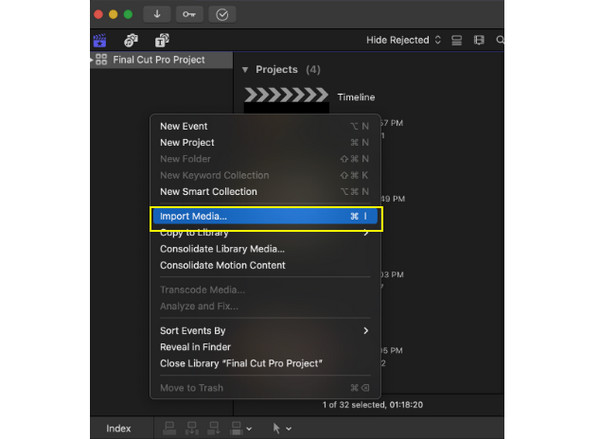
Step 1.Once you open the app, start a project, then press "Command + I" to upload your action camera files. Drag your shots down into the primary storyline.
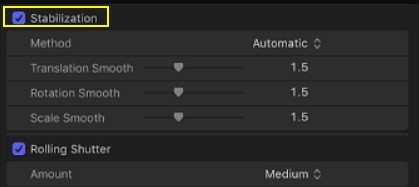
Step 2.Now, go to the "Inspector" panel on the right side, scroll down to the "Video" settings, and make sure to check "Stabilization" and "Rolling Shutter" to smooth out fast scenes.
Step 3.Decide on a high frame rate clip, click the "Retime" menu, and use the "Blade Speed" tool to smoothly transition from full speed to slow-motion. Later, click the "Share" button to render out the file.
Adobe Premiere Pro - Pro GoPro Editor with Advanced Effects
If your goal is to have deep customization for editing GoPro videos, enter Adobe Premiere Pro. This GoPro video editing tool is incredibly robust, letting you layer, stack, and edit tracks with complete freedom. You can enjoy complex multi-cam syncing and Hollywood-grade specific effects from Adobe video editing, all while ensuring every GoPro moment looks exactly how you want it.
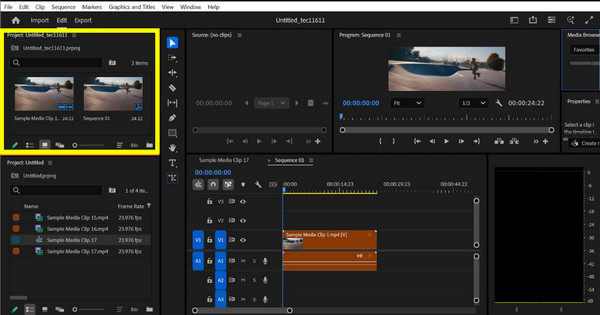
Step 1.Launch Premiere Pro, add your files to the "Project" panel, and drag them to the timeline. Then, go to the "Effects" panel, search for "Lens Distortion" and drag it onto your clip.
Step 2.Then, open the "Essential Sound" panel, tag your audio tracks as "Dialogue" and use the "Reduce Noise" slider to filter out distracting noise from your clips.
Step 3.Afterward, choose your settings such as target codec and bitrate preset by pressing "Control + M" keys. Then, click the "Export" button to finalize the GoPro video.
DaVinci Resolve - Powerful Color Grading for GoPro Videos
On the other hand, for your washed-out underwater videos, knowing how to edit GoPro video with color mastery is necessary. For this, DaVinci Resolve is widely recognized for color grading and correction. It features tools needed to recover rich blues, deep greens, and vibrant skin tones. Beyond that, it works with a fast editing engine, powerful audio mixing, and advanced tracking capabilities.
Step 1.Upon launching DaVinci, go to the "Media" page and drag your raw camera folders into the master bin. Then, switch to the "Cut" page. Drop your clips into place and start trimming.
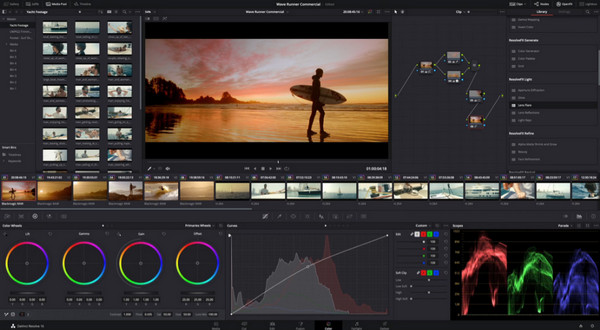
Step 2.Next, continue to the "Color" page, create a new serial node. Adjust colors to edit shadows, skies, and saturation. Then, go to the "Tracker" window. Toggle the mode to "Stabilizer". Click the track button to smooth out bumpy movements.
Step 3.Now, move to the "Deliver" page, choose your optimization settings for the social media platform or local drive. Click the "Start Render" button to finish.
2 Best GoPro Video Editors Online Today
While the first four desktop GoPro video editors are fantastic for heavy post-production, you don't always need a massive amount of software to edit GoPro videos. Before concluding this post, look at the two best online platforms for polishing your GoPro videos.
1. Clideo Video Editor
If you want speed and simplicity, go to the Clideo website. This GoPro video editing tool is built with a clean web interface that lets you upload clips, throw them onto the timeline, and edit them right away without facing confusing submenus.
Step 1.Navigate to the main Clideo Video Editor site and add your clips to its online media library. Drag and drop them into the editing tracks to start arranging.
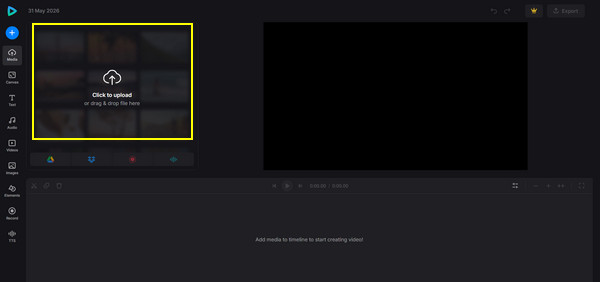
Step 2.Then, trim and split scenes by placing the player at the exact point and clicking the "Split" tool. Select your aspect ratio, then use the transform tools as needed.
Step 3.Click the "Export" button in the corner, pick your output resolution, and wait for the server to process your video.
2. Clipchamp
If you want a quick and simple way to edit GoPro videos, try Clideo. It runs in your browser directly. Just upload your clips, drag them onto the timeline, and start GoPro video editing.
Step 1.After logging into the Clipchamp web app, click "Create a new video" and then pull up your GoPro clips into the media tab. Drag your footage onto the timeline.
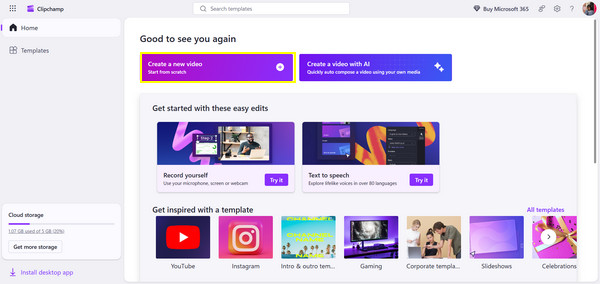
Step 2.Refine the timing and add transitions by using the "S" key shortcut. Then, choose your clip, and go to the "Adjust colors" panel for exposure adjustments. Jump to the "Audio" tab to boost the volume.
Step 3.Once done, click the "Export" button at the top, select a resolution, and get the finalized video directly to your computer.
Conclusion
Transforming your raw GoPro footage into a polished one is the ultimate way to do justice to your adventures! With professional desktops and quick editing tools, you can edit GoPro footage with your own editing style. But for an ideal, lightweight solution for processing heavy GoPro files, among the tools, AnyRec Video Converter stood out. It is packed with intuitive tools, stabilization options, and AI video enhancements, fixing action-camera issues in just clicks. Try it today and share your best outdoor footage with the world.
Secure Download
Secure Download
Further Reading
About Our Author




