
Hot

AnyRec Screen Recorder
Screenshot and record on WhatsApp without notification.
Secure Download
All Explained in One Post: Does WhatsApp Notify Screenshots

"Does WhatsApp Notify Screenshot?" Such privacy concerns are increasingly important when using messaging apps. When it comes to WhatsApp, the situation can differ when you are viewing certain content. Whether it's a private chat, a status update, or a disappearing message, understanding how screenshot notifications work helps you avoid embarrassment. This post explains in detail whether WhatsApp notifies screenshots in different situations and provides additional guidance on safe and private usage.
Guide List
Does WhatsApp Notify Screenshots (Every Scene Included) [Android & iOS] How to Take a Quick Screenshot on WhatsApp An All-in-One Solution to Taking Screenshots on WhatsApp Tips: How to Protect Your Privacy While Using WhatsAppDoes WhatsApp Notify Screenshots (Every Scene Included)
Many users are concerned about whether taking a screenshot on WhatsApp will alert the other person. Since privacy features differ across platforms and content types, it is important to understand exactly how WhatsApp handles screenshots in various scenarios. Below is a breakdown of everyday situations, including chats, status updates, profile photos, and view-once messages, so you know what to expect.
1. Regular Chats (Individual & Group Chats)
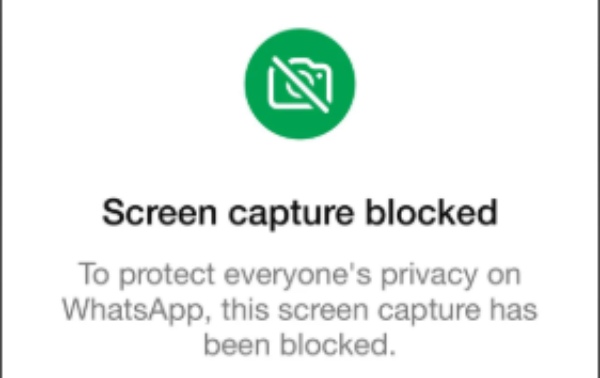
WhatsApp does not notify the screenshots of the chat. The other person won’t know it when you take a screenshot of regular chats, whether in one-on-one conversations or group messages. You can capture text, images, or shared media without triggering any alert within the app.

2. WhatsApp Status
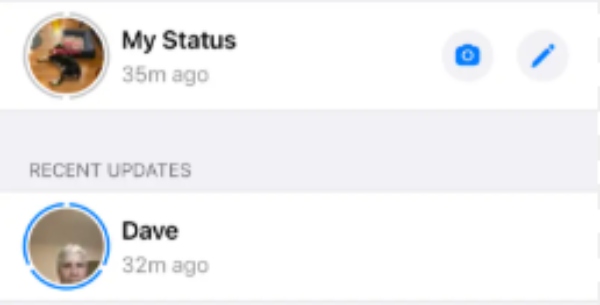
When viewing someone's WhatsApp Status, taking a screenshot does not send a notification to the poster. Unlike some social media platforms, WhatsApp currently does not inform users if their status content has been captured.
3. Profile Photos
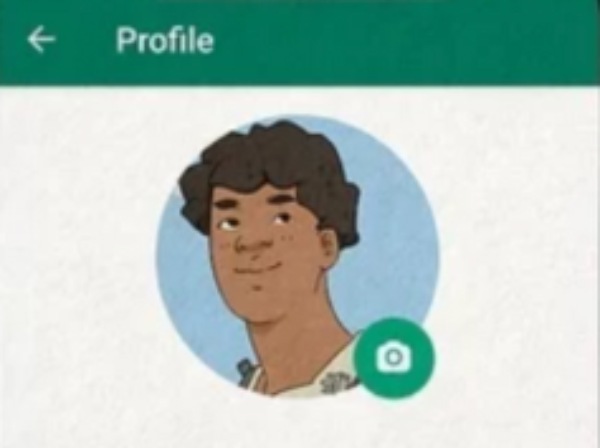
WhatsApp does not notify the screenshots of the profile picture. Yes. Taking a screenshot of someone's profile picture does not generate a notification. WhatsApp does not currently track or alert users about profile photo screenshots.
4. View Once Photos and Videos
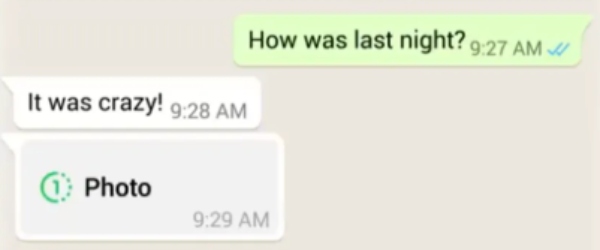
For "View Once" messages, WhatsApp prioritizes privacy. On many devices, screenshots are blocked entirely. Instead of notifying the sender, the app prevents the capture to protect temporary content from being saved.
[Android & iOS] How to Take a Quick Screenshot on WhatsApp
Taking a screenshot on WhatsApp does not notify others in most cases and it’s simple based on the device you are using. Both Android and iOS provide built-in screenshot shortcuts that allow you to capture conversations, status updates, or profile information instantly. Below are the quick methods for each system.
For Android - Screenshots on WhatsApp
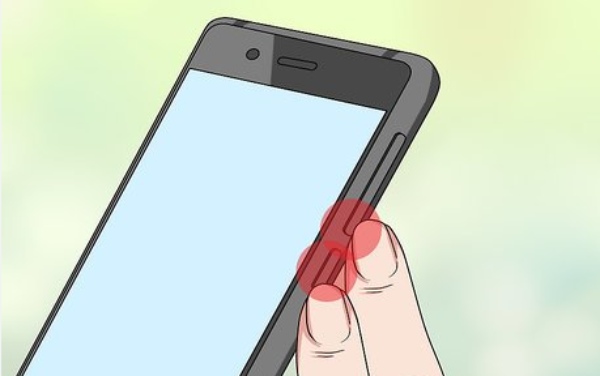
On most Android devices, press both the "Power" button and the "Volume Down" button simultaneously and hold for about one second. The screen will flash or display a preview thumbnail to confirm the capture. The screenshot will then be saved automatically in your Gallery or Photos app under Screenshots.
For iOS - Screenshots on WhatsApp
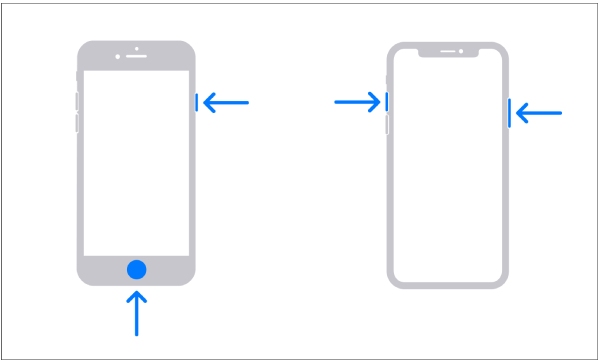
On your iPhone, press the "Side" button and the "Volume Up" button at the same time. On iPhones with a Home button, press the "Home" button and the "Side/Top" button together. A thumbnail preview will appear in the corner, allowing you to edit or share the screenshot immediately.
An All-in-One Solution to Taking Screenshots on WhatsApp
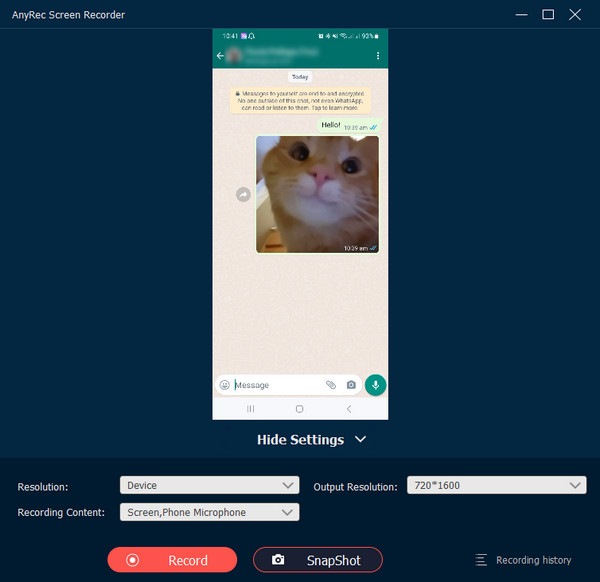
For those who want to take screenshots on WhatsApp with no notification at all, AnyRec Screen Recorder offers a solid solution. As it works based on screen mirroring, WhatsApp won't detect your action of taking a screenshot. And you will find that the screenshot taken has the same quality as your mobile phone does. No notification will appear, whether you are capturing chats, status updates, profile pages, or even full-screen activity. In addition to instant captures, it supports complete control over the editing process, making it a practical tool for both casual and professional use.

Mirror WhatsApp screen on Windows/Mac and take screenshots easily.
Not to notify others about the WhatsApp screenshots being taking.
Choose the desired area or a certain window to capture with cropping.
Additional editing tools to add annotations to the captured snapshots.
Secure Download
Secure Download
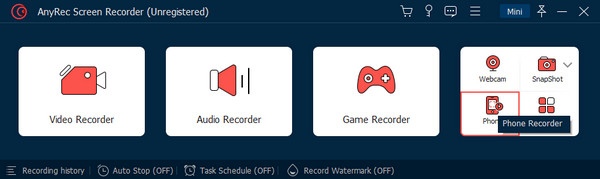
Step 1.Launch AnyRec Screen Recorder and connect your mobile phone to your computer stably. Click the "Phone Recorder" button.
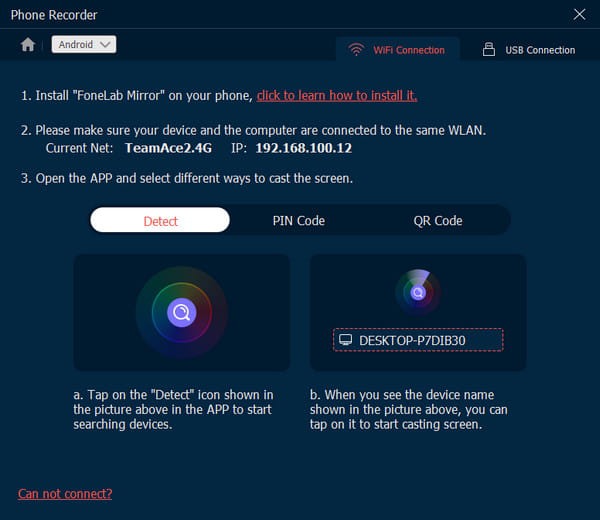
Step 2.Connect and mirror your device to the computer following the instructions via WiFi or USB cable.
Step 3.Now, when you want to take high-resolution screenshots on WhatsApp, simply click the "SnapShot" button to capture any content without limitations.
Tips: How to Protect Your Privacy While Using WhatsApp
Now you're familiar with the notification rules concerning screenshots on WhatsApp. Another thing you need to consider is how to protect your privacy while using WhatsApp. Although WhatsApp supports end-to-end encryption, protecting your privacy still requires active management of your settings and sharing habits. This section provides you with several valuable tips to help you protect your privacy in a safe place.
- 1. Review your Privacy Settings in WhatsApp. You can control who sees your last seen, profile photo, about information, and status updates. Limiting these to "My Contacts" or selected contacts reduces exposure to unknown users.
- 2. Enable Two-Step Verification to add an extra security layer to your account. In doing so, you can prevent potential risks from unauthorized access even if someone obtains your device or verification code.
- 3. Be aware that not all the content you send is 100% safe. Although WhatsApp offers secure methods like view-once or disappearing messages, these protections can still be bypassed in specific ways. In addition, WhatsApp calls on iPhone can also be recorded. You should be cautious when sending sensitive content to others.
- 4. Suspicious groups or unknown links can lead to risks of leaking your information. Do not join such groups or enter such links until you make sure it's safe. Regularly updating WhatsApp ensures you benefit from the latest security patches and privacy improvements.
Conclusion
Understanding whether WhatsApp notifies screenshots helps you use the app more confidently and responsibly. Although there are limitations set for specific situations, there is a way to bypass them. By using AnyRec Screen Recorder, you can capture all the content on WhatsApp efficiently.
Secure Download
Secure Download



