
Hot

AnyRec Video Converter
120× faster video conversion and editing. No waiting.
Secure Download
4 Ways to Convert MOV to WAV Audio with High Fidelity

Are you looking for a way to convert MOV to WAV? Well, if you do, you have probably come across a video file in MOV format that you wish to extract the audio from and save it as a WAV file for high-quality or Windows playback. Whatever the reason behind this, you landed on the right post. Here, you get to explore four workable ways that you can use to convert MOV video to WAV audio. These ways are associated with steps that you can use as your guide! See them below.
Guide List
Convert MOV to WAV with AnyRec Video Converter Turn MOV to WAV with Audacity Transform MOV to WAV with FFmpeg Export MOV to WAV Online for Free Tips for Better WAV Output FAQsConvert MOV to WAV with AnyRec Video Converter
To quickly and effectively turn .mov to .wav with high fidelity, one of the best tools you can use is the professional AnyRec Video Converter. This desktop-based tool is primarily designed to convert 1000+ formats with high-quality output, including converting MOV to WAV (or other formats). It does not just convert files but also offers a 120x video conversion speed, meaning you can turn your MOV file into a WAV in just seconds. In addition, it supports batch conversion, allowing you to batch convert multiple MOV files to WAV simultaneously to save even more time. Moreover, this tool is also capable of maintaining the quality of the MOV audio and lets you further enhance it before exporting it as a WAV file.

Convert MOV to WAV with original quality or customizable settings.
Trim, merge, reduce noise, compress, and edit MOV and WAV files.
Get 20+ editors in the Toolbox for quick video editing.
Adjust output video and audio parameters.
Secure Download
Secure Download
Step 1.Install the AnyRec Video Converter on your PC and launch it afterward. Next, click "Add Files" to import the MOV video that you wish to turn into a WAV.
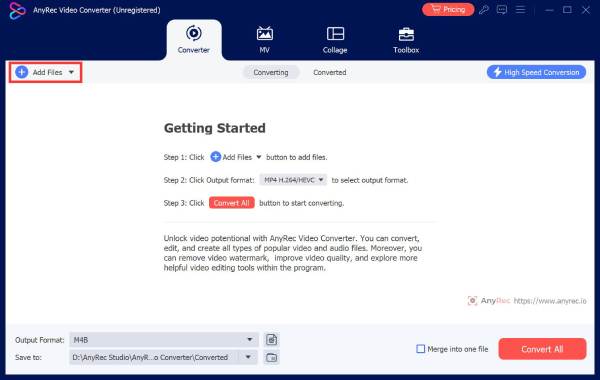
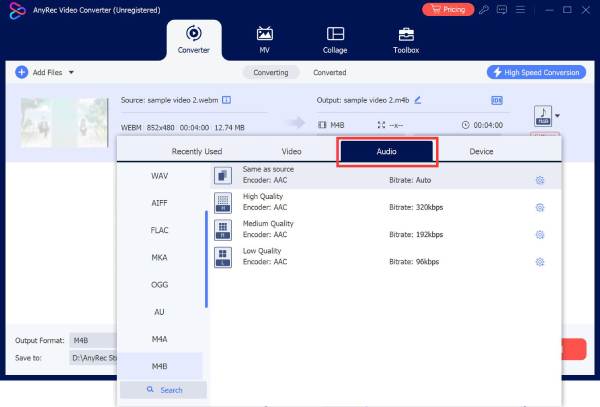
Step 2.After that, click the "Video Format" drop-down list on the right side of the video file. Then, click "Audio" and select the "WAV" format.
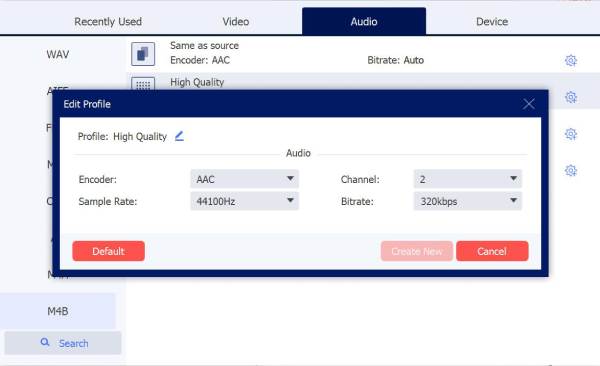
Step 3.If you wish to edit the WAV's quality parameters, click the "Custom Profile" button with the "Gear" icon and set the following settings based on your preferences. Once done, click "Create New" to save the changes.
Step 4.Once satisfied, click "Convert All" to start the MOV to WAV audio conversion. And that's it!

Secure Download
Secure Download
- Pros
- Intuitive interface with easy-to-initiate, free conversion process.
- Fast .mov to .wav conversion.
- Bulk conversion with lossless quality results.
- Converts MOV with high-quality WAV output.
- Cons
- Requires a paid plan for the whole experience.
Turn MOV to WAV with Audacity
Another way to convert MOV to WAV format is by using Audacity. This desktop-based tool is a free, open-source, and cross-platform digital audio workstation used for recording and editing audio. Beyond that, you can also use it as an MOV-to-WAV converter, provided you have the necessary media support, such as FFmpeg, installed. With this setup, Audacity can support video files like those in MOV format. So, how to convert MOV to audio using Audacity? Here are the steps you need to go after:
Step 1.Download and install Audacity on your computer. Then, ensure to enable the FFmpeg library option during the installation operation. This will make MOV files supported by FFmpeg.
Step 2.Once done, run the Audacity program, click "File", and hit "Open". Then, browse for the MOV file and select it to import. After that, the tool will automatically extract the audio from the file.
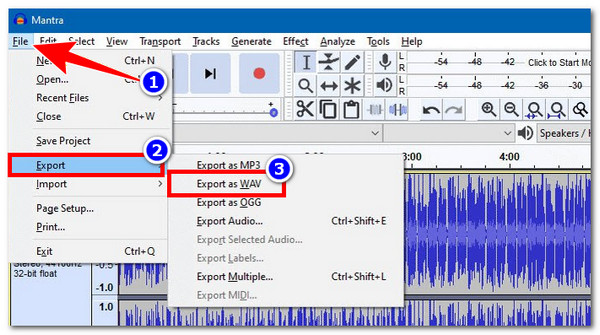
Step 3.Next, click the "File" menu, head to "Export", and select the "Export as WAV" option. Finally, click "Save" after setting the file name, folder, and settings.
- Pros
- Free to install and use.
- Offers excellent sound quality output.
- Lets you do advanced audio editing.
- Provides a straightforward conversion process.
- Cons
- The interface might be complicated for beginners.
- The installation process is not straightforward.
- Doesn't directly support video files.
Transform MOV to WAV with FFmpeg
If you don't want to install any additional software, you can use FFmpeg as an MOV to WAV converter alternative instead. This is a powerful command-line video to audio converter that is used to process various multimedia files. It enables you to mux, demux, stream, encode, decode, transcode, and more. Of course, that includes converting an MOV file to WAV format. If you want to try this one, here are the steps that you can use as a guide:
Step 1.Head to the FFmpeg official website and download the latest build that is compatible with your computer.
Step 2.Next, open Command Prompt from the Start menu on Windows. Otherwise, open the Terminal via Spotlight if you are using a Mac. Then, use the cd command to go to the folder containing your MOV file, such as the Downloads folder.
Step 3.Then, type this command: "ffmpeg -i input.mov -vn -acodec pcm_s16le output.wav". Replace "input.mov" with the actual file name of your MOV file. Do the same for "output.wav" with your desired output file name.
Step 4.Once done, press the "Enter" key. Then, wait until FFmpeg extracts the audio from your MOV file and saves it as a WAV file.
- Pros
- Free and open source.
- Doesn't require you to install extra software.
- Allows you to edit and convert multiple audio tracks.
- Cons
- Complicated solution for some users.
- Not friendly for beginners.
Export MOV to WAV Online for Free
The last option you can use to convert MOV to WAV for free is CloudConvert. Compared to the tools mentioned earlier, this is a web-based tool, meaning you no longer need to install a third-party tool just to transform an MOV file into WAV; you just need to access it on the web. This tool is one of the best online options you can use and rely on. It has no registration requirement and offers options to enhance the output. If you find this tool interesting to try, here are the steps you can use as a guide:
Step 1.Visit CloudConvert online MOV to WAV converter on your browser. After that, click the "Select File" button and import the MOV file that you want to transform.
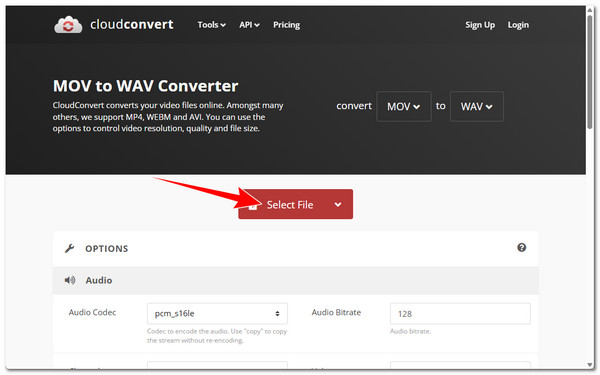
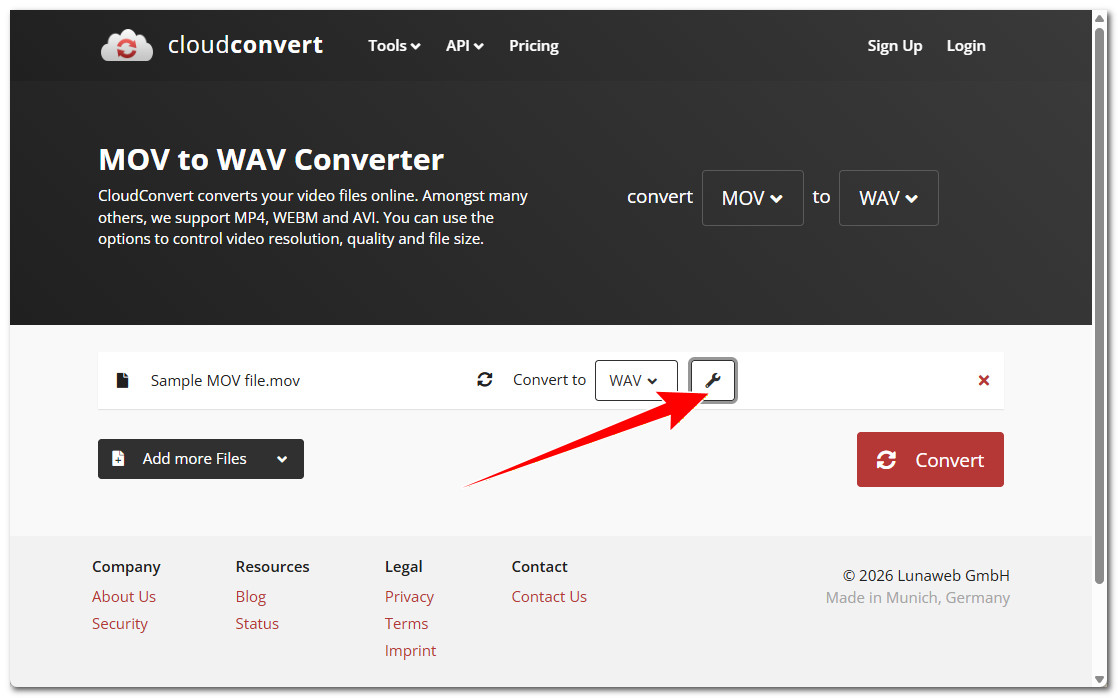
Step 2.Next, the online audio converter will automatically set WAV as the output format. If you wish to edit the output's quality, you can click the "Wrench" icon and set the following parameters. Once done, click the "Okay" button to save the changes.
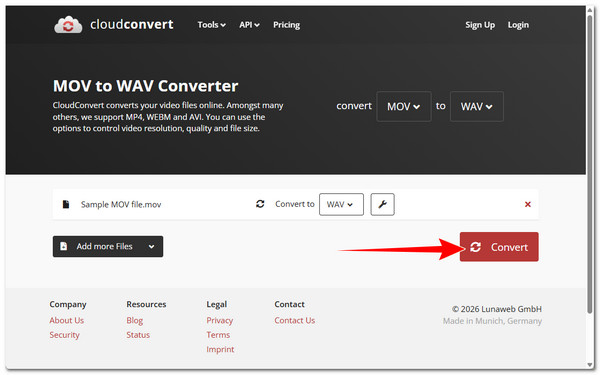
Step 3.After that, click "Convert" and wait for the conversion process to finish. Once done, click "Download" to save the WAV version of the MOV file.
- Pros
- Free to use.
- Easy to use and offers a quick process.
- Doesn't require you to install extra programs.
- Supports options to adjust parameters.
- Cons
- The free version only lets you import videos with a maximum of 100MB. If your MOV video is too large, you can compress MOV manually before uploading.
- Heavily relies on network connection.
Tips for Better WAV Output
There you go! Those are the four workable ways to convert MOV to WAV files. Now, for you to achieve better WAV output, here are some tips you need to take note of.
- 1. Pick the correct sample rate - Stick to standard rates like 44.1 kHz or 48 kHz. This keeps your audio sounding clear and natural.
- 2. Keep the original channels - If your video has stereo sound, don't shrink it down unless you really need to.
- 3. Skip extra compression - WAV is already uncompressed, so there's no need to squeeze it further. You need to let the file keep its original high quality.
- 4. Start with good audio - The better the sound in your MOV file, the better it will be in WAV. Low-quality video audio won't magically enhance when converted.
FAQs
-
1. What is the difference between the MOV format and WAV?
Well, MOV is a video file format that can contain video and audio. On the other hand, WAV is an audio format. MOV is for videos, and WAV is for high-quality audio extracted from videos or recordings.
-
2. Is the WAV format compatible across different devices and players?
Yes. WAV is supported on Windows, Mac, most smartphones, and nearly all media players. It's one of the most universal formats for high-quality audio.
-
3. Is WAV a better audio format than MP3?
It depends on what you need. WAV is uncompressed; in that case, it preserves full audio quality. MP3, on the other hand, is compressed, which makes it smaller and easier to share, but can lose some sound quality in the process.
Conclusion
Using these four methods, you can easily extract or convert MOV to WAV with high fidelity. You can now enjoy listening to your MOV videos as WAV files. Just follow the guides accordingly, and you will achieve great results. However, if you really want to convert your MOV files to WAV with truly reliable results, AnyRec Video Converter is what you need! This tool changes MOV to WAV with a simple conversion process and offers options for high-quality output. It can also convert multiple MOV files simultaneously. Try it today!
Secure Download
Secure Download
Related Article
About Our Author




