
Step-by-Step Guide to Resize Your Instagram Photos

Resizing photos for Instagram can be a useful skill if you happen to like posting something on Instagram, sharing your moment with your followers. This is mainly because you can't simply upload a picture to Instagram as there are specific rules regarding picture uploads on Instagram. Photos that do not meet Instagram's requirements may be cropped unexpectedly or lose clarity after upload. This guide walks through practical and easy-to-follow methods to resize photos for Instagram, helping your images fit perfectly.
Guide List
Latest Guidelines You Should Know for Instagram Photos Workable Online Solutions to Resizing Photos for Instagram [Bonus] How to Upscale the Photo Resized for Instagram FAQs About Resizing Photos for InstagramLatest Guidelines You Should Know for Instagram Photos
Before resizing photos for Instagram, you should know that Instagram has refined its photo size requirements to improve visual presentation and prevent awkward cropping or distortion. However, these regulations are not always fixed and unchangeable. This is because of the platform's updates and the changes in trends. As of the latest guidelines, the platform supports square, portrait, and landscape post formats, each with specific dimensions that help ensure your content appears sharp and complete across devices.
Generally speaking, portrait posts are the most common form on Instagram, which occupy the main visual space in a vertical format. While "square" and "landscape" are typically used to display content in a horizontal orientation, so as to include more elements within it. For the requirements of photos in different formats and types, you can refer to the following list for confirmation.
| Content Type | Recommended Size (px) | Aspect Ratio |
| Feed – Portrait | 1080 × 1350 | 4:5 |
| Feed – Square | 1080 × 1080 | 1:1 |
| Feed – Landscape | 1080 × 566 | 1.91:1 |
| Stories | 1080 × 1920 | 9:16 |
| Reels | 1080 × 1920 | 9:16 |
| Profile Photo | 320 × 320 | 1:1 |
Workable Online Solutions to Resizing Photos for Instagram
When you realize that your photos do not meet the current image requirements of Instagram, you don't need to worry. As long as you know the right method, resizing a photo for Instagram is a very simple task at present. In simple terms, through some online methods, you can immediately complete the task and obtain photos that have been resized to meet the requirements for Instagram. The following online solutions can help ensure your photos fit Instagram's requirements without compromising visual quality.
1. Adobe Photoshop Online
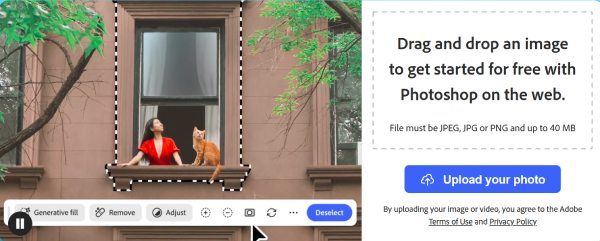
When it comes to image editing, no one would be unfamiliar with Adobe Photoshop. As a professional image editing tool, it can complete almost all the image editing tasks you can think of with high accuracy. Many people may find it somewhat troublesome to download the software, purchase the product, and then deal with the complicated interface. Fortunately, Adobe Photoshop Online has perfectly solved this problem. It allows you to manually adjust image dimensions, crop to exact aspect ratios, and fine-tune quality before export. You can resize photos for Instagram in no time with its smooth workflow.
2. Canva Image Resizer
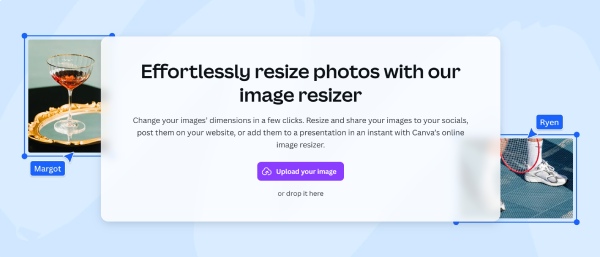
Canva Image Resizer is a beginner-friendly option that focuses on simplicity and presets. It provides ready-made Instagram-sized templates for posts, stories, and profile photos. Users can resize a photo for Instagram online with just a few clicks and apply light design adjustments if needed. Canva works exceptionally well for social media creators who value speed and visual consistency when dealing with landscapes or portrait.
3. Simple Image Resizer
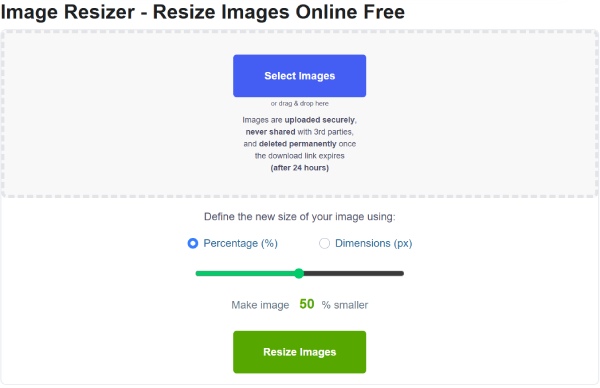
For users who prefer simple operation and quick editing, the process of resizing photos for Instagram should be as straightforward as possible. In this situation, Simple Image Resizer is one of the best options. You can upload a photo, set custom dimensions or percentages, and download the resized image instantly. While it lacks advanced editing tools, it is a practical choice for quick Instagram resizing tasks.
[Bonus] How to Upscale the Photo Resized for Instagram
After resizing a photo for Instagram, its quality may drop. To restore sharpness and clarity, AnyRec AI Image Upscaler offers an effective post-processing solution. Powered by AI technology, it intelligently enhances image resolution by adding realistic details rather than simply stretching pixels. It works well for all kinds of photos you want to publish, helping resized photos for Instagram look crisp on high-resolution mobile screens. With a simple upload-and-upscale workflow and no complex settings, it is suitable for both beginners and content creators who want polished Instagram visuals without manual editing.
- Resize the JPG, PNG, TIFF, BMP, and other photos for Instagram.
- Magnify images up to 800% without distorting the parts of the photos.
- Side-by-side preview with the original image in the output file to compare.
- Protect users' privacy by automatically deleting uploaded files after resizing.
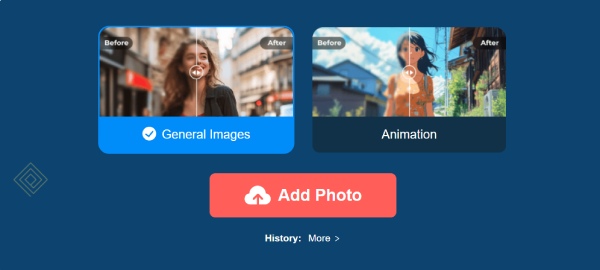
Step 1.Navigate to the official website of AnyRec AI Image Upscaler, click the "Add Photo" button to upload the photo resized for Instagram.
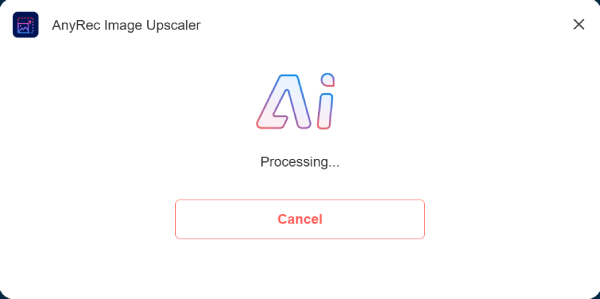
Step 2.It will take a little time to enlarge your images online. The specific time is based on the image size.
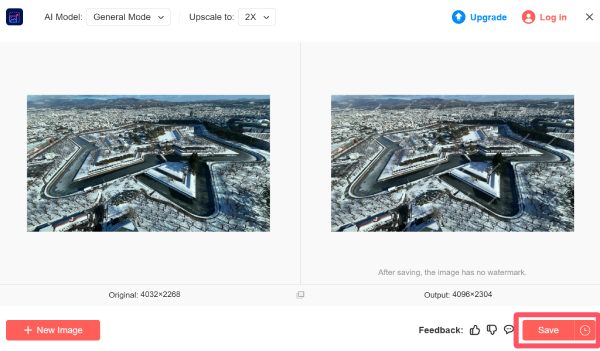
Step 3.Once finished, your resized Instagram photo will be upscaled. You can click the "Save" button to save the image.
FAQs About Resizing Photos for Instagram
-
1. What happens if I upload a photo with the wrong size to Instagram?
If a photo does not match Instagram's supported aspect ratios, the platform may automatically crop or compress it. In simple terms, your photos that have not been resized for Instagram will still be uploaded to Instagram. However, a series of important elements such as the content of the pictures and the quality of the images might not be displayed.
-
2. What is the best photo size for Instagram posts in 2025?
The recommended size for most Instagram feed posts is 1080 × 1350 pixels with a 4:5 aspect ratio. This photo size takes into account both the image format allowed by Instagram and the quality requirement for the image to display clear details. Besides, this format displays well on mobile screens and minimizes cropping while maintaining good image clarity.
-
3. Does resizing a photo reduce its quality on Instagram?
Resizing a photo for Instagram will, to some extent, reduce the quality of your image, as the resolution of your photo will be changed to meet Instagram's requirements. However, using high-quality resizing tools and exporting images at Instagram's recommended dimensions helps preserve sharpness and visual detail.
Conclusion
Apps to resize photos for Instagram are essential for a correct visual result. By following the latest size guidelines and using reliable resizing tools, you can avoid unwanted cropping and quality loss. If you want to maintain the high-quality of your resized photo for Instagram, you can use AnyRec AI Image Upscaler to improve its quality with AI upscaling.



