
YouTube Video Size: Resize, Compress, and Upload in 2026

After spending hours editing YouTube content, if you aren't hitting the specific marks for each format, you are not just losing quality but also viewers. Whether it is Shorts or landscape videos on YouTube, knowing the correct YouTube video size is the first step toward a professional-looking channel. This guide breaks down the essential YouTube video size requirements for every content type and more! Make sure your content looks as good on every device.
Guide List
YouTube Video Size Requirements for Different Content Types The Best YouTube Video Dimensions and Resolution Resizing YouTube Videos Without Quality Loss How to Compress YouTube Video Size OnlineYouTube Video Size Requirements for Different Content Types
It is crucial to review the list below to determine the best YouTube video dimensions and resolutions for different content types.
- • Standard YouTube Videos. The gold standard for this is a 16:9 aspect ratio, and to be considered HD, you should aim for at least 1920 1080.
- • YouTube Shorts. Since these contents are vertical, they must be 9:16 aspect ratio, and the ideal resolution is 1080 × 1920 for perfect fitting on mobile devices.
- • YouTube Ads. Most ads follow the 16:9 format, but sometimes square and vertical options are used for mobile campaigns.
Meanwhile, for channel assets, 1280 × 720 pixels is used for thumbnails, 2560 × 1440 pixels for channel banners, and 800 × 800 pixels for profile pictures.
The Best YouTube Video Dimensions and Resolution
Choosing the right YouTube video size is about finding that sweet balance between visual quality and upload speed. While YouTube offers resolutions from 240p to 8K, sometimes aiming for the highest resolution isn't the best choice for every creator.
Here's a quick table that shows you the best YouTube video dimension size:
| Quality | Dimensions | Aspect Ratio |
| 4K Ultra HD | 3840 × 2160 | 16:9 |
| 2K QHD | 2560 × 1440 | 16:9 |
| Full HD | 1920 × 1080 | 16:9 |
| Shorts HD | 1080 × 1920 | 9:16 |
Resizing YouTube Videos Without Quality Loss
When you need to change your YouTube video size, using AnyRec Video Converter is a reliable way to maintain your video's crispness. It lets you transform the horizontal footage into vertical formats for YouTube Shorts using the built-in Video Cropper. Or you can downscale the files while keeping every fine detail. By utilizing its smart processing engine, you can make sure that your resized YouTube video does not look blurry or stretched. With this approach, you can get professional results without a steep learning curve.

Advanced algorithms for resizing videos up to 4K without detail loss.
Resize multiple video sizes to save time during your workflow.
Uses hardware acceleration to speed up the resizing process.
Covers more than 1000 formats, including MP4, MOV, AVI, etc.
Secure Download
Secure Download
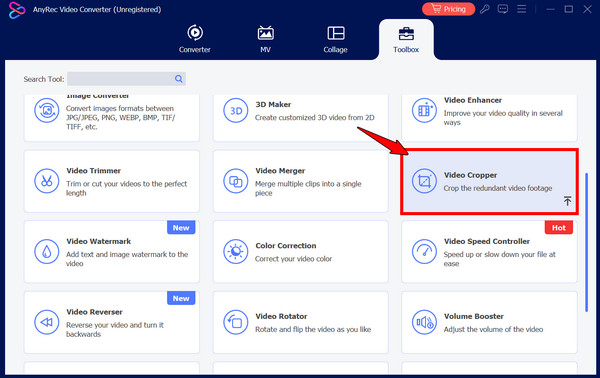
Step 1.After launching AnyRec Video Converter, navigate to the "Toolbox" section in the top menu and choose the "Video Cropper" toolkit.
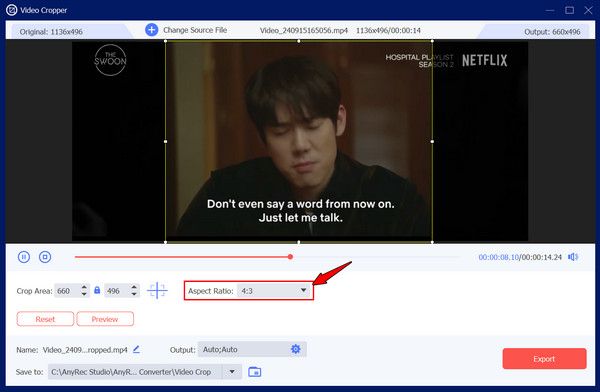
Step 2.Click the "Add" button to bring in the specific YouTube video you need to resize for your channel. Locate the "Aspect Ratio" menu and pick the right settings, e.g., 16:9 for standard videos or 9:16 for Shorts.
Step 3.Next, fine-tune the frame by manually handling the cropping frame to make sure you highlight the best parts of your video or input a custom size in the "Crop Area" box.
Step 4.Check the applied settings in the "Preview", then click the "Export" button to save your resized video.
Secure Download
Secure Download
How to Compress YouTube Video Size Online
Sometimes, a YouTube video is too large for a quick upload, especially if you're working with 4K footage. To help, online compressors offer a fast, no-install method to reduce YouTube video size while preserving visual integrity. Use FreeConvert in this space to give you direct control over the target size. This lets you find the file size and quality balanced by choosing how much compression you want to apply.
Using FreeConvert Video Compress comes with these basic steps:
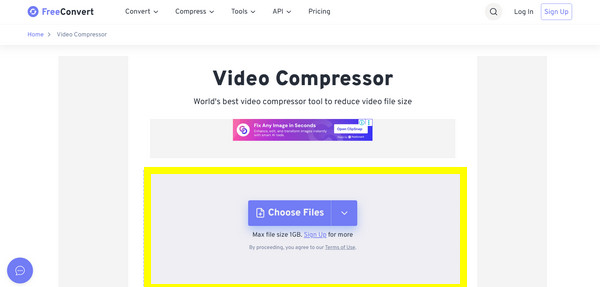
Step 1.Visit the FreeConvert Video Compressor website, and click the "Choose Files" button to upload your video from your device or cloud storage.
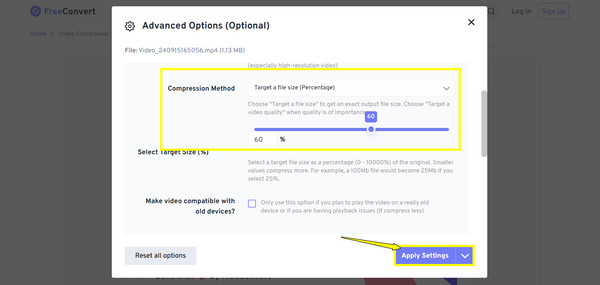
Step 2.Click the "Settings" button for advanced options. Select the "Target a file size" and move the slider to your desired percentage. Then, select a codec such as "H.265" for the next compression with the highest quality.
Step 3.After everything, click the "Apply Settings" button, then the "Compress Now!" button. Once it is done, download the video to save your optimized file.
Conclusion
Getting the right YouTube video aspect ratio is more than a chore; it is the final step in giving your audience the best viewing experience. By following YouTube requirements and using tools for resizing and compression, you can ensure your content isn't lost in pixels or an awkward black box. Resizing a YouTube video doesn't require a technical skill. With AnyRec Video Converter, you can easily resize videos and ensure every upload meets the highest standards your subscribers deserve.
Secure Download
Secure Download
About Our Author




