
Screen Record Snapchat without Notifications on Any Device

Since Snapchat is designed to detect screenshots and recordings, you may be curious if you can screen record chats on Snapchat without notifying the other person. Whether it is a snap, a funny story, or a conversation you want to save, you need a reliable method to avoid triggering the alerts. Therefore, this guide shares four ways to screen record Snapchat on iPhone and Android, from built-in tools to trusted apps. Pick the best one to record smoothly, clearly, and privately.
Guide List
Screen Record on Snapchat without Notifying Anyone How to Safely Screen Record on Snapchat on iPhone How to Screen Record on Snapchat on Android Use Phone's Built-in Settings to Screen Record on SnapchatScreen Record on Snapchat without Notifying Anyone
When trying to capture activities on Snapchat, you must do it carefully since the app can detect screenshots or recordings, alerting the user. So, how can you screen record Snapchat without triggering any notifications? You can use AnyRec Screen Recorder. Of course, you can screen record on Snapchat web on Windows and Mac directly. Moreover, you can use its phone recorder to mirror and record your phone screen to PC with bigger screen. This approach ensures stable phone mirroring and recording without lag. Also, this recording software features a simple interface, supports system and microphone audio, and includes handy tools like annotations, making it perfect for discreet and high-quality recordings.

Mirror and screen record Snapchat in HD or up to 4K resolution.
Can add on-screen annotations and take screenshots during the recording session.
Preview and enhance the final video to remove extra parts before exporting.
Customizable recording settings, including quality, format, frame rate, and more.
Secure Download
Secure Download
Step 1.Launch AnyRec Screen Recorder on your computer and select "Phone Recorder". A prompt will appear asking you to pick your device type: iOS or Android.
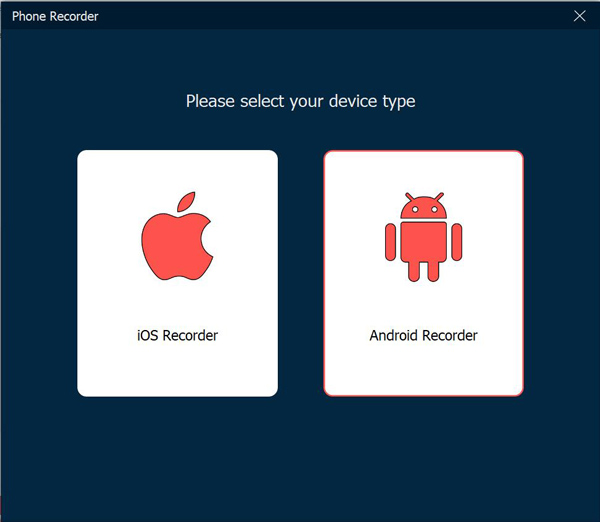
Step 2.Follow the instructions based on your device:
• On your iPhone, open the "Control Center", tap "Screen Mirroring", and tap on "AnyRec Screen Recorder" from the list.
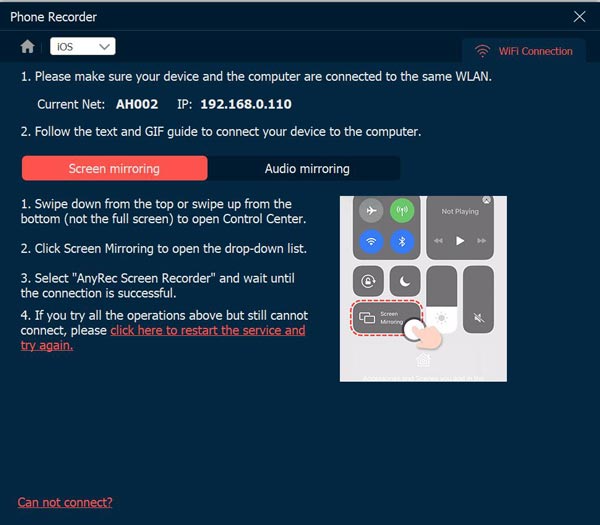
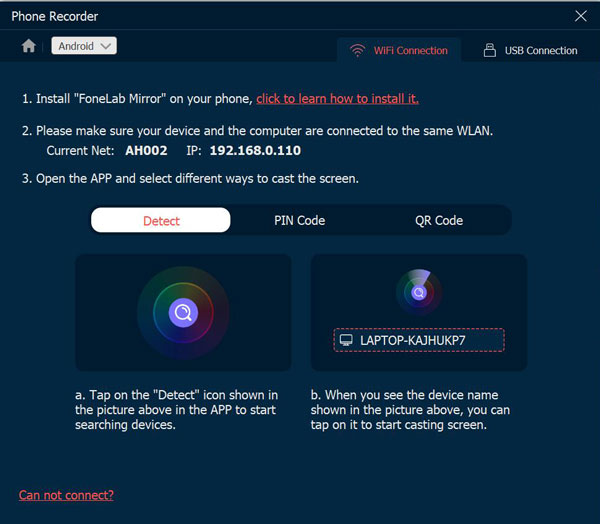
• On Android phones, pick your connection method: Wi-Fi or USB.
For Wi-Fi, ensure both devices share the same network. Then, launch the "FoneLab Mirror" to connect. Tap "Detect" to begin the mirroring process. If it fails, you can enter the "PIN Code" on your screen or scan the "QR Code".
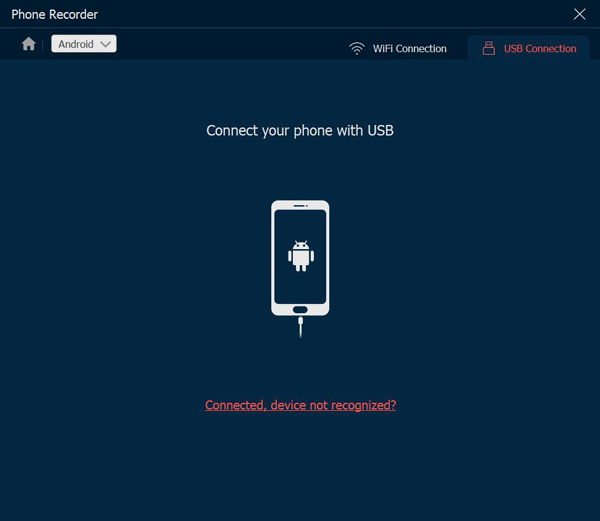
For USB, connect your Android device with a cable to begin mirroring instantly.
Step 3.Once your phone screen is mirrored, choose your desired audio source and start recording. The Snapchat recording will be done smoothly. After that, click the "Stop" button, preview it, and trim it before saving.
Secure Download
Secure Download
How to Safely Screen Record on Snapchat on iPhone
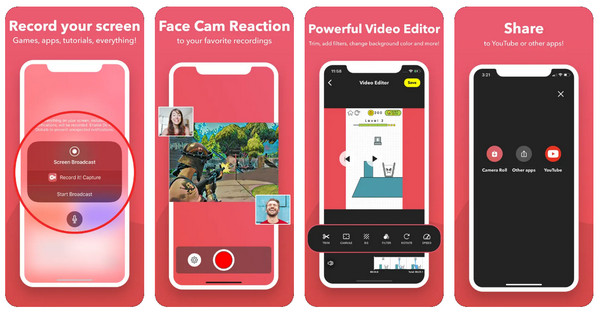
There are several apps available to screen record on Snapchat without notifications. One reliable option is the Record it! Screen Recorder. It is a popular iOS tool that screens record on iPhone of Snapchat conversations without affecting your device's performance. It also has helpful features such as adjustable settings, a built-in editor, and even face-cam overlays.
Step 1.Once you have launched the Record it! Screen Recorder app, tap "Screen Recording" and let the app access screen recording permissions.
Step 2.Next, launch Snapchat and record your screen as you want. Later on, go back to the app or use the "Control Center" to stop the recording. Edit or save the video directly within the app.
How to Screen Record on Snapchat on Android
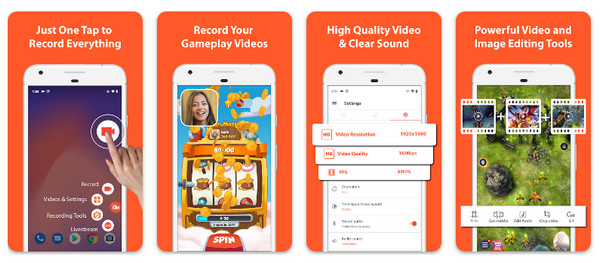
Moving on to record snaps on Android devices. Here, you can use AZ Screen Recorder, one of the dependable apps to record the screen without rooting your phone. This app is widely used due to its stable performance, floating controls, and high-quality output settings.
Step 1.Start AZ Screen Recorder on your Android device. Allow all needed permissions, and please enable the floating control bar.
Step 2.Then, open Snapchat and tap on the floating "Record" button to start capturing your snaps, chats, or stories. Once done, tap the floating button again to stop and save your recording.
Use Phone's Built-in Settings to Screen Record on Snapchat
If you prefer not to get third-party apps on your iPhone or Android devices, both smartphones include built-in screen recording tools that work to screen capture Snapchat. While the steps differ slightly depending on your phone model, the built-in feature offers a straightforward solution to capture snaps, stories, and chats.
How to Screen Record Snapchat on iPhone?
Step 1.Open Snapchat and prepare the snap, chat, or story you wish to record. Then, access the built-in screen recorder on your iPhone.
Step 2.Swipe down to open "Control Center" and tap on the "Screen Record" button. You can enable the mic audio, too, as needed.
Step 3.If it is not there, activate it in "Settings", then "Control Center", and add the "Screen Recording" feature.
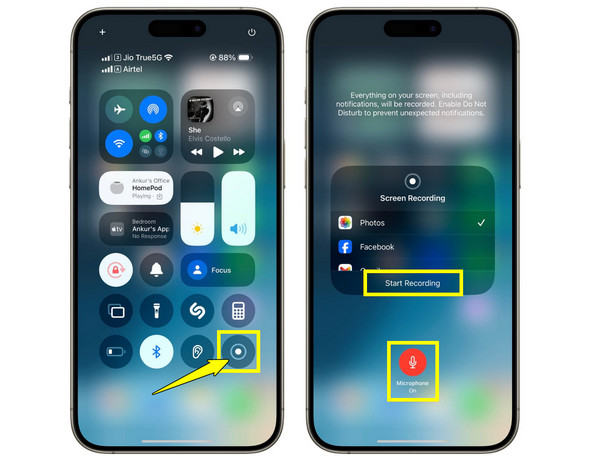
Step 4.Your iPhone will begin recording after a 3-second countdown. Once done, open "Control Center" and tap the "Record" button again to stop, and the recording is saved in the "Photos" app.
How to Screen Record Snapchat on Android?
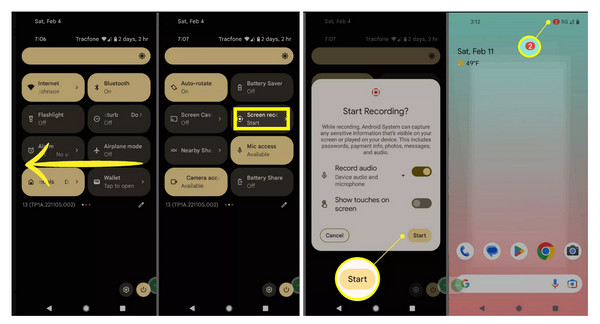
Step 1.Ready the Screenshot content. Pull down the "Notification Panel" above, look for the "Screen Recorder" button, and tap on it.
If it is not there, pull down or swipe left even more to access everything, or tap "Edit" and drag the feature into your quick settings.
Step 2.You can also choose your desired audio source and tap the "Start" button to begin. Later, pull down the panel, tap on "Stop" and the recording is saved in your Gallery.
Conclusion
You've seen here that with the right approach, you can record Snapchat without them knowing safely. From the phone's native recording or relying on reliable third-party tools, each method has its own level of reliability and convenience. But for the smoothest experience, with high-quality results, no, and complete control, AnyRec Screen Recorder is the suggested tool. With its Phone Recorder, you can mirror your device and screen record Snapchat privately and effortlessly, making it one of the most trusted solutions available.
Secure Download
Secure Download



