
Transfer Messages from Android to iPhone Before/After Setup

While switching from Android to iPhone gets you so excited, you worry about losing important messages during the transition. Fortunately, Apple has solutions to transfer messages from Android to iPhone, such as personal memories, codes, and essential conversations. In this guide, you'll see three practical ways to move SMS from Android to iPhone: during setup, after setup, and with no computer. Choose the method that works best for you.
Guide List
Transfer All or Multiple Messages from Android to iPhone After Setup [Selectively] Move Text Messages from Android to iPhone During Setup Export Messages from Android to iPhone without a Computer FAQsTransfer All or Multiple Messages from Android to iPhone After Setup [Selectively]
Suppose your iPhone is already set up and ready to use; you don't need to reset it just to export messages from Android to iPhone. For this, you need a dedicated phone transfer like AnyRec PhoneMover, which lets you selectively transfer messages without affecting other files. It supports direct device-to-device transfer. You can move selected text messages from Android to iPhone after the setup process safely. Its friendly interface and easy-to-use controls make it suitable for even non-techy users, while its advanced options appeal to more experienced users.

Selective transfer text messages from Android to iPhone without any loss.
Preserves the original message content and attachments during the transfer.
Preview the selected messages to ensure you move just what you need.
Fast speed to move everything at once without affecting other data.
Secure Download
- Pros
- Let you transfer messages selectively; no need to reset iPhone; fast process.
- Cons
- Paid version needed for complete features.
Step 1.Connect both the Android and the iPhone to your computer. Launch AnyRec PhoneMover, and wait for it to detect the two devices. If prompted, tap "Trust" on your iPhone to allow access.
Set the Android phone as the source device, while the iPhone is the target device.
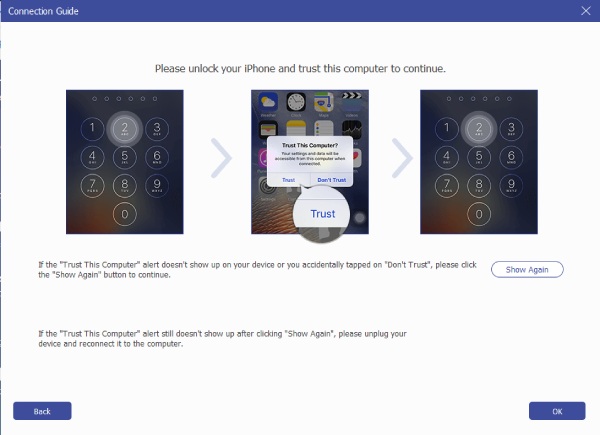
Step 2.From the list of data types, select "Messages". Check the thread of conversations you want to transfer; you can preview it first if you wish.
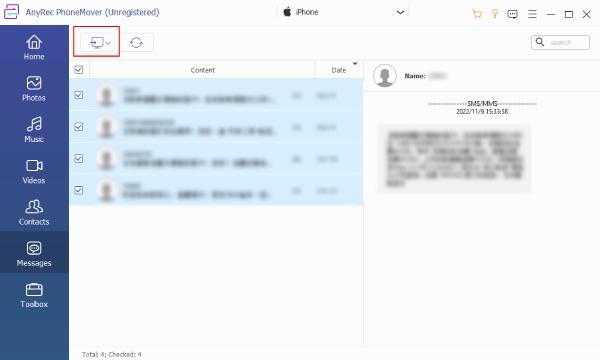
Step 3.Afterward, click the "Export to Device" button and choose your iPhone as the destination. Wait for the process to complete and keep both devices connected.
Secure Download
Move Text Messages from Android to iPhone During Setup
For anyone who has not finished setting up their iPhone yet, Apple has an official solution to import text messages from Android to iPhone. You have here Move to iOS, which is made specifically for first-time iPhone setup and assists you in moving important data from Android smoothly. While it works only during the initial setup and has limited control over which messages are transferred, this method is perfect for a free and wireless option. And Move to iOS can help you sync messages from iPhone to iPad during setup too.
- Pros
- Straightforward process for first-time iPhone users; wireless transfer support; officially supported by Apple.
- Cons
- Its speed depends on Wi-Fi stability; it works only during setup.
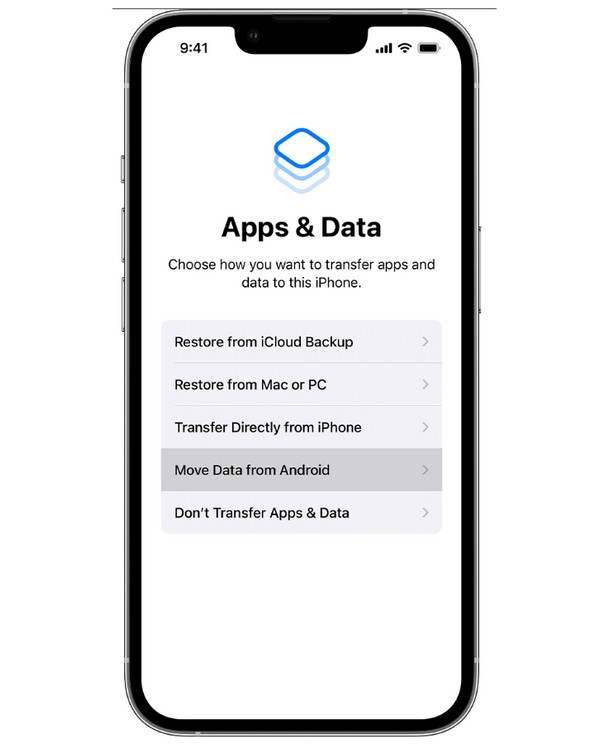
Step 1.Begin with the setup process on your new iPhone. Once you reach the "Apps & Data" screen, tap on "Move Data from Android" and wait for a digit code to appear.
Step 2.On your iPhone, launch the Move to iOS app. Then, enter the code shown on your iOS device. Connect to a temporary network made by iPhone, and when prompted, select "Messages".
Step 3.Please wait to move SMS/MMS from Android to iPhone completely.
Export Messages from Android to iPhone without a Computer
If you do not have access to a computer, you can use a cloud-based approach to transfer SMS messages from Android to a new iPhone. Using Google Drive, you can back up SMS data online and access it later on your iPhone. However, this way requires extra steps since the messages must be converted first into an iPhone-compatible format. Yet, it is a practical option if you rely on your mobile device to get a transfer.
- Pros
- No computer needed; uses cloud storage for accessibility.
- Cons
- May need third-party tools; complicated and may be time-consuming.
Step 1.On your Android device, open "Settings", then head to "Google" to "Backup" and make sure to enable SMS backup. Tap "Back Up Now" and wait until your messages are uploaded.
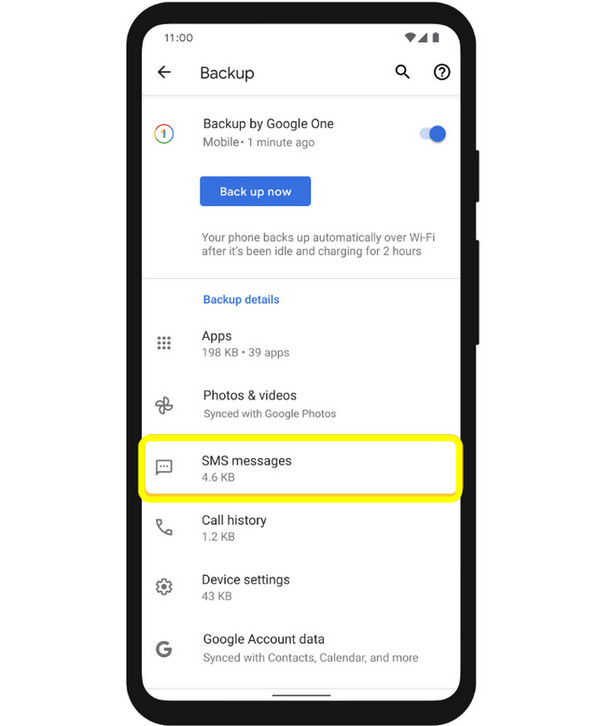
Step 2.Then, use an app or service that can export SMS backups into an iPhone-compatible format. Sign in to with the same Google account on your iPhone and download the converted files.
Step 3.Use a messaging app or restore tool to move chats from Android to iPhone. Confirm all the messages have been transferred accurately in the iPhone Messages app.
FAQs
-
Why can't iPhone restore SMS directly from Google Drive?
Google Drive backups are mainly for Android devices and aren't natively compatible with iOS. iPhones have a different system, so SMS must be converted first into an iPhone-compatible format before restoration.
-
Will all my message attachments be transferred from Android to iPhone?
This depends on what method you'll be using. A dedicated phone transfer tool lets you preserve such details, while wireless data transfer solutions may have limitations.
-
Do I need a computer to transfer messages from Android to iPhone?
Not always. You can move all messages wirelessly with the iOS app or a cloud-based method. However, computer-based solutions usually offer faster transfer speed and stability for selecting and previewing messages.
Conclusion
As long as you have the method that best fits your situation, you can move text messages from Android to iPhone effortlessly. Whether it is during setup, after the device setup, or without computer access, each way here has a way for you to move conversations when switching to a new iPhone. Among all the options, a professional transfer tool provides more flexibility, AnyRec PhoneMover. This phone transfer software is dependable, offering fast, secure, and easy transfer without affecting other data. So, it is a smart choice to consider for all your transferring situations between devices.
Secure Download



