
A Beginner-Friendly Guide on How to Record a Voicemail

Recording a voicemail is an essential skill for both personal and professional communication. For many situations, voicemail may contain important information that you don't want to lose. Therefore, it is wise to save them for future use promptly. The good news is that you can easily record a voicemail on different devices with the right tools and methods. In this guide, you will learn practical ways to record voicemail efficiently on any device.
Guide List
The Most Efficient Way to Record a Voicemail on Windows & Mac How to Record a Voicemail Message on iPhone 15/16/17/Air How to Record a Voicemail on Android with the Default Recorder Tips for Recording a Voicemail with High Sound Quality FAQs About Recording a VoicemailThe Most Efficient Way to Record a Voicemail on Windows & Mac
If you want a flexible and high-quality solution, AnyRec Screen Recorder is a reliable choice for recording voicemails. It allows you to capture system sound and microphone input with clarity, making it ideal for recording voicemail messages or saving audio from calls. With its intuitive interface and customizable settings, you can easily adjust volume, format, and quality, ensuring a smooth recording experience.
Record voicemails in MP3, M4A, AAC, and WMA formats.
Capture online audio from all sources with original quality.
Record the microphone voice without background noise.
Trim, merge, convert, save, and share your audio recordings.
Secure Download
Secure Download
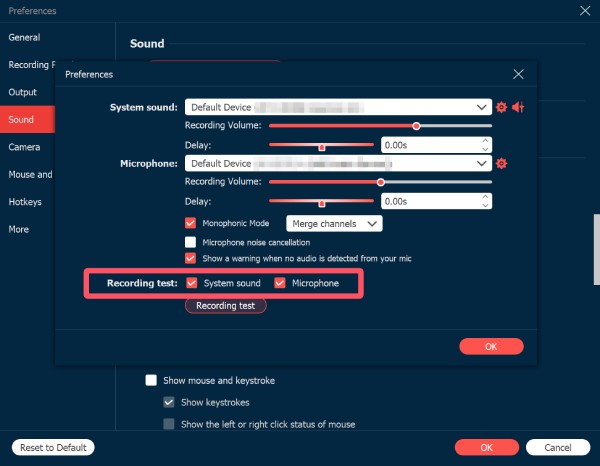
Step 1.Launch AnyRec Screen Recorder and open the "Preferences" tab. Under the "Sound" tab, click the "Microphone" button to allow the full audio recording.
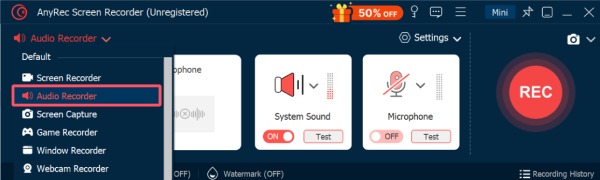
Step 2.Click the "Recorder" button and click the "Audio Recorder" button to use a specialized mode for recording a voicemail.
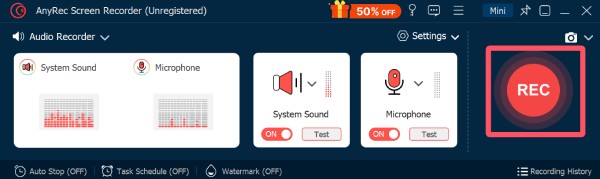
Step 3.You can start the process by clicking the "Record" button. To stop, click the "Stop" button. You can edit the file before saving it.
How to Record a Voicemail Message on iPhone 15/16/17/Air
Recording a voicemail message on modern iPhone models is simple thanks to Apple's built-in features and intuitive interface. Whether you want to set up a custom greeting or save a voicemail for later use, iPhones provide a seamless process without requiring additional apps. In this section, you will learn how to record a voicemail greeting efficiently on iPhone 15/16/17/Air.
Step 1.Open the "Phone" app on your iPhone and tap the "Voicemail" button to check all the voicemails. Tap the voicemail message to record on your iPhone.

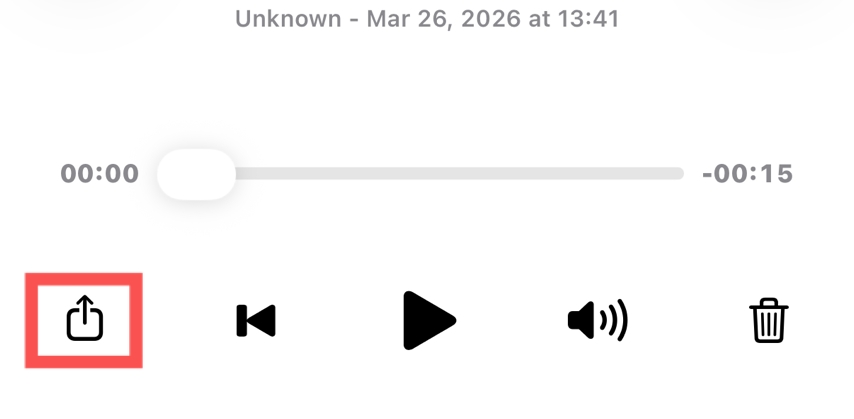
Step 2.In the new page, you can tap the "Share" button to proceed.
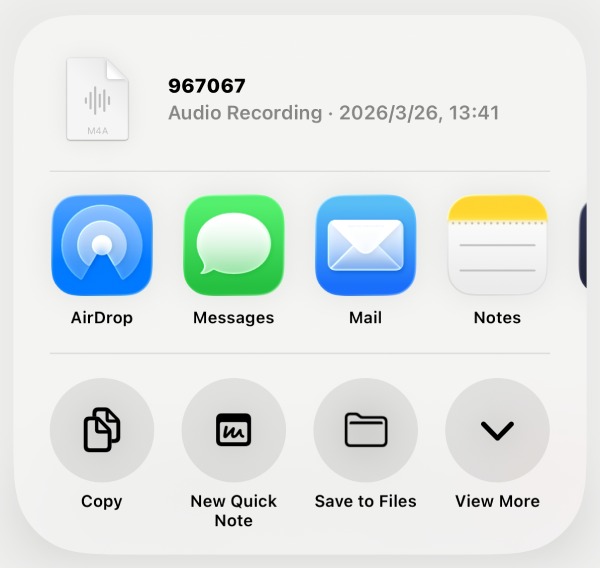
Step 3.A window will pop up, and it means that the voicemail has been saved as a file. You can select the desired way to share or save the file.
How to Record a Voicemail on Android with the Default Recorder
For Android users, there is no direct software available to save voicemails. However, this does not mean that this task is a complex process. With the help of the default recorder, you can still quickly complete the recording and save it on your phone without a calling recording app. In this section, you will learn how to record a voicemail quickly on Android.
Step 1.When a voicemail is playing on your Android device, scroll down from the top of the screen and tap the "Screen Recorder" button.
Step 2.In the pop-up window, tap the "Internal Audio" button to record a voicemail successfully.
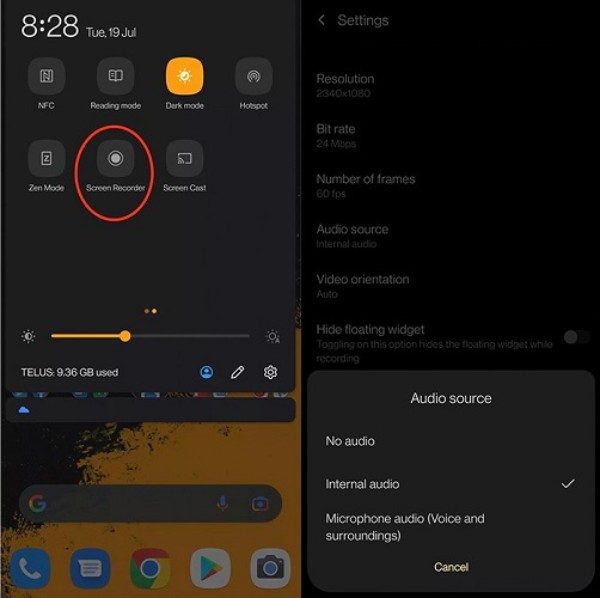
Step 3.Tap the "Start" button to start the recording process. Once finished, tap the "Stop" button.
Tips for Recording a Voicemail with High Sound Quality
Recording a clear and professional voicemail requires more than just pressing the record button and selecting the best voice recorder app. Paying attention to a few key factors can significantly improve the quality of your message.
- • Choose a quiet environment: Background noise can make your voicemail hard to understand. Always record in a quiet place to ensure your voice is clear and free from distractions. In this way you can make sure a voicemail can be recorded explicitly.
- • Speak clearly and at a steady pace: If the voicemail is inherently unclear from the very beginning, then it will be very difficult for you to improve the original error through other means. Therefore, before you send or receive voicemails, it is crucial to ensure the clarity and stability of the voice.
- • Use a good microphone: Although for the sending and receiving of voicemails among ordinary users, the default microphone is already sufficient to meet the basic usage requirements. However, for those who have business or professional needs, using a dedicated microphone can always ensure that important information is not missed, thereby avoiding potential losses and disputes.
- • Keep the message concise: It is essential to recognize that voicemail cannot replace face-to-face communication. So please make sure that the content of the voicemail is concise and to the point, highlighting the key points without causing your listeners to lose patience.
FAQs About Recording a Voicemail
-
How long should a voicemail message be?
Generally speaking, the most appropriate length for a voicemail message is between 20 seconds and 30 seconds. This duration of voicemail is basically able to cover the essential information and won't make the listener lose patience. Keeping it concise ensures the listener can quickly understand and respond.
-
Can I re-record a voicemail before sending it?
Yes. Before you send a voicemail, you can preview it to check how it sounds and decide whether to send it to others. This way, it can ensure the accurate transmission of information without wasting anyone else's time.
-
What is the best format to save a recorded voicemail?
For saving voicemails, the most ideal formats include MP3, M4A, or WAV. The MP3 format ensures the compatibility of audio files so that they can be played on almost any device. M4A and WAV are more suitable for users who value high quality and the convenience of sharing.
Conclusion
Now you've learned how to record a new voicemail on any device. By following a few practical tips, you can ensure your voicemail sounds professional and easy to understand. If you want to ensure that the sound can be recorded and played back clearly from the very beginning, you can use AnyRec Screen Recorder to carry out the recording process.
Secure Download
Secure Download
About Our Author




