
A Screencastify Review: Is It Still Good to Use Now

Screencastify has long been a popular choice, especially for those who intend to create tutorials, presentations, and educational content. But many users may be concerned if it is still good to use these days. In this detailed review, you will explore everything you need to know about Screencastify, what it offers, how it works, its key features, pricing plans, and whether there are better alternatives available today.
Guide List
What is Screencastify: A Brief Introduction Basic Features of Screencastify to Consider How Much Does Screencastify Cost Exactly How to Use Screencastify Screen Recorder A Powerful Alternative to Screencastify for FreeWhat is Screencastify: A Brief Introduction
Screencastify is a browser-based screen recording tool designed primarily for Chrome users, making it especially popular in educational and professional environments. As a lightweight extension, it allows users to record their screen, webcam, or both simultaneously without installing heavy desktop software. You can start the recording immediately, only with your browser, no downloading required at all.

After the recording process, you can share and save the work conveniently since it is integrated with cloud-based platforms like Google Drive. Over time, Screencastify has expanded its capabilities to include more advanced features such as interactive video elements and AI-assisted tools.
Basic Features of Screencastify to Consider
Before deciding whether Screencastify is suitable for your needs, it is important to understand its core features. The platform focuses on simplicity while still offering several useful tools for creating engaging recordings. Below are some key features you should consider.
1. Create Interactive Video
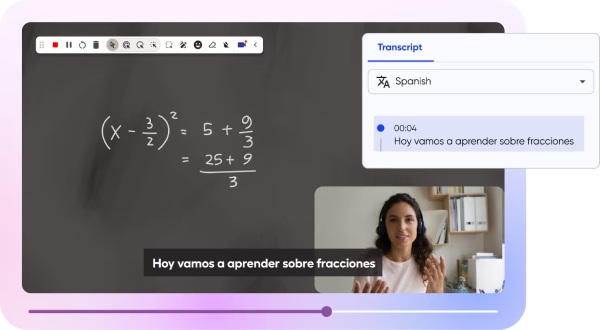
A good video cannot be produced without sufficient editing tools. Screencastify allows users to enhance recordings with interactive elements such as clickable questions and engagement prompts. During the process of recording your teaching content or making tutorial videos, you can use the editing tools at any time to highlight the key points to ensure that they can be conveyed to your audience.
2. AI-Powered Assistant
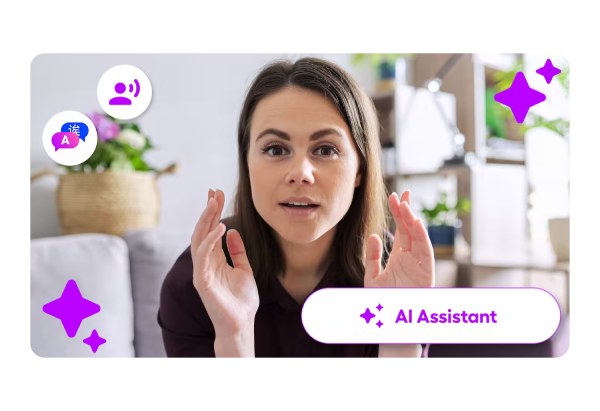
The built-in AI assistant helps streamline video creation by offering suggestions, generating captions, and improving workflow efficiency. This feature can save time and make content creation more accessible by creating and sharing quality videos faster when you can add an AI-generated title, description, and captions with one click.
3. Premium Video Library
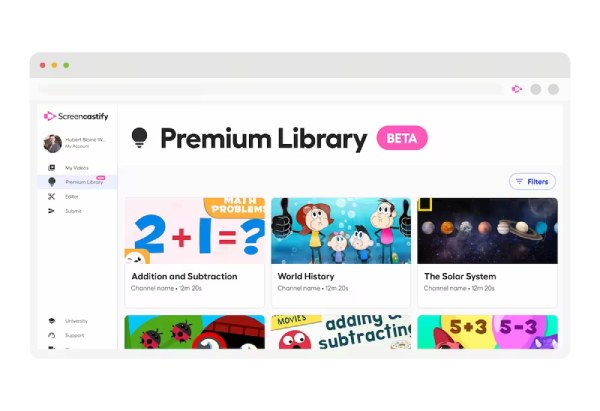
Users have access to a collection of pre-made video assets and templates. These resources help speed up content creation and improve the visual quality of recordings. You can turn YouTube for Education videos into interactive assignments or lessons that you can deliver to your students in an ad-free, trackable way.
4. World Languages & Translations
Screencastify supports multiple languages and provides translation features, making it easier to create and share content with a global audience. Screencastify allows you to translate the captions on your videos into over 50+ world languages with Screencastify's AI-powered Captions in World Languages.

How Much Does Screencastify Cost Exactly
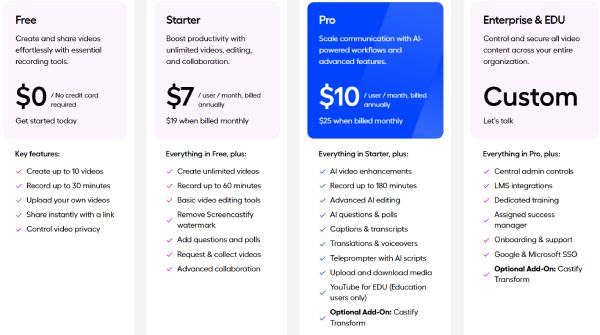
Then, how much does Screencastify cost? The price depends on the plan you intend to choose based on your needs. From individuals to organizations, Screencastify offers multiple plans designed for different types of users. You can access the detailed information below:
- • The Starter Plan costs $7 per month, providing essential recording and editing features for basic use.
- • The Pro Plan, priced at $10 per month, unlocks more advanced features and removes certain limitations.
- • For larger teams, schools, or organizations, Enterprise & EDU plans are available with custom pricing based on specific requirements.
- • Additionally, Screencastify offers a free trial, allowing users to explore its features before committing to a paid plan.
How to Use Screencastify Screen Recorder
Using Screencastify is relatively simple, thanks to its browser-based design and intuitive interface. After installing this screen recorder extension on Chrome, users can quickly start recording their screen, webcam, or both with just a few clicks. In this section, you will learn how to use Screencastify to capture and manage your recordings efficiently even if you don’t know why Screencastify is not working yet.
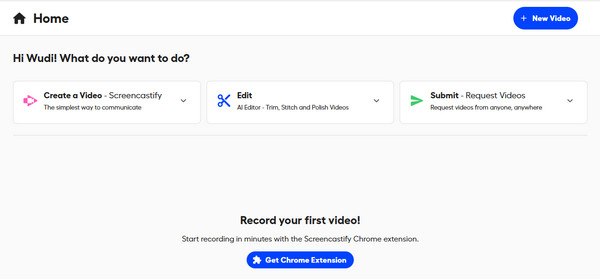
Step 1.Navigate to the official website of Screencastify. After logging in, click the "Get Chrome Extension" button and install it.
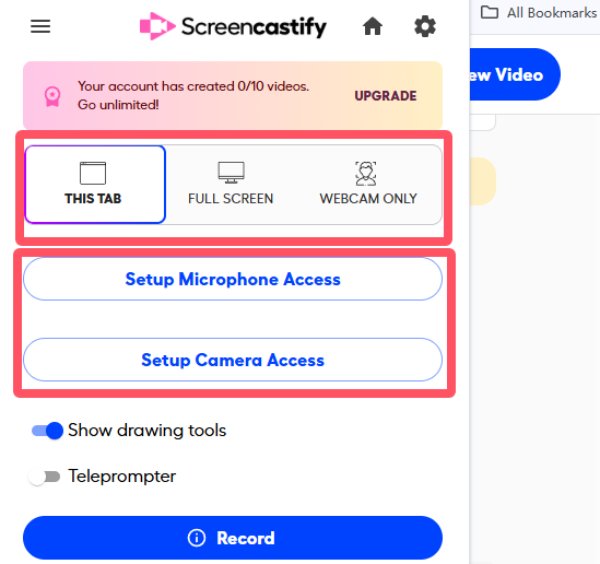
Step 2.Under the "Extensions" tab, click the "Screencastify" button and select the desired pattern for your recording. Then, click the "Record" button.
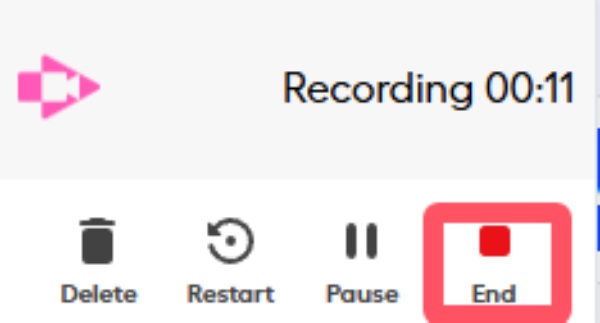
Step 3.When you finish the process of recording, click the "Stop" button in the floating window.
Step 4.The recording will pop up in a new window. If not, you can find your recording in your library.
Step 5.You can edit the recording the way you want. Once done, click the "Share" button to save your recording.
A Powerful Alternative to Screencastify for Free
If you are looking for a more powerful and flexible screen recording solution, AnyRec Screen Recorder is a strong alternative to Screencastify. Unlike browser-based tools that work relies highly on the Internet, it provides a full-featured desktop experience with higher recording quality and a stable workflow. It supports recording screen, audio, and webcam simultaneously, along with advanced features such as scheduled recording, real-time drawing, and noise reduction. This makes it suitable for users who need professional-level recordings without relying solely on browser extensions.

Capture different onscreen activities through specialized recorders for various scenarios.
Customizable settings to change the video encoder, format, quality, resolution, etc.
An interface with a menu for drawing effects, screenshot, and recording schedule feature.
Soundcheck for the microphone and sound system with advanced audio enhancement.
Secure Download
Secure Download
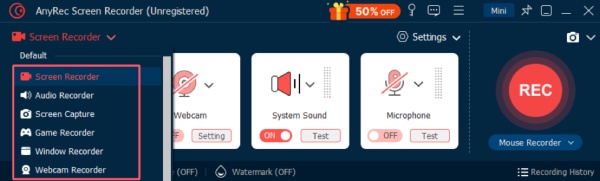
Step 1.Launch AnyRec Screen Recorder on your device and click to select the desired recording mode.
Step 2.Click to select the way to capture your screen according to your own preference. Once done, click the "Record" button.
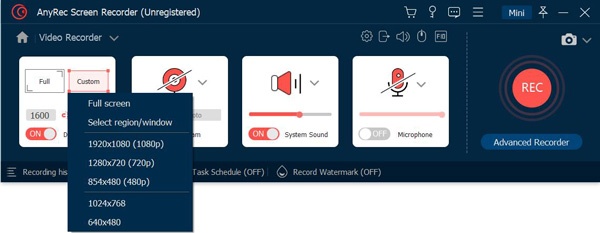
Step 3.During screen recording, you can use the tools to apply drawing effects or other creative ideas.

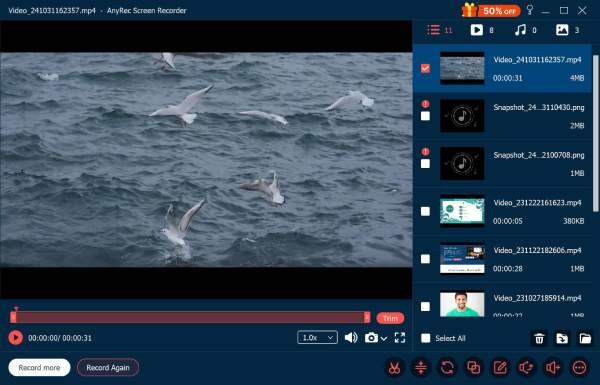
Step 4.After the recording, you can further edit your work. Finally, click the "Done" button to save your recording.
Conclusion
Now you know what Screencastify is. As a practical and accessible screen recording tool, it still works well, especially for users who prefer a simple solution. However, for users who require more advanced functions and higher-quality recordings, AnyRec Screen Recorder is recommended as a more powerful alternative.
Secure Download
Secure Download
About Our Author




