
Hot

AnyRec Screen Recorder
Record and screenshot on Roblox.
Secure Download
Roblox Screenshots: 6 Ways to Take Screenshots and Find

Taking Roblox screenshots is a great way to save those best moments, such as showing your avatar, your builds, or your achievements. Since the game is available on multiple platforms, several ways are available to capture your Roblox activity. Whether on PC, iPhone, or Android, the following parts are here to show you ways to take Roblox screenshots. From the simplest built-in screenshot function to powerful apps, save your best gameplay moments today!
Guide List
Screenshot Roblox with Its Built-in Capture Functions Easy Tool for Roblox Screenshot without Lagging How to Screenshot Roblox on iPhone Screenshot Roblox on Android EffectivelyScreenshot Roblox with Its Built-in Capture Functions
You can use the in-game Capture feature to take screenshots on Roblox directly. Later, you can save the in-game moments to your device's camera roll or share it.
Step 1.Open Roblox and enter the game you wish to capture. Press the "Print Screen" key on your computer, or use the "Roblox Menu".
Step 2.From the menu, click the "Record" option, then choose "Screenshot".
Step 3.Roblox will then save the image automatically, and you can view it by clicking the "Open Folder" once done.

Easy Tool for Roblox Screenshot without Lagging
For a more flexible and powerful way to capture Roblox screenshots, AnyRec Screen Recorder is an excellent alternative to relying solely on the built-in capture tool. This recorder gives you greater control, extra capture options, and high-quality output. Here, you can take sharp and customizable screenshots at any point during gameplay, without stopping the session. Despite many features, the program remains lightweight, easy to use, and perfect for low-spec computers. Whether you're casually exploring Roblox worlds or content for social media, this recorder is a strong choice for upgrading your screenshot experience.

Screenshot the entire screen, a selected Roblox window, or a custom area.
Customize hotkeys to capture Roblox screenshots instantly while playing.
Adjust resolution, format, and other image settings to get the result you want.
Save screenshots in JPG, PNG, and more, without losing image quality.
Secure Download
Secure Download
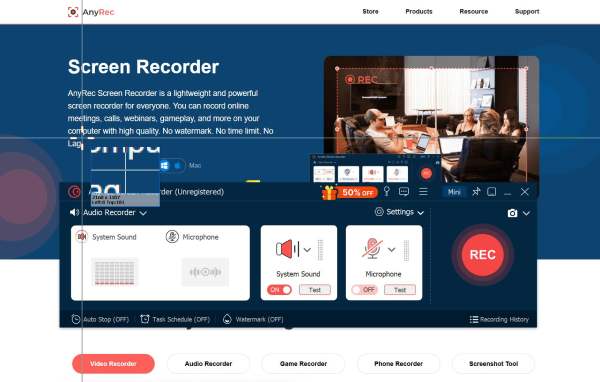
Step 1.Open AnyRec Screen Recorder, then launch Roblox. On the program's screen, click the "Screen Capture" button. Your cursor will turn into a crosshair. Please click and drag it to highlight the area you wish to capture.
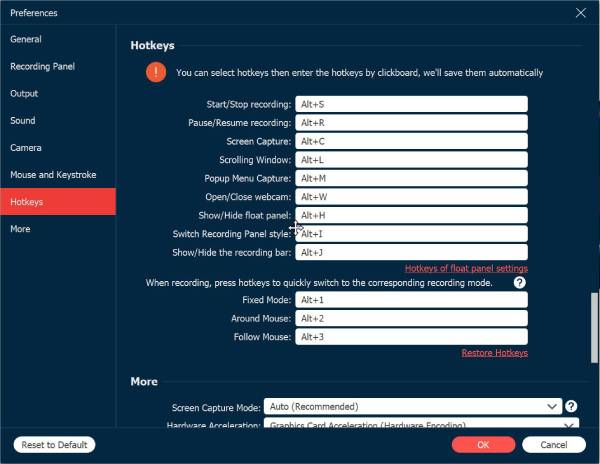
If you prefer, you can also use the assigned hotkey to bring up the screenshot feature instantly during gameplay. You can view it in "Settings", then the "Hotkeys" section.
Step 2.Once you select the capture area, the program will take a Roblox screenshot right away. You will then be taken to the built-in editor, where you can add annotations like text, arrows, shapes, etc.
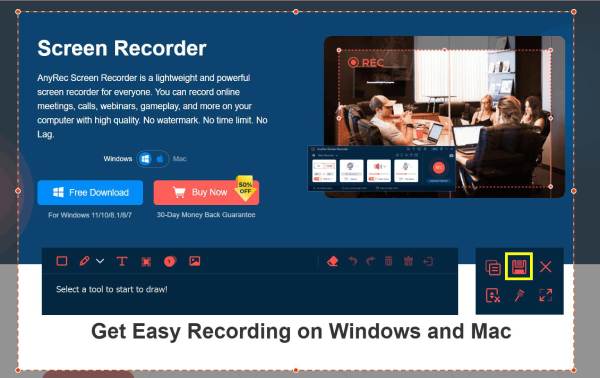
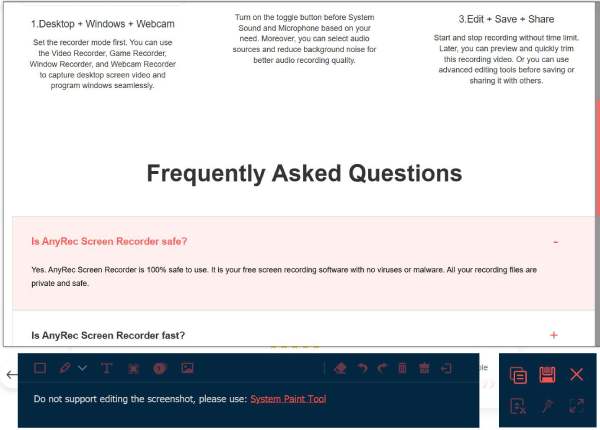
Step 3.After finishing your edits, click the "Save" button. Select the folder where the screenshot will be saved and select your file format. Your Roblox screenshot will then be saved, ready for sharing.
Secure Download
Secure Download
How to Screenshot Roblox on iPhone
After learning how to capture Roblox screenshots on a computer without lagging, move on to mobile options, starting with the iPhone. Taking Roblox screenshots on iPhone is simple, and you can use the built-in screenshot method or any additional app to enhance the capturing experience. It is also supported to record Roblox gameplay using built-in tools.
1. Use the iPhone's Built-in Screenshot
The iPhone's native screenshot function allows you to save Roblox gameplay with buttons or gestures. It automatically saves the image, and you can edit it right away.
Step 1.Open Roblox and head to the scene you wish to capture.
Step 2.Now, press the "Power + Volume Up" buttons (Home + Power buttons for older iPhones).
Step 3.Tap the preview below to edit the image or simply let it save to your library immediately.

2. Take a Roblox Screenshot Using Zight Screen Recorder
Zight is an iOS app that not only allows you to record your screen but also takes screenshots on iPhone. You can then easily upload or share them from within the app.
Step 1.Open Roblox and head to the moment you wish to capture.
Step 2.Then, switch to Zight and ensure you grant all required permissions. There, tap the "Screenshot" option.
Step 3.After that, you can edit, crop, annotate, or highlight any parts of the screenshot.
Step 4.Once done, save it to the cloud storage or directly to your library.

Screenshot Roblox on Android Effectively
Transitioning to Android solutions. Like on iOS, Android provides ways to capture Roblox screenshots, either through a built-in screenshot shortcut or a specialized screenshot app. See below the ways you can follow, depending on your preference.
1. Use the Android Built-in Screenshot
Most Android phones feature a universal screenshot function that works in any app, such as Roblox. This method offers a fast, easy approach to taking Roblox screenshots.
Step 1.Launch Roblox, and ready the scene you wish to capture.
Step 2.Now, press the "Power + Volume Down" at once to instantly capture it.
Step 3.The captured image will appear as a preview and will be saved to your Gallery.

2. Take a Roblox Screenshot Using Screenshot Easy
A well-known Android app, Screenshot Easy, features multiple capture triggers like floating buttons. With this, you can have a hassle-free way to take Roblox screenshots.
Step 1.From the app, enable the overlay or floating feature.
Step 2.Then, launch Roblox and go to the moment you wish to capture.
Step 3.Tap the "Camera" button when ready.
Step 4.Later, edit the screenshot within the app before saving.

Conclusion
Capturing Roblox screenshots can be quick and effortless now with those six different options. From built-in screenshot function to mobile built-ins and third-party apps, there's a proper approach that best fits your needs! To get excellent game capture and screenshots, you can use AnyRec Screen Recorder. It gives you high-quality screenshots, annotation tools, flexible capture modes, and more! Enjoy keeping your favorite moments without interrupting your gameplay with this program.
Secure Download
Secure Download



