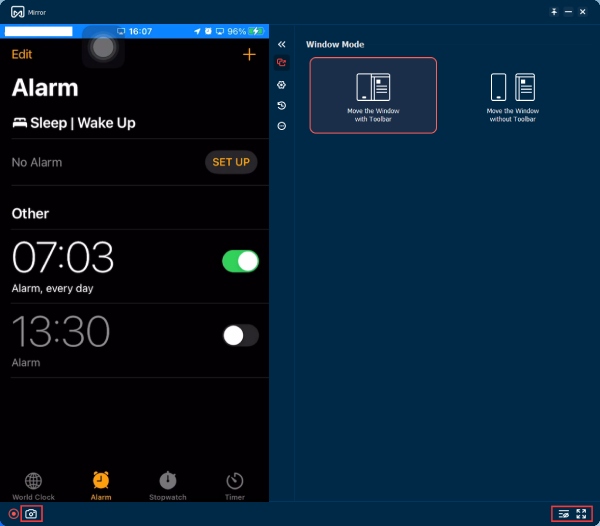

One Tool for Gaming, Meetings, Teaching, and More

Your phone screen is small. But your PC screen isn't. With AnyRec Phone Mirror, you can cast your iPhone or Android screen to your computer in seconds. No lag. No root needed.

Mirror Phone Games

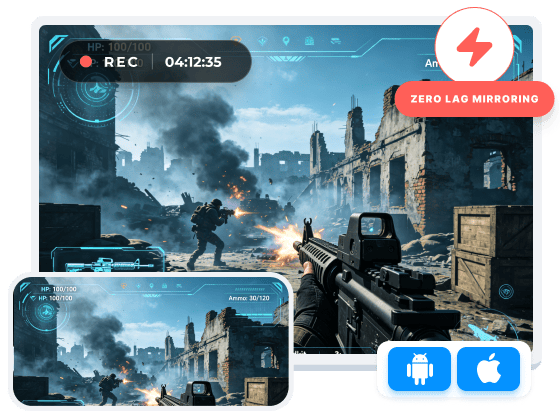
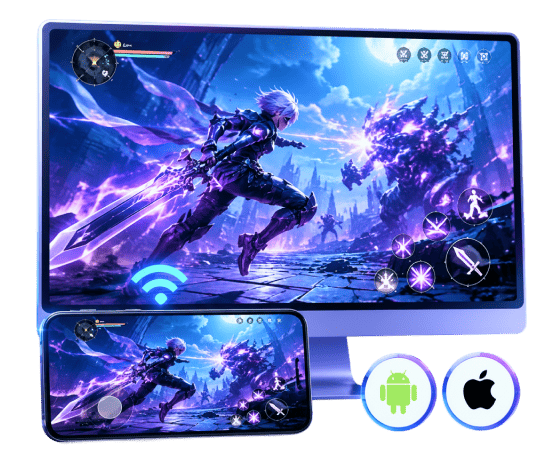
See Every Detail with Full-Screen Mobile Gaming

Missing one detail in a game can cost you the match. On a small screen, that happens a lot. You tap the wrong thing. You don't see what's coming. You lose track of your stats mid-game. To bypass those problems, you can mirror mobile games to a PC. So, you can get a big and clear display. Everything shows up exactly as it should. No lag. No blur. Just clean visuals so you can focus and actually win.

  • Spot map details easily.
  • Nothing hidden in corners.
  • Full audio comes through PC.
  • Colors look richer on PC.

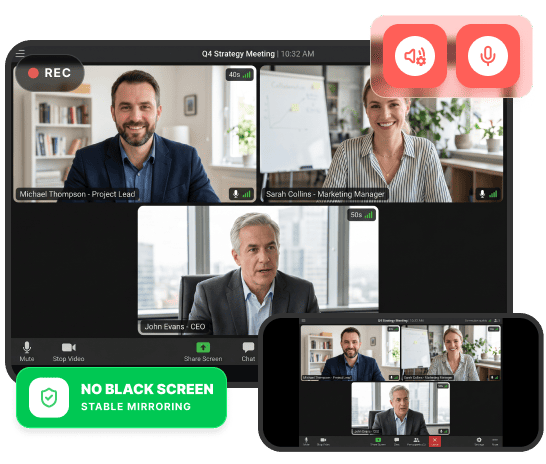
Record Your Phone Screen on PC Directly without Black Screen

It is annoying that you record something important, but only get a dark video with sound. Recording your phone from the phone itself has limits. Some apps actively block recording at the system level. But when you mirror to a PC and record from the computer, those limits disappear. You get a proper video file every time. No surprises.

  • Bypass common recording blocks.
  • Record microphone and speaker audio.
  • Save to PC, not phone storage.
  • No root or jailbreak needed.
Record Phone Screen

Mirror Your Phone to PC in 3 Simple Steps

You don't need to be good with technical skills to get this working. Most people can set up within a minute or two. Just connect your phone, choose how you want to mirror, and you're done. Here's exactly how to see a phone screen on a PC, step by step.

Mirror iOS to PC

  • 1

    Choose the mirroring mode

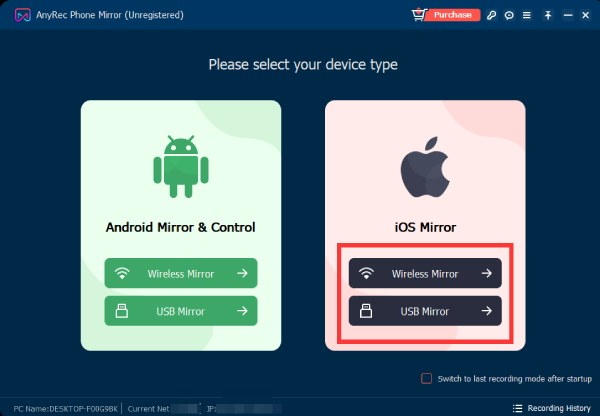
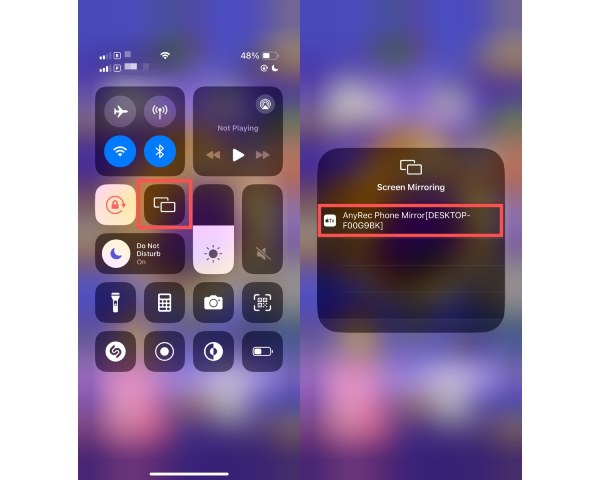
    In the iOS Mirror section, click the mirroring type as "Wireless Mirror" or "USB Mirror".

  • 2

    Cast iPhone to PC

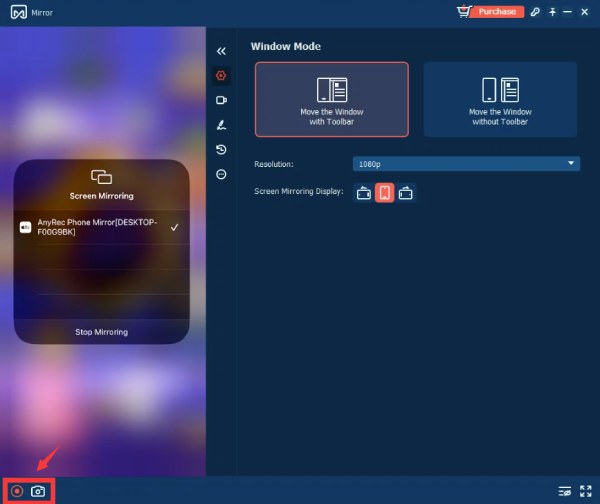
    Follow the on-screen instructions on your iPhone to confirm iPhone screen mirroring.

  • 3

    Record iPhone Screen on PC

    Click the "Record" button to start recording.

  • iOS Mirror Mirror iPhone Screen AirPlay Record iPhone Screen on PC

    Mirror Android to PC

  • 1

    Detect and cast the screen

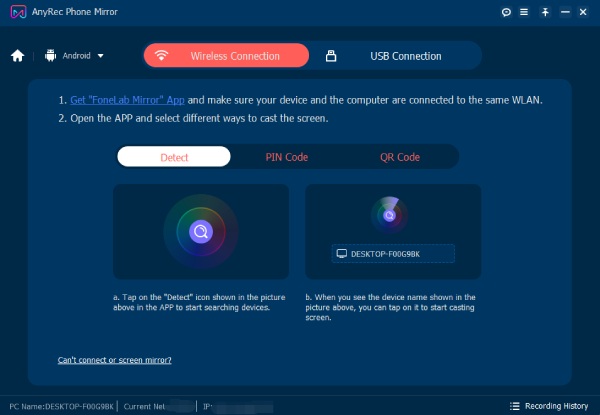
    Select the device type and choose the screen mirroring mode as wireless or USB.

  • 2

    Cast Android screen to PC

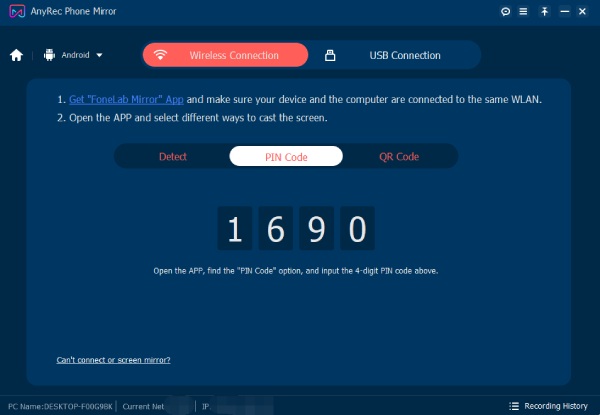
    If you choose Wireless Connection, confirm by typing the PIN code or QR code.

  • 3

    Record or take screenshots

    You can click the "Record" or "Snapshot" button near the bottom left corner if necessary.

  • Android WiFi Connection Android PIN Code Take Snapshots while Mirroring

    AnyRec Phone Mirror - Mirror It. Record It. Share It.

    Whatever you do on your phone, do it bigger. Mirror to PC and get a full view of everything.

    Reviews & Feedback from Our Customers

    Reviews & Feedbacks from Our Customers

    4.9

    Star
    • 5

      96%

    • 4

      5%

    • 3

      3%

    People tried it once and never looked back. Here's why.

    Frequently Asked Questions

    More Solutions to Mirror iPhone and Android to PC

    Read More >>

    Background Image Background Image

    AnyRec Phone Mirror

    Ready to See Your Phone on a Bigger Screen?

    Mirror, record, stream, and present mobile content from your PC with just a few clicks.

    Free DownloadFor Windows

    Secure Download

    Buy Now20 Off

    30-Day Money Back Guarantee