
Hot

AnyRec Video Converter
120× faster video conversion and editing. No waiting.
Secure Download
How to Trim/Split/Cut Video in VLC? [Delete Unwanted Clips]

Whether you want to remove unnecessary parts, shorten a recording, or trim extra from a longer clip, VLC Media Player offers basic editing features that you may overlook. While that's the case, knowing how to trim a video in VLC is not always straightforward. To help you, this guide here offers a step-by-step guide to trim part of a video with VLC on Windows and macOS. And if it feels too time-consuming for you, a reliable alternative is to share to have a quick, accurate trimming.
Guide List
How to Trim Video with VLC on Windows How to Trim Video with VLC on Mac Best Alternative to Trim VLC Video without Recording FAQs About How to Trim Video in VLCHow to Trim Video with VLC on Windows
Since VLC Media Player does not have the traditional "Trim" button like dedicated video editors, you have to record a selected portion of a video while it plays in real-time. This method saves the trimmed clip to a new video file. While it may seem indirect, unlike others, it is still great for quick trimming tasks when you don't wish to install extra software.
On Windows, VLC has a built-in Advanced Controls feature that records during playback. Once set up properly, you can split a video into parts in VLC easily. It is not a straightforward but free way to trim a video on Windows using VLC.
Step 1.Open VLC Media Player on your Windows PC, and upload the video you wish to trim from the "File" menu. Now, in the top menu, click "View", then select "Advanced Controls". A red "Record" button will show up above the playback controls.
Step 2.Move the slider to the point where you want the video to begin. After selecting, click the "Record" button, then click the "Play" button to start recording the set section.

Step 3.Once you reach the endpoint, click the "Record" button again to stop. The recorded trimmed video is saved to your "Videos" folder in MP4 format.
How to Trim Video with VLC on Mac
Different from VLC for Windows, VLC for Mac does not have a direct trimming timeline and relies on the same real-time recording method. However, its menu layout differs slightly, which can be confusing at first. Also, avoid any interruptions during recording to get the best results with this free video trimmer on Mac. Once you become familiar with it, you can cut video in VLC on your Mac.
Step 1.Launch VLC Media Player on your Mac. Load the video you want to trim from the "Menu" option above. Click "View" from the bar and select "Advanced Controls" to display the "Record" button.

Step 2.Next, drag the playback timeline to the exact time where you want the clip to begin, then click the "Record" button, and then press "Play" to start capturing.
Step 3.Later, allow the video to play until you reach the desired endpoint of the clip, then click the "Record" button again to stop. The trimmed clip is saved in the "Movies" folder.
Best Alternative to Trim VLC Video without Recording
If you find VLC video trimming methods too slow or time-consuming, use a dedicated video editor then! Instead of playing the entire video just to record a small portion to trim video in VLC, cut video quickly on a visual timeline with AnyRec Video Converter. Unlike VLC, it provides a clear trimming interface where you can visually set the start and end points of your videos. It supports 1000+ formats. You can export videos in MP4 and other VLC-compatible formats. More importantly, the tool processes your video without re-recording, guaranteeing the original quality is preserved.

Precise video trimming with high-quality, no real-time recording.
Fast processing speed with hardware acceleration support.
Supports a thousand formats, including MP4, MOV, AVI, MKV, etc.
Adjustable output settings, e.g., resolution, frame rate, format, and so on.
Secure Download
Secure Download
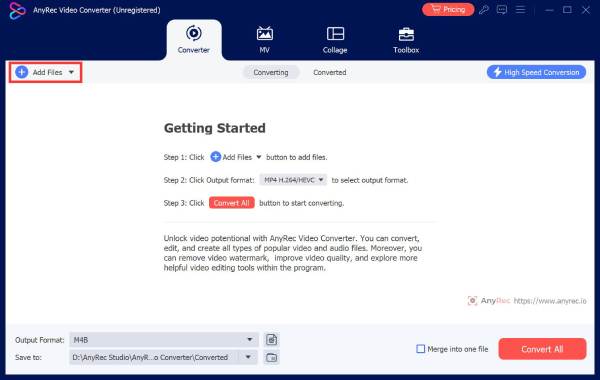
Step 1.Launch AnyRec Video Converter on your computer. Click the "Add Files" button to import your video.
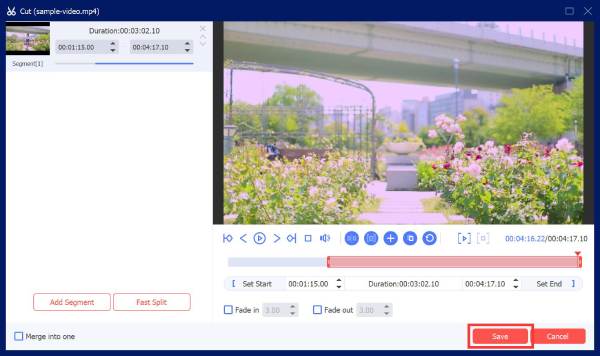
Step 2.Navigate to the "Trim" button (Scissors icon) beside the video to open the trimming window. Drag with start and end sliders on the timeline to trim video clips. Or you can enter the exact number for precise cuts. Preview the trimmed segment, then click the "Save" button.
Step 3.Going back to the main screen, you can select the format and output settings you want. Click the "Convert All" button to export the video.

FAQs About How to Trim Video in VLC
-
Why doesn't VLC have a Trim button?
VLC Media Player is designed primarily for media playback and not for full video editing. So, instead of the Trim button, the program helps you trim video by capturing video sections in real time during playback.
-
Why is there no audio after trimming a video in VLC?
Missing audio is a common issue when using VLC to trim videos, which happens due to incorrect audio codec settings or the program's failure to capture system audio.
-
Where do I find the Record button in VLC?
Since the Record button is hidden by default in VLC, it can be enabled in the Advanced Controls from the View menu. If it still does not show up, your VLC version may be outdated.
Conclusion
As you've seen here, you can use its built-in recording feature to cut and trim a video in VLC. It works by capturing the selected portion of the clip in real-time, so it is helpful for quick, basic edits when you don't want to install another tool. However, since it lacks the standard timeline, its approach can be time-consuming, especially for longer clips. AnyRec Video Converter brings better video trimming and editing experience. This video trimmer and cutter is available on both Windows and Mac, offers precise timeline trimming and delivers clean results in just a few clicks. Indeed, a smarter solution beyond VLC!
Secure Download
Secure Download
Related Article
About Our Author




