
 Take a full/custom/scrolling screenshot with annotations.
Step-by-Step Guide to Practical Samsung Screenshot Methods

It is a daily need to take screenshots on Samsung devices, as you can find yourself constantly having to save something on your mobile phone. Fortunately, Samsung provides multiple built-in solutions for taking screenshots. Yet, several methods are designed for different scenarios. Understanding these options helps users capture exactly what they need more efficiently, without installing third-party apps.
Guide List
How to Take Screenshots on Samsung by Pressing Buttons How to Use Palm Swipe Gesture and Take Screenshots on Samsung A Voice Command for Taking Screenshots on Samsung via Bixby For Specific Region - How to Take Screenshots Using the Smart Select Tool For Scrolling Screenshot - Scroll Capture on Samsung Phones How to Take Screenshots on Samsung with Advanced FeaturesHow to Take Screenshots on Samsung by Pressing Buttons
Using physical buttons is the most direct and widely supported way to take screenshots on Samsung phones. This is the simplest and most direct way among all the options to take a screenshot of the content you are viewing on your Samsung phone. If there are no additional requirements, you will find that this is the most convenient way. Once mastered, screenshots can be captured instantly with minimal effort.
Step 1.On your Samsung phone, navigate to the page where you want to take a screenshot.
Step 2.Press the "Power" button and the "Volume Down" button together to take a screenshot on your Samsung device.
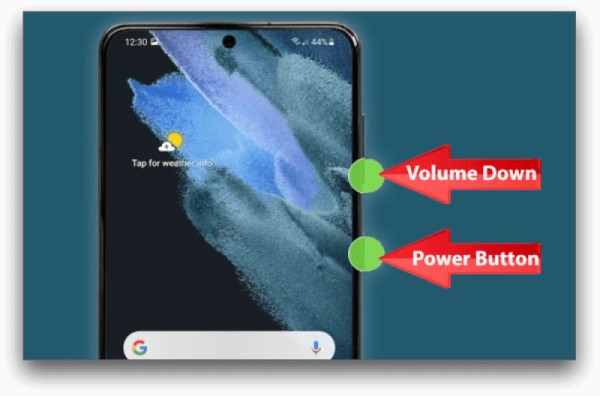
Step 3.The screenshot will be saved in the Gallery. You can check them by entering your Gallery.
How to Use Palm Swipe Gesture and Take Screenshots on Samsung
If you know how to set up gesture actions on your Samsung phone, you will find that screenshots can even be taken without your hands touching the phone. With a simple swipe across the screen, screenshots taken on your Samsung device will be saved quickly without pressing any buttons. And the screenshot will be stored in the default folder. This method is beneficial when hardware buttons are difficult to reach or unresponsive.
Step 1.Open Settings, tap the "Advanced Features" button, and then the "Motion and gestures" button. Tap the "Palm swipe to capture" button to enable the function.
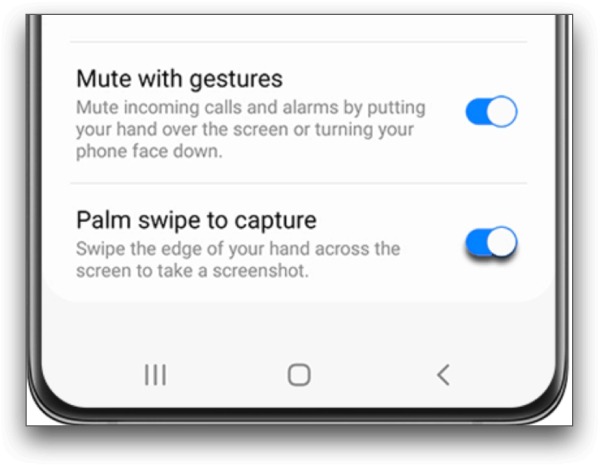
Step 2.Now, navigate to where you want to take a screenshot on your Samsung phone. Use your hand to swipe across the whole screen.
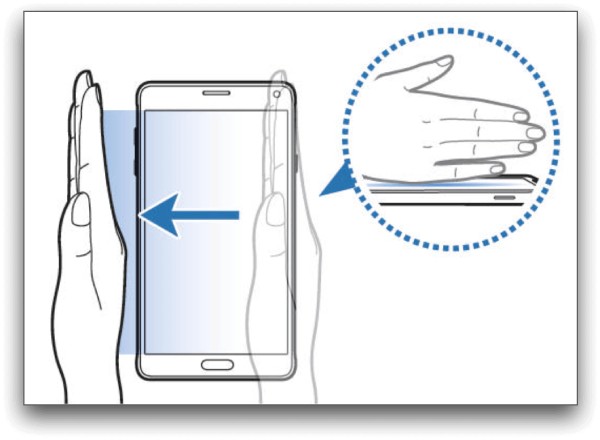
Step 3.If you see the screen flash, it means that the screenshot has been taken and saved in your Gallery.
A Voice Command for Taking Screenshots on Samsung via Bixby
Samsung’s Bixby voice assistant allows screenshots to be taken completely hands-free. By using simple voice commands, users can capture the screen on a Samsung device while multitasking or when touching the device is inconvenient. And you can also use a voice command to record the screen on your Samsung via Bixby. This method highlights Samsung’s innovative integration of AI features into everyday phone functions.
Step 1.When you open the page that you want to take a screen, simply press the side key or speak "Hi Bixby".
Step 2.The Bixby will be activated. Now, tell Bixby what your command is, like "Take a screenshot" or something alike.
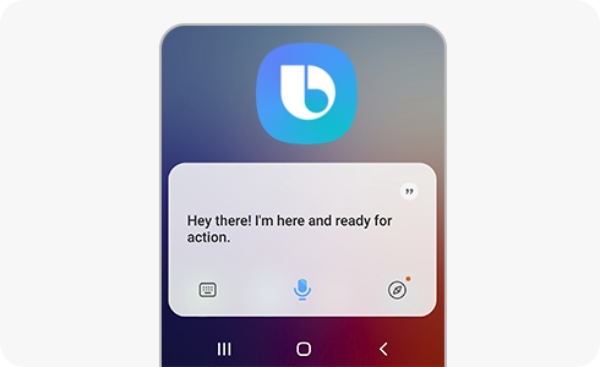
Step 3.Then, the screenshot will be taken automatically on your Samsung device. Once finished, the screenshot will be saved in the Gallery.
For Specific Region - How to Take Screenshots Using the Smart Select Tool
When only part of the screen is needed, Samsung’s Smart Select tool provides precise control over screenshot areas. This feature is ideal for capturing specific content such as images, text blocks, or sections of videos without cropping afterward. It is handy for productivity and content sharing. But firstly, you need to turn on the function manually and then start the process of taking screenshots on your Samsung device:
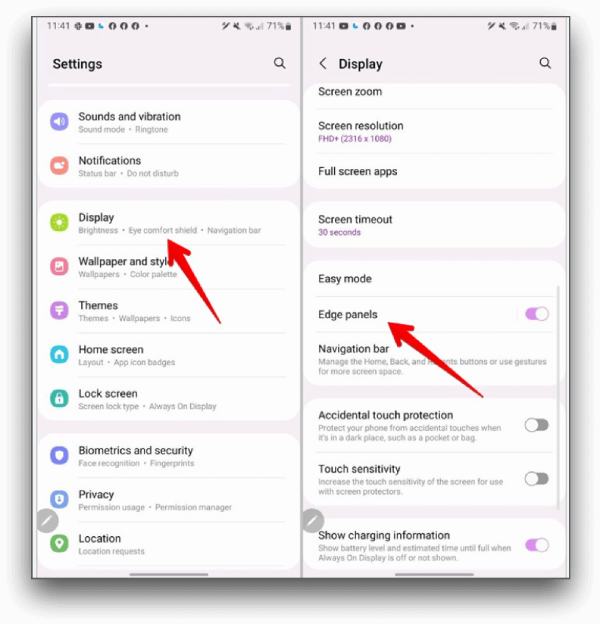
Step 1.Open Settings, scroll down to find and tap the "Display" button. In the new page, tap the "Edge panels" button. Then, tap the "Panels" button.
Step 2.Navigate to the page where you want to capture a screenshot on your Samsung device. Swipe down from the top to open "Quick Settings".
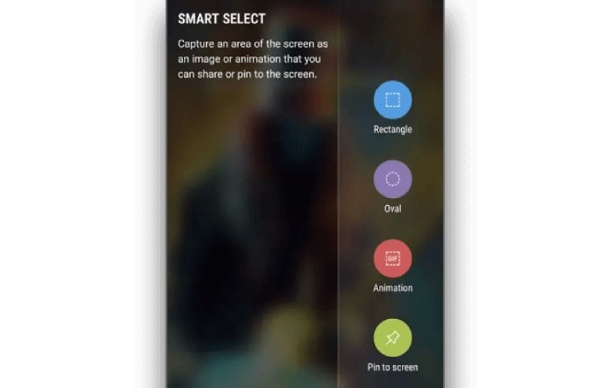
Step 3.Tap the "Smart Select" button and select the area for taking a screenshot on your Samsung device.
For Scrolling Screenshot - Scroll Capture on Samsung Phones
Long webpages, chat histories, and app content often extend beyond a single screen. Samsung’s Scroll Capture feature solves this problem by automatically capturing extended content in one continuous screenshot. In fact, you can find a similar function when taking a screenshot on Android 11. This method ensures no information is missed when saving lengthy on-screen materials.
Step 1.Open Settings and scroll down to tap the "Advanced features" button. Then, tap the "Screenshots and screen recorder" button.
Step 2.Under the "Show toolbar after capturing" tab, tap to toggle the button to turn on the function.
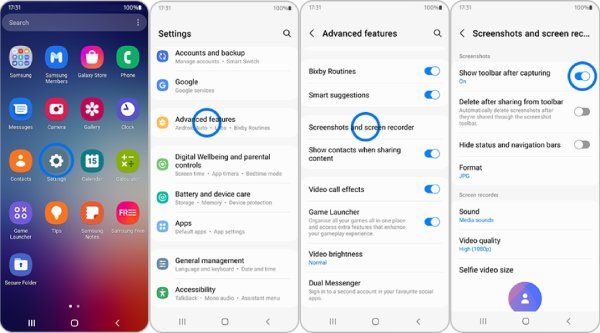
Step 3.Navigate to the page where you want to take a screenshot on your Samsung device. Press the "Power" button and the "Volume Down" button simultaneously.
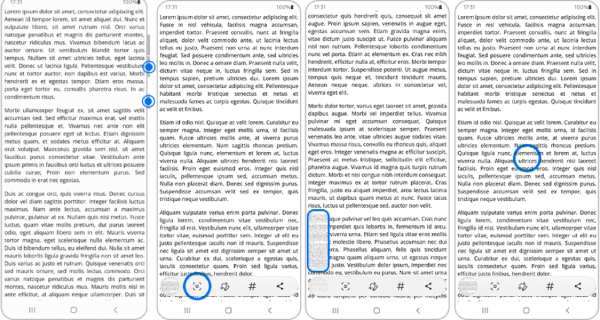
Step 4.Tap the "Scroll Capture" button, and the page will scroll down automatically. To finish the capture, press the page to end the process.
How to Take Screenshots on Samsung with Advanced Features
While Samsung phones include several built-in screenshot options, they can still feel limited when more control or higher flexibility is required. This is where AnyRec Screen Recorder becomes a powerful alternative for advanced screenshot needs. Beyond simple screen capture on Samsung devices, AnyRec Screen Recorder supports other features like screen recording, annotation, and instant editing, making it suitable for advanced requirements. For Samsung users who want more than simple screen captures, especially those who value precision, quality, and post-processing flexibility, AnyRec Screen Recorder offers a more comprehensive and professional screenshot solution.

AnyRec Screen Recorder Customize the way you take a screenshot on Samsung as per your request.
Take a screenshot of the original quality on the screen of your Samsung device.
Support exporting screenshots from Samsung devices in multiple popular image formats.
Support advanced editing features on the Samsung screenshot before saving it.
Secure Download
Secure Download
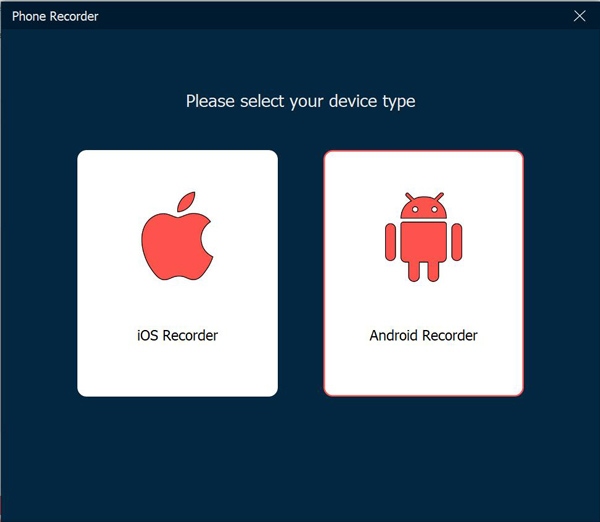
Step 1.Launch AnyRec Screen Recorder and click the "Phone Recorder" button to run the tool. Click the "Android Recorder" button.
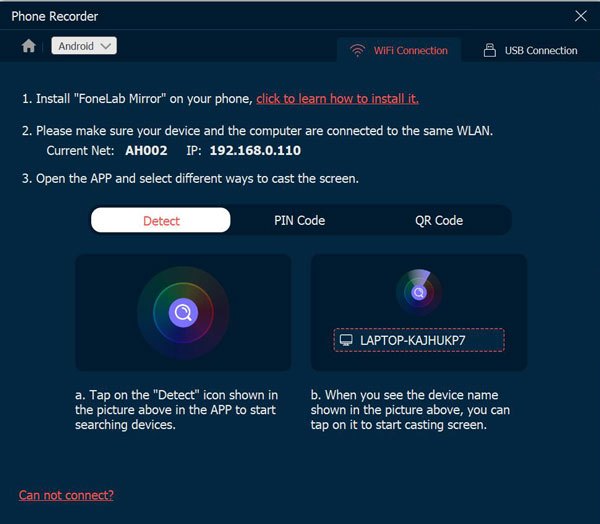
Step 2.Click the "WiFi Connection" button to connect your Samsung device to the computer. You can follow the detailed instructions to make it simple.
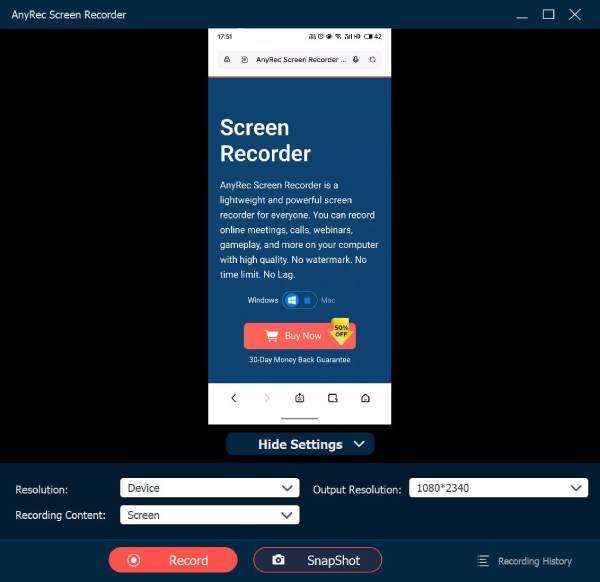
Step 3.Once connected, you should enable the screen mirroring on your phone. Then, click the "Snapshot" button to take screenshots on your Samsung device.
Conclusion
Taking screenshots on Samsung phones is no longer limited to basic button shortcuts. You will find that many methods can meet various usage scenarios and screenshot requirements. Once you master these methods, your daily screenshot process will become incredibly convenient. Of course, if what you need goes beyond just screenshots, then AnyRec Screen Recorder can meet your more advanced requirements.
Secure Download
Secure Download
Related Article
About Our Author




