
How to Make Slideshows on Facebook? (Step-by-Step Plus Tips)

You might have a story to tell on Facebook, and a single image doesn't do any justice. From a collection of product shots to memories from a weekend holiday, you can make a slideshow on Facebook! By turning your images into a moving story, you can boost your social media engagement. How to create a slideshow on Facebook? Beyond how-to, today's post will explore the advantages of this format and provide tips to ensure your final product looks polished. Don't miss everything below!
Guide List
How to Create a Slideshow Using Facebook's Features How to Make a Slideshow for Facebook Online Advantages of Creating Slideshows on Facebook Bonus Tips: Editing Materials with Practical Editing ToolsHow to Create a Slideshow Using Facebook's Features
Facebook has been updated to prioritize short-form video, making Reels the most effective way to make a Facebook slideshow directly. Using this built-in tool, you can sync your favorite photos with trending music without extra software. It is a seamless approach to share life updates or highlights while ensuring your content fits perfectly into the mobile newsfeed.
Here's the quick process of how to make a slideshow and post it on Facebook via its Reels feature:
Step 1.Open the Facebook mobile app, tap the "Reels" tab or the "Add" button at the top, then select "Reel".
Step 2.Start selecting up to 20 photos you wish to include by tapping the "Camera" icon, then hitting the "Select Multiple" button. Tap "Next" once done, and the app will automatically suggest audio; click the "Music" icon if you want a specific track. (See steps to add music to Facebook Story videos if necessary.)
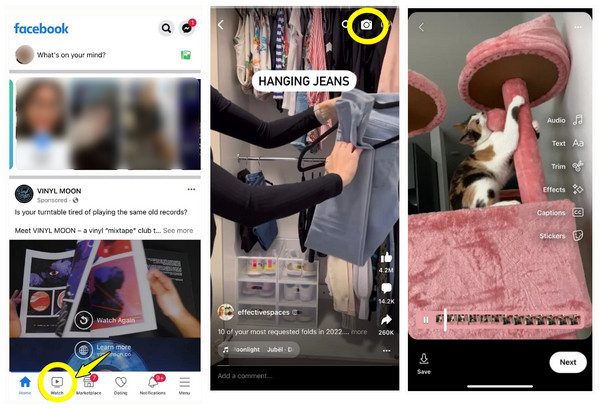
Step 3.Afterward, refine your slideshows using the "Edit" menu to adjust the length of each slide or even add text overlays. Tap on "Next" to write your caption and tap the "Share Now" button.
How to Make a Slideshow for Facebook Online
While the mobile app works perfectly for making Facebook slideshows, moving your workflow to a desktop offers more creative freedom. With AnyRec Video Converter, you can enjoy its MV feature. It is specifically designed to craft high-quality slideshows with cinematic transitions. You can drag and drop your images and use a variety of pre-made themes, including Happy, Romantic, and Professional layouts. Unlike other tools, this software gives you granular control over the resolution, frame rate, and more to ensure your video looks crisp even on larger screens.
MV Maker has stylized themes with a bunch of transitions and filters.
Allows you to rotate, crop, add text, and more to your slideshow.
Export your slideshow directly to MP4, MOV, or other Facebook-compatible formats.
Supports outputting your slideshow in 4K or 1080p resolution.
Secure Download
Secure Download
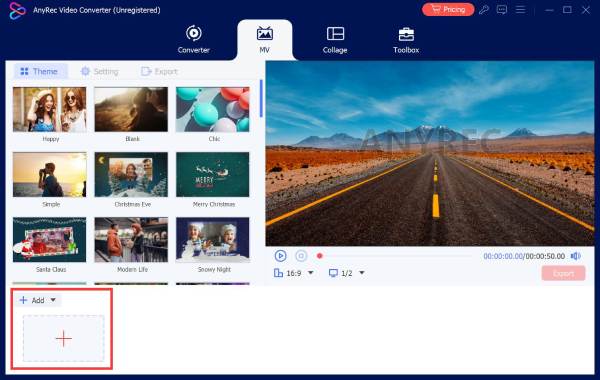
Step 1.Open AnyRec Video Converter on your desktop and click on the "MV" tab in the menu bar. Click the "Add" button to upload the images you wish to use for your slideshow.
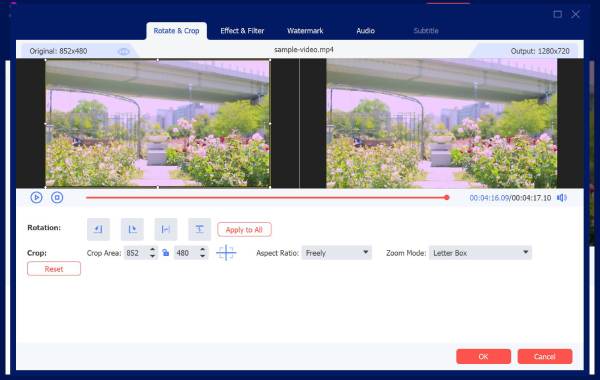
Step 2.Now, hover over any photo in the timeline and click the "Edit" button to apply effects, rotate, or crop the image to fit Facebook requirements. Click the "OK" button to apply each edit.
Step 3.Go back to the "Theme" section, browse the options, choose one, and see a real-time preview of how it styles your photos in your Facebook slideshow. You can then go to "Settings" and add background music if you wish.
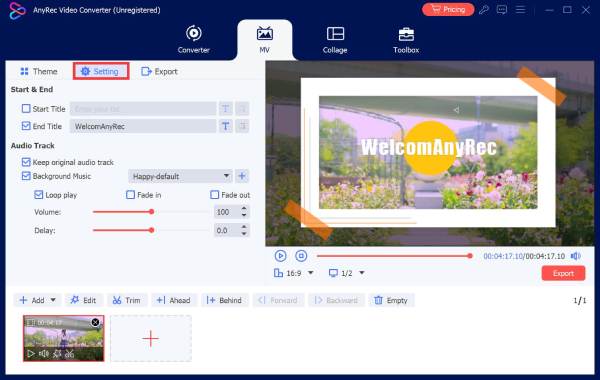
You can also check the Loop Play or Fade In/Out boxes for a smoother audio experience.
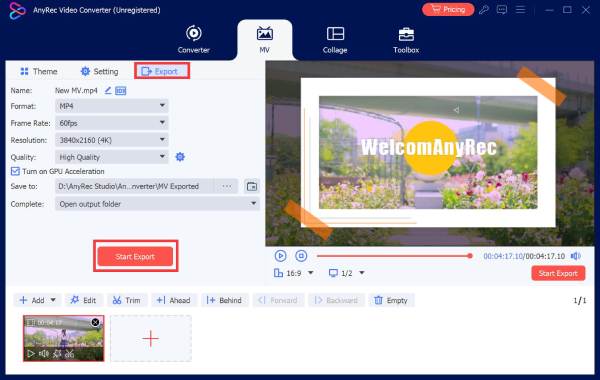
Step 4.Next, click the "Export" tab, select "MP4" as your format, then set the resolution and other settings. Click the "Start Export" button to save the slideshow for Facebook.
Secure Download
Secure Download
Advantages of Creating Slideshows on Facebook
As you've seen, making a slideshow on Facebook is a powerful visual hook that stops the audience from scrolling. This approach provides static imagery and videos, allowing you to present multiple layers of information without overwhelming viewers. Using this format effectively, you can transform your Facebook presence into one that opens meaningful interaction.
Listed below are more advantages you can get if you create a slideshow on Facebook:
- • Boosted Engagement. Moving images are usually more engaging than static ones, resulting in higher likes, comments, and share counts. You can add GIFs to Facebook to get more likes.
- • Faster Loading Times. Facebook slideshows use less data than traditional devices, ensuring they play smoothly.
- • Increased Reach. Since the platform's algorithm tends to favor video-based content, a slideshow is more likely to appear at the top of your followers' newsfeeds.
- • Narrative Continuity. A slideshow lets you showcase a before-and-after, a step-by-step guide, or a chronological event in a clear sequence.
- • Professional Polish. With no extra effort, a Facebook slideshow gives your personal page a more sophisticated, curated aesthetic than a standard photo album.
Bonus Tips: Editing Materials with Practical Editing Tools
After following the steps to make a slideshow on Facebook, ensure your content is well prepared. Taking the time to refine your images and audio ensures the final product feels high-end rather than just a collection of snapshots.
Here are some of the practical editing tips you can take to enhance the visual appeal of your Facebook slideshow:
- • Color Consistency. Use a consistent filter or adjust the white balance across all photos in the slideshow so it will look like a unified set.
- • Same Aspect Ratios. Before importing all photos, ensure they are cropped to the same ratio to avoid black bars and awkward boxes during transitions.
- • Clear Text Overlays. If you'll add captions, make sure the font is bold and high-contrast so it remains readable even on small screens.
- • Strategic Audio Selection. Select a background music that matches the image transitions.
- • High-Quality Source Files. Always kick things off with the highest-resolution images; compressing a low-quality image will only result in a blurry product.
- • Trim Each Slide. Keep each slide visible for 2 to 4 seconds; any longer, and you might lose the viewer's interest, while shortening won't let them process the image.
Conclusion
A well-crafted Facebook slideshow will help your latest travels or product promotion trends go fast! Using the methods and tips discussed, from quick editing with Facebook tools to a detailed how-to for making a Facebook slideshow via a desktop tool, you can quickly increase your reach and impact. To get the most polished and high-resolution results for all your projects, make sure to give AnyRec Video Converter a try. Its intuitive features and cinematic themes make it the go-to choice for transforming your favorite pictures into Facebook-ready videos.
Secure Download
Secure Download
About Our Author




