
Hot

AnyRec Screen Recorder
Capture every moment. Record like a pro.
Secure Download
All Types of Game Screen Recorders for All Players

Whether you are a casual player or a content creator, a game screen recorder can always help you capture the best moments of your gameplay. You can share them with your friends or use them as an example for videos. During the process, a suitable game screen recorder ensures smooth performance, clear visuals, and minimal lag. This guide introduces reliable tools and methods to record gameplay on Windows and Mac, helping players choose the most suitable recorder for their gaming setup while maintaining high-quality output and uninterrupted play.
Guide List
Part 1: How to Record Gameplay on Screen with Built-in Xbox Part 2: The Most Stable Game Screen Recorder with No Lag Part 3: Popular Choices for Game Screen RecordersPart 1: How to Record Gameplay on Screen with Built-in Xbox
Many people choose to play games on their Windows computers. This is not only because Windows can meet the needs of both office work and entertainment at the same time, but also because many game platforms offer support for Windows. Especially for those who are familiar with Xbox, they surely know that apart from the console, Xbox has also been providing its services on Windows platforms.
When playing video games on your Windows computer, you can use the built-in Xbox Game Bar to record your gameplay, including Xbox games and games from other platforms, too. It supports capturing both video and in-game audio, and recordings are saved directly to the device for easy playback or sharing.
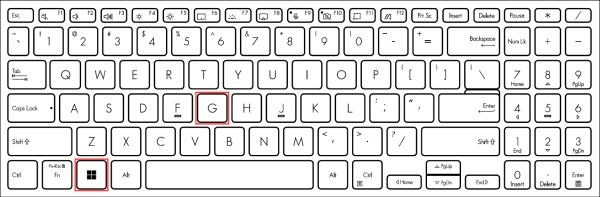
Step 1.During gameplay, press the "Windows" and "G" buttons together to summon the Xbox Game Bar.
Step 2.Click the "Record" button to make Xbox Game Bar work as a game screen recorder.
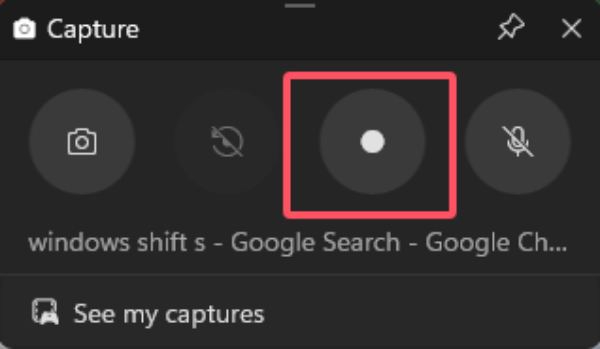
Step 3.When you finish the recording process, click the "Stop" button. The recording will be saved automatically.

Part 2: The Most Stable Game Screen Recorder with No Lag
While Xbox Game Bar works well as a game screen recorder, it lacks advanced features to enhance your recording. All you can get is a clip of gameplay. Therefore, many gamers start to seek professional-quality recording tools that provide customized settings. AnyRec Screen Recorder, a robust solution without any lag, stands out as the best option.

Optimized to maintain smooth gameplay, this recorder is capable of preventing frame drops or interruptions. It supports multiple video formats, giving you flexibility for editing or sharing across different platforms. No matter what games you are playing, AnyRec Screen Recorder guarantees stability and professional-quality results, providing players with reliable recordings that can be edited, shared, or archived for future use.

The recording process will not affect the normal operation of your game.
A dedicated recording mode has been set up for the game.
Support editing the recorded gameplay to add better effects.
Select the area that contains game content for the recording process.
Secure Download
Secure Download
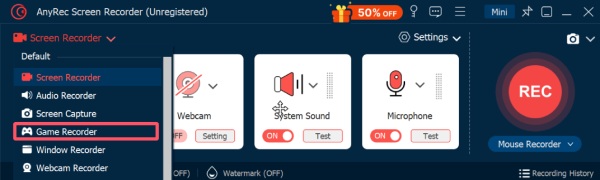
Step 1.Launch AnyRec Screen Recorder on your device and click the "Game Recorder" button under the "Screen Recorder" tab.
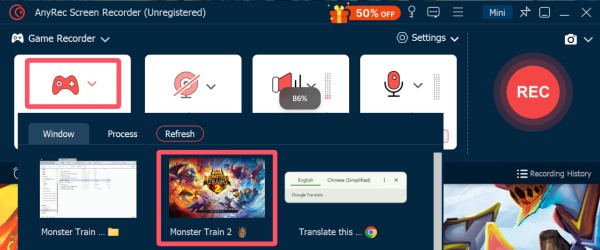
Step 2.After starting your gameplay, click the "Select the game" button and select the gameplay you want to record.
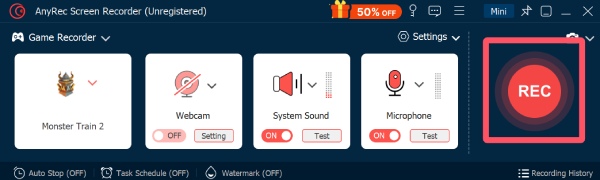
Step 3.Now, you can click the "Record" button to run the game screen recorder within AnyRec Screen Recorder.
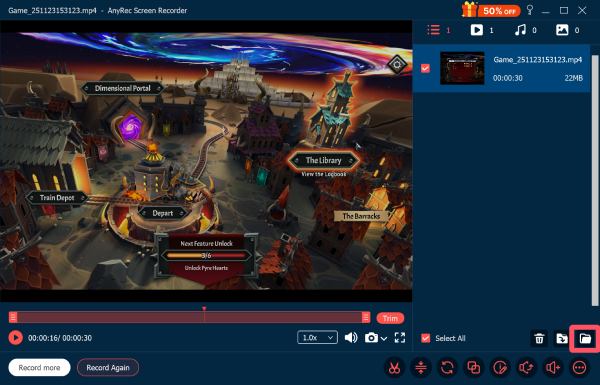
Step 4.When finished, click the "Stop" button. You can edit the recorded gameplay before saving it. To find the recording, click the "Open Folder" button.
Part 3: Popular Choices for Game Screen Recorders
If you happen to have the intention to start professional content creation, you can try some game screen recorders that others have long trusted. OBS Studio and Bandicam are two of the most popular choices, providing flexible settings, high-quality output, and specialized functions that cater to both casual players and professional streamers.
OBS Studio
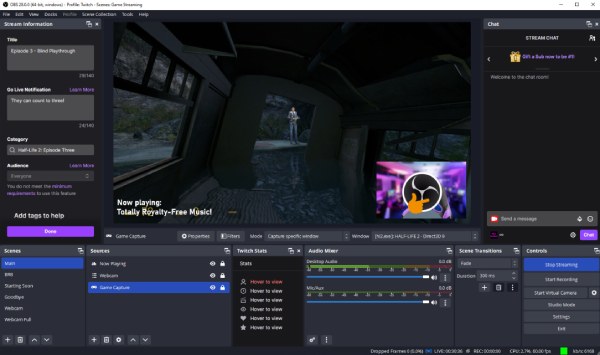
When it comes to game screen recorders, many people are familiar with the name of OBS Studio. As a free, open-source screen recording tool, it is one of the most selected tools for those who are just starting to create game content. It allows real-time video and audio capturing, scene composition, and streaming to multiple platforms. After a short time of using it, you can deal with more customized options based on a wide range of plugins.
- Pros
- Provide recording in 4K and 60FPS; support streaming and recording simultaneously.
- Cons
- Complex interface for beginners; require system resources for smooth operation.
Bandicam
Suppose you have ever watched game videos before, especially those from a relatively early period. In that case, you will notice that there are often Bandicam watermarks at the top of many of the videos. Bandicam is a professional game screen recorder that has been in use for a long time. Its most significant advantage is that it can maintain a relatively high video quality while compressing the video size to the greatest extent possible.
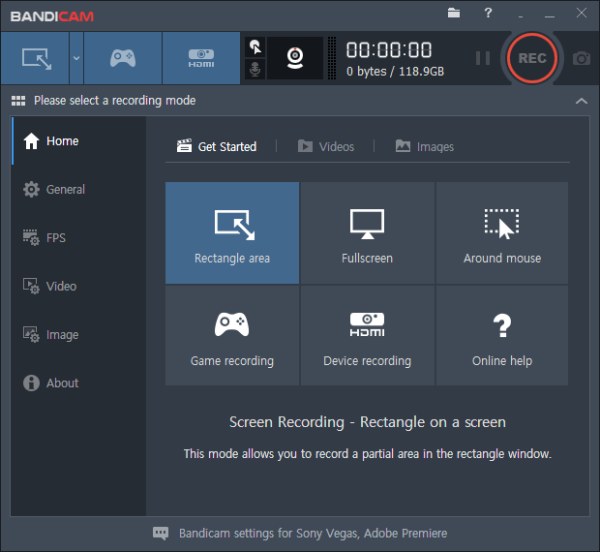
- Pros
- Work well as a no lag screen recorder; efficient compression for smaller files.
- Cons
- Paid license required for full features; watermark appears in free version.
Conclusion
For game screen recorders, the two most important aspects are not disrupting the game process and achieving high-quality, smooth recording. The several tools provided in this post can all perform these two tasks very well. Meanwhile, if you prefer more extensive editing options, you can also find the corresponding tools. Choosing AnyRec Screen Recorder can help you create the most professional game videos with the least effort.
Secure Download
Secure Download
Related Article
About Our Author




