
Hot

AnyRec Video Converter
Add and delete subtitles from any video.
Secure Download
How to Extract Subtitles from Video - 4 Quick & Easy Ways

While subtitles serve as a bridge between different languages, you may want to copy the texts, which can be highly essential for those who have hearing impairments. Thus, extracting the subtitles from videos is a good and easy way. It also makes content more convenient for note purposes in class, work, or just the desire to watch a clean video. In this post, you will have four programs that’ll present you with detailed steps to extract subtitles from a video. Start reading the detailed steps now.
Guide List
Know Different Types of Subtitles: Softcoded and Hardcoded 3 Easy Ways to Extract Softcoded Subtitles from Videos Can You Extract Hardcoded Subtitles from Videos? FAQs about How to Remove Subtitles from VideosKnow Different Types of Subtitles: Softcoded and Hardcoded
Before diving deeper into the ways to extract subtitles from video, you should know the basics about subtitles. Knowing the basics helps you quickly determine the best caption extractor that will assist in extracting subtitles from videos. Subtitles come in two different types: Softcoded and Hardcoded.
Softcoded Subtitles are known as external subtitles, as they are individual files that accompany a video but aren’t perpetually implanted in a video. This type of subtitle can be in SRT, VTT, or other formats. Furthermore, it provides lots of flexibility when watching videos since you can turn the subtitles on or off.
Hardcoded Subtitles, in contrast to softcoded, are permanently embedded in your video. Simply put, the captions are always viewable during video playback and cannot be disabled or changed. Moreover, as you share videos with hardcoded subtitles, you won’t be required to share additional subtitle files. It is also available to all media players and platforms.
It’s finally time to check out how to extract subtitles from video in the subsequent part.
3 Easy Ways to Extract Softcoded Subtitles from Videos
As mentioned, many ways exist to extract subtitles from video, particularly for softcoded subtitles. Without any delay, you can check them out now!
1. VLC
While being a free media player and excellent for playing various video and audio file formats, VLC Media Player can also help extract subtitles from MP4, MKV, AVI, and more. You can also rely on this program for converting videos and doing basic edits. The process is simple, allowing you to get subtitle-free videos as quickly as ABC. Check out the complete steps on how to extract subtitles from video with VLC:
Step 1.After launching VLC, go to "Tools" and select "VLC preferences", then click "All" under "Show settings" below. After that, click the "Video" section from the left side tab.
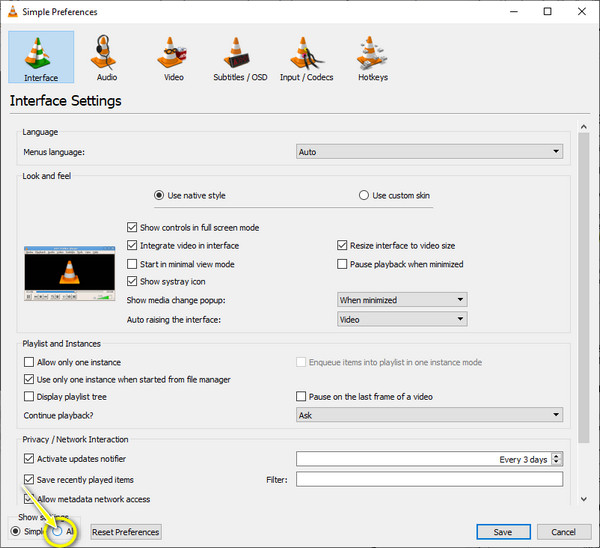
Step 2.From the drop-down list of "Video", click "Subtitles/OSD", and then ensure that the "Autodetect subtitle files" is unchecked.
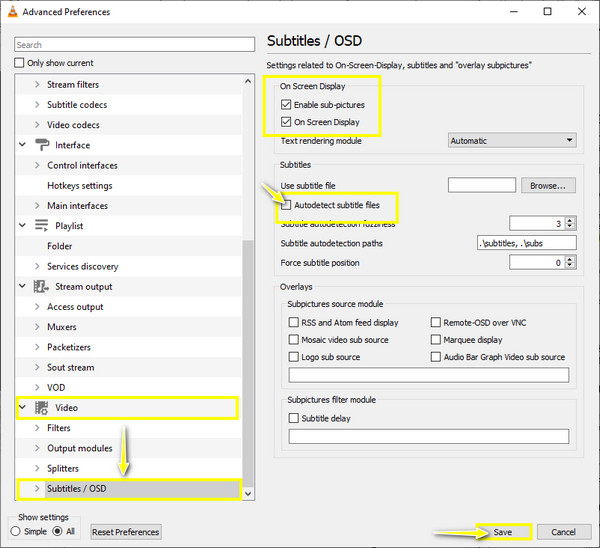
Step 3.Still on the window, check the "Enable sub-pictures" as well as the "On Screen Display" options. Click "Save" to apply transformations.
Step 4.To extract subtitles from MP4, right-click on your video, and select "Video" to "Subtitle Track", and "Disable". The subtitles have now been removed from the MP4 video temporarily!
2. SubtitleEdit
Subtitle Edit is your ideal option to extract subtitles from video entirely free. It is an open-source caption extractor for Windows and Linux operating systems and is workable in over 20 languages. More so, this software can help you synchronize subtitles with your videos using its waveform controls alongside visual sync. See below the step-by-step process on how to extract subtitles from video:
Step 1.Once you’ve got the latest version of "SubtitleEdit" at GitHub, launch it. Import your video into the program by clicking "File", and then "Open".
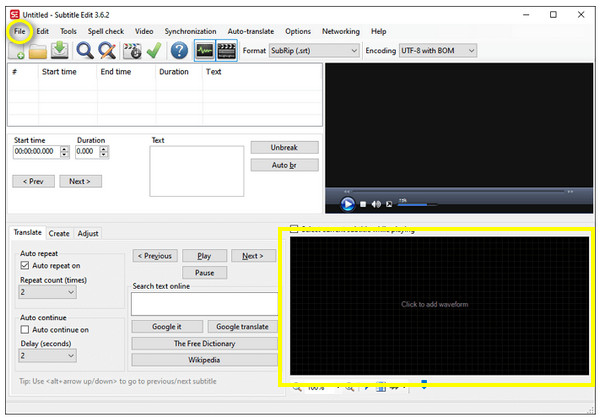
Step 2.Drag and drop your video with captions to the subtitle editing area to scan all captions embedded in your video. Next, choose the subtitle track you would like to extract.
Step 3.Finally, click "File" and "Save as" to extract and export the caption file from your video. You can name your file and choose a format alongside the destination by clicking "Save". Then, you can add the extracted subtitles to other videos.
3. FFmpeg
If you want to extract subtitles from MP4 as a separate file, not just remove it temporarily, then FFmpeg is your way to go! Although it is not a friendly user program for beginners, particularly those who aren’t technically knowledgeable, you can still give this method a try.
This command "ffmpeg -i input_file out.srt" will help you grab the default caption and export it in SRT format. However, if numerous subtitle tracks are inside your video, figure out the specific one you wish to extract. The output will be viewed like this:
Stream #0:2 (eng): Subtitle: subrip (default)
Metadata:
Title: English-SRT
Stream #0:3 (ge): Subtitle: hdmv_pgs_subtitle
Metadata:
Title: German-PGS
After figuring out what subtitles will be extracted from videos, type the command ffmpeg -i input_file 0:2 put.srt. It will then be saved as a single subtitle track file.
Can You Extract Hardcoded Subtitles from Videos?
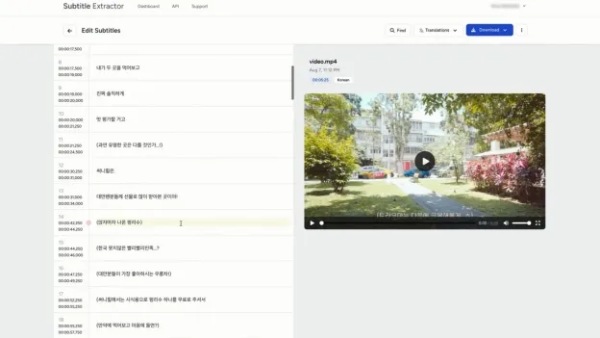
On the other hand, extracting hardcoded subtitles might be challenging compared to softcoded subtitles. Although it is possible to extract subtitles from video with hardcoded ones, the entire process is troublesome and time-consuming. To extract hardcoded subtitles, you can save the images of the video frame by frame and use the OCR algorithm to grab the texts.
Thanks to VideoSubFinder, the subtitles can be auto detected and extracted from the video. After you import the video file, use the black slider that appears as the video frame to capture only the caption area. You will be directed to the OCR tab once the process is finished, and it will give you clear image sequences with captions. Furthermore, you will be needing the help of any text editor once you convert it to TXT.
Step 1.Log in to VideoSubFinder, then upload your file using a simple drag-and-drop. Select the subtitle language, or let the system detect it automatically.
Step 2.You can also choose to use OCR technology to recognize the subtitles, or use the audio in the file to convert it into accurate subtitles.
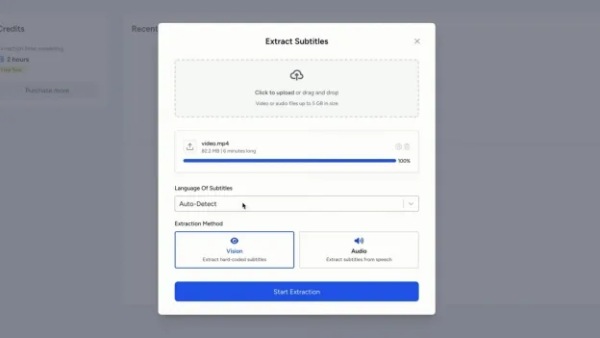
Step 3.Click "Start Extraction". The hard-coded subtitles will be extracted, and you can view and download them as a subtitle file.
| Tool | Extraction Speed | Subtitle Formats | Output Formats | OCR Support | Batch Processing | GUI | Accuracy |
| VLC Media Player | Fast (~1× real-time) | SRT, ASS, SSA, embedded subs | SRT | × | × | √ | Medium |
| Subtitle Edit | Medium (slower with OCR) | 100+ formats | 20+ (SRT, ASS, TXT) | √ | √ | √ | High (editable) |
| FFmpeg | Very fast (5×–20× real-time) | Almost all containers | SRT, ASS, SUB, etc. | × | √ | × | High (non-OCR) |
Bonus Tips to Remove Hard/Softcoded Subtitles from Videos Permanently
Meanwhile, if you only want to remove the subtitles from videos by extracting, here is an easy way to remove them permanently. Instead of learning how to extract subtitles from video, use AnyRec Video Converter to quickly eliminate text from your videos, like MP4, MOV, AVI, MKV, GIF, etc. With its removal frame, you can accomplish the job in no time and enjoy watching your videos caption-free!

Choose the area with the desired size to remove the captions freely.
Can eliminate texts in no time without compromising the video quality.
Adjustable output settings, like resolution, frame rate, quality, and more.
Offer no steep learning curve throughout the removing subtitles process.
Secure Download
Secure Download
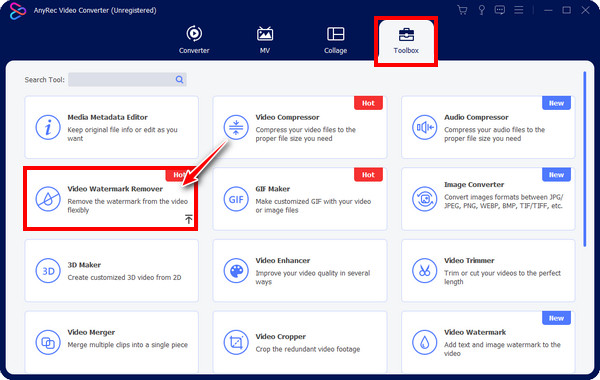
Step 1.Head to the "Toolbox" tab upon opening AnyRec Video Converter. Locate the "Video Watermark Remover" among other toolkits inside.
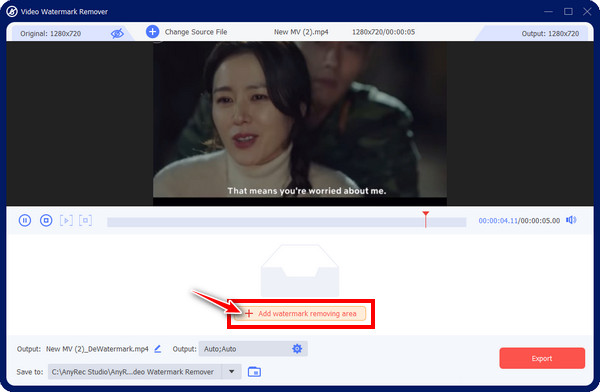
Step 2.Import your MP4 file into the program by clicking the "Add" button. Then, you’ll be navigated to the editing window. To start the removal process, click "Add watermark removing area" to access the removal frame.
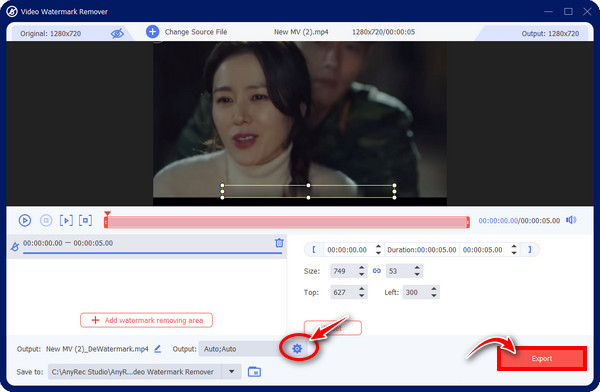
Step 3.Afterward, drag the "blurry frame" in the captions area; you can adjust the size by dragging its sides for better coverage. In this way, you can extract the subtitles from videos permanently.
FAQs about How to Remove Subtitles from Videos
-
How to use VLC Media Player to save a subtitle track as a separate file?
VLC itself cannot directly export embedded subtitles as a standalone file. You can use it to identify and select the subtitle track, but to actually extract it, you’ll need tools like FFmpeg or Subtitle Edit.
-
How to turn burned-in captions into editable text?
Burned-in subtitles are part of the video image, so they must be converted using OCR. Tools like Subtitle Edit (with Tesseract OCR) or AI-based services can scan each frame and convert the text into editable formats like SRT.
-
How to extract subtitles on Mac for free?
On macOS, you can use FFmpeg via Terminal to extract soft subtitles quickly and for free. For a GUI option, Subtitle Edit can also extract and convert subtitles. Both options are free, with FFmpeg being faster and Subtitle Edit easier for beginners.
-
What mobile apps help me remove hardcoded subtitles from video?
For mobile devices, you need video editing applications like Inshot, CapCut, KineMaster, and others to remove subtitles from videos. However, cropping or blurring out captions is the only way to remove hardcoded subtitles.
Conclusion
In summary, this article introduces four methods to extract subtitles from videos, including software-based and hardware-based subtitle removal. While all methods are effective, not all users possess the necessary technical knowledge. Using the watermark removal feature in AnyRec Video Converter allows you to safely and quickly remove subtitles permanently without compromising video quality. Download and try it now!
Secure Download
Secure Download
About Our Author




