Hot

AnyRec Blu-ray Player
Play Blu-ray & DVD on PC and Mac. Hear every detail.
Secure Download
Does Xbox Play Blu-ray Collections - A Comprehensive Guide

Does Xbox play Blu-ray discs? Many console gamers wonder if their devices can be used for anything other than playing games, such as watching their movie collections. After all, you can insert a Blu-ray disc into an Xbox. The question is, can the Xbox read and play Blu-ray discs? This post provides a detailed answer. No matter which Xbox model you have, you can find the answer here. Read on to find out if you can use a device like the Xbox One as a Blu-ray player.
Guide List
Does Xbox Play Blu-ray Discs: Detailed Answers Disc Region Code for Xbox Blu-ray Playback How to Play Blu-ray on Supported Xbox Models How to Change the Region Code of Xbox for Playing Blu-ray How to Play Blu-ray Discs without Xbox Region RestrictionsDoes Xbox Play Blu-ray Discs: Detailed Answers
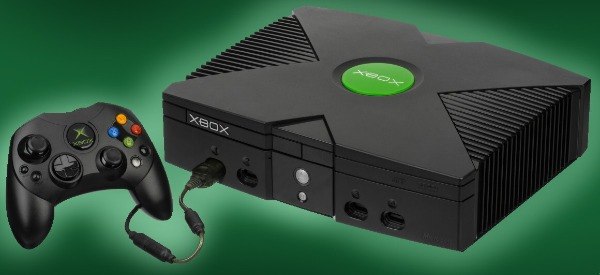
Can the Xbox play Blu-ray discs? It depends. Different Xbox models offer different levels of support for playing Blu-ray discs. Simply put, currently only the Xbox One S and Xbox One X support playback of all discs, including DVDs, Blu-rays, and 4K UHD discs. Other models offer different degrees of support for playback. You can check the chart below to find out whether your Xbox can play Blu-ray discs quickly.
| Xbox Model | Blu-ray Discs | 4K UHD Blu-ray | DVDs | Notes |
| Xbox 360 | No | No | Yes | Plays DVD movies and compatible Xbox 360 game discs. |
| Xbox One | Yes | No | Yes | Supports standard Blu-ray and DVD movies. |
| Xbox One S | Yes | Yes | Yes | Supports 4K Ultra HD Blu-ray movie discs. |
| Xbox One X | Yes | Yes | Yes | Supports 4K Ultra HD Blu-ray movie discs. |
| Xbox Series S | No | No | No | Digital-only console; it cannot play physical discs. |
| Xbox Series X | Yes | Yes | Yes | Disc-equipped models support Blu-ray, 4K UHD Blu-ray, and DVD movies. |
Disc Region Code for Xbox Blu-ray Playback
If your Xbox model supports Blu-ray, you're ready to start playing them. But before you do, there's one thing to keep in mind. Like other devices, the Xbox is subject to region code restrictions. Simply put, your discs and your Xbox must be in the same DVD/Blu-ray region. If they don't match, the disc won't play due to copyright protection. Generally, there are three Blu-ray regions. You can check the table below to figure out the regions for your Xbox and Blu-ray discs.
| Blu-ray Region | Countries / Areas |
| Region A | North America, South America, Japan, South Korea |
| Region B | Europe, the Middle East, Africa, Australia, New Zealand |
| Region C | Asia, excluding Japan, South Korea, Taiwan, and Hong Kong |
How to Play Blu-ray on Supported Xbox Models
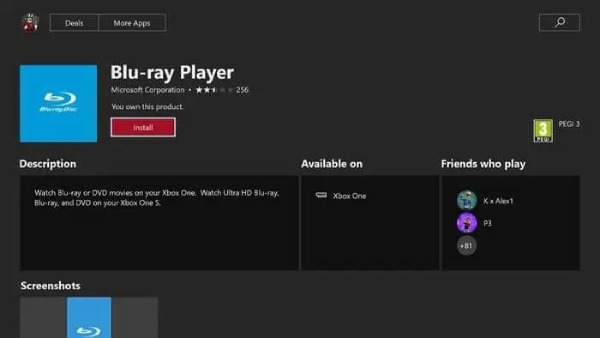
If your Xbox model and region code are the same, you're ready to start enjoying your Blu-ray collection. The Xbox Store provides a built-in Blu-ray player. You can access and download it directly from the Store without purchasing it. After that, insert your Blu-ray discs to use your Xbox One as a Blu-ray player.
Step 1.Launch the supported Xbox model and navigate to the Store under the "Home" page.
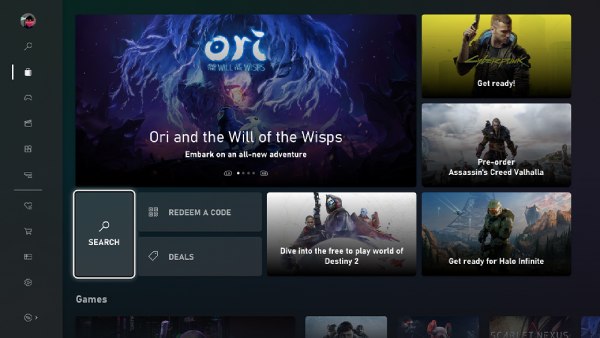
Step 2.Search for and find the "Blu-ray Player" software. This is an official tool, so you don't have to pay for it. Install the software.
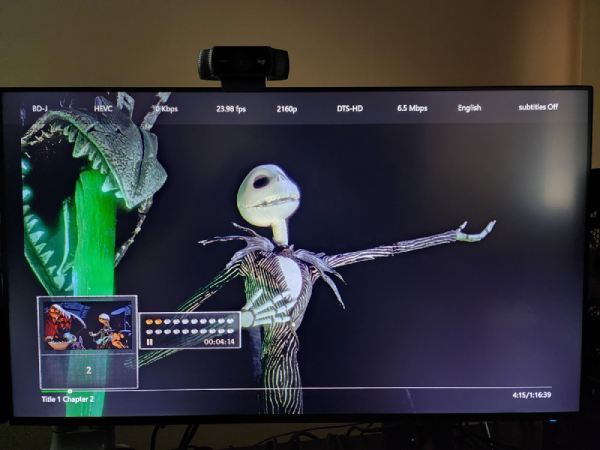
Step 3.Now, insert the Blu-ray disc and the Xbox will play Blu-ray content automatically.
How to Change the Region Code of Xbox for Playing Blu-ray
It's always frustrating when you discover that your Xbox can play Blu-ray discs but can't because of region code restrictions. Fortunately, the Xbox lets you change your region and area. Unlike traditional Blu-ray players (which typically allow you to change the region up to 5 times), the Xbox allows you to change your region as many times as you want. If you're not sure how to do this, follow the steps below to change it quickly for DVD and Blu-ray playback.
Step 1.Sign in to your Xbox console. Then, on your Xbox controller, press the "Xbox" button to proceed.
Step 2.Under the "Profile & system" tab, click the "Settings" button and then the "System" button.
Step 3.To select your new region, click the "Language & location" button to display a drop-down list. Once you've selected a new region, click the "Restart" button.
Warning: Please think carefully before changing your Xbox region. Changing your region may cause your Microsoft 365 subscription to become unavailable. Additionally, there is a three-month cooling-off period each time you change your region. You may also be restricted from changing your region if your account is suspended or if you are a legal minor (regulations vary by country).
How to Play Blu-ray Discs without Xbox Region Restrictions
Even though your Xbox can play Blu-ray discs, changing the region can be a bit of a hassle, as it carries the risk of limiting other features on your Xbox. Therefore, we highly recommend using a dedicated Blu-ray player to enjoy your Blu-ray collection. AnyRec Blu-ray Player is the best option for this.

Lossless Blu-ray playback and NVIDIA hardware acceleration.
No region code restrictions for playing Blu-ray discs.
Provide stereo sound effects equipped with Dolby TrueHD.
Take a quick snapshot while playing Blu-ray movies.
Secure Download
Secure Download
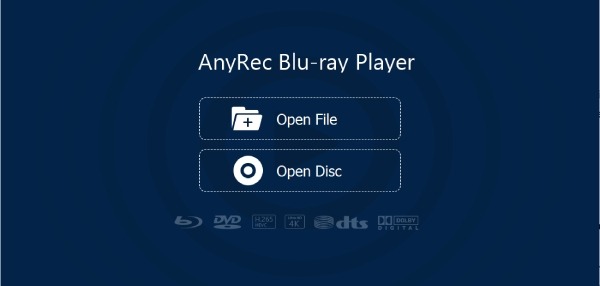
Step 1.Launch AnyRec Blu-ray Player after inserting the Blu-ray disc. On the main interface, click the "Open Disc" button.
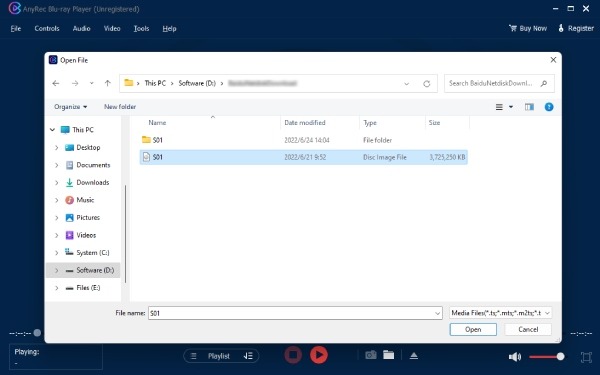
Step 2.All the Blu-ray discs will be displayed in the pop-up window. After selecting the proper one, click the "Open" button.
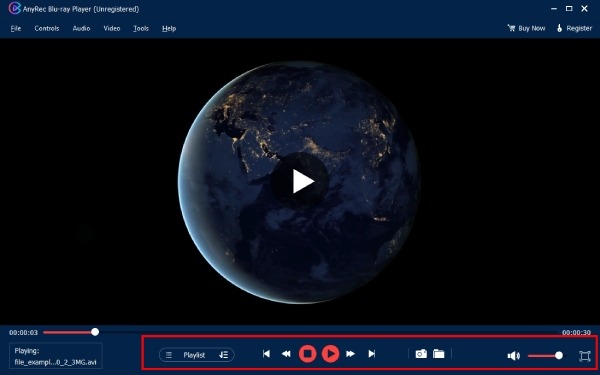
Step 3.The Blu-ray movie will start playing now. You can control the playback with the control panel.
Conclusion
Can Xbox play Blu-ray discs? The answer to this question depends on your Xbox model. If your model supports Blu-ray playback, you'll also need to be aware of various restrictions, such as region codes. If you want to enjoy Blu-ray content without any restrictions, you can use AnyRec Blu-ray Player to access high-definition video with no effort.
Secure Download
Secure Download
Related Articles
About Our Author