
Everything You Need to Know to Fix Videos Not Playing on Mac

It can be frustrating when your Mac is not playing videos, especially when you are trying to watch important content or enjoy entertainment. Whether the issue occurs in a browser or with local video files, playback problems can be caused by various system, software, or compatibility factors. Fortunately, most of these issues can be resolved with the right approach. In this guide, you will learn the common reasons why videos are not playing on Mac and explore effective solutions to fix them.
Guide List
Possible Reasons for MacBook Not Playing Videos Quick Fixes to Video Not Working on Your Mac The Most Efficient Way to Fix Videos Not Playing on MacPossible Reasons for MacBook Not Playing Videos
Before applying any fixes, it is important to understand the possible causes behind video playback issues on a Mac. By investigating some common causes, you can more quickly identify the appropriate method to fix the issue of videos not playing on your Mac.
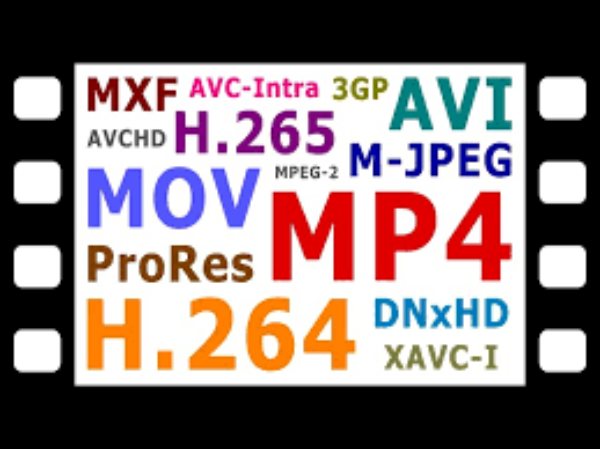
One common reason is unsupported video formats or codecs. macOS media players may not support certain file types, causing videos to fail to open or play properly.

If the issue where the video doesn't play on your Mac occurs in the browser, then you also need to consider some problems related to the browser itself. For example, conflicting browser extensions may block video content or interfere with streaming services.
Quick Fixes to Video Not Working on Your Mac
If videos are not playing on your Mac, there are several quick and practical solutions you can try. These methods can maintain their original status, file types, and other parameters won't change when adopting a method like converting video files to MOV. You can follow the steps below to apply the quick fixes one by one:
1. Open Video in a Private Window
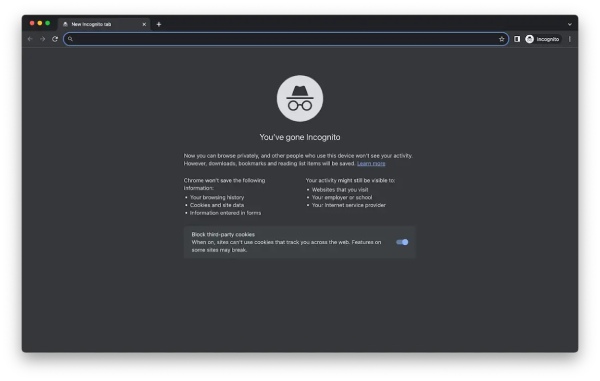
Sometimes, browser cache or extensions can interfere with video playback. Using a private or incognito window turns off most extensions and ignores cached data, helping you determine whether the issue is related to your browser environment.
2. Enable JavaScript in Your Browser
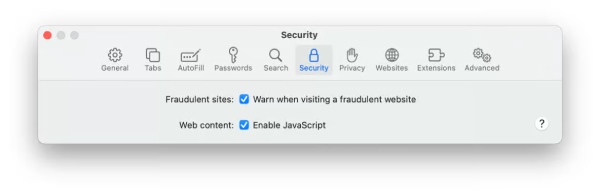
Many video streaming websites rely on JavaScript to function properly. If JavaScript is disabled, the contents may not load and your MacBook will not play videos. Make sure it is enabled in your browser settings to ensure smooth playback.
Step 1.Navigate to the "Setting" tab on your Safari.
Step 2.Navigate to the "Security" tab.
Step 3.Click the "Enable JavaScript" button.
3. Check Your Browser Extensions
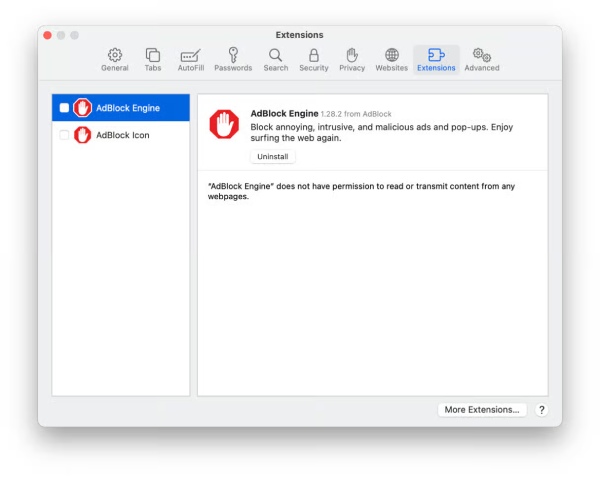
Some extensions, especially ad blockers or privacy tools, may block video players or scripts. Disabling or removing problematic extensions can help restore normal video playback.
Step 1.Navigate to the "Extensions" tab on Settings.
Step 2.Disable all the extensions listed manually.
Step 3.Restart Safari to check if the video not playing issue is fixed on your Mac.
4. Clear Browser Cache
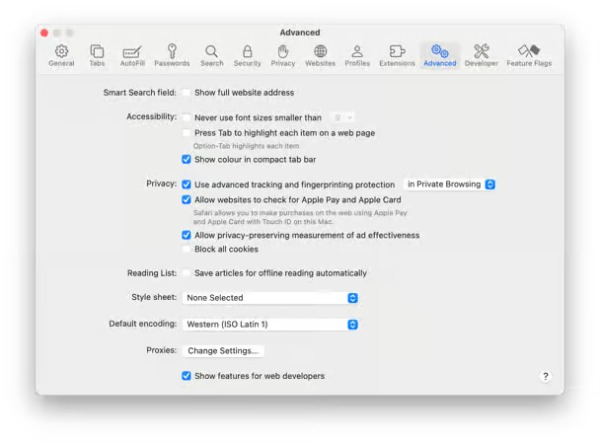
Over time, cached files may become corrupted and cause playback issues. And the normal playback of your video can be impeded on your browser, leading to issues like Safari not playing videos on Mac. You can clear your browser cache to refresh stored data and fix problems related to loading or playing videos.
Step 1.Navigate to the "Advanced" tab on Settings.
Step 2.Click the "Show features for web developers" button
Step 3.Under the "Develop" tab, click the "Empty Caches" button.
The Most Efficient Way to Fix Videos Not Playing on Mac
If your videos are not playing due to file corruption or damage, using a professional repair tool can provide a more reliable solution. AnyRec Video Repair is designed to fix unplayable or damaged video files on Mac quickly and effectively. It supports various formats and can repair issues such as black screens, distortion, or playback errors. With its simple interface, you can restore your videos and fix the issue that videos are not playing on your Mac without complex operations.

Fix your corrupted Mac videos and play them easily with no issue.
Offer a preview to confirm if the repaired videos satisfy your requirements.
Able to save the fixed Mac videos in MOV format with no format issue.
Doesn't affect the original quality and file structure before and after repair.
Secure Download
Secure Download
Step 1.Launch the AnyRec Video Repair and click the two "Add" buttons to import the video not playing on your Mac and another sample video.
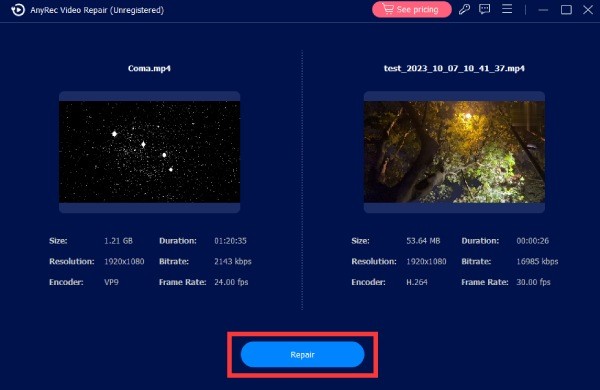
Step 2.Click the "Repair" button, and the tool will fix your corrupted video files instantly. Once finished, click the "Preview" button to check your video.

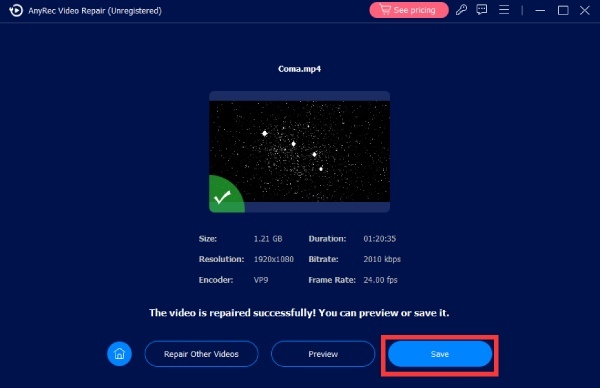
Step 3.Before saving the output, you can check the specific parameters. If they're fine, click the "Save" button to save the file.
Conclusion
In conclusion, videos not working on a Mac can be caused by various factors. Some common issues can be fixed quickly if you can identify the root cause. However, if the video file is severely damaged, you may need AnyRec Video Repair to help restore your videos efficiently.
Secure Download
Secure Download
About Our Author




