
Hot

AnyRec Blu-ray Player
Play Apple MOV files on Windows and Mac smoothly.
Secure Download
Best 8 MOV Players to Watch MOV Videos with Smooth Playback

MOV files are more and more popular for storing high-quality video content. If you are not satisfied with the current media player, or you encounter MOV not playing on Windows and Mac issues, you just come to the right place.
Here you can get 8 players to play MOV on Windows 11/10/8/7 and Macs. Moreover, you can get workable solutions to fix the MOV not playing or opening issues. Just continue reading and get a seamless MOV playback experience here.
Guide List
Part 1: Top 8 Best MOV Players for Windows 11/10/8/7 and Mac Part 2: Why You Can’t Play MOV Files on Windows and Mac Part 3: 2 Ways to Fix MOV Players Not Playing MOV Videos Part 4: FAQs of MOV PlaybackPart 1: Top 8 Best MOV Players for Windows 11/10/8/7 and Mac
A forum on the internet has numerous complaints about errors in playing MOV on Windows. Some users experienced perfect MOV audio but no visual, while others could not play their DLSR-captured footage on the computer. But since Apple initially developed MOV, it is natural that other operating systems do not support it. Fortunately, MOV Players exist for this purpose.
Check these players' features first through this table.
| Player | Supported OS | Loading Speed | Playback Quality | Ease of Use | Stability & Decoding |
| AnyRec Blu-ray Player | Windows / macOS | Fast: Usually start within 1–2 seconds | Lossless playback, supports 1080p & 4K | Clean interface, works well with default settings | Built-in codecs + GPU acceleration, stable even with high-bitrate MOV |
| VLC Media Player | Windows / macOS / Linux | Medium | No visual enhancement | Feature-rich but complex for beginners | Occasional stutter or sync issues |
| QuickTime Player | macOS | Fast | Accurate color reproduction | Easy to use | Limited compatibility with non-native MOV codecs |
| Windows Media Player | Windows | Slow | Basic | Simple controls | Weak support for modern MOV encodings |
| KMPlayer | Windows / Android / iOS | Medium | Adjustable rendering and filters | Initial setup can be confusing | Stability depends on manual configuration |
| RealPlayer | Windows / macOS | Slow | Basic | Focused on management | Limited support for high-resolution MOV files |
| 5KPlayer | Windows / macOS | Medium | Support high-resolution MOV | Feature-heavy | Higher resource usage due to background features |
| PotPlayer | Windows | Fast after tuning | Customizable video output | Steep learning curve | Requires manual optimization |
1. AnyRec Blu-ray Player
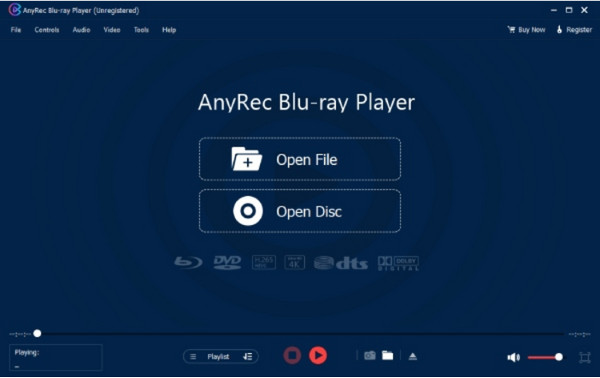
This MOV Player software is your all-in-one solution for watching movies. It supports various video formats, such as MOV, MP4, RM, ASF, and more. Although the primary function of the desktop tool is to play commercial and homemade DVDs, you can also use it to watch files on your computer without trouble. The best part of AnyRec Blu-ray Player is its support for 4K UHD and 1080p, creating a home theater for your entertainment.

Impressive video quality for MOV files to watch anytime.
Support DVD, folder, and ISO files with high audiovisual experience.
Advanced NVIDIA hardware acceleration for lossless Blu-ray playback.
Intuitive controls to navigate in menu, chapters, subtitles, and others.
Secure Download
Secure Download
2. VLC Media Player
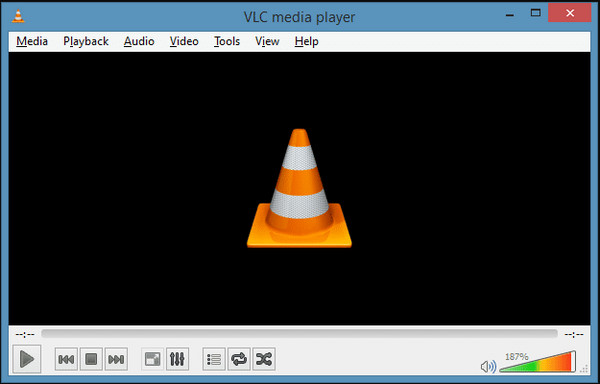
A popular MOV Player with a reputation as an excellent media player for unique formats like MKV, AVI, WebM, etc. The QuickTime format is also supported in this tool, and you can also configure the file extension with its extensive output settings. You can download VLC on its official website for free!
Features:
- Advanced control for video synchronization and video filters.
- Offer basic features like a recorder, cut, and edit.
- Enable to download videos from YouTube.
- Stream videos from other sources like Chromecast.
3. QuickTime
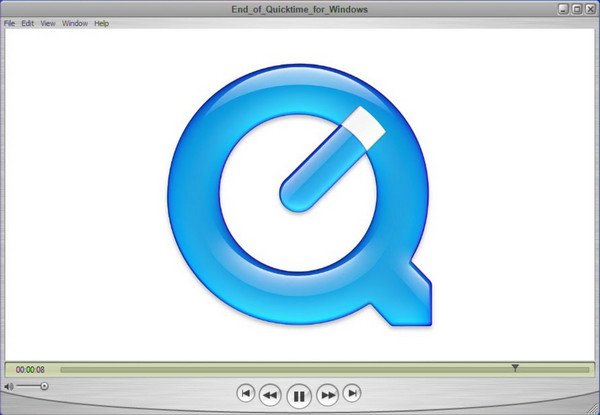
This free MOV Player is the default media player for Mac, but it is also available to download on Windows. Its onscreen controls allow you to play, stop, pause, or fast-forward the playback. The only problem with QuickTime Player is it does not receive updates when downloaded on Windows.
Features:
- Can be used as an image viewer, audio player, etc.
- Built-in recorder and essential editing features.
- Enable users to upload videos on YouTube directly.
- Excellent compression method for large files.
4. Windows Media Player
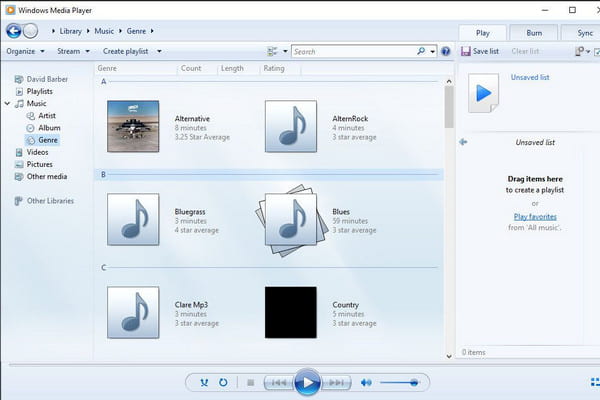
Originally made by Microsoft, this Windows MOV Player supports MOV files for movie watching. However, only the latest Windows 12 can play the QuickTime format. The default media player for Windows can be your MP3 player and even enable you to rip DVDs without hassle. You can update Windows Media Player on the Microsoft Store.
Features:
- Recognize video details like artist, album, year, etc.
- Access Media Guide to browse online streaming services.
- Versatile interface with effective onscreen controls.
- Create playlists for different videos and audio.
5. KMPlayer

A free MOV Playing software which also handles formats like AVI, MP4, WMV, MPEG1, and MOV. You can increase the video resolution as it supports 4K and 8K at 60FPS. It guarantees no damage to your file but will play even a corrupted MOV video.
Features:
- Codec presets for effective use on various media files.
- Enable different subtitle formats to be inputted into videos.
- Noise reduction, bookmark, and audio-video synchronization.
- Support over 24 languages for users all around the world.
6. RealPlayer
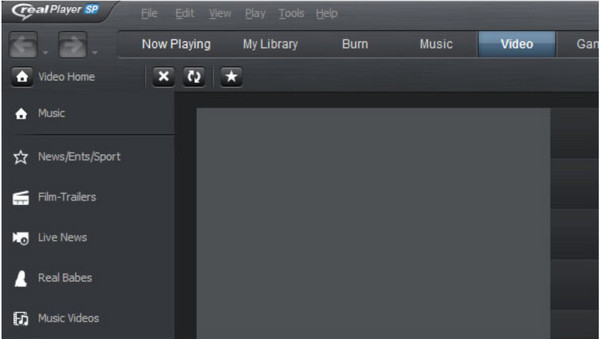
RealPlayer, also known as RealOne Player, has plug-ins like a browser plugin to download videos on the internet. One of its advantages is that you can turn videos into MP3s and access files from your phone to your computer. You need to install QuickTime when you use this MOV media Player.
Features:
- Suitable for playing local and online videos in different formats.
- Enable to cast content to bigger screens such as TV.
- Customize the settings for organizing, searching, and removing videos.
- Users can post videos on platforms like Twitter and Facebook.
7. 5KPlayer
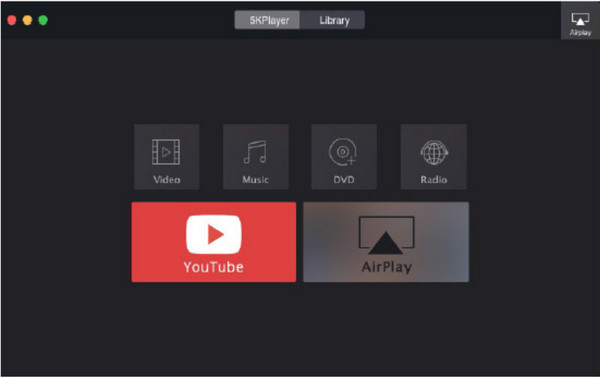
5KPlayers has been renowned as one of the best MOV playback Players for Windows and Mac in the past. It is multifunctional because you can use it for DVDs, ISO Images, and 360-degree videos. It allows you to open and play MOV files with 4K UHD encoded with HEVC/H.264. 5KPlayer is also excellent for live streaming.
Features:
- Support codecs that are essential for encoding MOV files.
- Users can apply effects on video, like speed up or slow down.
- Stream content through AirPlay without issues.
- Support video resolution from 360p to 4K.
8. PotPlayer
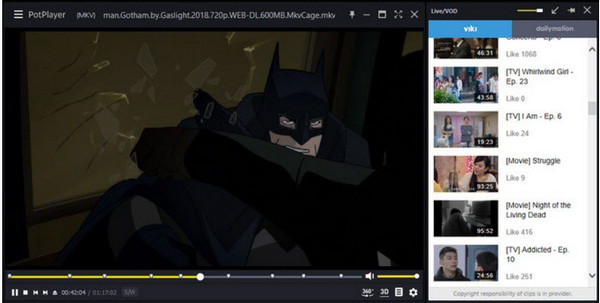
This MOV file Player is free to download on Windows 10, 8, 7, and Vista. It is lightweight and has an enhanced Hardware Acceleration mode for outstanding streaming performance at 4K Ultra HD. With its supported formats, playing MOV is easier with PotPlayer.
Features:
- Fast and smooth playback for 8K MOV videos.
- Support subtitle formats like SRT, ASS, and SSA.
- OpenCodec allows to add the needed codec.
- Preview the scene and change the screen playback.
Part 2: Why You Can’t Play MOV Files on Windows and Mac
Many possibilities can be why you receive an error on your MOV files when you open them on a MOV video playback tool. Even with QuickTime, which sometimes QuickTime cannot open MP4 either, supporting the format, there are times when it cannot access your files. A MOV file has complex internal information, so only speculations are the way to break down why you can’t play MOV files on your device.
Reason 1: Invalid Media File
When you constantly receive errors opening the MOV file, check the details via Finder or MediaInfo to see the video length and file size. Once you see that the file size is 0KB and the video length has 0:00, there is a possibility that your file is corrupted and no MOV Players can access it.
Reason 2: Incompatible Format
Check the video and audio codecs on the MOV file. The encoded format may have the legacy Apple proprietary compression format, which Mac does not support. This compression format was discontinued when Mac OS X Mavericks was released; however, you can still open the MOV files with the old version of QuickTime Player. Alternatively, use the QuickTime X’s converter to change the legacy codecs to H.264/AAC.
Part 3: 2 Ways to Fix MOV Players Not Playing MOV Videos
If the MOV files are not working even with a MOV Player on your device, there is a chance that you have a corrupted file. This is a usual issue, but the good part is that there are solutions to fix it! Try the best solutions for corrupted MOV files.
Solution 1: Convert MOV to MP4 (Or Other Popular Formats)
The most common solution is to convert MOV files to other widely used formats, such as MP4. However, for high-quality output, the best conversion tool is AnyRec Video Converter. Convert video formats with just a few clicks. It allows you to adjust video codecs, bitrate, resolution, quality, and audio settings, then apply these changes to other videos. Additionally, this converter supports multiple file formats and is compatible with both Windows and Mac systems, including MKV, WMV, and more.
Convert MOV to MP4 with configurable output for better video quality.
Support large video files and enable to convert in bulk without delay.
Provide built-in video editing features to crop, trim, and apply effects.
AI-based algorithm to enhance the quality of converted video clips.
Secure Download
Secure Download
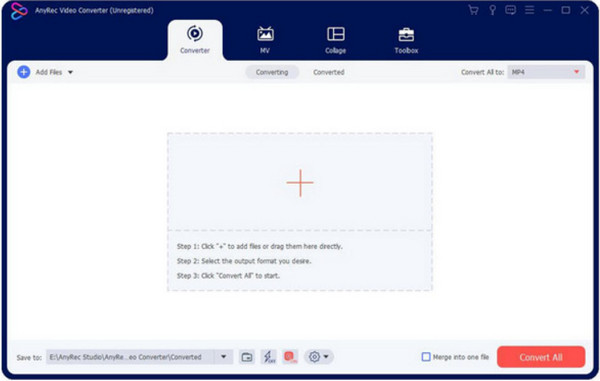
Step 1.Install the software on your device. Click the "Add" button to upload the MOV file. You can also import a whole folder with multiple videos for bulk conversion.
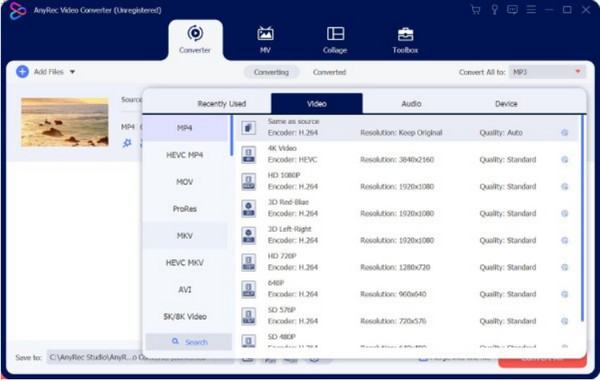
Step 2.After uploading, click the "Format" button to select the desired output format. For multiple videos to convert in the same format, choose the "Convert All" To menu at the top right corner.
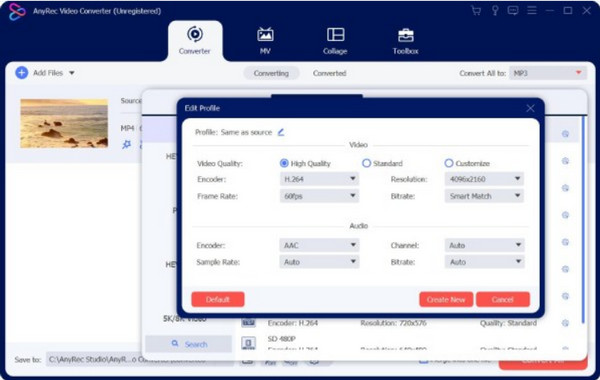
Step 3.To configure the output, click the "Custom Profile" button. A smaller window reveals settings for the encoder, quality, etc. Click the "Create New Profile" button to save the changes.
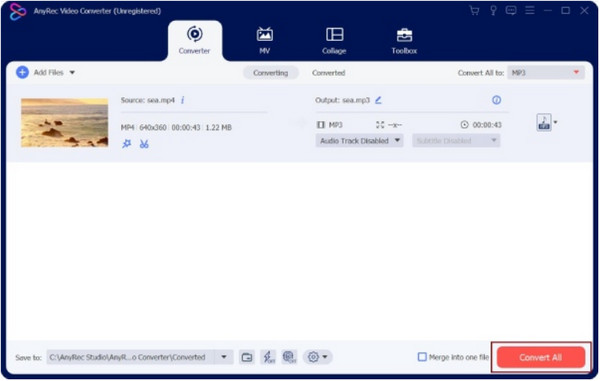
Step 4.Choose the desired folder for the converted file from the "Save To" menu. Then, click the "Convert All" button to process the MOVs. Watch and enjoy your favorite movies!
Solution 2: Repair MOV Files with VLC Media Player
VLC Media Player is a cross-platform tool that is free to download. It has many editing tools to help you edit videos like converting, adjusting, and trimming videos on VLC. It provides functions that you can freely convert and fix MOV anytime. Let’s see how to use VLC as an alternative solution for corrupted MOV videos.
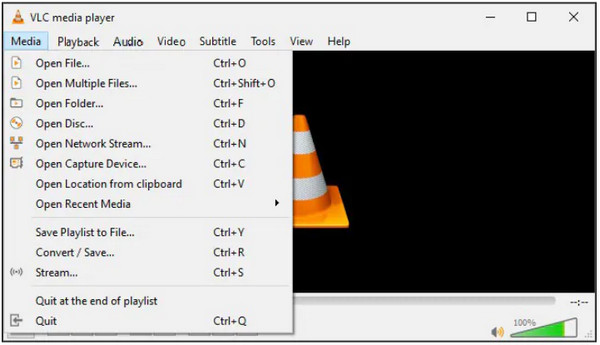
Step 1.Once installed, open VLC Media Player and head to the Media menu. Select the "Convert/Save" option, then import the MOV file by clicking the "Add" button.
Step 2.From the "Convert" window, click the "Wrench" button from the "Profile" menu. Select the "MP4/MOV" option, and configure other settings as you wish; click the "Create" button to save.
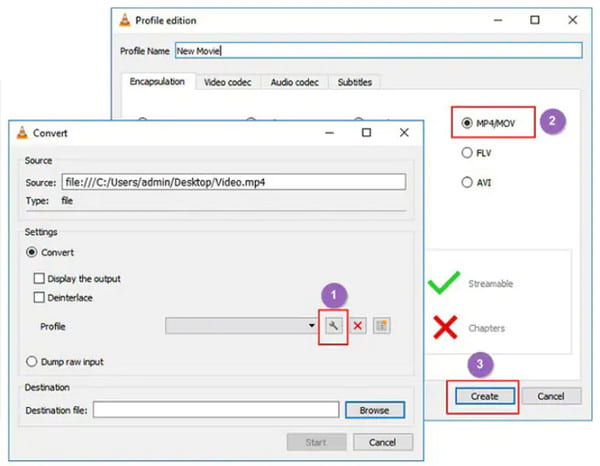
Step 3.Once everything is set, click the "Browse" button on the "Destination File" menu to choose a folder. Click the "Start" button to convert the MOV file.
Part 4: FAQs of MOV Playback
-
Can I transfer MOV files on a Windows device?
Yes. You can transfer videos on Windows; however, Windows does not fully support MOV. So, it would help if you had professional MOV Players to open and play the QuickTime format. Or you can convert MOV to standard formats like MP4.
-
How to convert MOV on Mac?
Launch the app on your device and select the File menu. Click the "New Movie" button from the drop-down list. Once the file is imported, click the video and go to the File menu again. This time, click the "Share" and the "File" buttons. Browse for the desired folder and finalize by clicking the Save button.
-
Can I Play MOV files on my phone?
Yes. As for iPhone users, you can play MOV encoded with H.264, MPEG-4, or HEVC codecs directly. If not, you need to convert MOV to iPhone formats. Or you can use a MOV player app, just like Android users do.
Conclusion
MOV Players are helpful when you have MOV files you want to watch on Windows. Even on Mac, your default media player does not recognize the file format, and there are some reasons behind it. Thankfully, media players are available to download, especially AnyRec Blu-ray Player. This Blu-ray player software could also be a good MOV player. You can try this professional media player by clicking the Free Download button.
Secure Download
Secure Download



